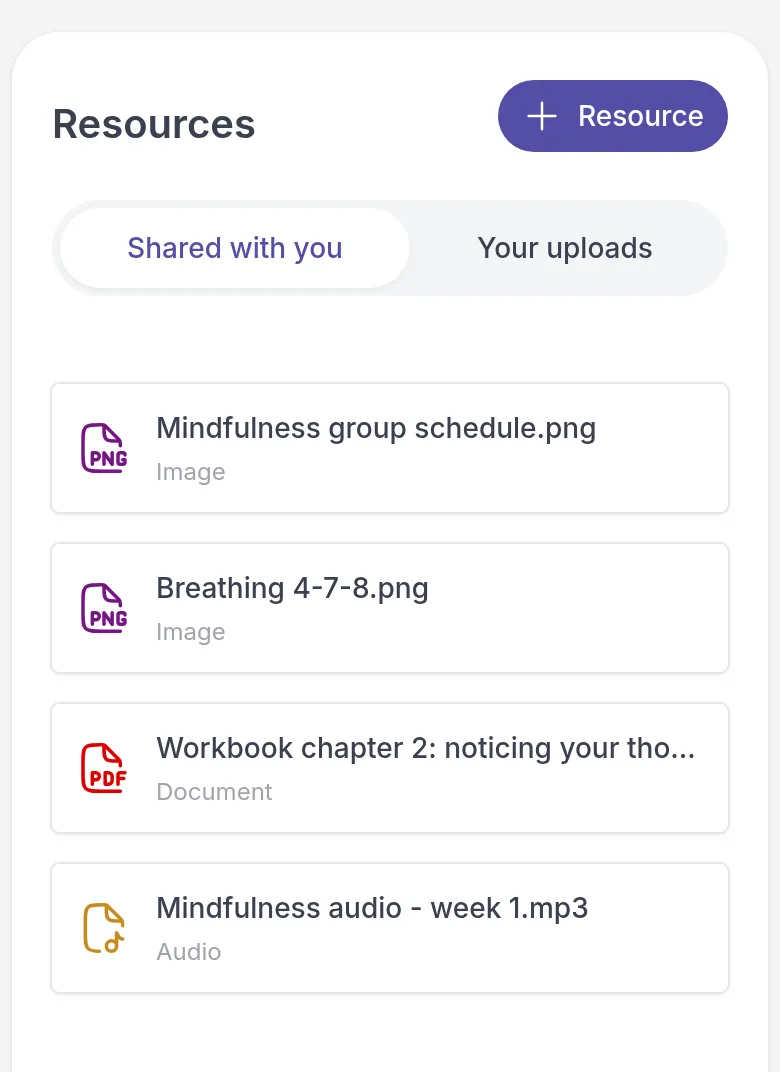
Resources is where your professional keeps the files and links they share with you: a worksheet to print, a chapter to read, an audio exercise, or a helpful website. Everything stays there, so you can come back to it whenever you need it. You can also keep your own files and links here.
If you don’t see Resources in the menu, your professional does not use this feature.
Open a file or link
Section titled “Open a file or link”Go to Resources and select Shared with you. Click a file to download it, or a link to open it in a new tab. Audio files play right on the page.
You get a notification when your professional shares something new.
Add your own file or link
Section titled “Add your own file or link”Say you found a useful article on breathing exercises and want to ask your professional about it. Add it as a link and share it with them, so it is ready to discuss in your next session.
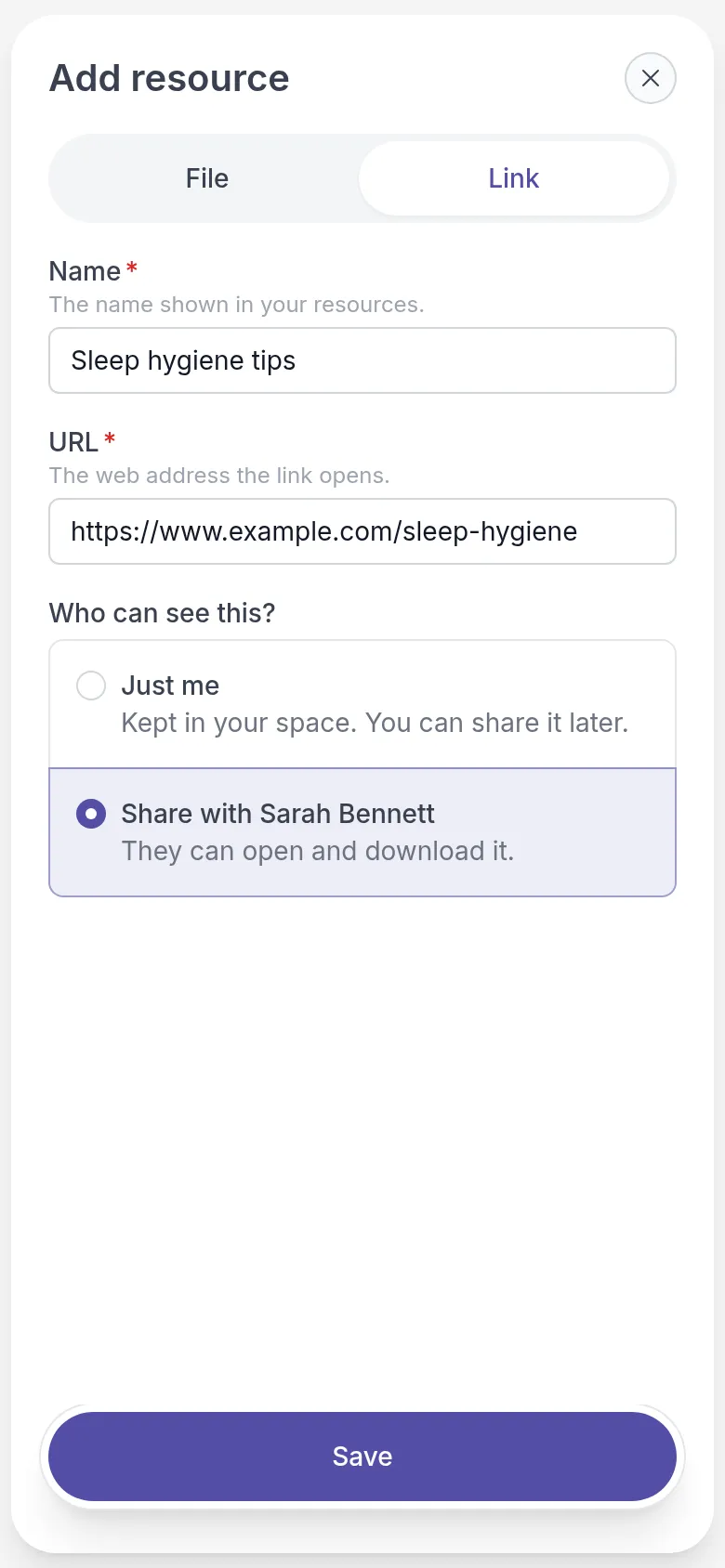
- Go to Resources and click Resource (with the plus sign) at the top right.
- Choose File to upload a document, image or audio file from your device, or Link to enter a Name and a URL.
- Under Who can see this?, choose Just me to keep it private, or Share with your professional to let them open it.
- Click Save.
Your file or link appears under Your uploads. Items you have shared are marked Shared. If you work with more than one professional, sharing makes the item available to all of them.
Share, change or delete your own items
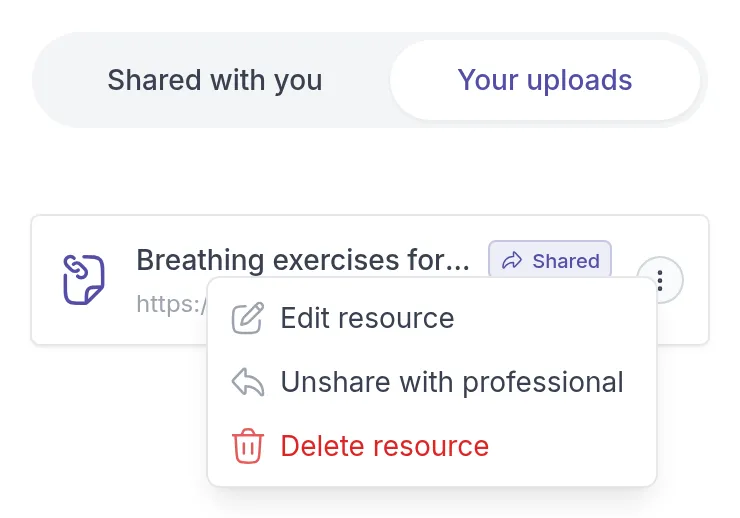
Section titled “Share, change or delete your own items”Go to Resources, select Your uploads and click ⋮ next to the item:
- Share with professional: let your professional open it.
- Unshare with professional: make it private again. It stays in Your uploads.
- Edit resource: change the name or web address of a link. Files cannot be edited.
- Delete resource: remove it.