Each practice you work with in Quenza has its own workspace. If you work with more than one, for example a coach at one practice and a group program at another, you use one login for all of them and move between them in a few clicks. Each practice only sees what you do in its own workspace.
Switch to another workspace
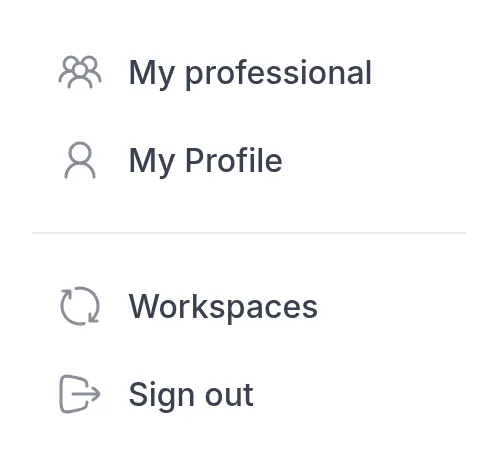
Section titled “Switch to another workspace”In the menu, click Workspaces. You only see this item if you belong to more than one workspace.
Switch workspace lists every practice with your name in it. The one you are in now is marked Current. A red number on Switch shows how many unread notifications and messages are waiting for you there. Click Switch to go there.
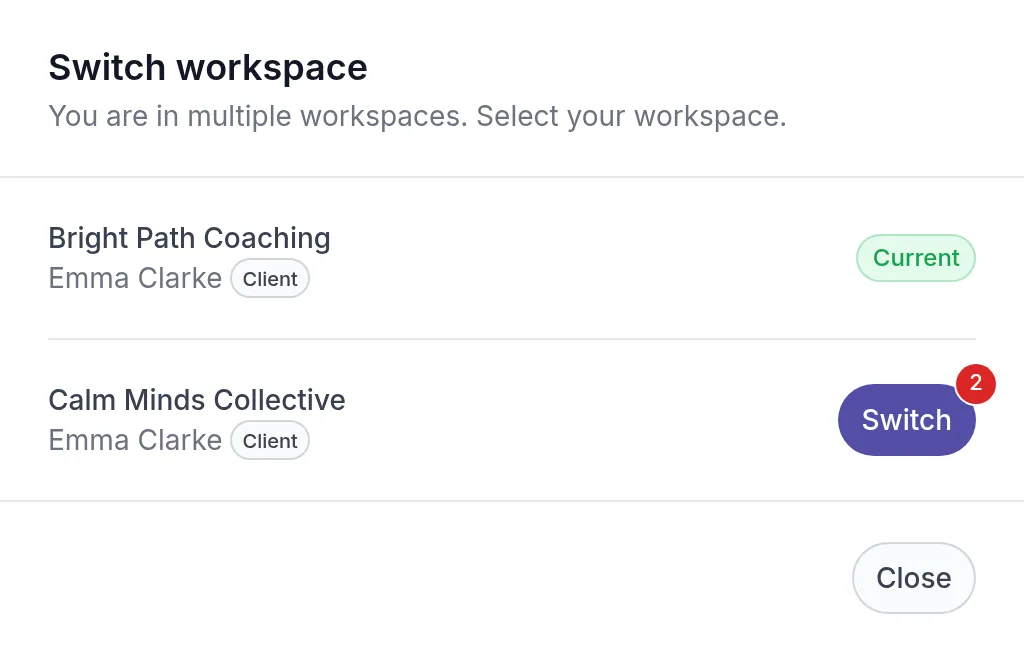
To go back, open Workspaces again.
Choose a workspace when you sign in
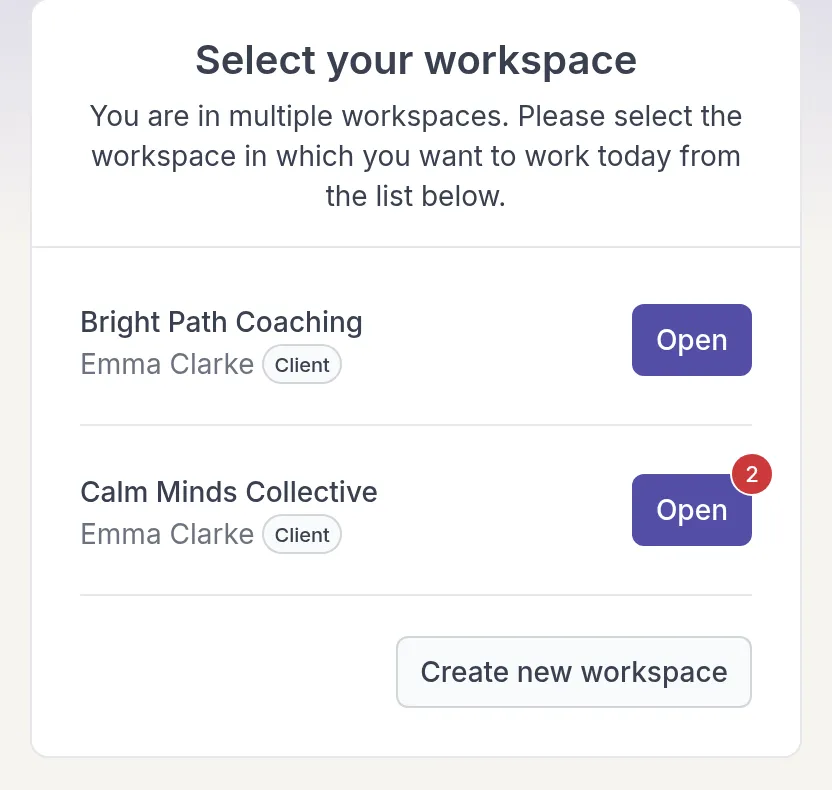
Section titled “Choose a workspace when you sign in”If you belong to more than one workspace, you may see Select your workspace after you sign in. Click Open next to the one you want.
In the Quenza app on an iPhone, the number on the app icon adds up what is waiting for you in all your workspaces.
What is separate in each workspace
Section titled “What is separate in each workspace”Your activities, programs, tasks, notes, files and chats belong to one workspace. You only see them when you are in that workspace. Your profile details are also saved per workspace. Your login email, password and language are the same everywhere. See Edit your profile.