Notifications tell you when something new is waiting for you, so you don’t have to check every page. You see them in the portal, and you can also get them by email or on your phone.
Check your notifications
Section titled “Check your notifications”Go to Notifications. A red dot next to it in the menu means there is something new. New notifications have a red dot and a coloured background. Click one to go straight to what it is about, for example the comment Sarah left on your mood check-in.
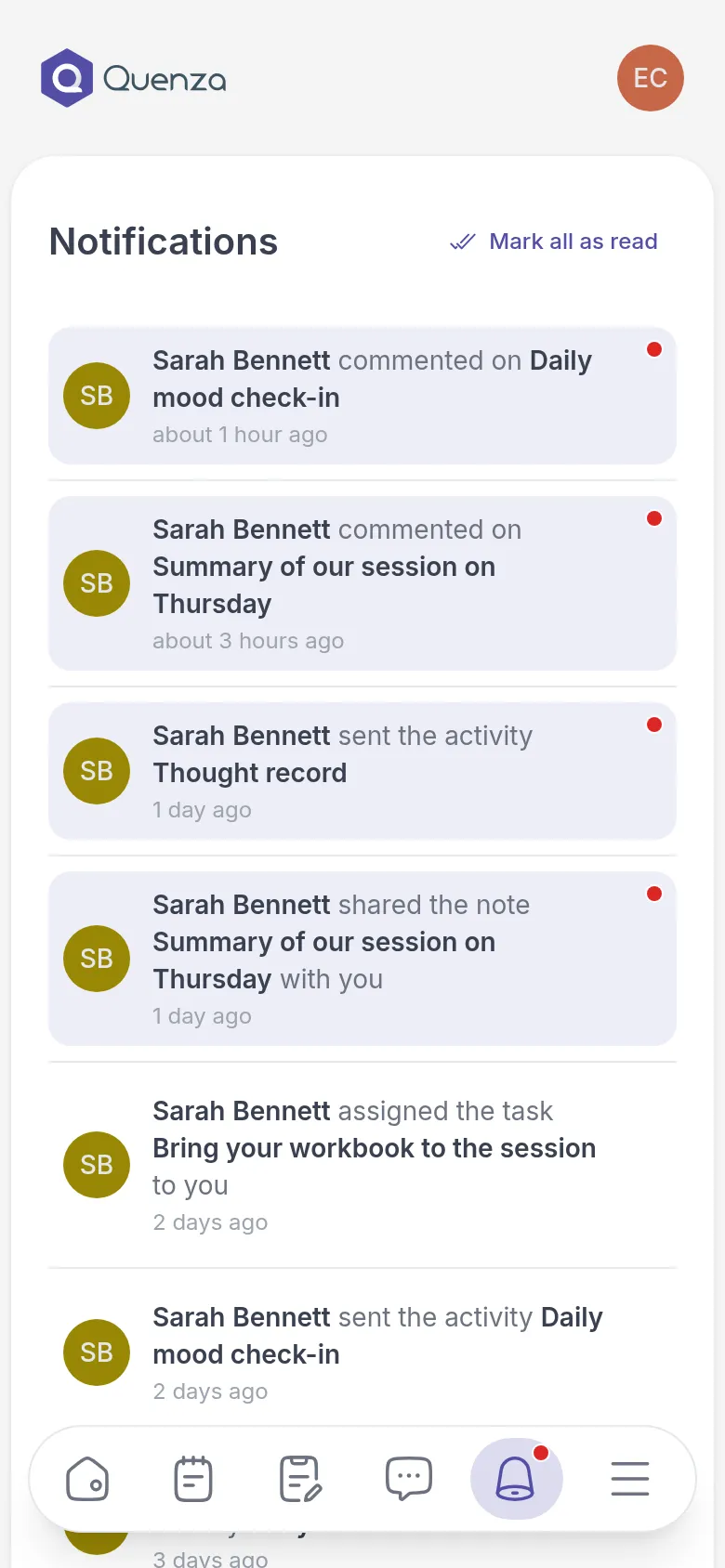
A notification counts as read once you click it. To mark them all as read at once, click Mark all as read. When you have read everything, you see You are up to date.
What you are notified about
Section titled “What you are notified about”You get a notification when your professional:
- sends you an activity or a program, or reminds you about one
- opens the next step of a program
- cancels an activity or a program
- gives you a task
- shares a note, a file or a link with you
And when:
- someone comments on a note or an activity, or replies to your comment
- a professional starts or stops working with you
New chat messages are not listed here. A red dot next to Chats tells you about those. See Message your professional.
Get updates by email
Section titled “Get updates by email”You can also get these updates by email, including an email when you have unread chat messages. That helps if you don’t sign in every day.
- Go to My Profile.
- Under Personal Information, turn Enable notifications via Email on or off.
- Click Update.
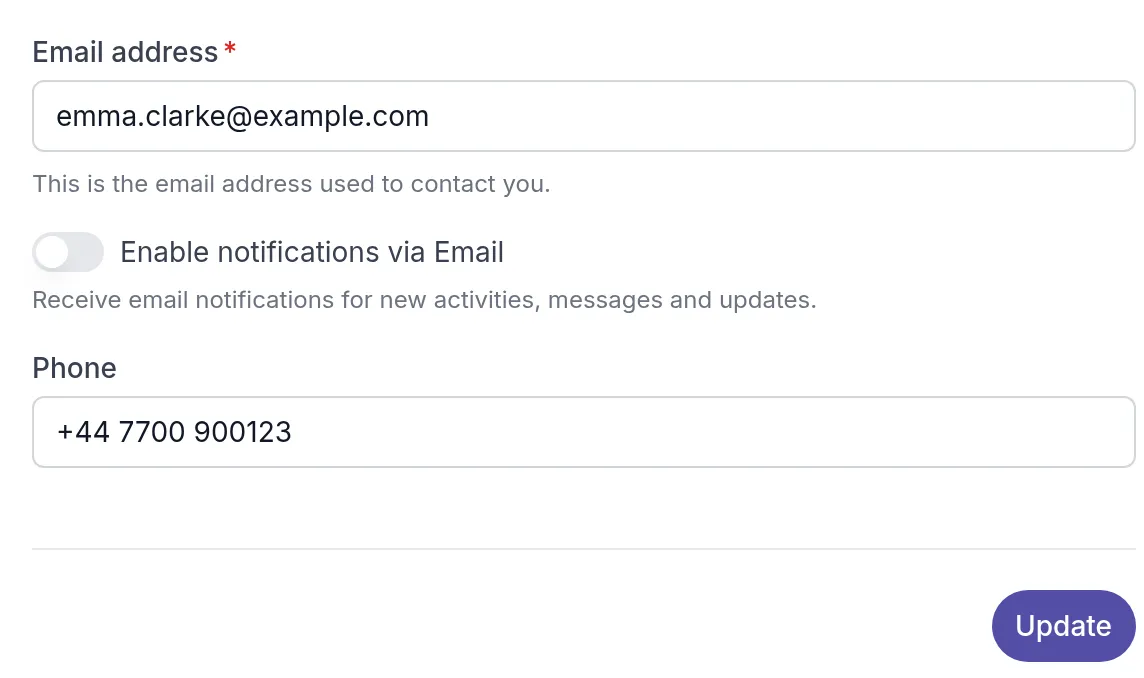
Emails go to the Email address in your profile.
Get updates on your phone
Section titled “Get updates on your phone”With the Quenza app on your phone, you get these updates as notifications on your phone too, and for new chat messages. Allow notifications when the app asks. See Get the Quenza app.