
For your clients
Get the Quenza app
Install the free Quenza app for iPhone or Android, sign in with the details from your invitation, and get notified when your professional sends something.
The Quenza app puts everything your professional shares with you on your phone: your activities, programs, tasks, chats, notes and files. It is free for you, and you sign in with the same email address and password as in your browser.
You don’t need the app. Everything also works in your web browser. Many people like the app because it tells them right away when something new arrives, so they can fill in a short check-in on the bus or answer a message between two meetings.
Install the app
Section titled “Install the app”Search for Quenza in your phone’s app store, or use these links:
- iPhone and iPad: Quenza on the App Store
- Android: Quenza on Google Play
There is one Quenza app for both professionals and clients. You only see what belongs to you.
Sign in
Section titled “Sign in”Open the app and sign in with the email address your invitation was sent to. You can ask for a login link by email (Magic Link) or use the password you chose when you accepted your invitation (Password).
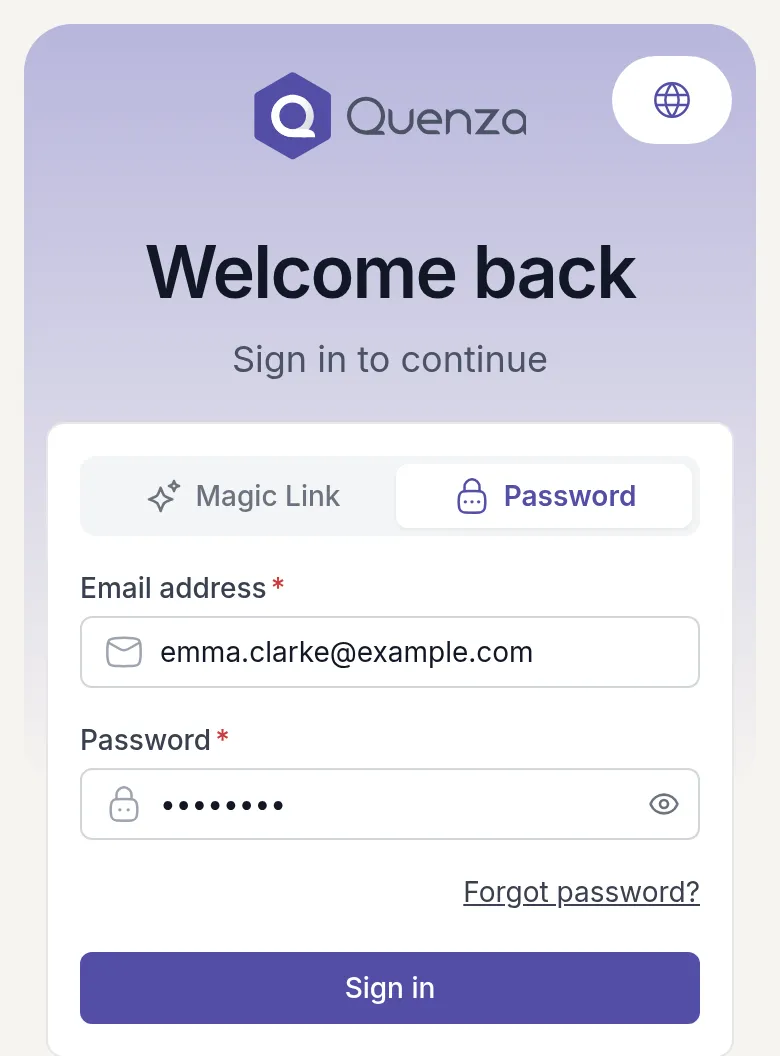
Haven’t accepted your invitation yet? Do that first, from the email your professional sent you. See Accept your invitation. Forgot your password? Choose Forgot password? on the Password tab.
The app keeps you signed in, so you don’t have to sign in each time you open it.
Find your way around
Section titled “Find your way around”After you sign in, you land on My Day, the same home page as in the browser. The bar at the bottom takes you to the pages you use most. The menu button at its right end shows the rest, such as Tasks, Resources and My Profile.
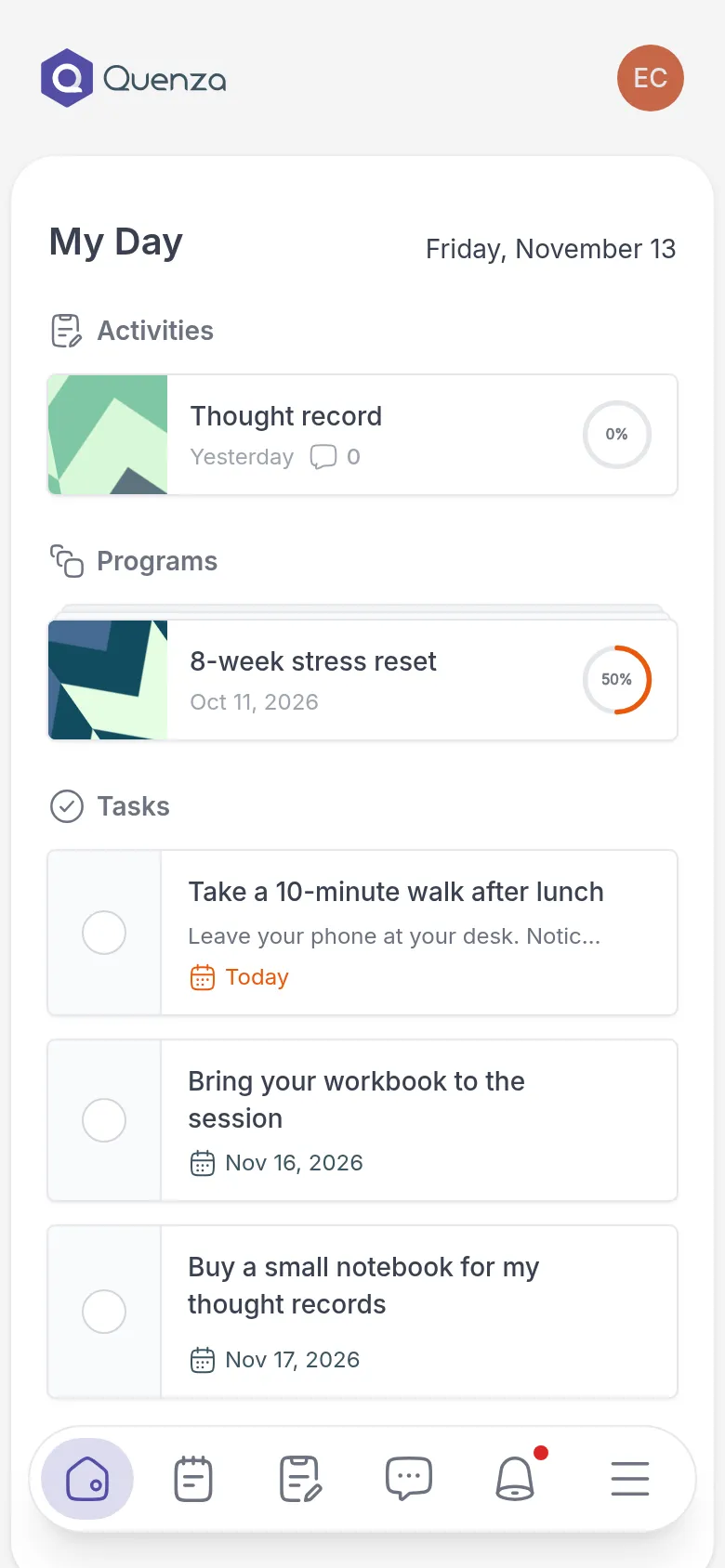
For a tour of every page, see Get started.
Turn on notifications
Section titled “Turn on notifications”The first time you open the app, your phone asks whether Quenza may send you notifications. Choose Allow. You then get a notification on your phone when, for example:
- your professional sends you an activity or a program, or reminds you about one
- the next step of a program opens
- your professional gives you a task, or shares a note, file or link with you
- someone comments on a note or an activity
- you get a new chat message
Tap a notification to go straight to what it is about. On an iPhone, the number on the app icon shows how many things are waiting for you, across all the practices you work with. On Android you see a dot instead.
If you said no by mistake, turn notifications on for Quenza in your phone’s settings. See also Notifications.
Was this article helpful?
Thanks for letting us know.
Thank you. We read every answer and use it to improve this article.