
For your clients
Message your professional
Send your therapist, coach or other professional a message, a file or a voice recording in Chats, and see when they have read it.
Chats are a direct, private line to your professional between sessions. Use them for a short question, to let them know how an exercise went, or to sort out something practical, such as moving an appointment. For anything urgent, contact your professional in the way you agreed with them.
Send a message
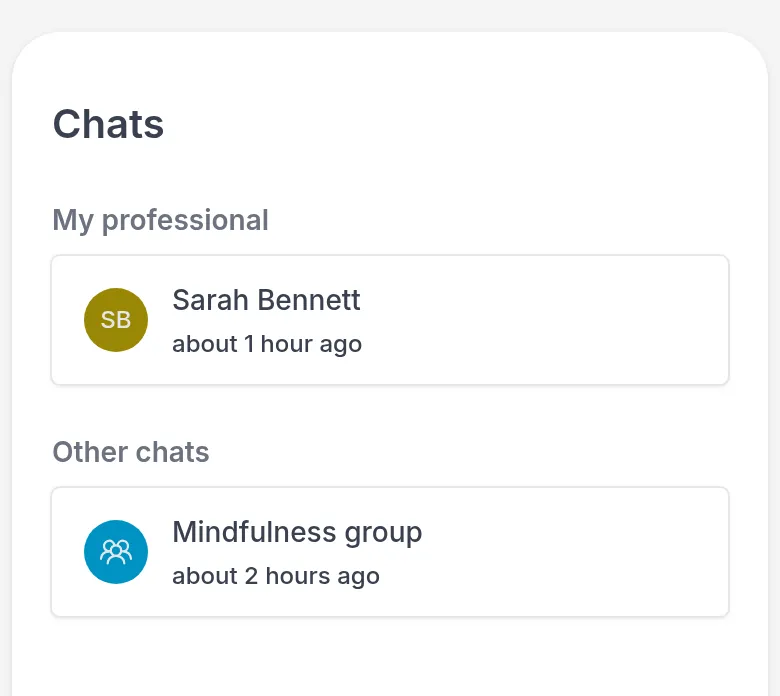
Section titled “Send a message”Go to Chats and click your professional’s name. If you have not chatted before, this starts a new chat. If your professional uses group chats, for example for a group you take part in, you find them under Other chats.
Type in Type a message and click the send button (the paper plane). On a computer you can also press Enter.

Your professional gets your message and can reply. A red dot next to Chats in the menu means you have a new message.
Send a file or a voice message
Section titled “Send a file or a voice message”- A file, such as a photo of your journal page or a PDF: click the paper clip, choose the file, then click the send button.
- A voice message: click the microphone and speak. Click the check mark when you are done, or the bin to throw the recording away. Then click the send button. The first time, your browser or phone asks to use your microphone. Allow it.
A voice message can be easier than typing, for example when you want to describe how a difficult moment felt.
See if your message has been read
Section titled “See if your message has been read”Next to the time of each message you sent is a small circle:
- An outlined circle: your message has been sent.
- A filled circle: your professional has seen it.
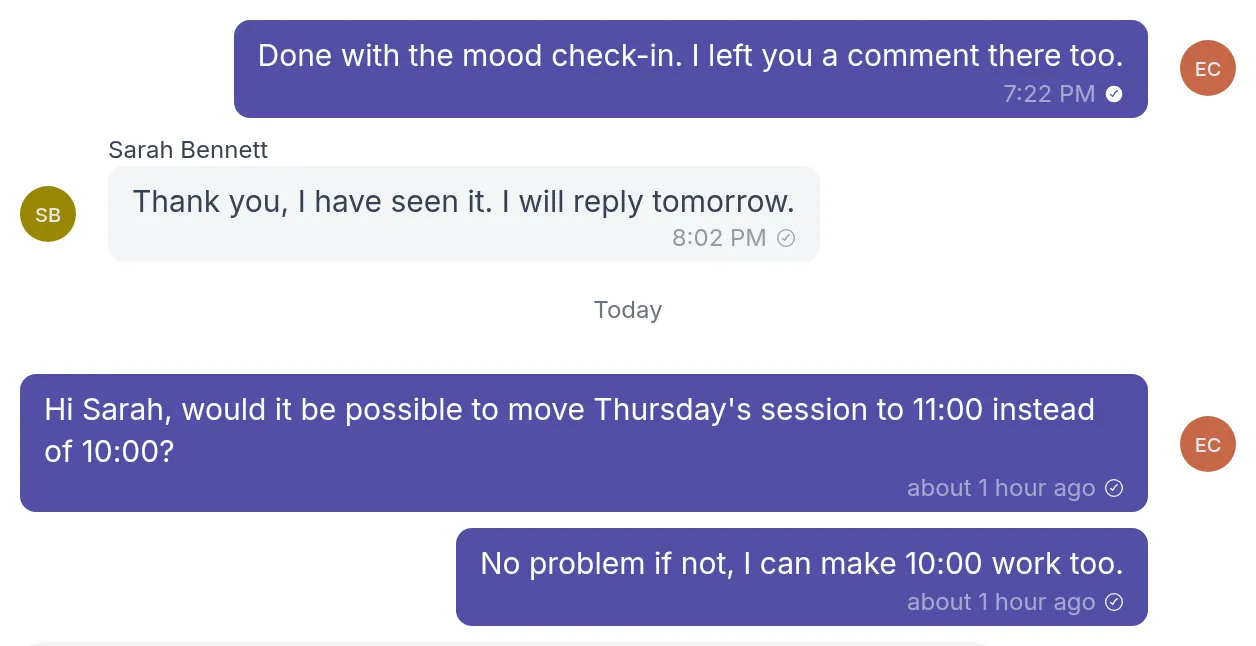
Your professional can also see when you have read their messages. Group chats do not show this.
Delete a message
Section titled “Delete a message”You can delete messages you sent. On a computer, move your mouse over the message, click ⋯ and choose Delete. On a phone, swipe the message to the left and tap the bin. Then click Delete message to confirm.
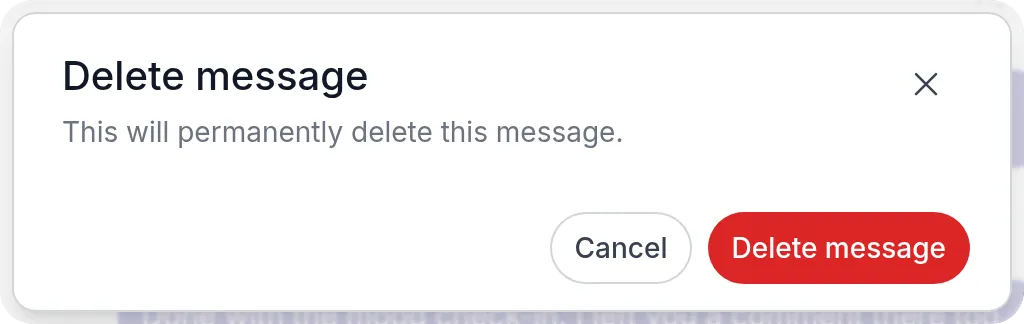
The message is replaced by This message was deleted. Your professional sees this too.
If you cannot send messages
Section titled “If you cannot send messages”If you see This participant is no longer active., you can read the chat but not send new messages. Contact your professional in another way if you need to reach them.
Was this article helpful?
Thanks for letting us know.
Thank you. We read every answer and use it to improve this article.