Welcome kit · 10 min read

Welcome to Quenza

Your professional uses Quenza to send you exercises, programs and messages between sessions. These three short guides help you get started.

  1. 1Accept your invitation
  2. 2Get the Quenza app
  3. 3Get started

Step 1 of 3

Accept your invitation

When your professional adds you in Quenza, you get an email inviting you to their client portal. That is your private space for the exercises, messages and notes you share between sessions. Accepting the invitation takes a minute, and you only do it once.

You also get this email after you sign up on your professional’s page and are accepted. See Sign up online.

The email has the subject You have been invited to join a workspace. It often comes from your professional’s own name or email address rather than from Quenza, so look for their name in your inbox. Click Accept Invitation in the email.

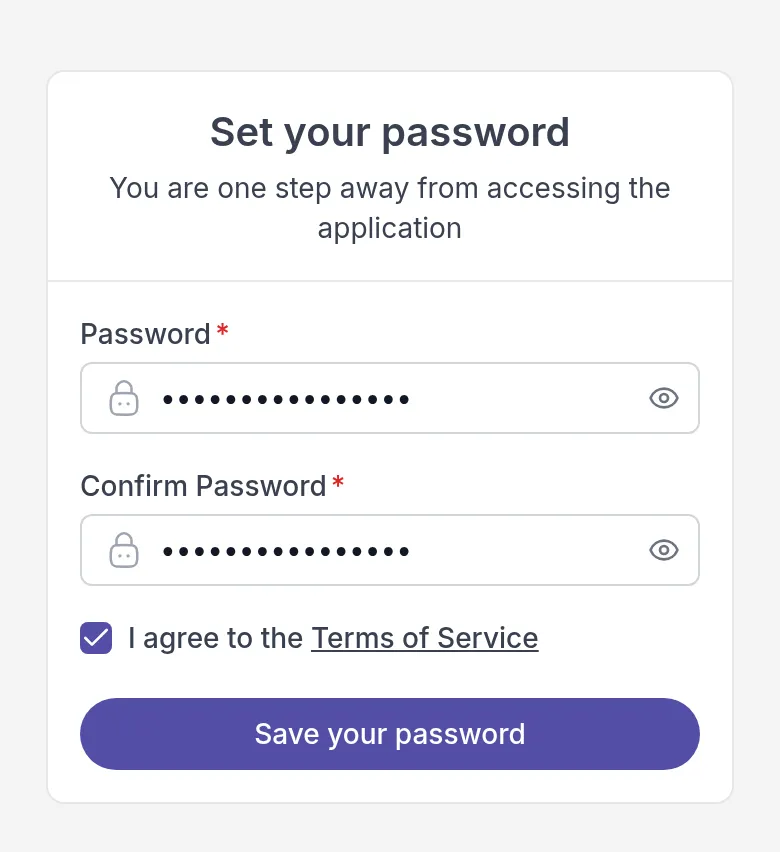
You then choose a password:

  1. Enter a password in Password and again in Confirm Password. Use at least 8 characters, with both letters and numbers.
  2. Tick I agree to the Terms of Service.
  3. Click Save your password.

The Set your password page with Password and Confirm Password filled in, I agree to the Terms of Service ticked and the Save your password button

You are signed in straight away and land on My Day, your home page. See Get started for a short tour.

Already have a Quenza account with the same email address, for example because you also work with another practice? Then you skip the password step: the link takes you straight into the new workspace, and you use your existing password.

Next time, go to the sign-in page your professional gave you, or open the Quenza app. There are two ways to sign in.

With a login link. On the Magic Link tab, enter your Email address and click Send login link. Open the email and click the link. You don’t need to remember a password, which is handy on a device you don’t use often.
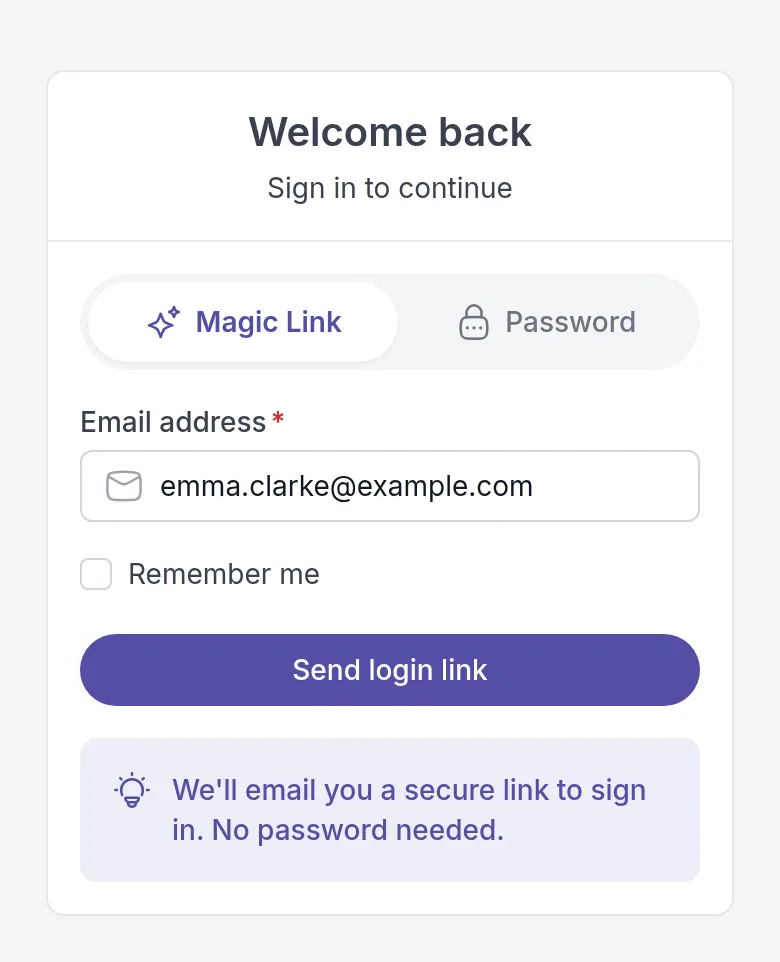
The Welcome back sign-in page on the Magic Link tab, with the Email address filled in, the Remember me box and the Send login link button

With your password. On the Password tab, enter your Email address and Password and click Sign in.
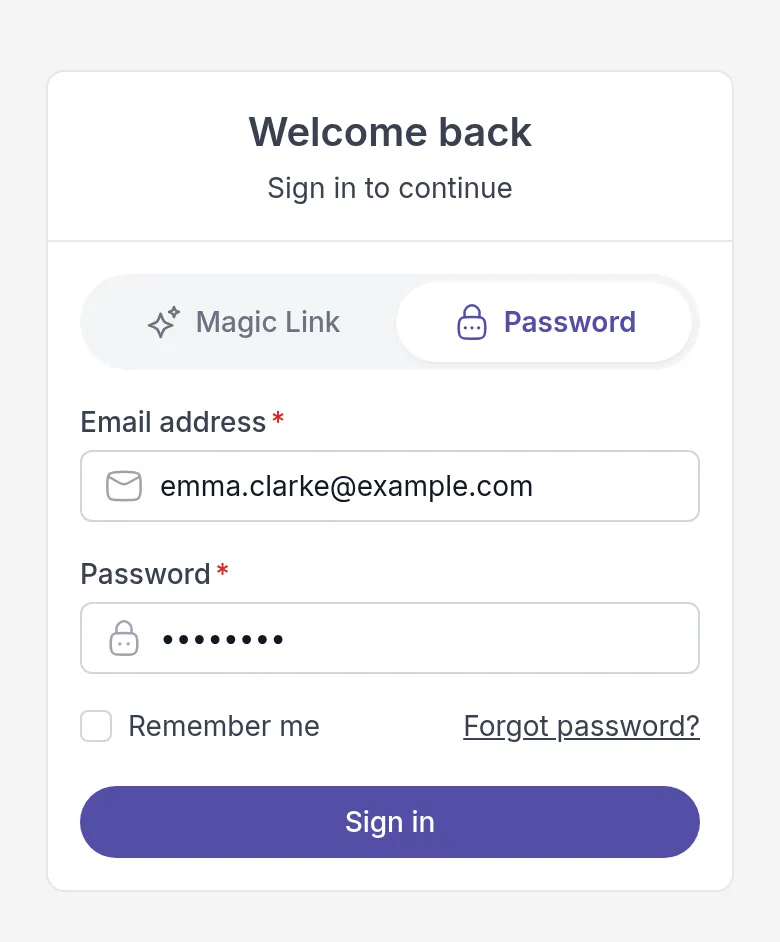
The Welcome back sign-in page on the Password tab, with Email address and Password filled in, Remember me, the Forgot password? link and the Sign in button

Tick Remember me to stay signed in on this device. Only do this on a device you don’t share with others. The Quenza app always keeps you signed in.

If you work with more than one practice, you may first see Select your workspace. Choose the one you want. See Switch workspaces.

On the Password tab, click Forgot password?. Enter your Email address, click Send reset link, and follow the link in the email to choose a new password.
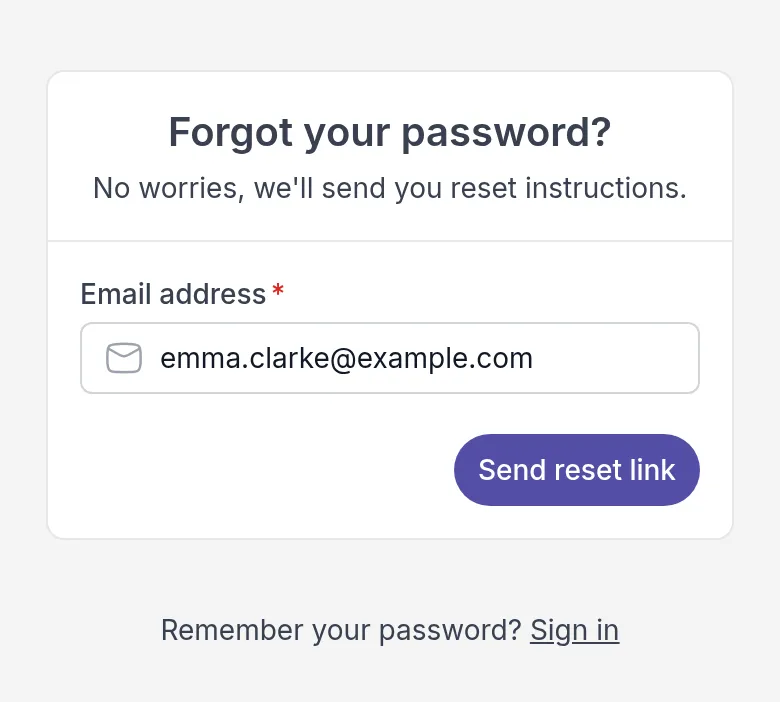
The Forgot your password? page with the Email address filled in and the Send reset link button

Or skip the password altogether and sign in with a login link from the Magic Link tab.

If an email does not arrive, check your spam folder. Still stuck? Contact your professional. They can check your email address and send you a new invitation if needed.
Step 2 of 3

Get the Quenza app

The Quenza app puts everything your professional shares with you on your phone: your activities, programs, tasks, chats, notes and files. It is free for you, and you sign in with the same email address and password as in your browser.

You don’t need the app. Everything also works in your web browser. Many people like the app because it tells them right away when something new arrives, so they can fill in a short check-in on the bus or answer a message between two meetings.

Search for Quenza in your phone’s app store, or use these links:

There is one Quenza app for both professionals and clients. You only see what belongs to you.

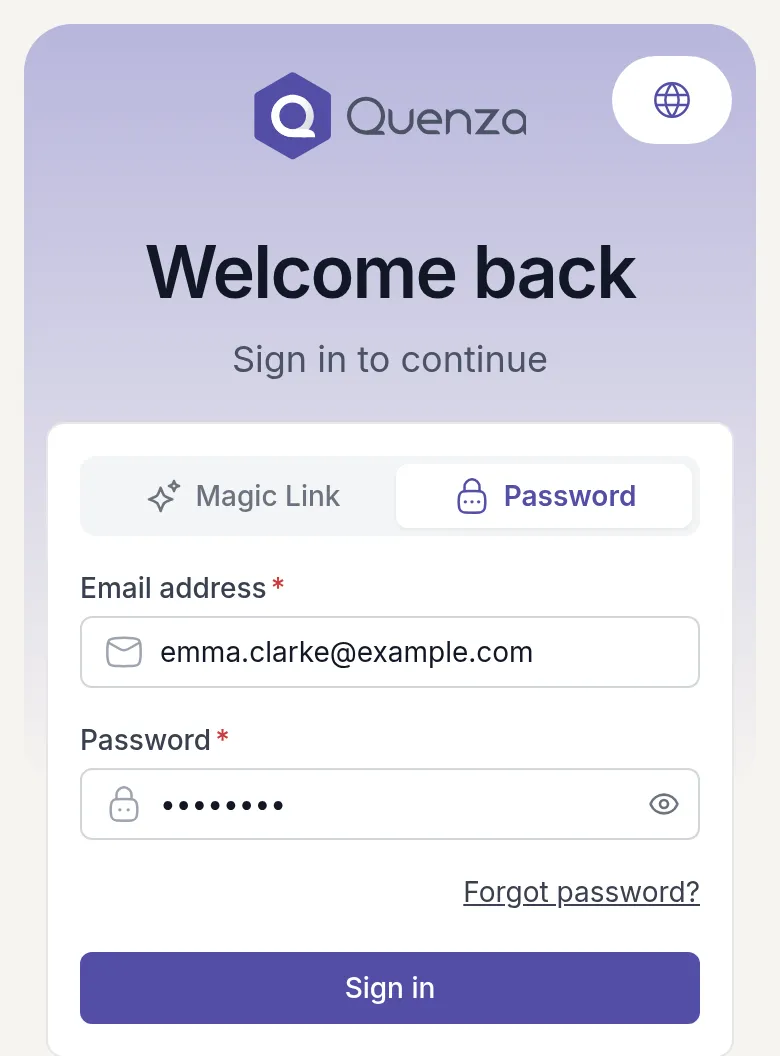
Open the app and sign in with the email address your invitation was sent to. You can ask for a login link by email (Magic Link) or use the password you chose when you accepted your invitation (Password).

The Welcome back sign-in screen of the Quenza app on a phone, with the Magic Link and Password tabs, Email address and Password filled in, and the Sign in button

Haven’t accepted your invitation yet? Do that first, from the email your professional sent you. See Accept your invitation. Forgot your password? Choose Forgot password? on the Password tab.

The app keeps you signed in, so you don’t have to sign in each time you open it.

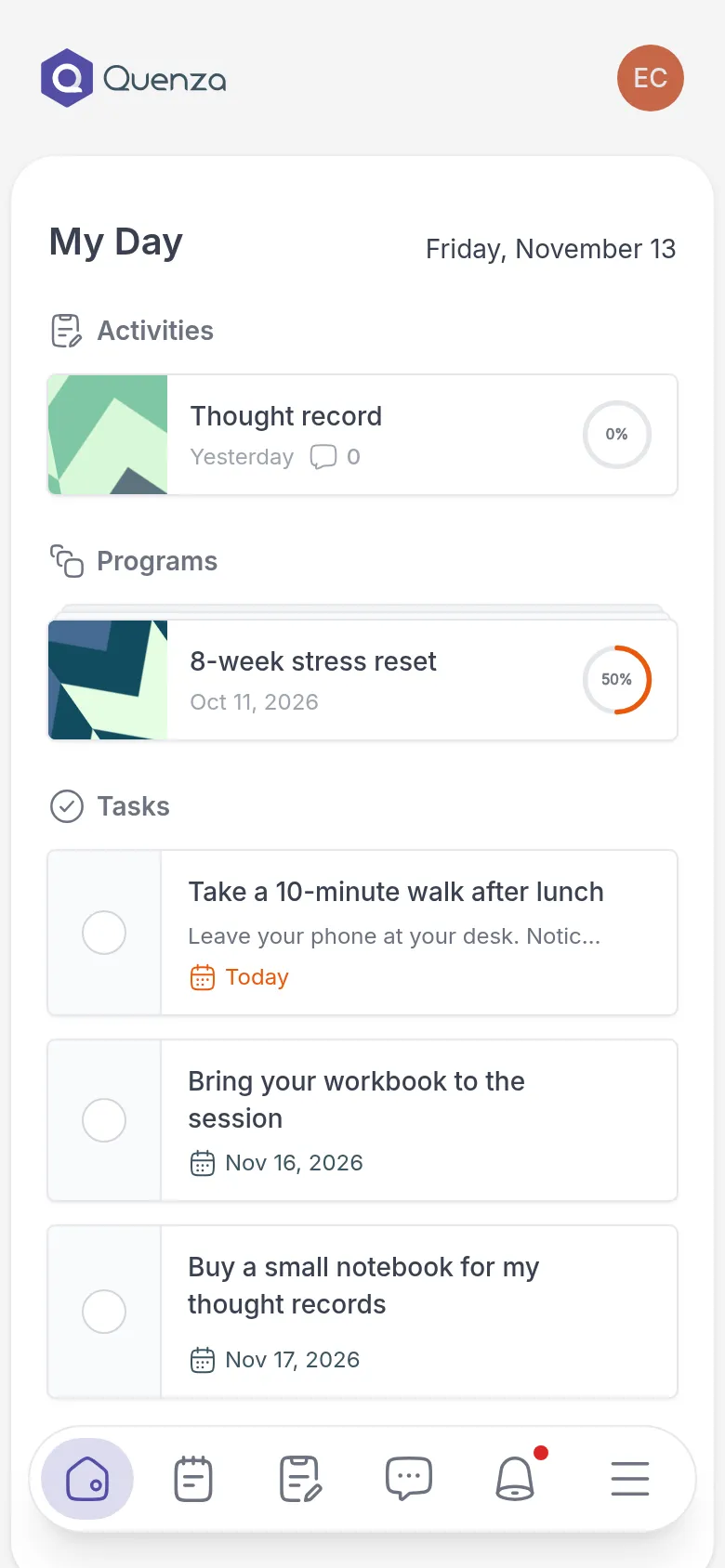
After you sign in, you land on My Day, the same home page as in the browser. The bar at the bottom takes you to the pages you use most. The menu button at its right end shows the rest, such as Tasks, Resources and My Profile.

My Day in the Quenza app on a phone, with an open activity, a program and three tasks, and the menu bar at the bottom of the screen

For a tour of every page, see Get started.

The first time you open the app, your phone asks whether Quenza may send you notifications. Choose Allow. You then get a notification on your phone when, for example:

  • your professional sends you an activity or a program, or reminds you about one
  • the next step of a program opens
  • your professional gives you a task, or shares a note, file or link with you
  • someone comments on a note or an activity
  • you get a new chat message

Tap a notification to go straight to what it is about. On an iPhone, the number on the app icon shows how many things are waiting for you, across all the practices you work with. On Android you see a dot instead.

If you said no by mistake, turn notifications on for Quenza in your phone’s settings. See also Notifications.

Step 3 of 3

Get started

The client portal is your private space for the time between sessions with your professional. They send you exercises and programs to work on, give you small tasks, and share notes and files. You can message them, write your own notes and keep track of what you have done. This page shows you where everything is. Not signed in yet? See Accept your invitation, or Sign up online if your professional has a sign-up page.

A typical week could look like this: after Tuesday’s session, Emma finds a summary from her coach Sarah under Notes and a short Thought record on My Day. She fills it in on Thursday evening, sends Sarah a quick question in Chats, and ticks off the task “Take a 10-minute walk after lunch” during the week.

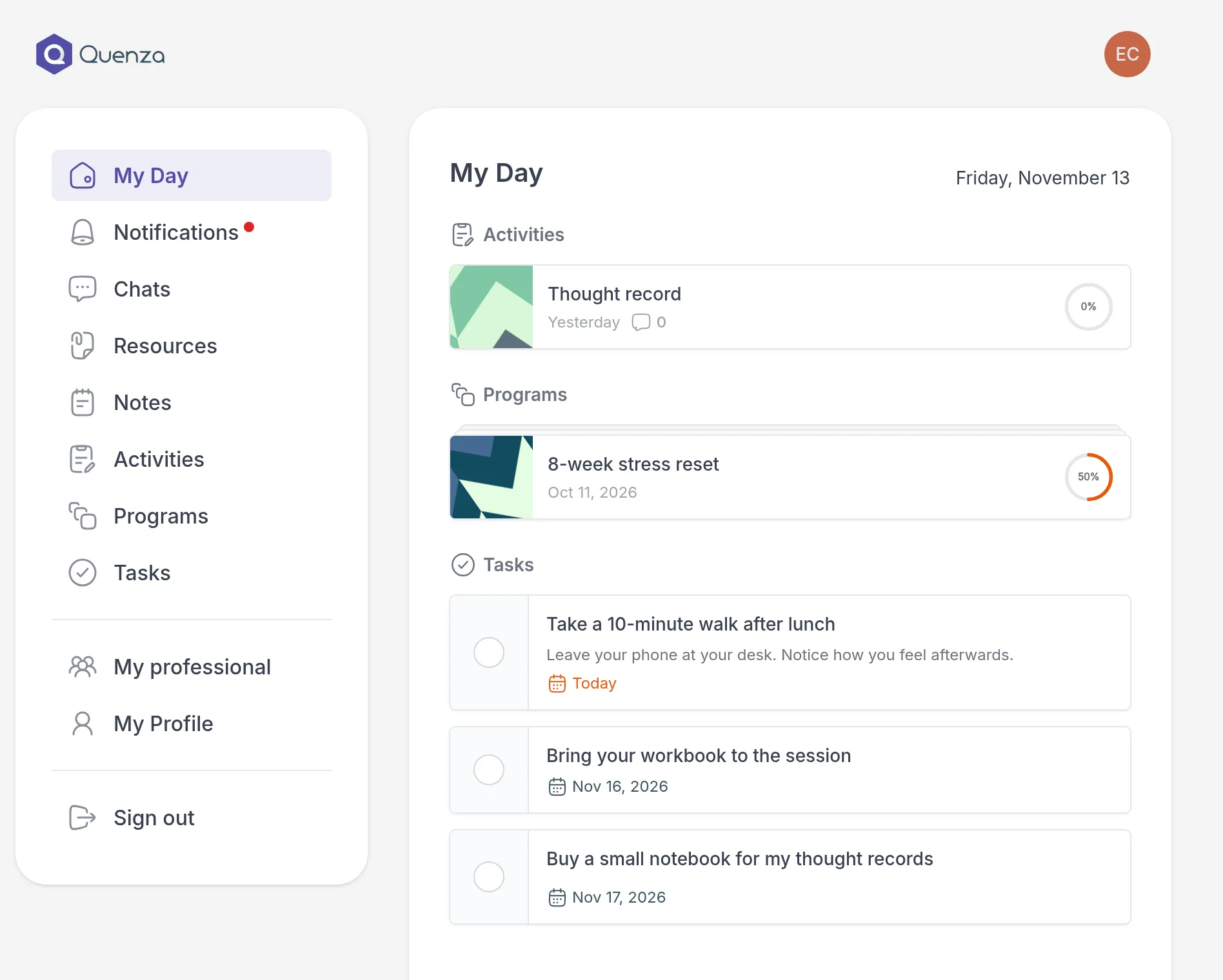
When you sign in, you land on My Day. It shows what is waiting for you right now: activities, program steps and tasks. Start there each time. See My Day.

The client portal on a computer: the menu on the left, from My Day to Sign out, and the My Day page with an open activity, a program and three tasks

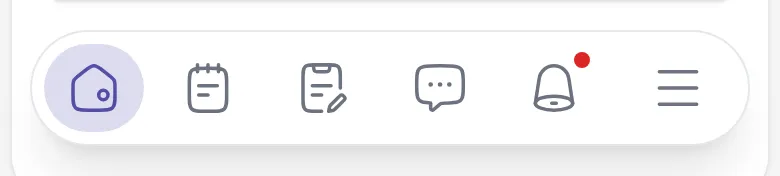
On a computer, the menu is on the left. On a phone, the pages you use most are in the bar at the bottom of the screen, and the menu button at its right end opens the rest.

The menu bar at the bottom of the portal on a phone, with icons for My Day, Notes, Activities, Chats and Notifications, and the menu button at the right end

Menu item What you find there
My Day What needs your attention today.
Notifications Updates about new activities, notes, comments and more. See Notifications.
Chats Messages with your professional. See Message your professional.
Resources Files and links shared with you, and your own. See Files and links.
Notes Notes shared with you, and your own notes. See Notes and comments.
Activities All activities sent to you, open and completed. See Complete an activity.
Programs Series of activities that open over time. See Work through a program.
Tasks To-dos from your professional and your own. See Complete a task.
Appointments Book a session, if your professional offers online booking.
My professional Who you work with and how to reach them. See Your professional.
My Profile Your own details and settings. See Edit your profile.
Workspaces Move between practices, if you work with more than one. See Switch workspaces.
Sign out Sign out of the portal.

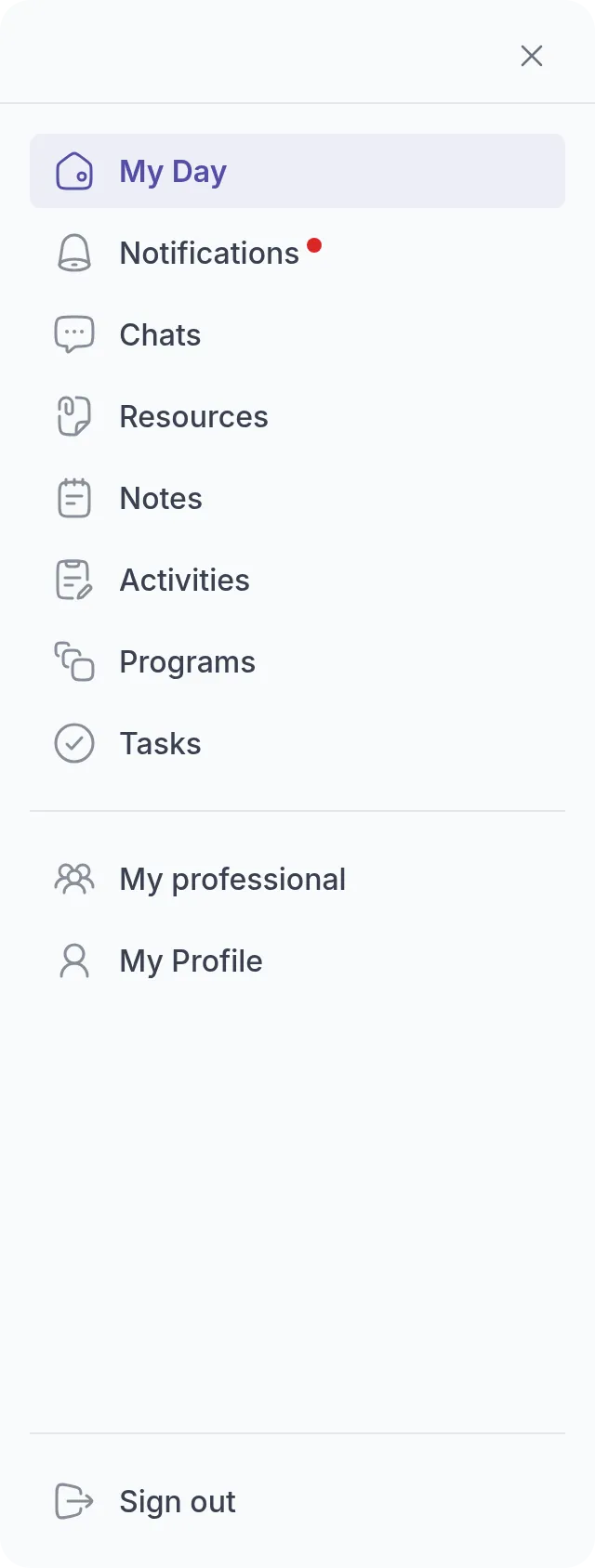
The full menu on a phone, from My Day to Tasks, then My professional, My Profile and Sign out

A red dot next to Notifications or Chats means there is something new.

Your menu may look a little different. Your professional decides which features they use, so you may not see Resources or Appointments. Workspaces only appears if you belong to more than one practice. Your professional can also rename My professional, for example to My coach or My therapist.

You can also open My Profile by clicking your photo or initials at the top right.

When your professional archives your profile, for example because you finished working together, the portal shows Your account is in read only mode. at the top.

  • You keep everything. You can still open your past activities and programs, your notes, the notes shared with you, your messages and comments.
  • You can no longer work together in Quenza. You cannot complete activities, comment, share notes or send messages, and your professional cannot send you anything new.

Nothing is deleted. To start working together again, contact your professional.

An empty page means nothing has been shared with you there yet. If you expected to see something, or a page shows Portal access is not active, contact your professional. They manage your access to the portal.

Read this guide online, with its videos. Scan the code with your phone camera, or open quenza.com/help/for-clients/welcome-kit/share/