
For your clients
Accept your invitation
Accept the invitation email from your professional, set your password and sign in to the client portal or the Quenza app.
When your professional adds you in Quenza, you get an email inviting you to their client portal. That is your private space for the exercises, messages and notes you share between sessions. Accepting the invitation takes a minute, and you only do it once.
You also get this email after you sign up on your professional’s page and are accepted. See Sign up online.
Accept your invitation
Section titled “Accept your invitation”The email has the subject You have been invited to join a workspace. It often comes from your professional’s own name or email address rather than from Quenza, so look for their name in your inbox. Click Accept Invitation in the email.
You then choose a password:
- Enter a password in Password and again in Confirm Password. Use at least 8 characters, with both letters and numbers.
- Tick I agree to the Terms of Service.
- Click Save your password.
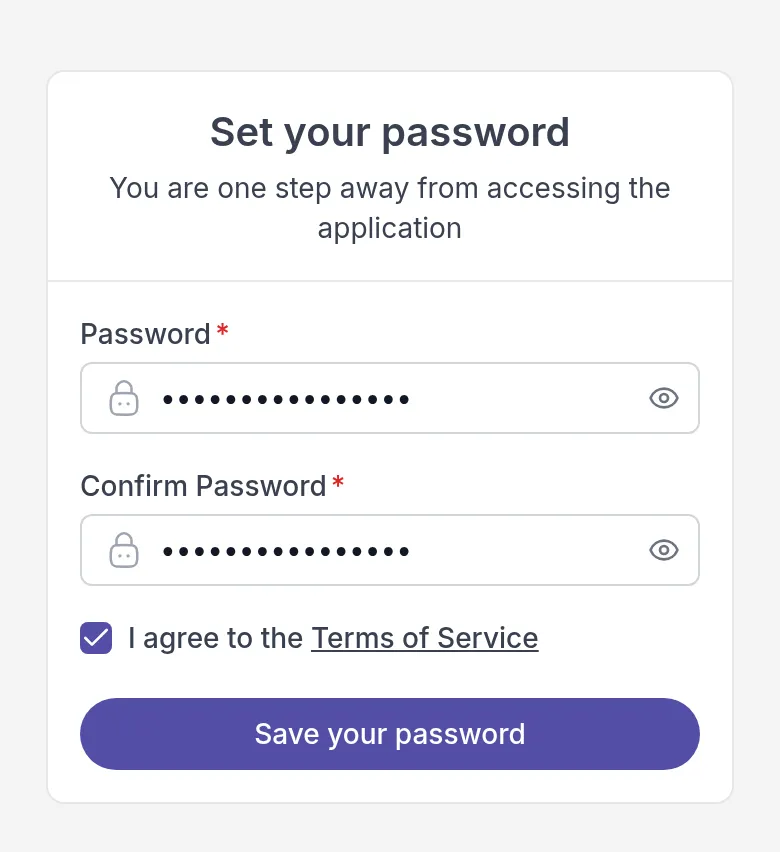
You are signed in straight away and land on My Day, your home page. See Get started for a short tour.
Already have a Quenza account with the same email address, for example because you also work with another practice? Then you skip the password step: the link takes you straight into the new workspace, and you use your existing password.
Sign in later
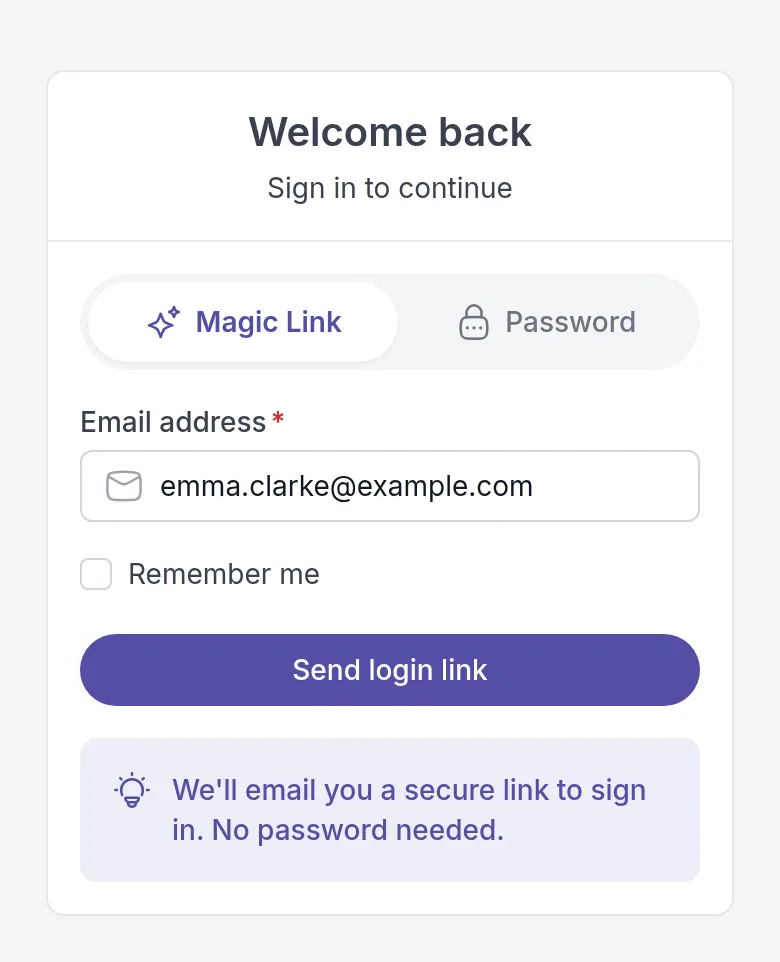
Section titled “Sign in later”Next time, go to the sign-in page your professional gave you, or open the Quenza app. There are two ways to sign in.
With a login link. On the Magic Link tab, enter your Email address and click Send login link. Open the email and click the link. You don’t need to remember a password, which is handy on a device you don’t use often.
With your password. On the Password tab, enter your Email address and Password and click Sign in.
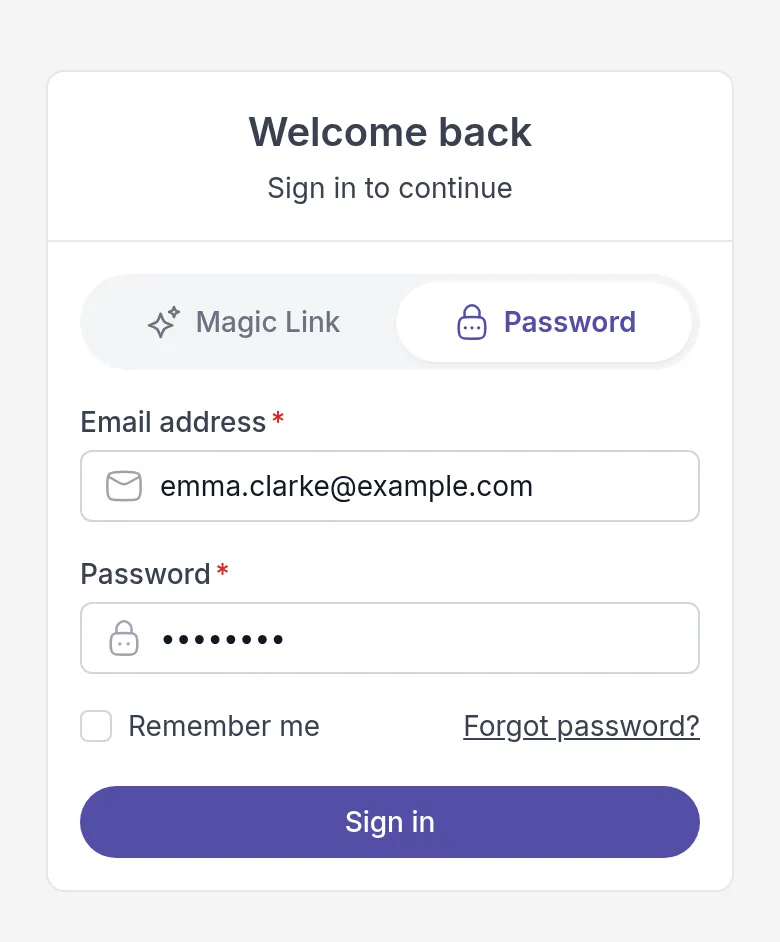
Tick Remember me to stay signed in on this device. Only do this on a device you don’t share with others. The Quenza app always keeps you signed in.
If you work with more than one practice, you may first see Select your workspace. Choose the one you want. See Switch workspaces.
If you forgot your password
Section titled “If you forgot your password”On the Password tab, click Forgot password?. Enter your Email address, click Send reset link, and follow the link in the email to choose a new password.
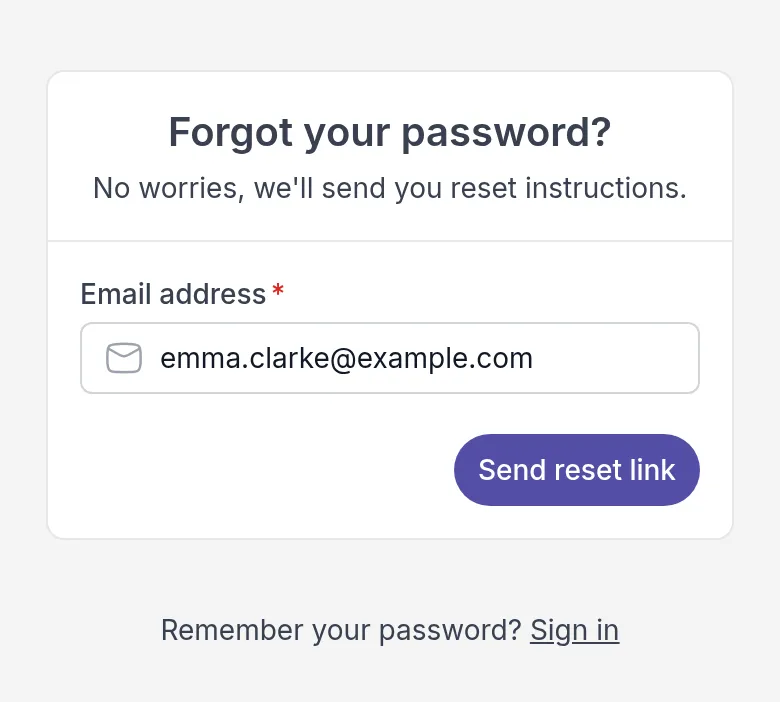
Or skip the password altogether and sign in with a login link from the Magic Link tab.
If an email does not arrive, check your spam folder. Still stuck? Contact your professional. They can check your email address and send you a new invitation if needed.
Was this article helpful?
Thanks for letting us know.
Thank you. We read every answer and use it to improve this article.