
For your clients
Notes and comments
Read the session notes your professional shares with you, reply with a comment, and write and share notes of your own.
Notes are for what you want to remember. Your professional can share a note with you, for example a summary of your last session with the exercise you practised. You can reply with a comment, and you can write notes of your own: thoughts you want to bring up next time, or a short journal entry.
Read a note
Section titled “Read a note”Go to Notes and click a note to open it. Each note shows who wrote it, when, and how many comments it has. You get a notification when your professional shares a new note with you.
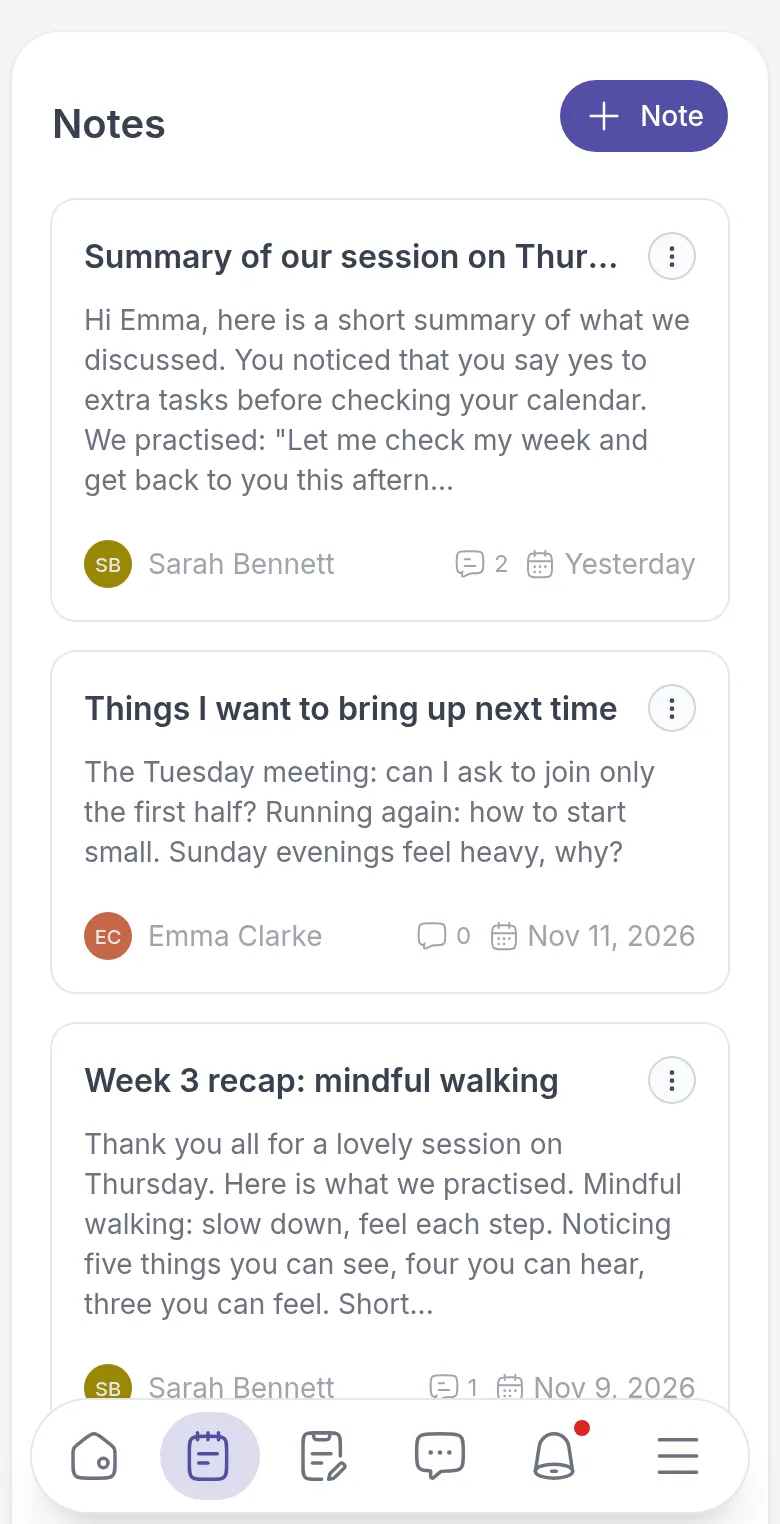
To keep a copy, open the menu at the top right of the note (⋮) and choose Export as PDF.
Comment on a note
Section titled “Comment on a note”A comment is a good way to respond to a note without starting a separate chat. For example, after reading Sarah’s session summary, Emma tells her the new sentence she practised already helped once.
Open the note, select the Comments tab, type in Leave a comment… and click Send. To answer a comment, click Reply below it, type your answer and click Reply again.
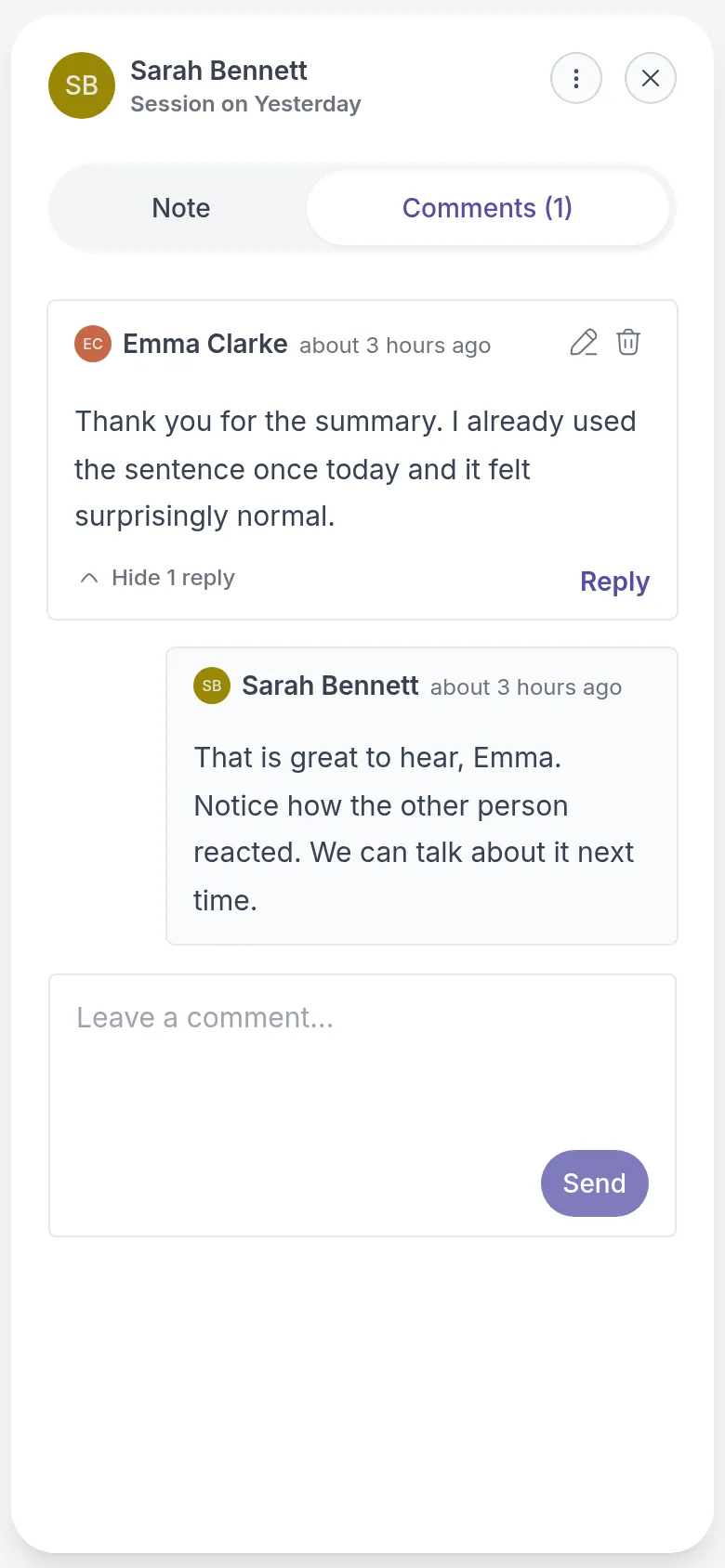
Your professional is notified and can reply. To change or remove a comment you wrote, click the pencil or the bin next to it.
If you see Commenting is disabled for this note., your professional has turned off comments for this note.
Write your own note
Section titled “Write your own note”Go to Notes and click Note (with the plus sign) at the top right. Give your note a title, write your text and click Save.
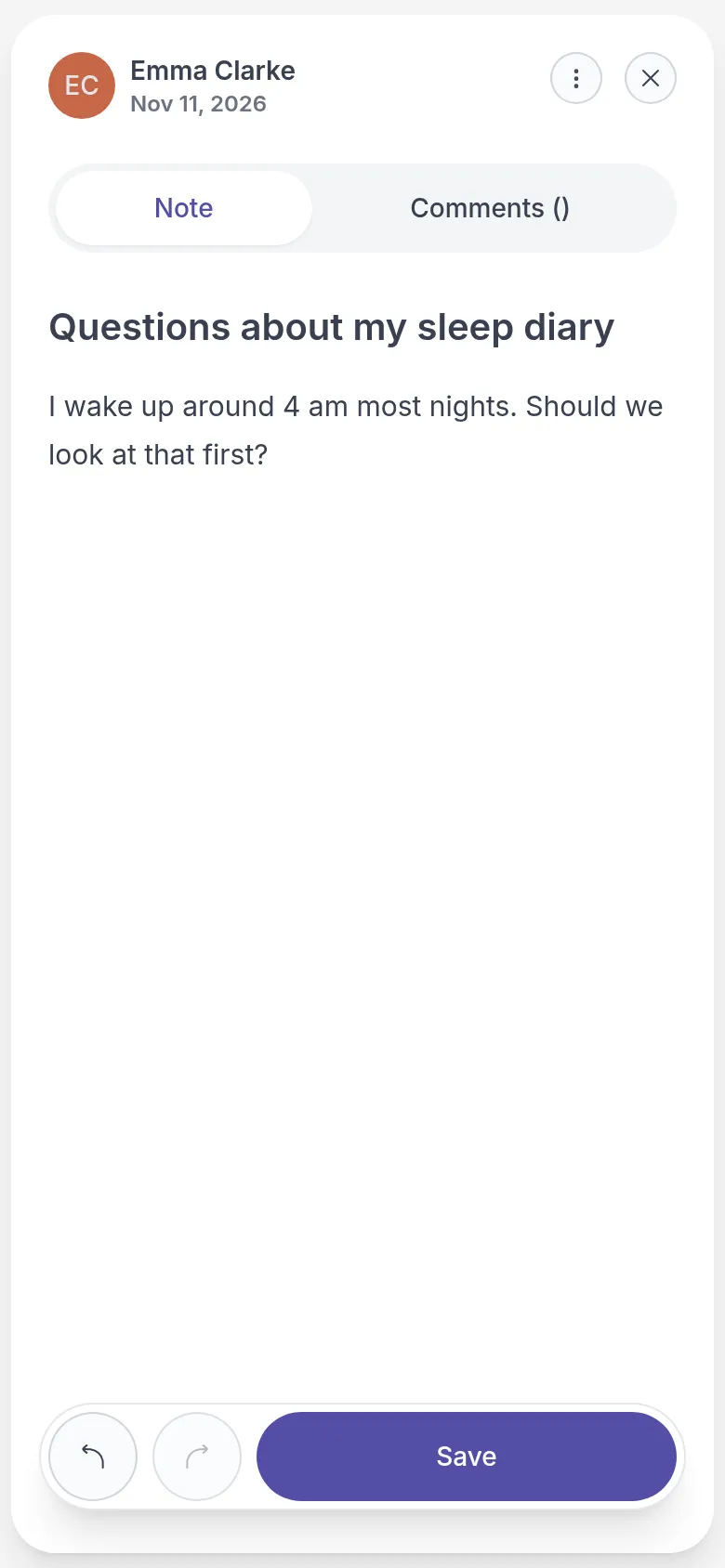
Only you can see your note until you share it. The note is added to your list as soon as you click Note, as Untitled note until you give it a title. If you leave before saving, Quenza offers to Restore your text the next time you open the note.
Share your own note
Section titled “Share your own note”Sharing a note lets your professional read it before your session, so you can start right where it matters. Open your note, click ⋮ and choose Share note. You can then talk about it on the Comments tab.
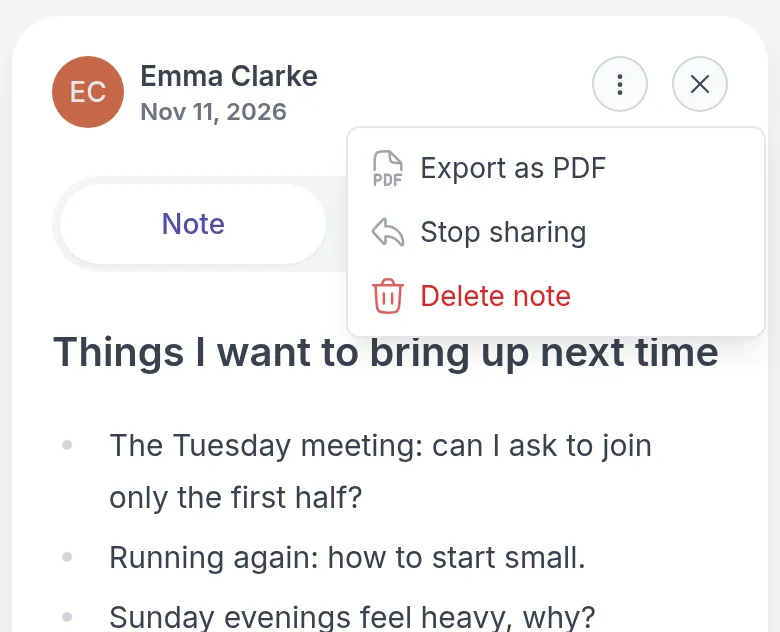
A note you have already shared shows Stop sharing instead, as in the picture. Choose it to make the note private again.
Was this article helpful?
Thanks for letting us know.
Thank you. We read every answer and use it to improve this article.