
For your clients
Complete an activity
Open an activity your professional sent you, work through it step by step, and change your answers later if you need to.
An activity is an exercise, questionnaire or short lesson your professional sends you to do between sessions. It could be a mood check-in that takes two minutes, a worksheet to reflect on a difficult moment, or a short audio exercise. You work through it one step at a time, at your own pace, and your professional sees your answers afterwards (unless the activity is set up otherwise).
For example: after a session about worrying thoughts, Sarah sends Emma a Thought record. When Emma notices a familiar worry at work on Wednesday, she opens it on her phone and writes down what happened while it is still fresh.
Do an activity
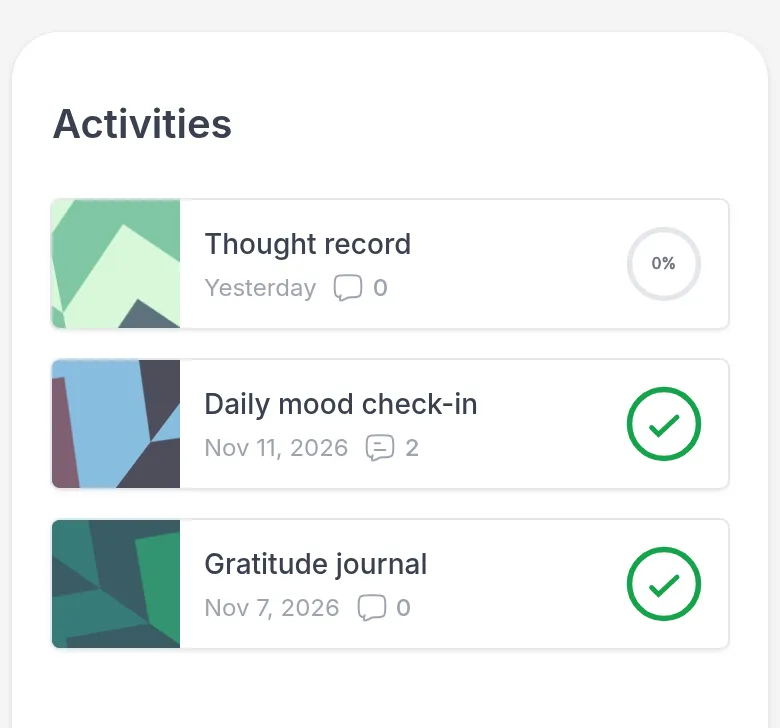
Section titled “Do an activity”Open the activity from My Day or from the Activities page. Open activities show how far you are; finished ones have a green check mark.
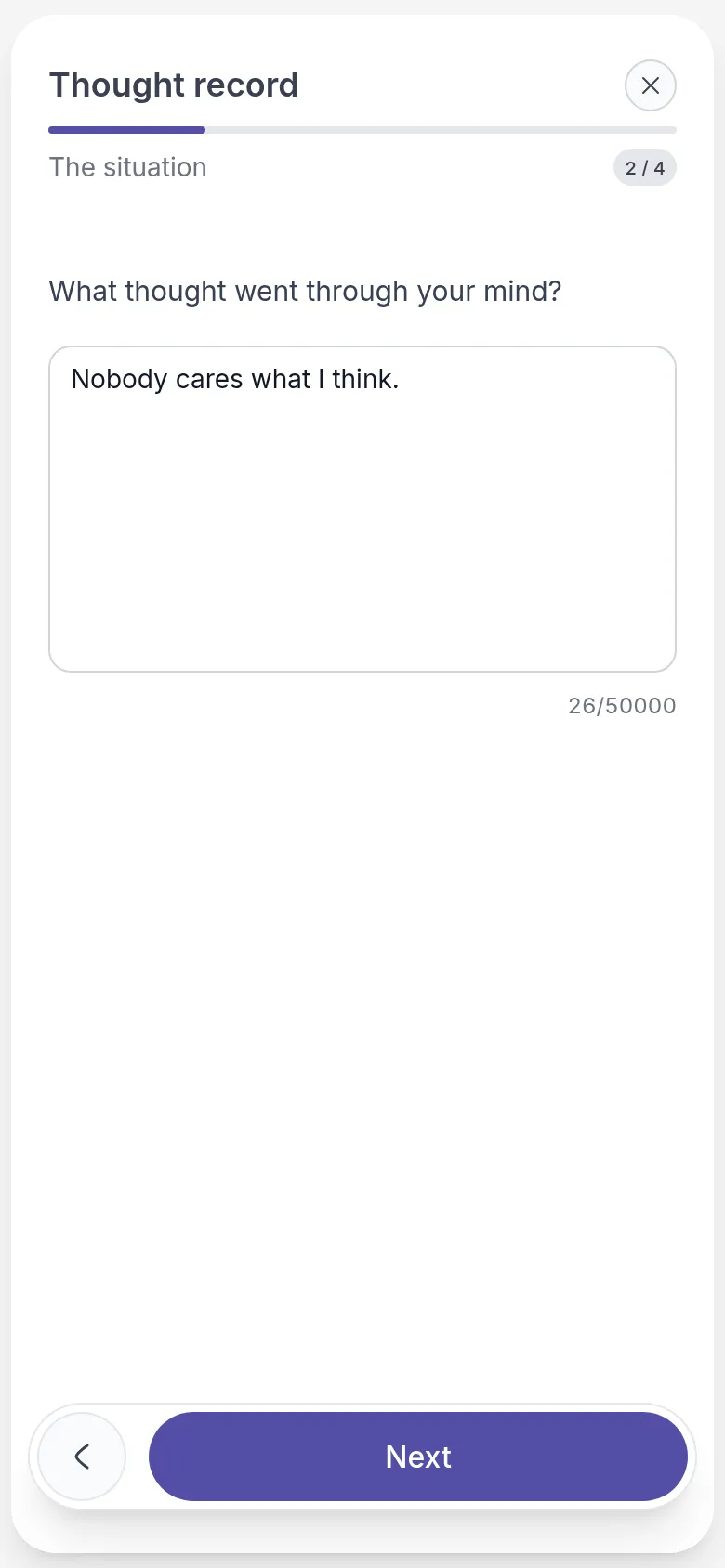
Read each step and answer the questions. The counter at the top, such as 2 / 4, shows where you are. Click Next to go on, or the arrow next to it to go back. If Next is greyed out, a question on this step still needs an answer.
On the last step, click Finish. You see You completed this activity. Click Exit to go back. Your professional is notified, and the activity moves off My Day.
Take a break
Section titled “Take a break”You don’t have to finish in one go. Click the X at the top right to leave. Your answers are saved each time you click Next, so next time you continue where you left off.
Some activities have a deadline: you then see Expires and the date. After that you can no longer fill it in. If you need more time, ask your professional.
Choose who sees your answers
Section titled “Choose who sees your answers”Usually your professional decides who can see your answers. Sometimes they leave it to you, and before you start you see Who can see your results?:
- Me and my professional: you both can see your completed answers.
- Only me: your answers stay private and are not shown to your professional.
- Only my professional: your professional can see your answers after you finish, but you cannot.
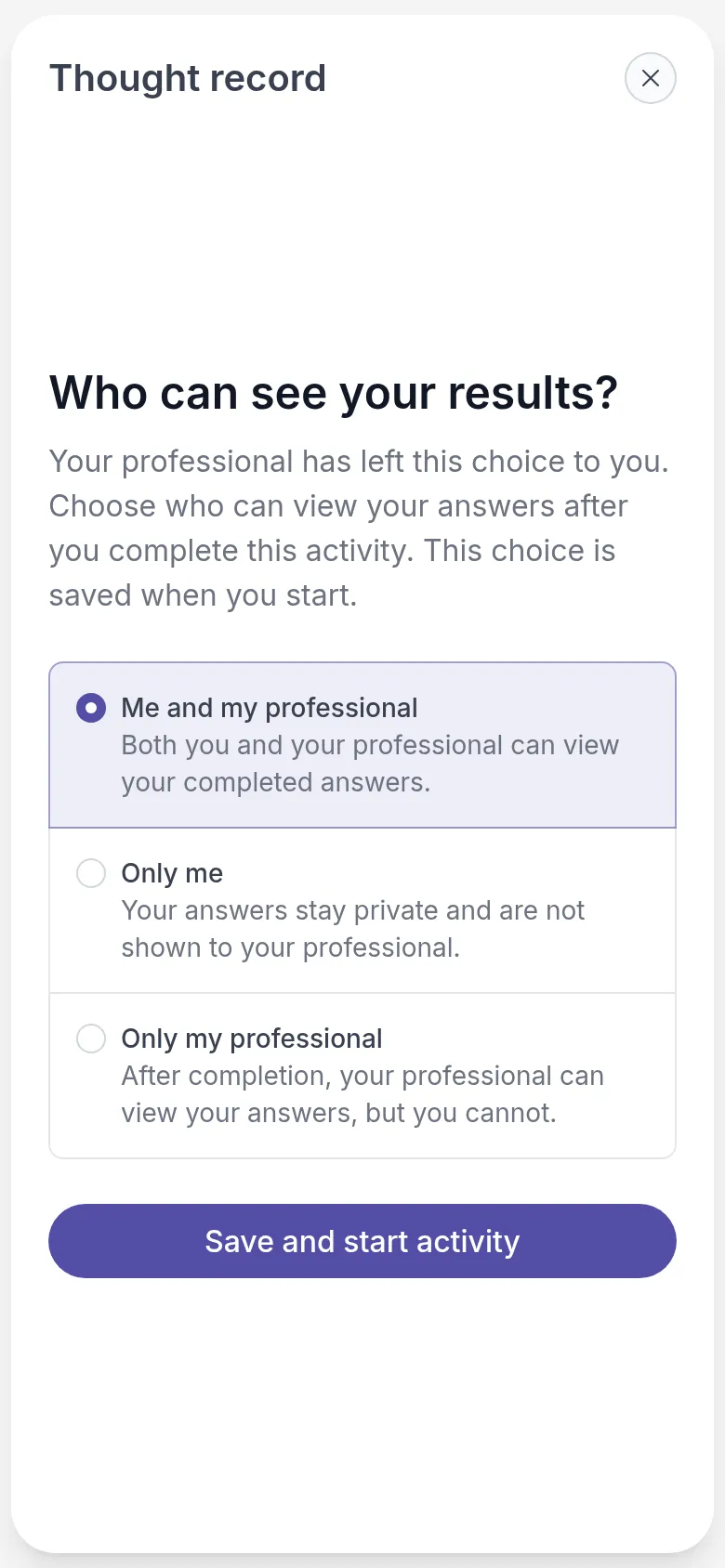
Choose one and click Save and start activity. Your choice cannot be changed afterwards, so if you are unsure, ask your professional first.
Look back at or change your answers
Section titled “Look back at or change your answers”Open a completed activity from the Activities page to read your answers again. That is useful before a session, to remember what you wrote.
To change them, open the menu at the top right (⋮) and choose Make changes. Go through the steps and click Finish again. Your professional is notified that you updated the activity. Export as PDF in the same menu saves a copy of your answers.
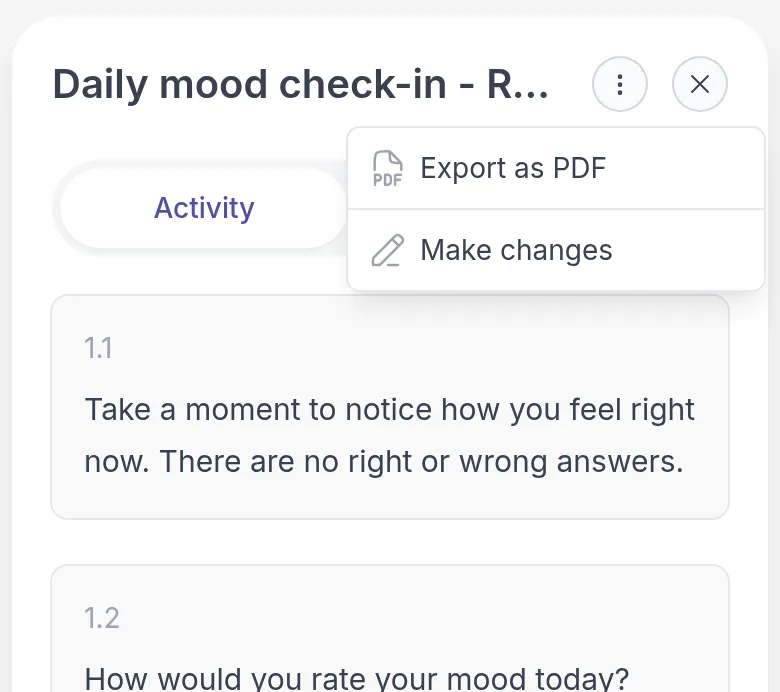
You don’t see these options if only your professional can see the answers.
Comment on a completed activity
Section titled “Comment on a completed activity”If your professional allows comments on an activity, you can talk about it right there, next to your answers. Open the completed activity, select the Comments tab, type in Leave a comment… and click Send. To answer a comment, click Reply below it.
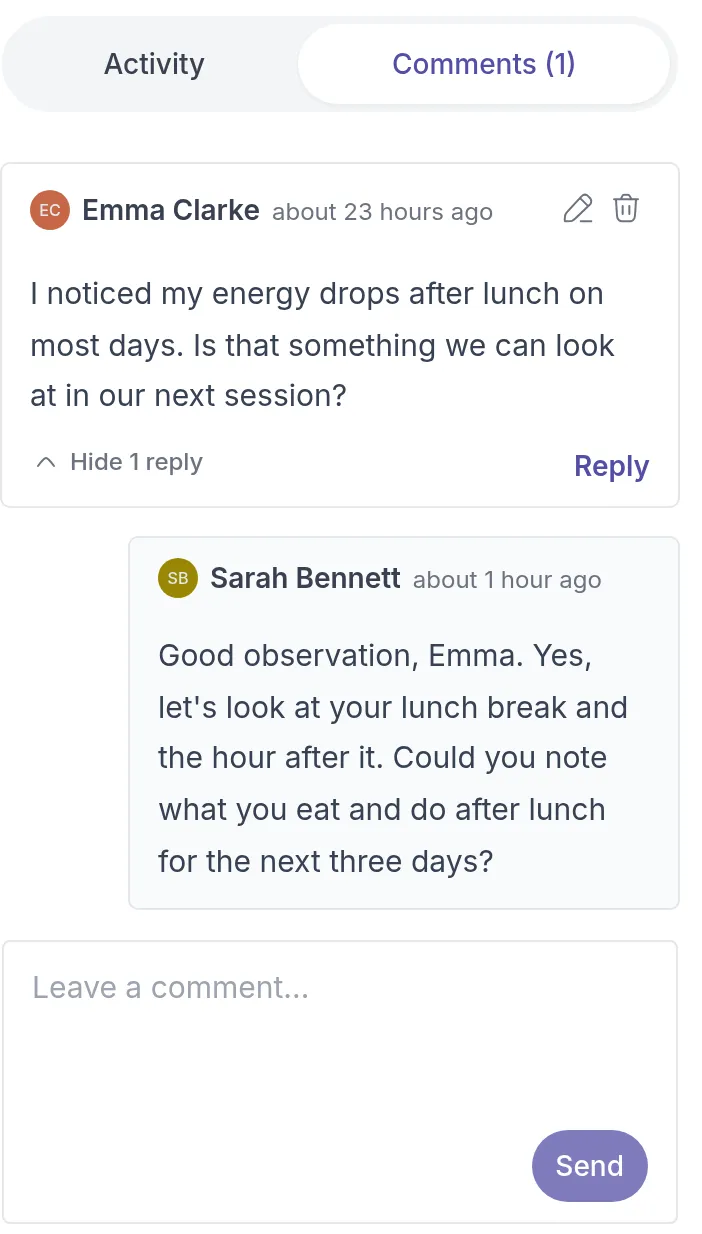
Your professional is notified and can reply. You get a notification when they do.
Was this article helpful?
Thanks for letting us know.
Thank you. We read every answer and use it to improve this article.