
For your clients
Your professional
Find your professional's contact details and book an appointment with them, if they offer online booking.
The My professional page shows who supports you in this workspace and how to reach them. It is handy when you need a phone number before a session, or want to check where the practice is.
View your professional’s details
Section titled “View your professional’s details”Go to My professional. You see a card with your professional’s photo and name, and the details they have added, such as Phone, Email, Location and Timezone.
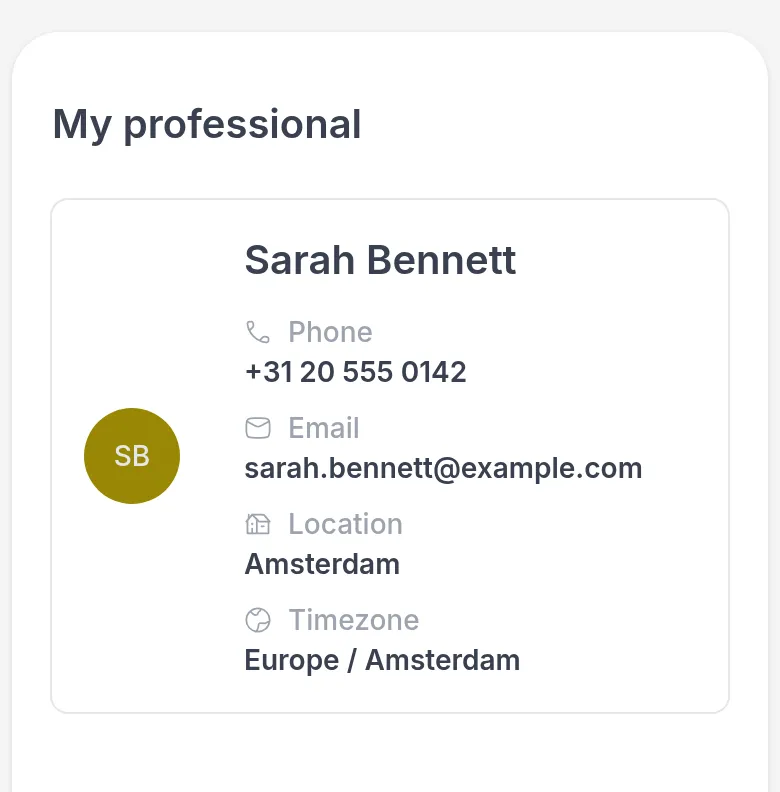
The timezone helps when your professional lives somewhere else: you can see what time it is for them before you plan a call.
If you work with more than one professional, for example a coach and a dietitian in the same practice, the page is called My professionals and shows a card for each. Your professional can also give this page another name, such as My coach or My therapist.
When a professional starts or stops working with you, you get a notification. See Notifications.
Book an appointment
Section titled “Book an appointment”If your professional offers online booking, their card has a Book Appointment button (on a phone, only a calendar icon). Click it, pick a time in the booking calendar on the Appointments page and follow the steps. You can also go to Appointments in the menu.
If you don’t see the button, your professional does not offer online booking in Quenza. Ask them how to make an appointment.
Send a message
Section titled “Send a message”To write to your professional, use Chats. See Message your professional.
Was this article helpful?
Thanks for letting us know.
Thank you. We read every answer and use it to improve this article.