
For your clients
Complete a task
Tick off the to-dos your professional gives you between sessions, and add, edit or delete tasks of your own.
Tasks are small, practical to-dos, such as “Take a 10-minute walk after lunch” or “Bring your workbook to the session”. Your professional can give you tasks, often with a due date, and you can add your own to keep track of what you want to do between sessions.
Tick off a task
Section titled “Tick off a task”You find your open tasks on My Day and on the Tasks page. When you have done one, click the circle on its left. The task is crossed out and moves to Completed. If your professional gave you the task, they are notified that you finished it.
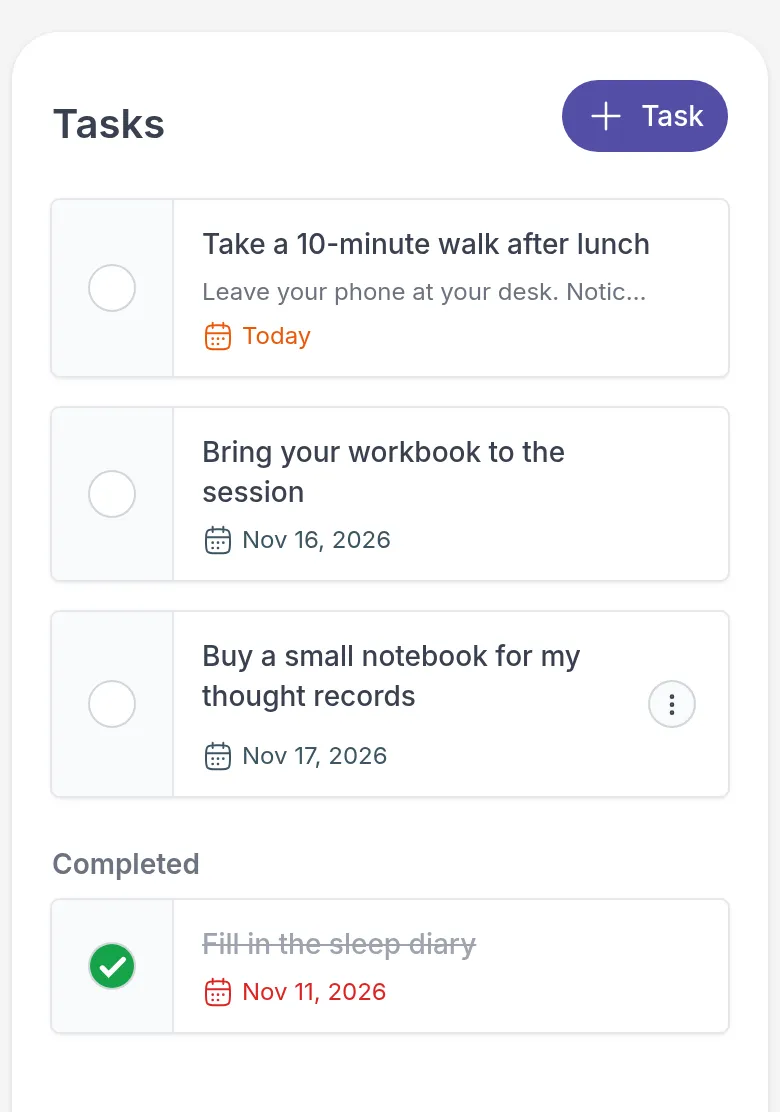
Ticked a task by mistake? Click the circle again to mark it as not done.
To read a task’s full description, click its title.
Add your own task
Section titled “Add your own task”Your own tasks help you remember what you planned. For example, Emma decides in a session that she wants a small notebook for her thought records, so she adds that as a task with a due date at the end of the week.
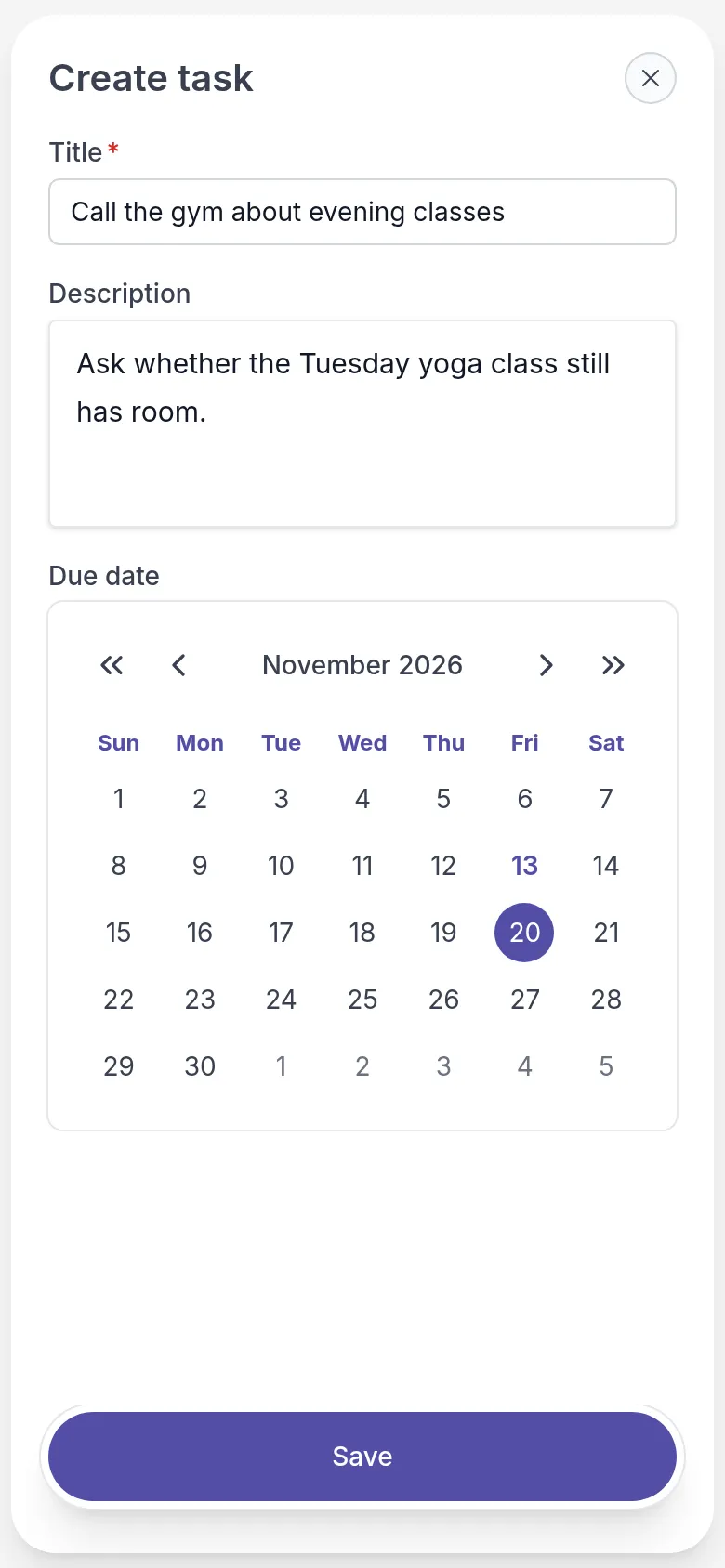
- Go to Tasks and click Task (with the plus sign) at the top right.
- Enter a Title. If you like, add a Description and pick a Due date.
- Click Save.
Tasks you add yourself are for you only. They do not appear in your professional’s task lists.
Edit or delete your own task
Section titled “Edit or delete your own task”Click ⋮ next to a task you added and choose Edit task or Delete task. Delete task asks you to confirm first and then removes the task for good.
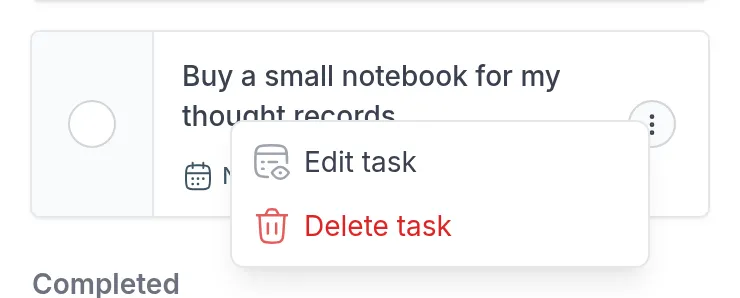
You can only edit or delete tasks you added yourself. To change a task from your professional, ask them.
Was this article helpful?
Thanks for letting us know.
Thank you. We read every answer and use it to improve this article.