
For your clients
Get started
A short tour of the Quenza client portal and app, and where to find the activities, programs, chats, files and notes your professional shares with you.
The client portal is your private space for the time between sessions with your professional. They send you exercises and programs to work on, give you small tasks, and share notes and files. You can message them, write your own notes and keep track of what you have done. This page shows you where everything is. Not signed in yet? See Accept your invitation, or Sign up online if your professional has a sign-up page.
A typical week could look like this: after Tuesday’s session, Emma finds a summary from her coach Sarah under Notes and a short Thought record on My Day. She fills it in on Thursday evening, sends Sarah a quick question in Chats, and ticks off the task “Take a 10-minute walk after lunch” during the week.
Your home page: My Day
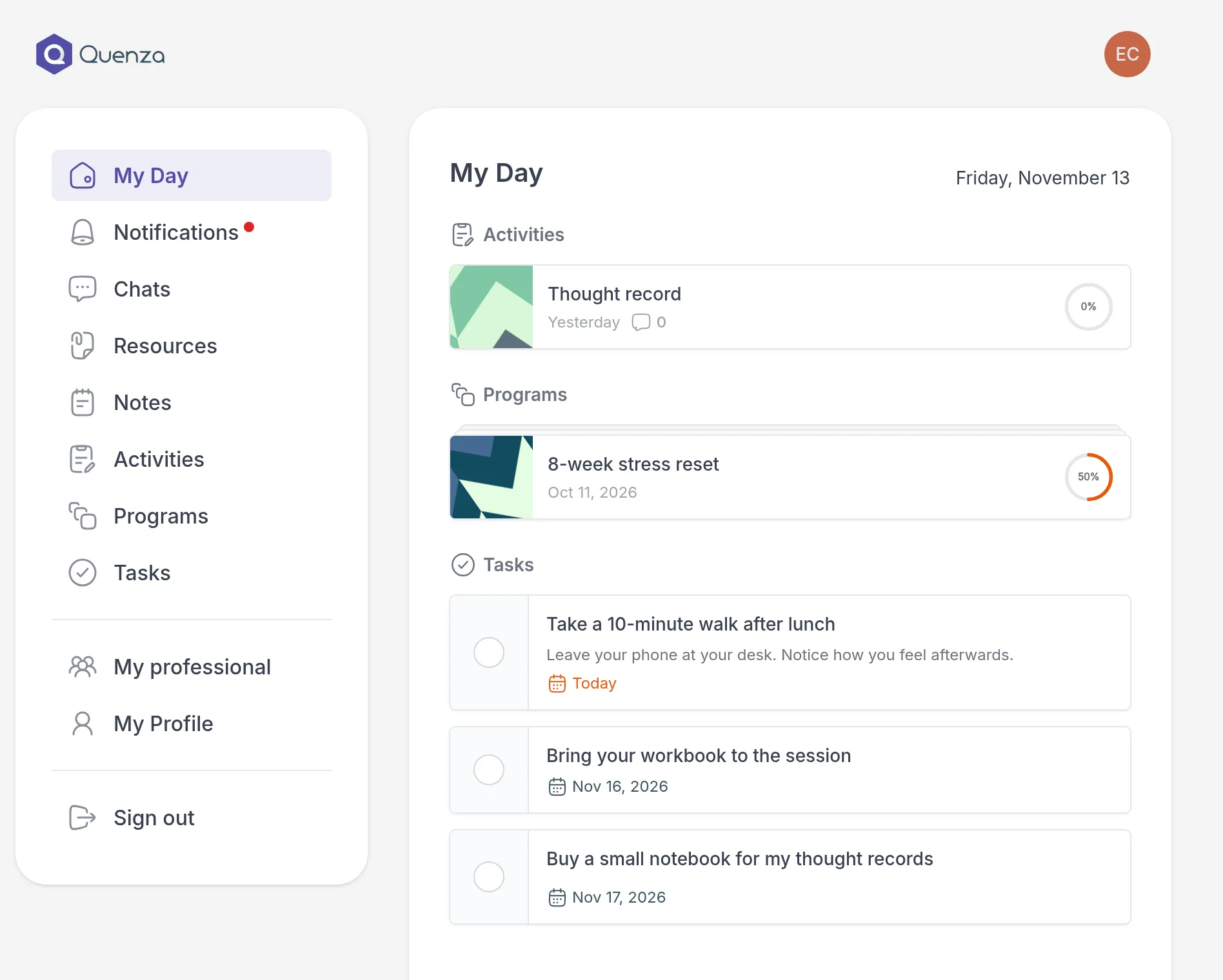
Section titled “Your home page: My Day”When you sign in, you land on My Day. It shows what is waiting for you right now: activities, program steps and tasks. Start there each time. See My Day.
The menu
Section titled “The menu”On a computer, the menu is on the left. On a phone, the pages you use most are in the bar at the bottom of the screen, and the menu button at its right end opens the rest.
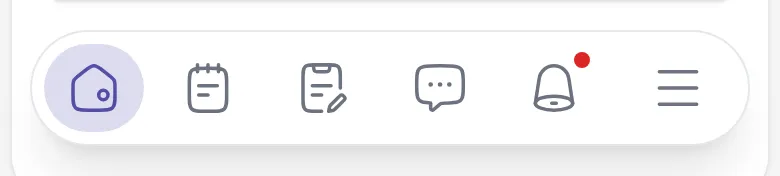
| Menu item | What you find there |
|---|---|
| My Day | What needs your attention today. |
| Notifications | Updates about new activities, notes, comments and more. See Notifications. |
| Chats | Messages with your professional. See Message your professional. |
| Resources | Files and links shared with you, and your own. See Files and links. |
| Notes | Notes shared with you, and your own notes. See Notes and comments. |
| Activities | All activities sent to you, open and completed. See Complete an activity. |
| Programs | Series of activities that open over time. See Work through a program. |
| Tasks | To-dos from your professional and your own. See Complete a task. |
| Appointments | Book a session, if your professional offers online booking. |
| My professional | Who you work with and how to reach them. See Your professional. |
| My Profile | Your own details and settings. See Edit your profile. |
| Workspaces | Move between practices, if you work with more than one. See Switch workspaces. |
| Sign out | Sign out of the portal. |
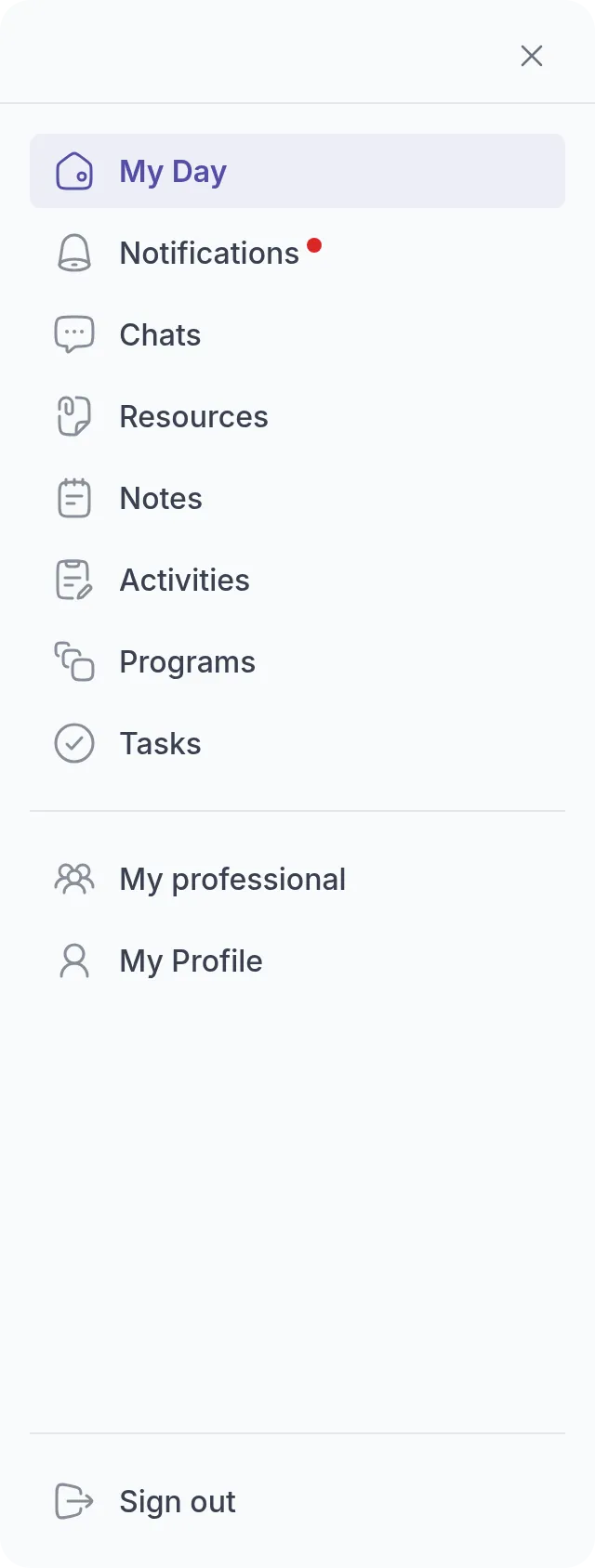
A red dot next to Notifications or Chats means there is something new.
Your menu may look a little different. Your professional decides which features they use, so you may not see Resources or Appointments. Workspaces only appears if you belong to more than one practice. Your professional can also rename My professional, for example to My coach or My therapist.
You can also open My Profile by clicking your photo or initials at the top right.
If your account is read-only
Section titled “If your account is read-only”When your professional archives your profile, for example because you finished working together, the portal shows Your account is in read only mode. at the top.
- You keep everything. You can still open your past activities and programs, your notes, the notes shared with you, your messages and comments.
- You can no longer work together in Quenza. You cannot complete activities, comment, share notes or send messages, and your professional cannot send you anything new.
Nothing is deleted. To start working together again, contact your professional.
If something does not work
Section titled “If something does not work”An empty page means nothing has been shared with you there yet. If you expected to see something, or a page shows Portal access is not active, contact your professional. They manage your access to the portal.
Was this article helpful?
Thanks for letting us know.
Thank you. We read every answer and use it to improve this article.