
Your Quenza is getting an upgrade.
Your practitioner is moving to a new and improved version of Quenza. Everything you have done so far comes with you. Here is what to expect and how to get set up.

1. Go to Quenza and choose "Forgot password"
Go to:
Quenza’s login page
On the login screen, select the Password tab, then tap "Forgot password?" below the password field. Enter the email address you are already using for Quenza.
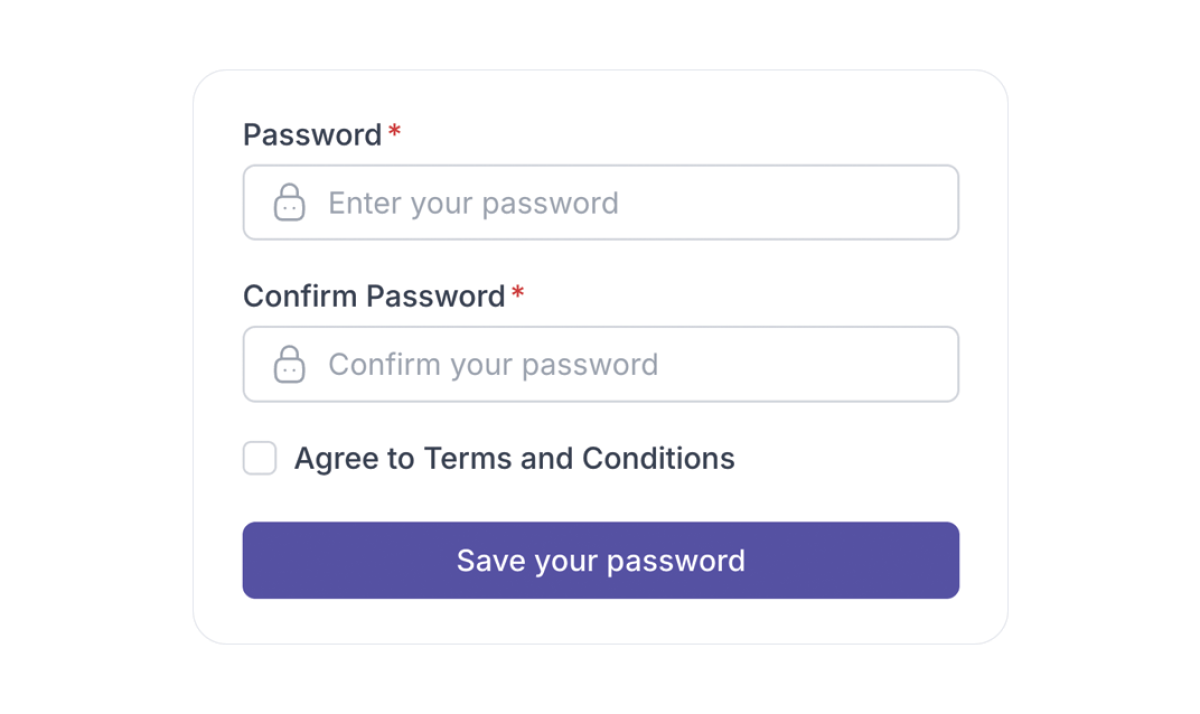
2. Check your inbox and set your password.
We'll email you a secure link. Open it, choose a password, and your account is ready. If you don't see the email, check your spam or junk folder.
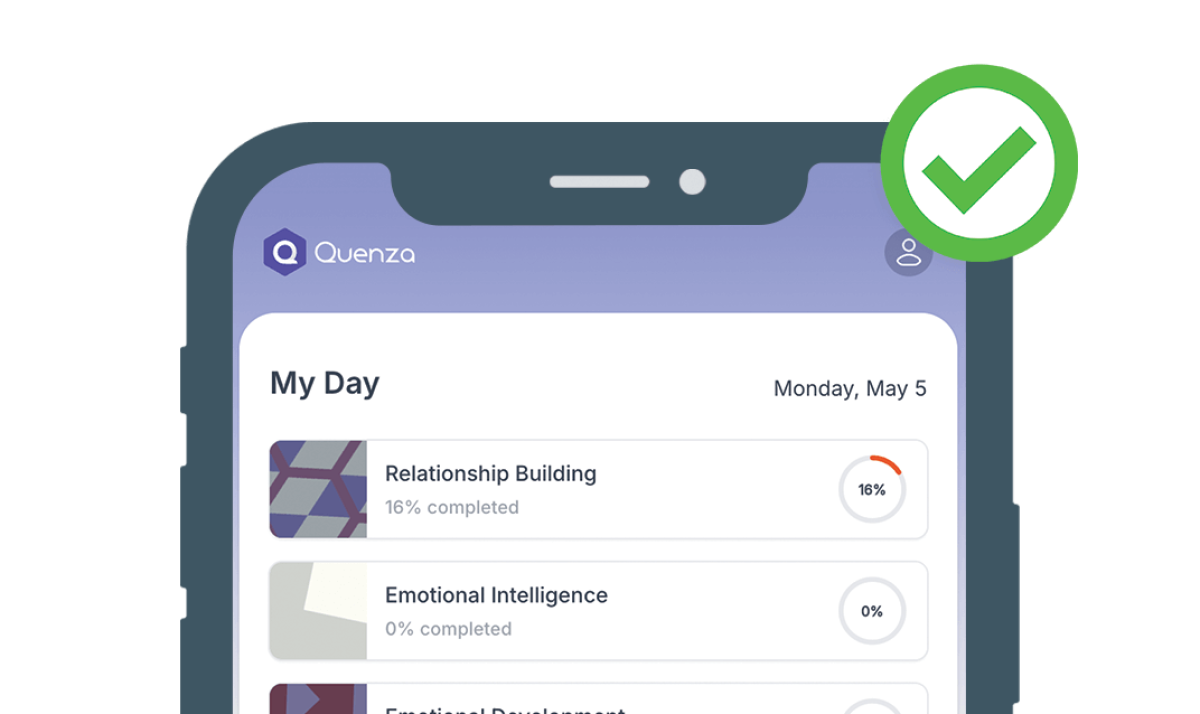
3. Download the iOS or Android app
You're now ready to use the Quenza app. Log in with the email and password you just set.
Download for iOS on the App Store
Download for Android on Google Play

4. Turn on your notifications
To keep things calm at the start, we've set your notifications to off. Once you've logged in, switch them on under My Profile.
A quick tour of the new Quenza.
In under two minutes, see exactly what you'll find when you log in, so everything feels familiar from the start.
On your phone or in your browser.
Use whichever you prefer. Your account is the same on both.

The mobile app
The easiest way to stay on track, with reminders and everything in your pocket:
Download for iOS on the App Store
Download for Android on Google Play

In your web browser
Prefer your computer? Just log in through your browser, nothing to install.
Log in to your browser →
You might be wondering...
-
Yes. The new Quenza has its own app. If you had the old one, download the new version from the App Store or Google Play. Once you are set up, you can remove the old app.
-
The new Quenza is a fresh, more secure version, so it asks you to set a password the first time you log in. It only takes a moment and keeps your account safe.
-
No. Everything you have done carries across, including completed activities and anything still in progress. You pick up right where you left off.
-
Invitation links can sometimes expire after a while. If yours has stopped working, just ask your professional to send a fresh one.
-
Yes, in most cases your professional will invite you using the same email address you already use. If you are unsure, they can confirm which address to look out for.
-
Yes. You can use the mobile app or log in through your web browser, whichever you prefer. Your account is the same on both, so you can switch between them freely.
-
Yes. Your information stays private and secure, the same as before. Moving to the new Quenza does not change how your data is protected.
-
Once you are set up on the new Quenza, your old account is no longer needed. Your professional manages this, so there is nothing you need to do.
-
No. Quenza is always free for clients. You will never be asked to pay to use it or to access your activities.
-
No. Downloading and using the Quenza app is free for you. There are no hidden costs.