
Plans and billing
Change plan
Move to a higher or lower Quenza plan, and learn when the change takes effect and what happens to your features.
Your plan can grow or shrink with your practice. Upgrades start right away. Downgrades start at your next renewal, so you keep what you paid for until then. The workspace Owner, Manager and Billing Manager can change the plan, in the web app.
A typical reason to upgrade: Sarah Bennett runs Bright Path Coaching on Growth and wants to put her own address on client emails and run the client portalClient portalThe website where your clients sign in to see their activities, programs, tasks, files and chats. The Quenza app shows the same. on her own domain. Both come with Impact, so she upgrades, and the features are there straight away. A typical reason to downgrade: a practice that stopped running groups and no longer needs the calendar integrations.
Compare and choose
Section titled “Compare and choose”Go to Billing → Subscription under Administration in the sidebar. All plans are shown side by side with their prices and features, and your current plan is marked Your Plan. The Monthly and Yearly toggle above the plans changes the prices and the billing interval you move to.
Each plan has one button:
- Upgrade on the plans above yours.
- Downgrade on the plans below yours.
- Contact Sales on Beyond, which is priced for your organization. See Plans and pricing.
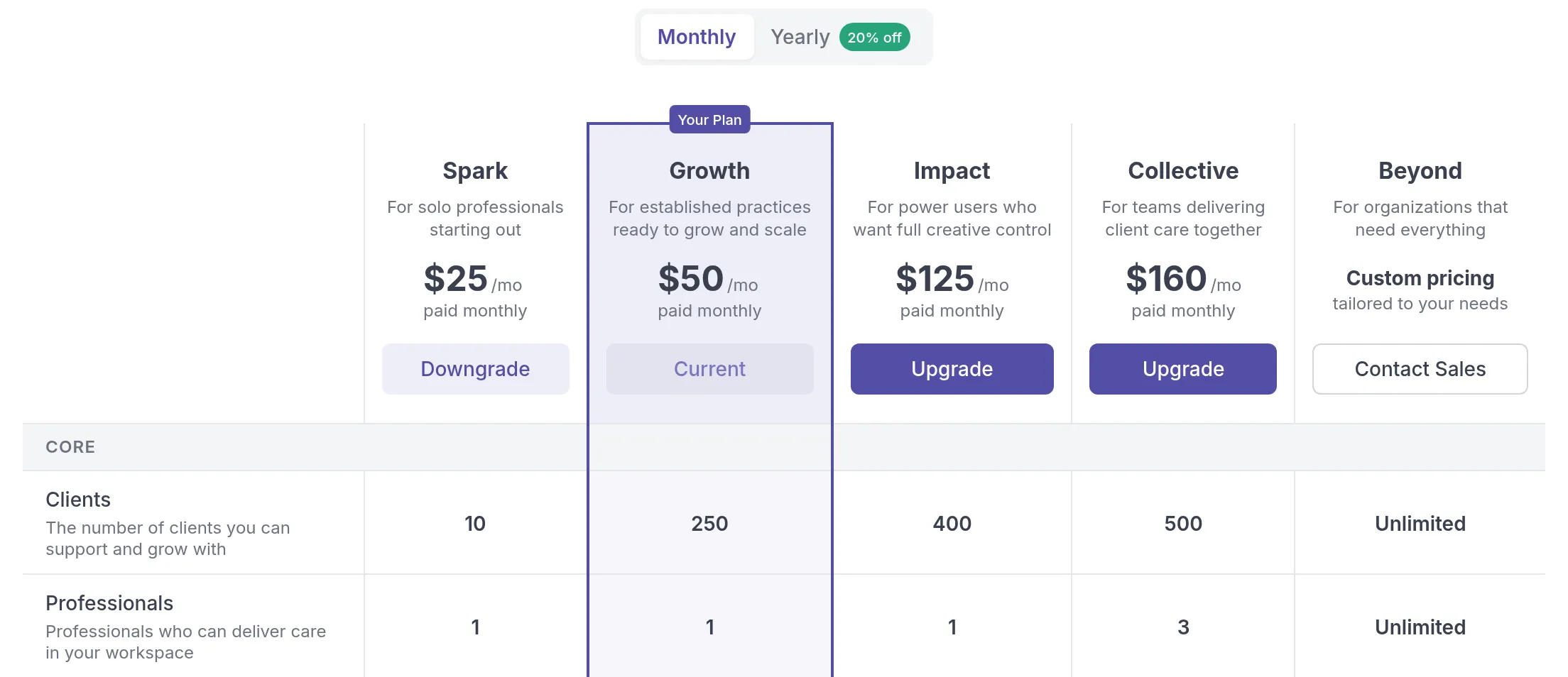
Click the button on the plan you want. If you move to a plan with fewer features, Quenza first shows what will change (see below); click Continue with plan change to go ahead.
Upgrading
Section titled “Upgrading”An upgrade takes effect immediately. The higher client limit, extra professional seats and new features are available right away. You pay the difference for the rest of the current billing period, and from then on the new plan’s price.
You can’t upgrade while an invoice is unpaid. Pay the open invoice first under Billing → Invoices. See Invoices and taxes.
Downgrading
Section titled “Downgrading”A downgrade starts at the beginning of your next billing period. Until then you keep your current plan with all its features and limits.
While the change is waiting, the Billing page shows Scheduled Plan Change with the plan and the date. Click Cancel Change if you want to stay on your current plan after all.

If you cancel your subscription while a downgrade is scheduled, the scheduled downgrade is removed.
Plan change not possible
Section titled “Plan change not possible”Your usage has to fit the plan you move to. If it doesn’t, Quenza shows Plan change not possible with what is over the limit: Clients, Team members or Webhook endpoints, each with your current number and the new plan’s maximum.
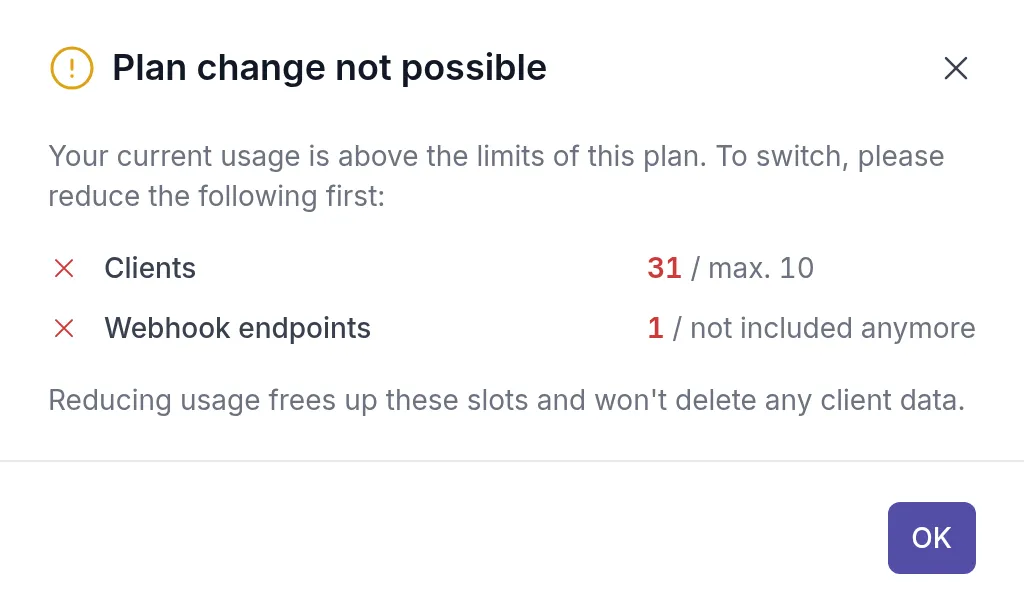
Reduce each listed item first, then try again:
- Clients: delete clients you no longer work with. Archived clientsArchived clientA client you no longer work with, moved out of your active client list. Their history stays, and you can unarchive them at any time. still count, so archiving is not enough. See Client limits.
- Team members: remove or suspend a professional.
- Webhook endpoints: remove an endpoint under Webhooks.
When the new plan has fewer features
Section titled “When the new plan has fewer features”Features that are not part of the new plan stop working once the new plan starts. Before you confirm, the Plan Change Information dialog lists what will happen in your workspace.
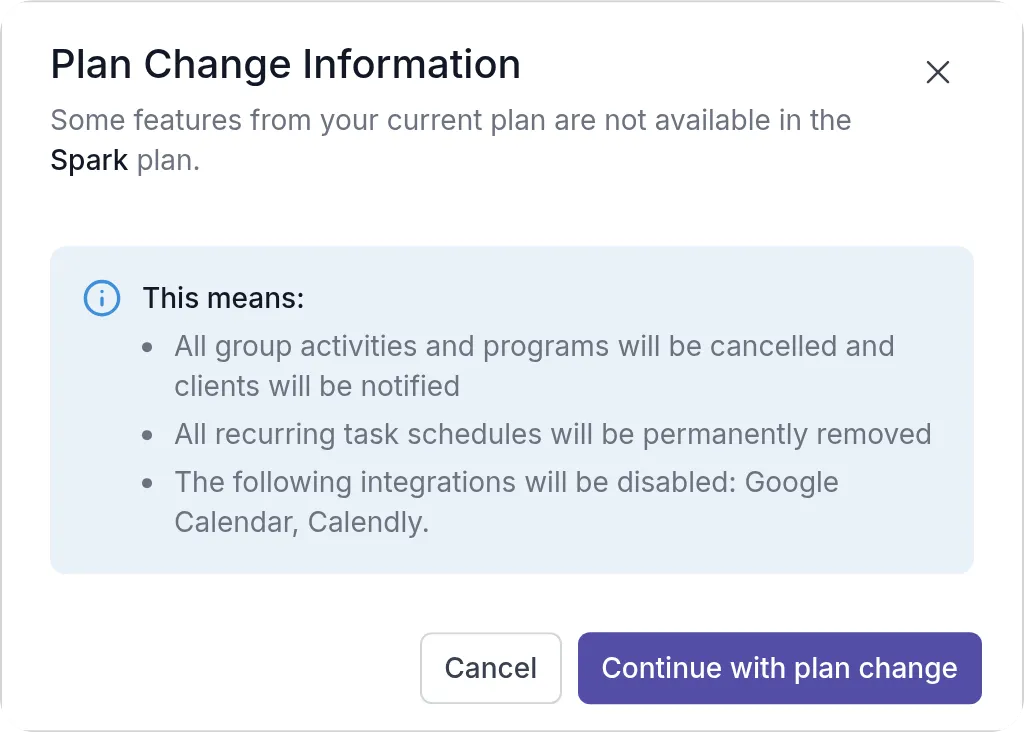
Depending on what you use now, that can be:
- Groups: all group activities and programs are cancelled, and clients are notified.
- Recurring tasks: all recurring task schedules are permanently removed.
- Calendar integrations: Calendly and Google Calendar are switched off.
- Roles and permissions: all professionals are set to the Manager roleRolesWhat each person in your workspace can see and do: Owner, Manager, Member or Billing Manager..
- Multi-language: the language for all professionals and clients is set to English.
Your clients, content and other data stay in your workspace. If you upgrade again later, the features come back, but cancelled assignments and removed recurring task schedules are not restored.
Was this article helpful?
Thanks for letting us know.
Thank you. We read every answer and use it to improve this article.