
Activities and programs
Question and element types
See every question and element type you can add to an activity, what clients see, and how to set up tables, wheels, scales and number fields.
Every part of an activity is an element: a piece of text, a question, an image or a video. This page explains each type you can add in the activity builder, so you can pick the one that fits your exercise. For how to add, move and preview elements, see Build an activity.
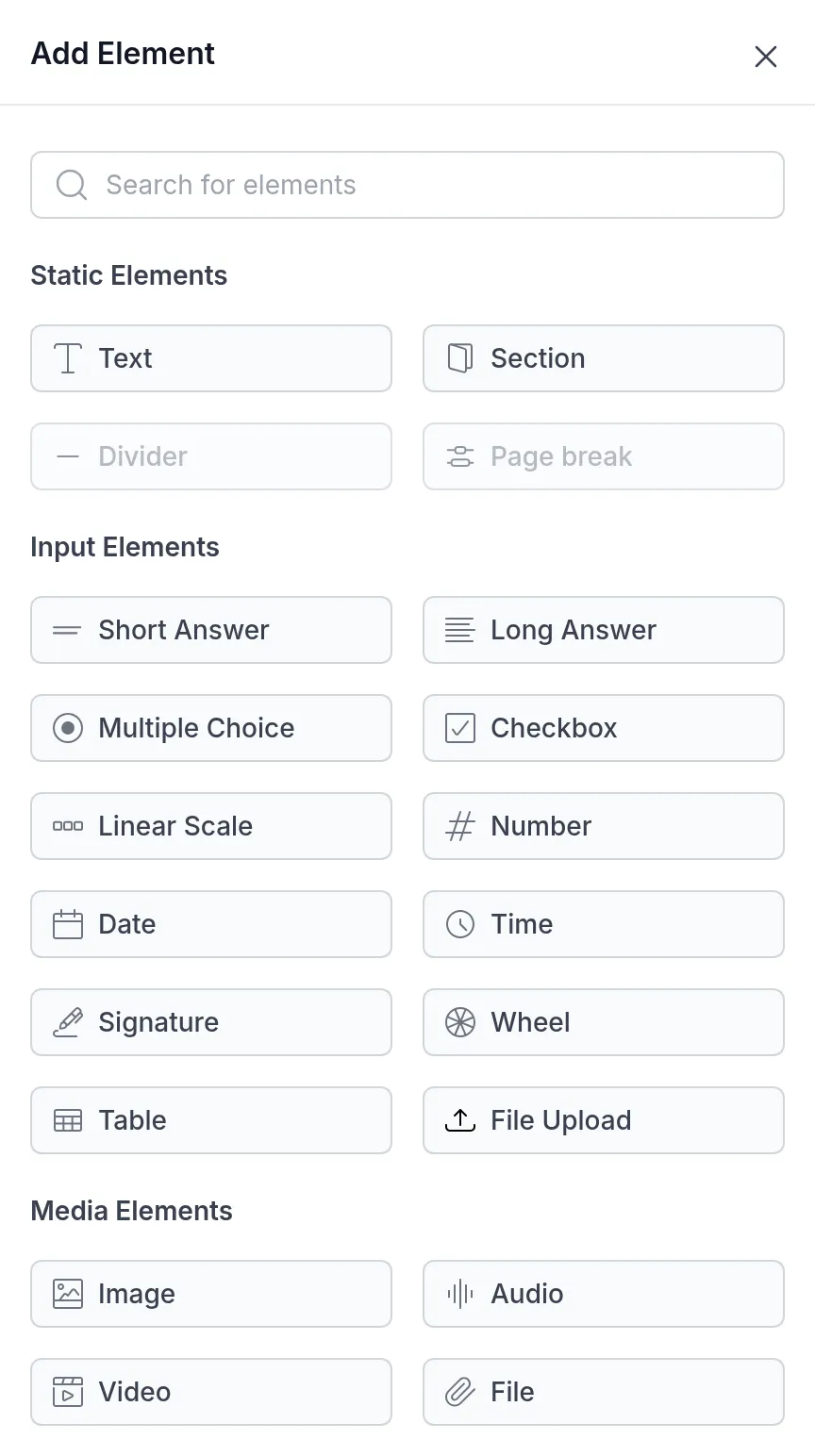
Click + Element in the builder to open the Add Element panel. The types are grouped into static elements, input elements (questions the client answers) and media elements.
Static elements
Section titled “Static elements”- Text: instructions, explanations or psychoeducation. Use the toolbar for headings, lists, links, images and tables.
- Section: a heading that splits a longer activity into named parts, such as “Your week” and “Your plan”.
- Divider and Page break: a line between elements, and the start of a new page. Both are greyed out until you turn on manual page breaks; see Activity layout.
Questions with a written answer
Section titled “Questions with a written answer”- Short Answer: one line, for a name, a word or a short phrase.
- Long Answer: a text box for reflections, journaling and anything longer.
Choice questions
Section titled “Choice questions”- Multiple Choice: the client picks one option. Add at least two and up to 50 options.
- Checkbox: the client ticks as many options as apply, for example “Which of these values are most important to you?”. Up to 50 options.
- Linear Scale: the client picks one point on a scale. See Linear Scale below.
- Wheel: the client scores several areas of life. See Wheel below.
Numbers, dates and signatures
Section titled “Numbers, dates and signatures”- Number: a number within limits you set. See Number below.
- Date and Time: the client picks a date or a time, for example when they want to start a new routine.
- Signature: the client signs with their finger or mouse. Useful for consent forms, agreements and commitments.
- Table: rows and columns the client fills in, such as a weekly log. See Table below.
- File Upload: the client uploads a file, such as a photo of their planner or a completed form.
Media elements
Section titled “Media elements”These share something with the client; they do not ask for an answer.
- Image: a JPEG or PNG picture, such as a diagram or a model you explain in the text.
- Audio: an audio file with a title, for a guided meditation or a recorded explanation. Turn on Allow download? if clients may save the file.
- Video: a video from Vimeo, YouTube or Loom. See Video below.
- File: a document the client can open and download, such as a PDF handout.
Make an answer required
Section titled “Make an answer required”Every question has a Mandatory switch. With it on, the client cannot move on until they answer. Text, Section, Divider, Page break and the media elements have no switch, because there is nothing to answer.
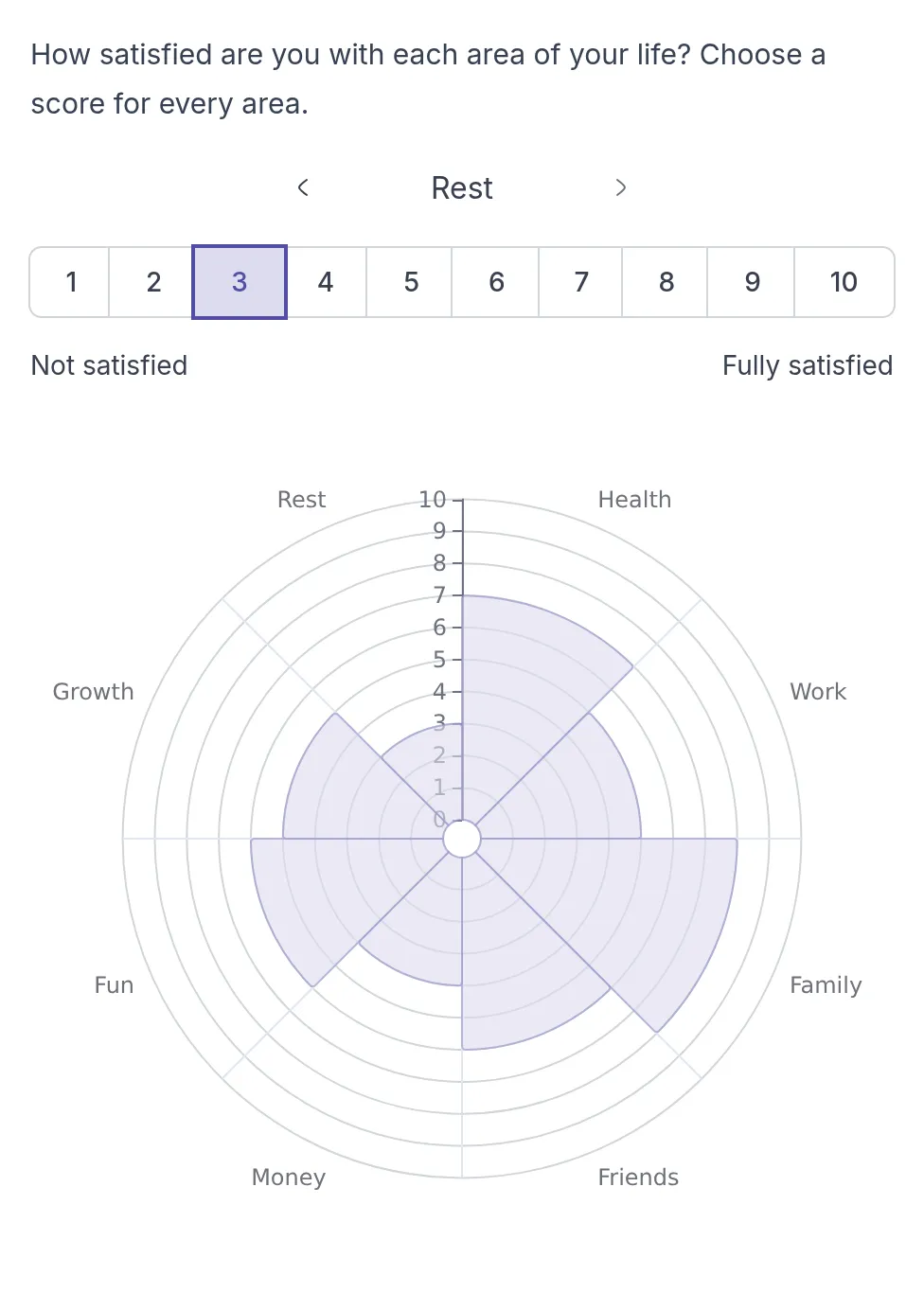
A wheel asks the client to score several areas, or dimensions, on a scale from 1 to 10, and shows the result as a chart. It is the classic “wheel of life” exercise, but works for any set of areas: strengths, values or parts of a job.
For example, Sarah Bennett starts every coaching trajectory with a life balance check-in. Emma Clarke scores eight areas of her life, and they use the chart to pick one area to work on first.
To set up a wheel:
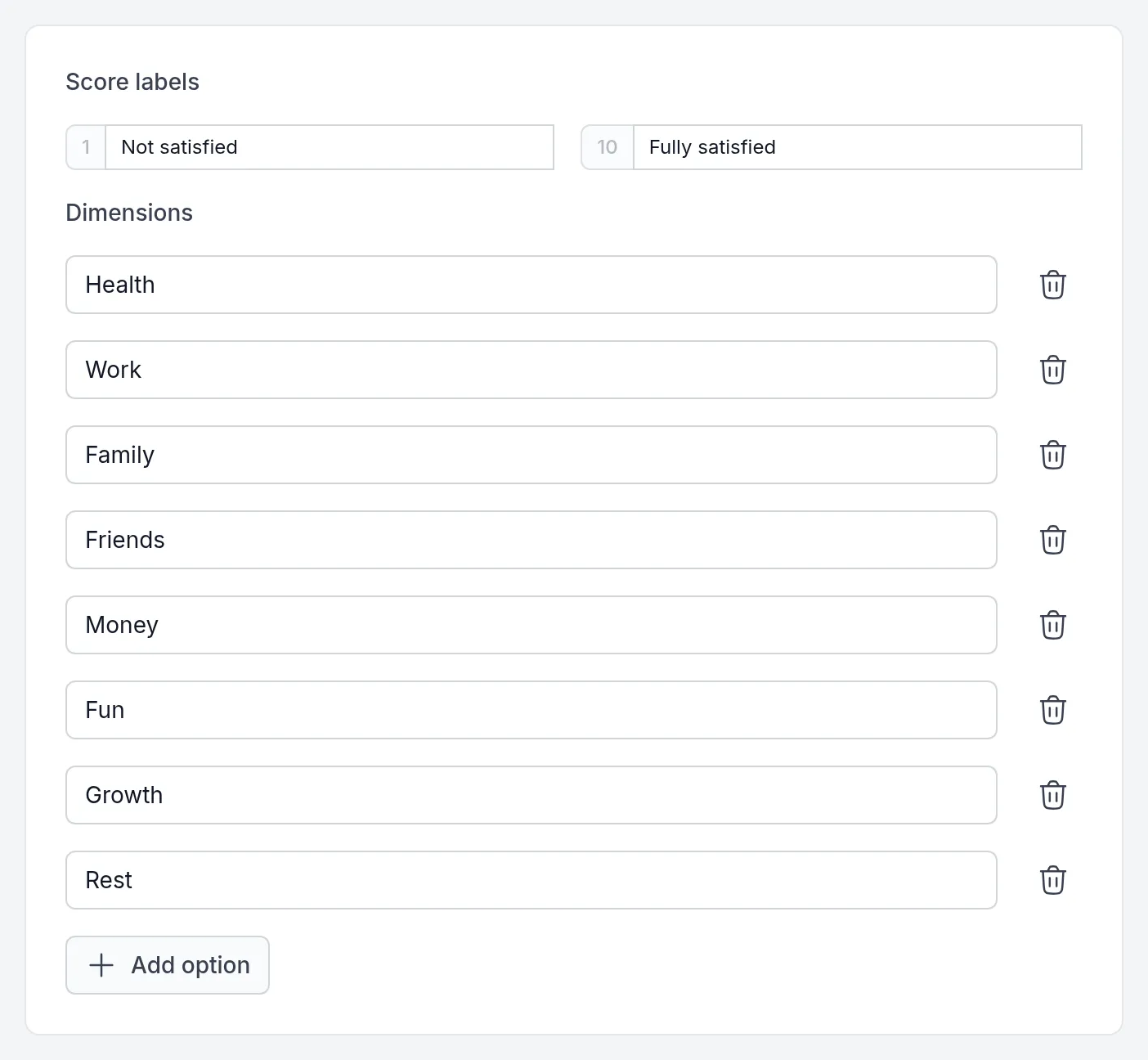
- Score labels: the words under 1 and 10, such as “Not satisfied” and “Fully satisfied”.
- Dimensions: the areas to score. Click Add option for each one. A wheel needs at least two.
The client scores one area at a time and sees the chart fill in as they go.
Linear Scale
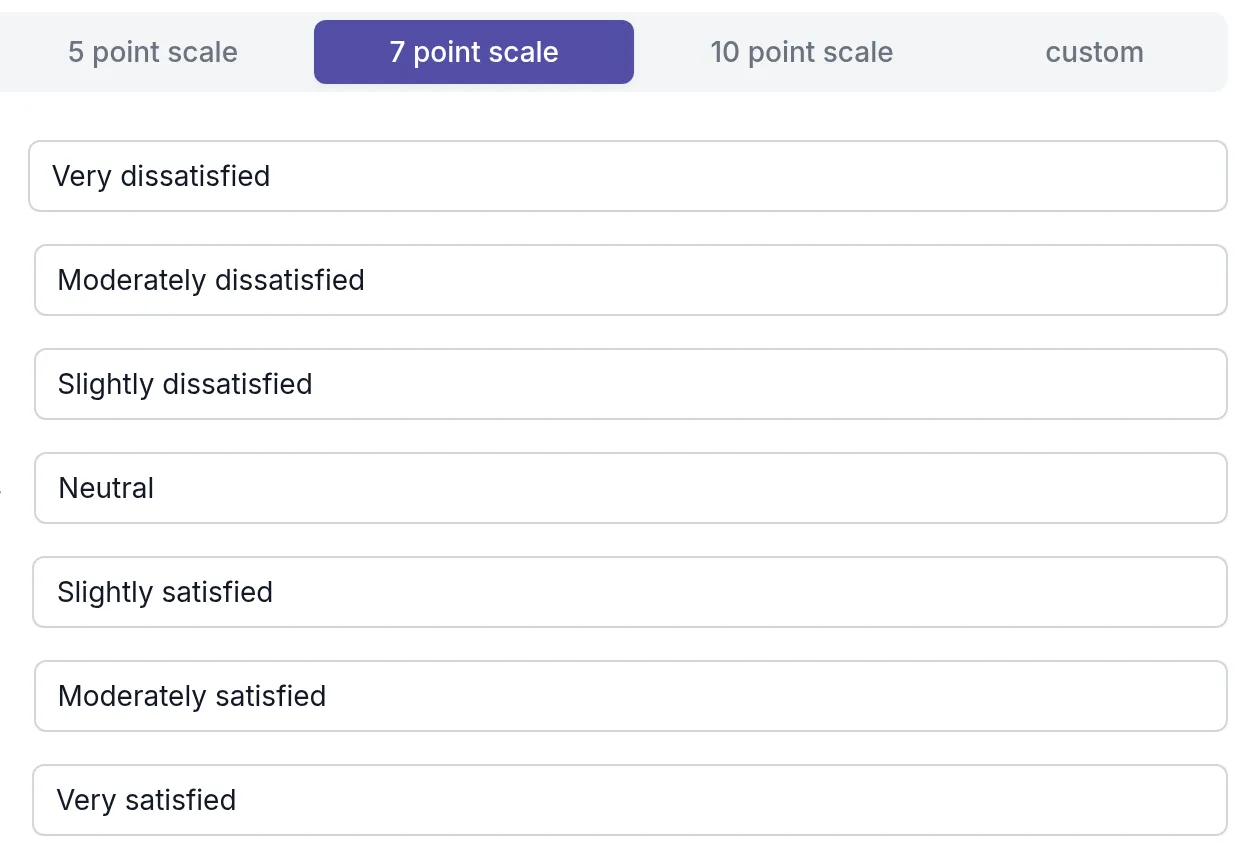
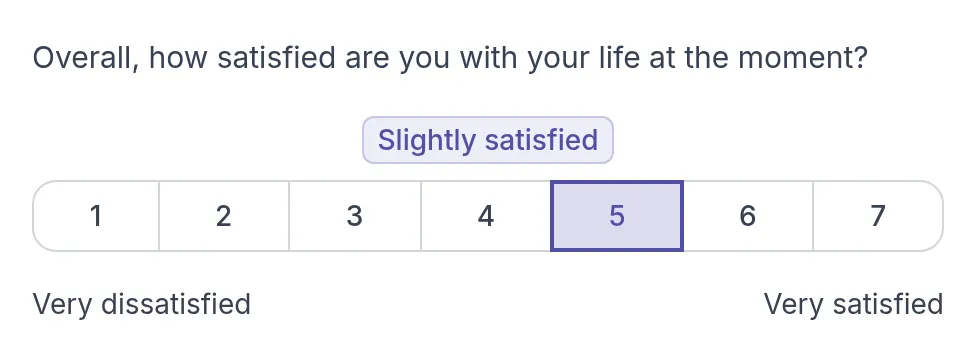
Section titled “Linear Scale”A linear scale asks for one rating, such as how satisfied, how much they agree or how strong a feeling is. Choose a preset at the top of the element and change the labels if you like:
- 5 point scale: Strongly disagree, Disagree, Undecided, Agree, Strongly agree.
- 7 point scale: from Very dissatisfied through Neutral to Very satisfied.
- 10 point scale: ten points with Strongly disagree and Strongly agree at the ends.
- custom: your own number of points and labels. A scale needs at least two.
The client sees numbered buttons with the first and last label below them. The label of the point they choose appears above the scale.
Number
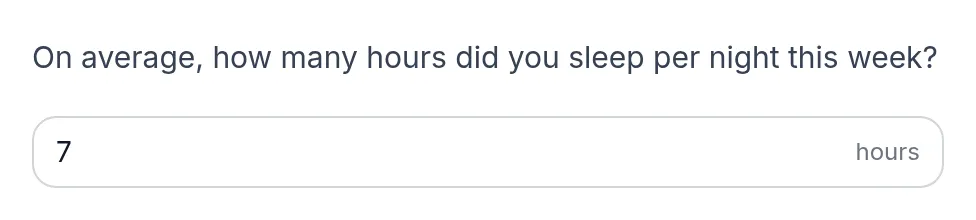
Section titled “Number”Use a number field when you want a figure you can compare over time, such as hours of sleep, cups of coffee or minutes of exercise.
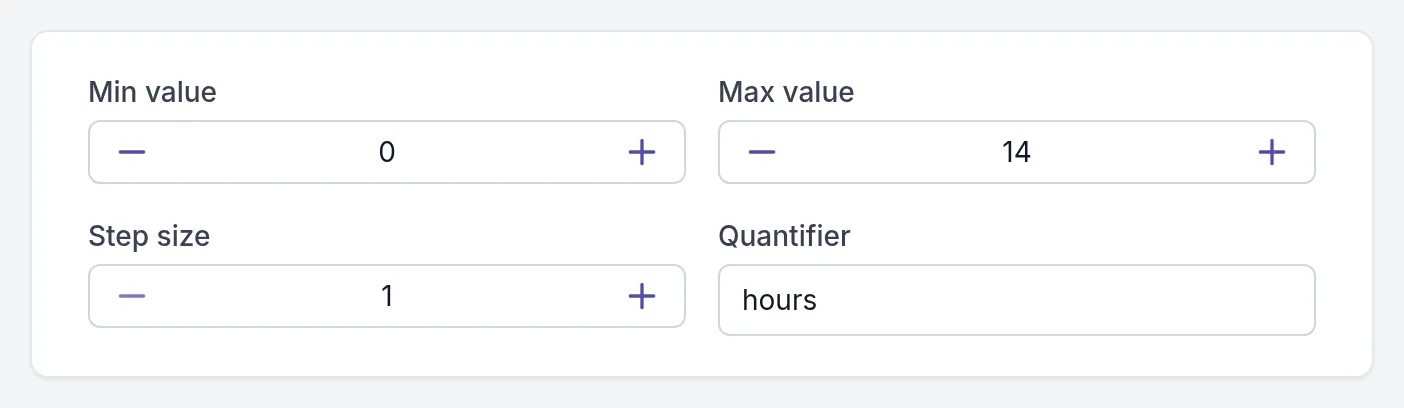
- Min value and Max value: the lowest and highest number the client can enter. New number fields start at 0 and 10.
- Step size: how much the value goes up or down with the plus and minus buttons.
- Quantifier: the unit shown in the field, such as “hours” or “days”.
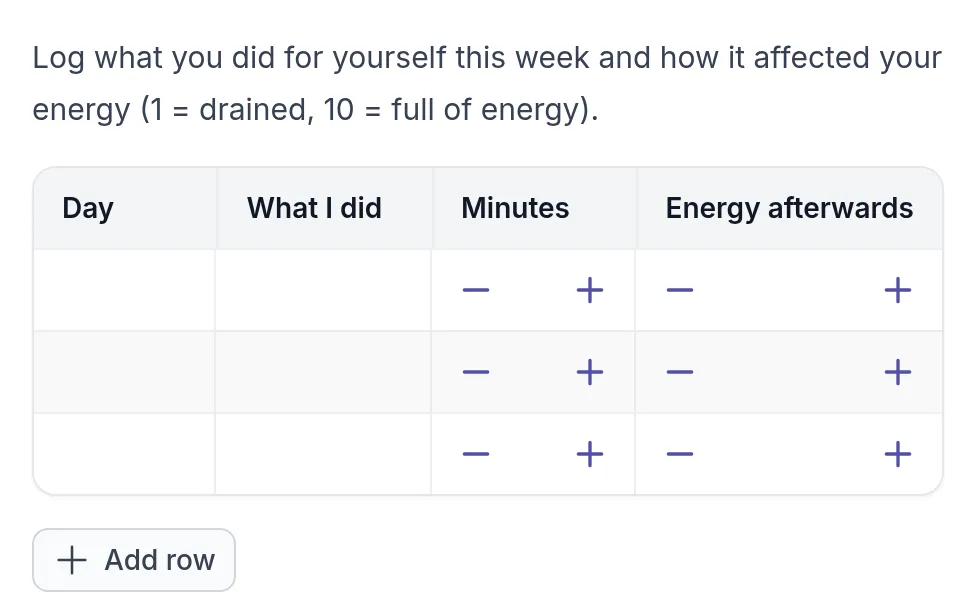
A table gives the client rows and columns to fill in. It suits logs and records that repeat, such as a weekly activity log, a thought record or a sleep diary.
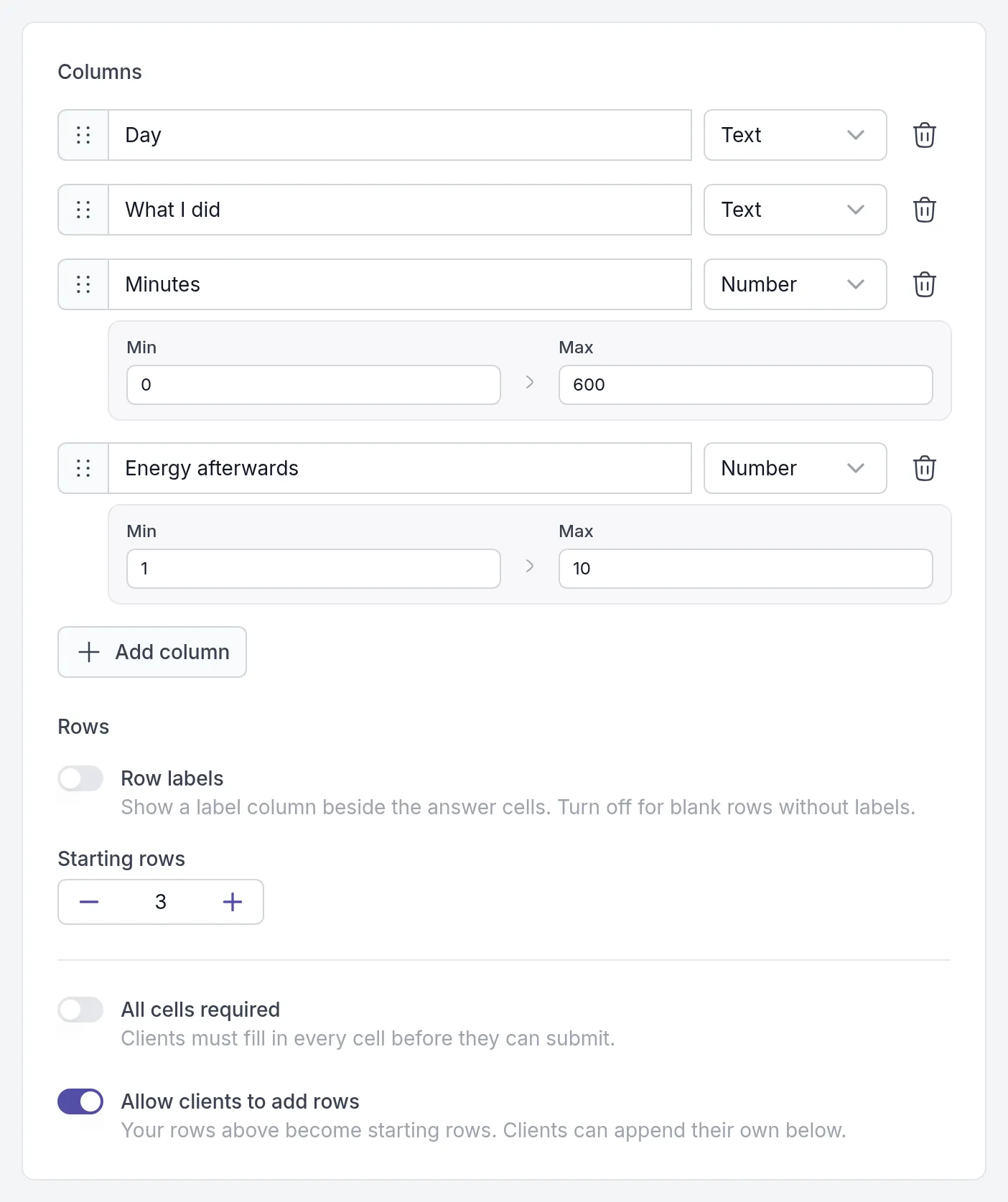
- Columns: name each column and choose its Cell type: Text for words, or Number with an optional Min and Max. Click Add column for more. A table can have up to 20 columns.
- Rows: turn on Row labels to give every row a fixed label, such as the days of the week. Leave it off for blank rows, and set the number of Starting rows. Up to 20 rows.
- All cells required: the client must fill in every cell before they can submit.
- Allow clients to add rows: your rows become starting rows, and the client can add more below them. Useful when you do not know how many entries a client will have.
The client fills in the cells. Number cells have plus and minus buttons, and Add row appears when clients may add rows.
Paste the link of a video from Vimeo, YouTube or Loom into Video URL. Other video sites are not supported. The client watches the video inside the activity.
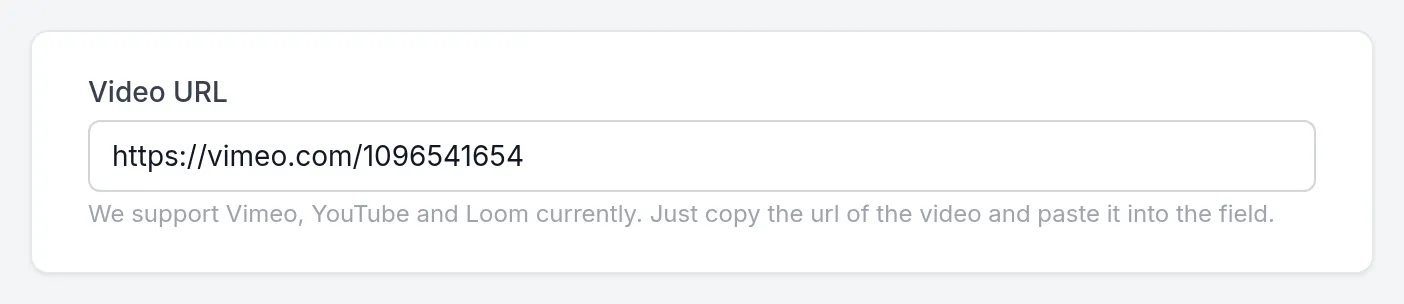
To share a recording that is not online, upload it to one of these services first, for example as an unlisted video.
Was this article helpful?
Thanks for letting us know.
Thank you. We read every answer and use it to improve this article.