
Brand your practice
Email templates
Save the subject and message of the emails you send with activities and programs, and reuse them in a couple of clicks.
When you send an activity or program, Quenza emails your client to let them know. Email templates let you save that subject and message once and reuse it, so you don’t write the same note every time.
Most practitioners have a few messages they send again and again. Sarah Bennett, for example, has a “Friendly welcome” template for the first exercise after an intake: “Thank you for our conversation. I have added the Values reflection for you. Take your time with it, there are no right or wrong answers.” When she sends the Values reflection to Emma Clarke, she picks the template, and the email greets Emma by her first name.
Email templates are available on the Growth plan and higher, and during the free trial. Templates are shared across the workspace. Creating and managing them requires permission to edit workspace settings.
Each email type starts with the built-in Quenza default template, which is used until you choose another.
Use a template when you send
Section titled “Use a template when you send”When you send an activity or program, the Notifications step has a Customize Email section, as long as Send an email is on. Click Use a template and choose a template. The subject and message are filled in, and you can still change them for this send.
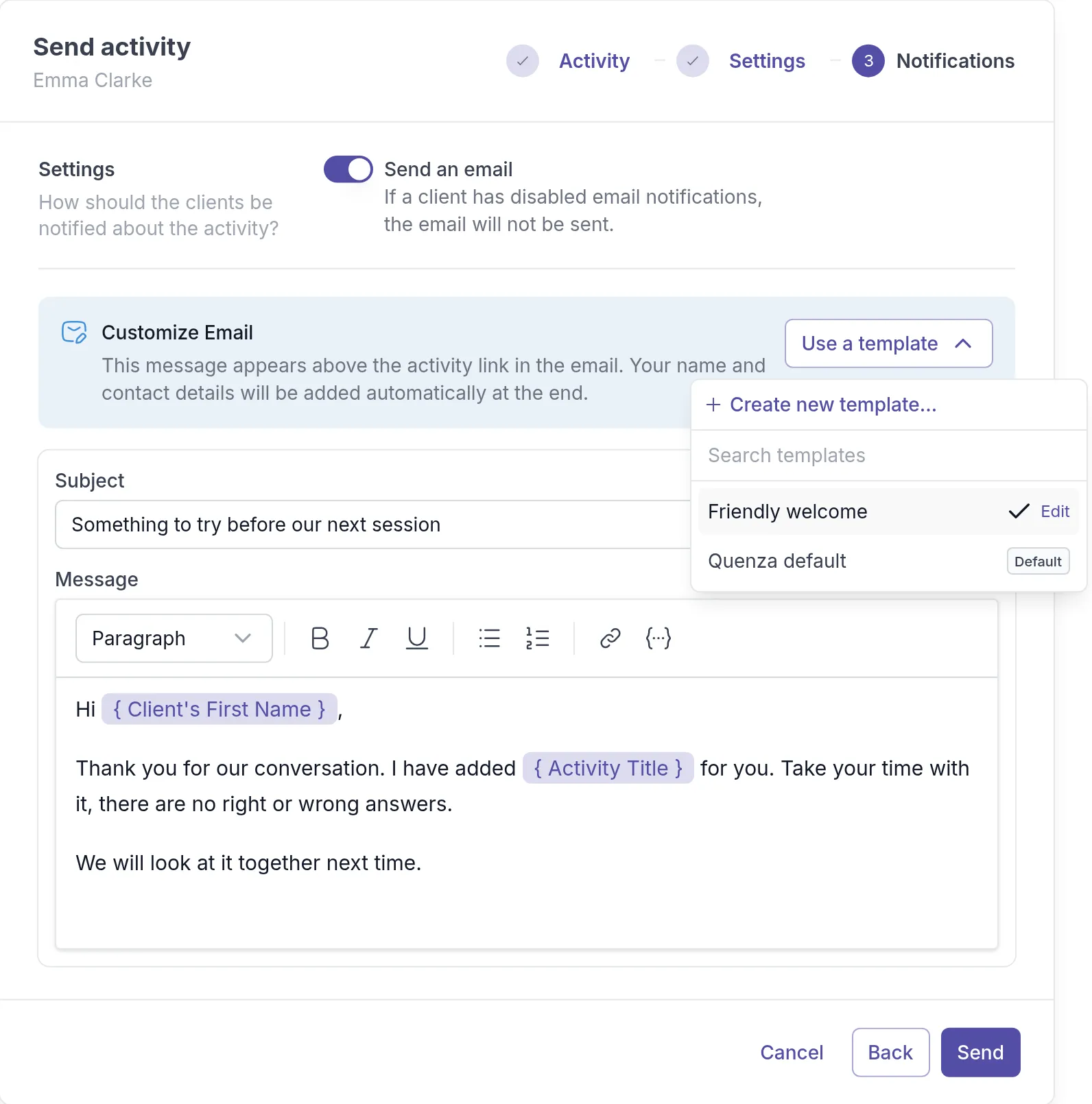
Quenza puts the link to the activity or program above your message, and adds your name and contact details at the end.
Create a template
Section titled “Create a template”You can create a template while you send, without leaving the dialog: in the Use a template menu, click Create new template…. You can also create one under Workspace → Customization, see below.
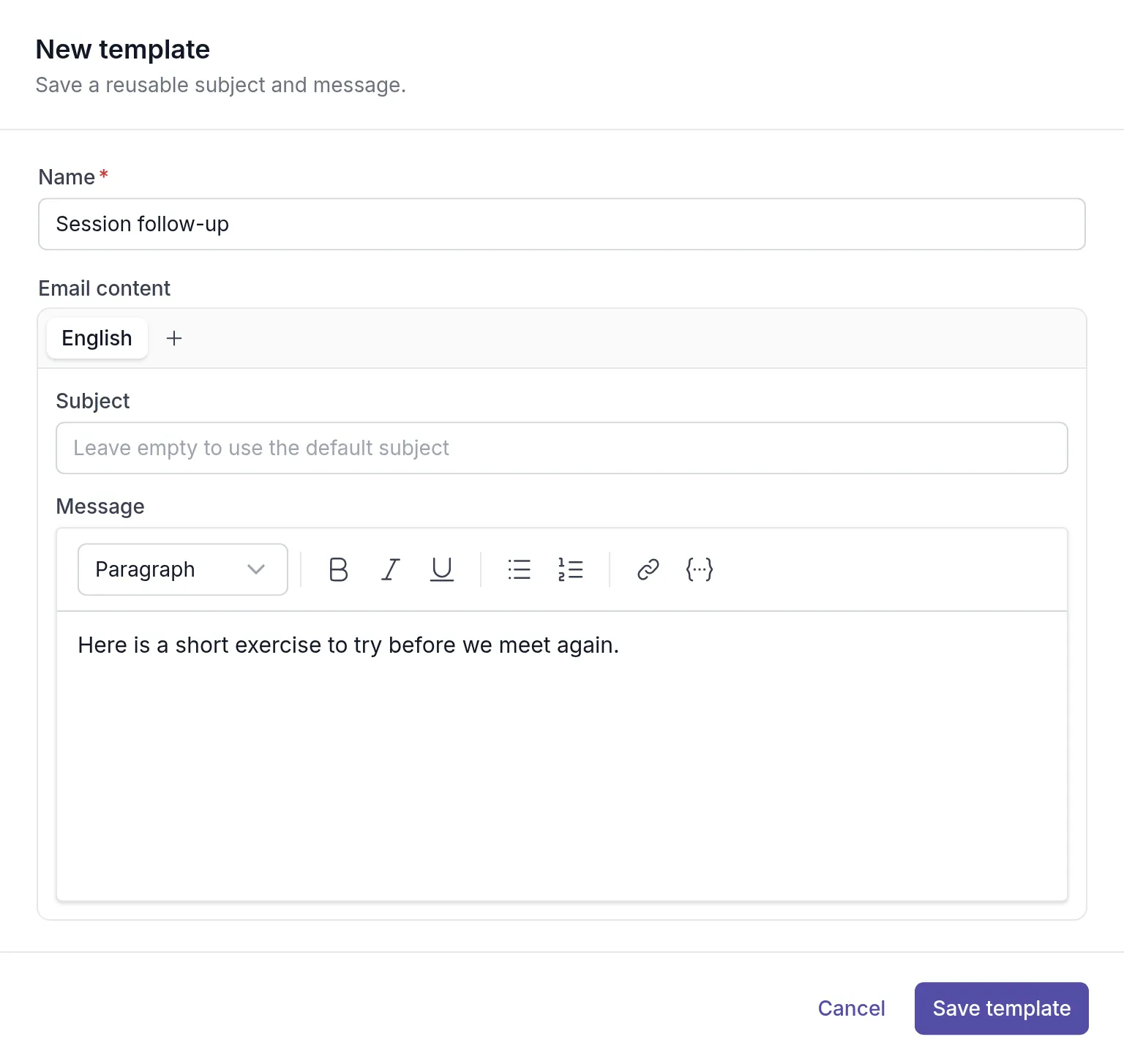
Give the template a Name you will recognise in the list, such as “Session follow-up”. Write the Subject, or leave it empty to use the default subject, and the Message. Click Save template. The template is selected right away and is available for future sends.
Personalize with variables
Section titled “Personalize with variables”Click the variable button ({…}) in the message toolbar to insert details such as the client’s first name or the activity title. Quenza fills them in for each client, so one template stays personal.
Add other languages
Section titled “Add other languages”Click + next to English to add a version of the template in another language. Quenza uses the version that matches the client’s language. If a template has no version in a client’s language, the client receives the wording shown in the language you send from.
Set a default template for an activity or program
Section titled “Set a default template for an activity or program”If you always send an activity with the same message, give it its own default template. The send dialog is then filled in automatically.
Open the activity or program, go to the Settings tab, choose a Default email template under Email and click Save.

If you don’t choose one, the workspace’s default template for that type is used. You can still choose another template or edit the message each time you send.
Manage the workspace’s templates
Section titled “Manage the workspace’s templates”All templates are under Administration → Workspace → Customization, on the Email templates tab. They are grouped by the email they are used for: Send activity and Send program.
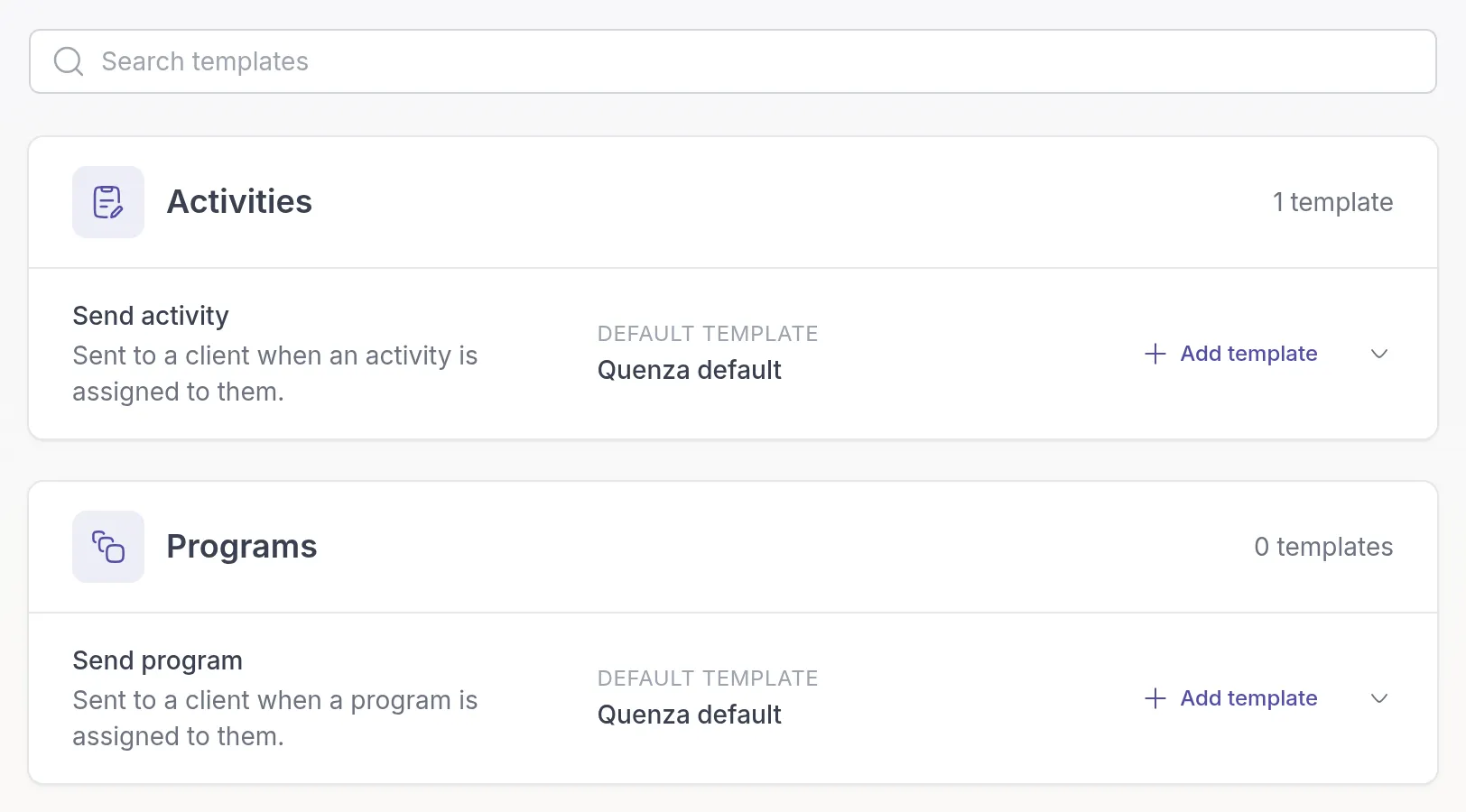
- Click Add template next to an email type to create a template.
- Open a template’s menu to Edit, Duplicate or Delete it, or choose Set as default to make it the workspace default for that type.
- The Quenza default template can’t be edited. Duplicate it to make your own version.
Related
Section titled “Related”Was this article helpful?
Thanks for letting us know.
Thank you. We read every answer and use it to improve this article.