
Team and workspace
Workspace statistics
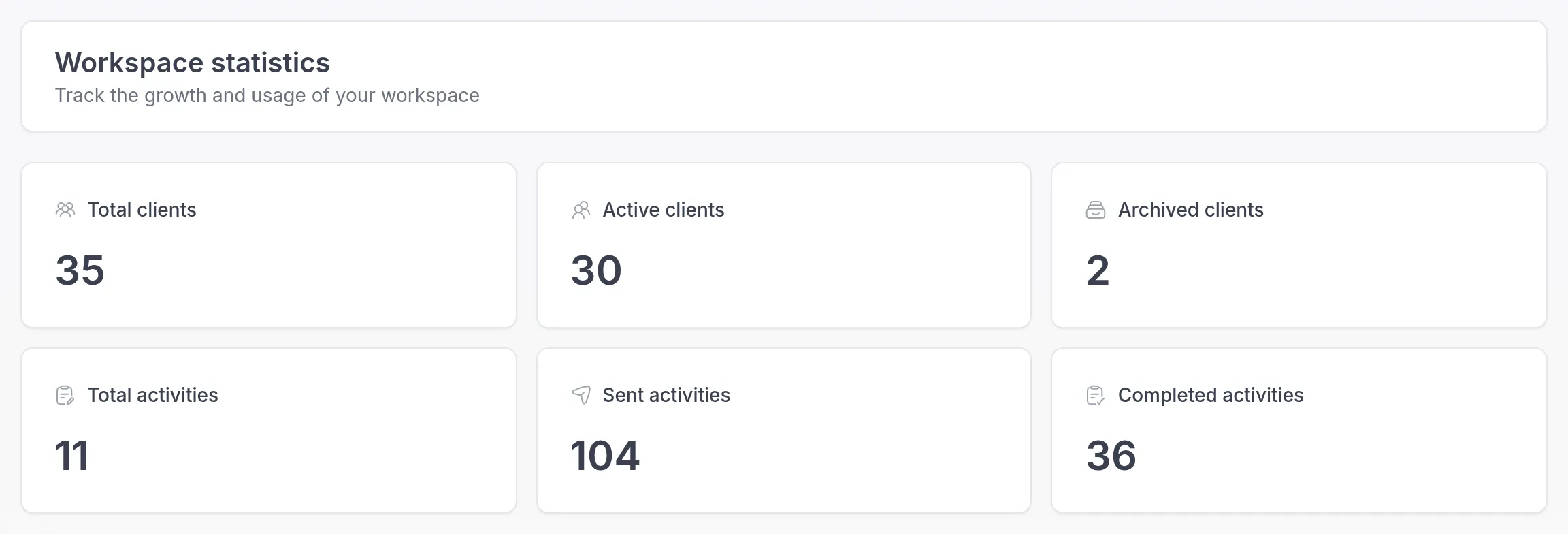
View your workspace statistics: how many clients and activities your workspace has, and how many activities clients have completed.
The Workspace statistics page shows totals for your whole workspace, so you can follow its growth at a glance. The workspace Owner, Managers and Billing Managers can open it. Members can’t.
It is useful for a quick look back, for example at the end of a quarter: how many clients you work with now, and how many of the activities you sent were actually completed. If clients complete only a small share, that may be a sign to send shorter activities or to follow up in your sessions.
Open the statistics
Section titled “Open the statistics”In the sidebar under Administration, click Workspace → Statistics.
What the numbers mean
Section titled “What the numbers mean”- Total clients: every client in your workspace, including archived clientsArchived clientA client you no longer work with, moved out of your active client list. Their history stays, and you can unarchive them at any time., clients who haven’t accepted their invitation yet, and the demo client of each professional.
- Active clients: clients who aren’t archived and have either accepted their invitation or were added as a guestGuestA client without a login. Guests get no invitation and cannot use the client portal or app, but Quenza emails them a direct link when you send an activity or share a note; you can convert them to an account later. without an account.
- Archived clients: clients you have archived. See Archive clients.
- Total activities: the activities in your workspace’s library.
- Sent activities: how many times an activity has been sent to a client, also as part of a program.
- Completed activities: how many of those sent activities clients have completed.
The numbers are totals for the whole workspace and all professionals in it, from the start. They update as you add clients and send activities. For the count that matters for your plan’s client limit, see Client limits.
To see what is happening today rather than in total, use the Home page.
Was this article helpful?
Thanks for letting us know.
Thank you. We read every answer and use it to improve this article.