
Activities and programs
Programs overview
See what a program is, where to find your program library, and how sections and activities make up a program for your clients.
A program is a series of activities that guides a client through a longer journey, such as a coaching trajectory, a treatment module or a course. You decide when each activity is delivered, so the program keeps running between sessions without you sending every step by hand.
For example, Sarah Bennett uses her program Better sleep in 4 weeks with clients who sleep badly. Week 1 starts with a sleep diary; a week later the breathing exercise arrives, then the next week’s activities. She sends the program once, and the client gets each step at the right moment.
Your program library
Section titled “Your program library”Programs → Library holds every program in your workspace. Search by title, or narrow the list with All formats (such as Course, Training or Treatment) and All topics.
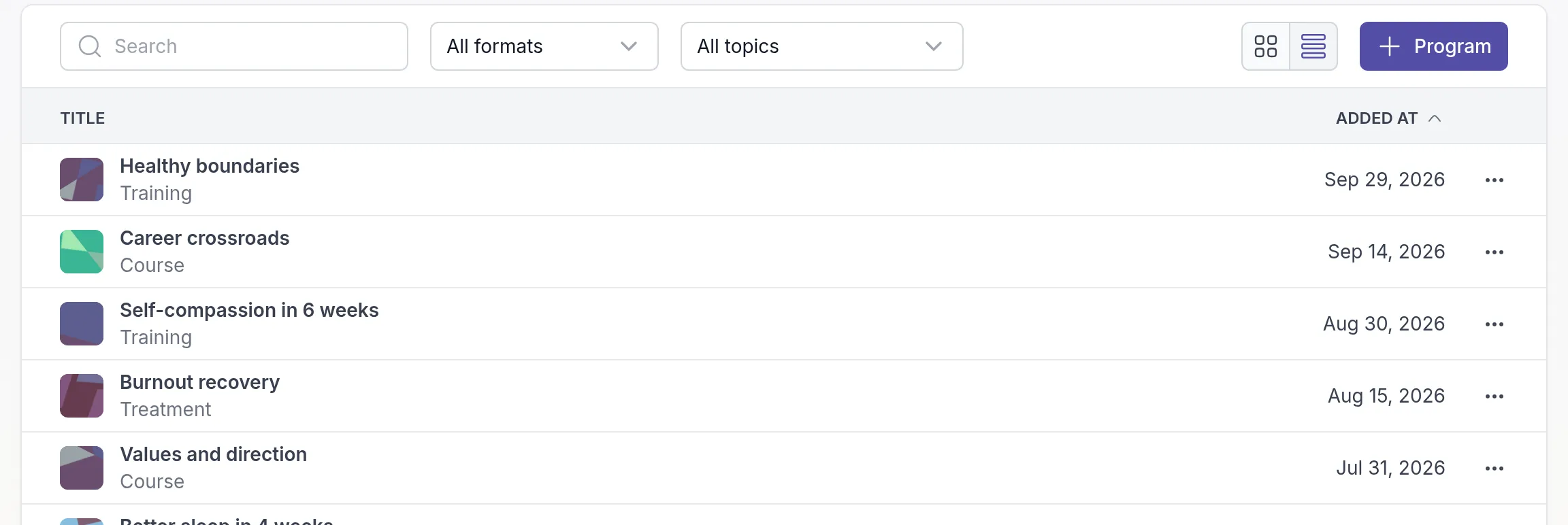
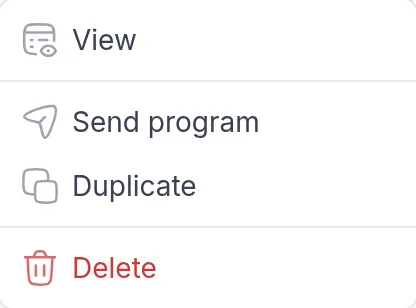
Click ⋯ in a program’s row to View it, Send program to clients or groups, Duplicate it or Delete it. Duplicate a program to make a variation, for example a six-week version of a four-week course.
To start from a ready-made program, go to Programs → Pre-made, open a program to preview it and click Add to library. See Pre-made content.
How a program is built
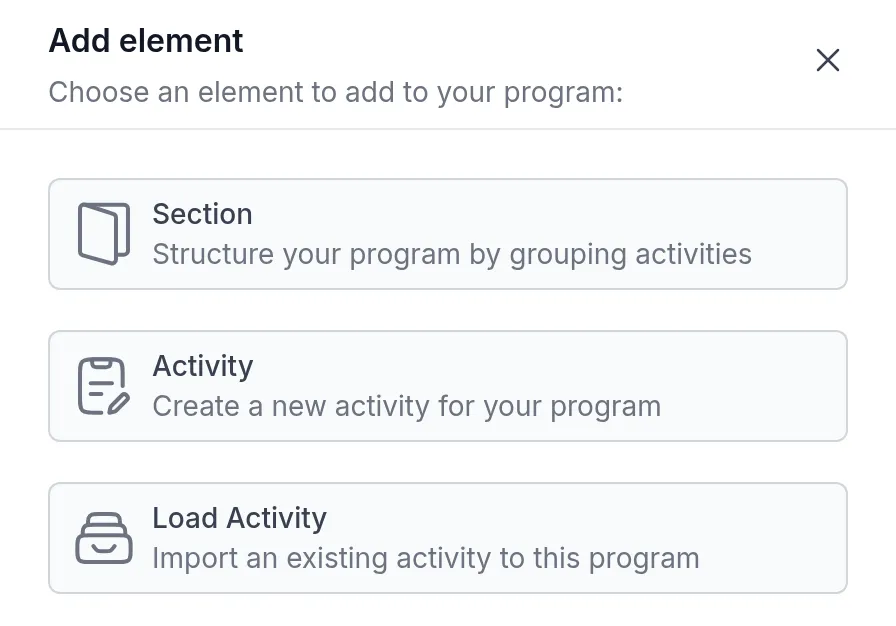
Section titled “How a program is built”Click + Program to open the program builder. Like the activity builder, it has a Content, an Instructions and a Settings tab. On the Content tab, + Activity or Section adds:
- Section: a heading that groups activities, such as “Week 1” or “Module 2”.
- Activity: a new, empty activity that you build inside the program.
- Load Activity: a copy of an activity from your library.
Each activity has its own delivery setting: right away, after the client completes the previous step, after a fixed interval, or when you trigger it yourself. See Build a program and Program delivery.
Delete a program
Section titled “Delete a program”Choose Delete in the program’s ⋯ menu and confirm with Delete program.
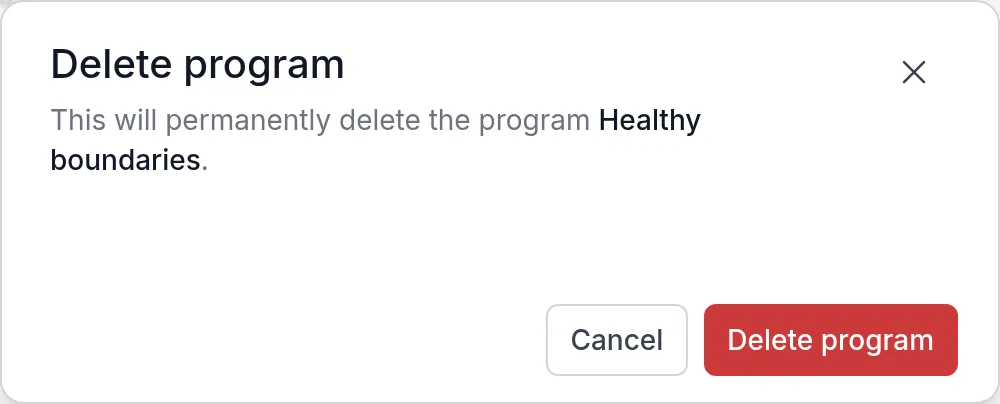
Deleting removes the program from your library. Programs you already sent are not removed from your clients. If a landing page sends this program to new sign-ups, the dialog names the page, and the page stops sending it.
Next steps
Section titled “Next steps”Was this article helpful?
Thanks for letting us know.
Thank you. We read every answer and use it to improve this article.