
Plans and billing
Payment method
Change the card or payment method your Quenza subscription is charged to, for example when your card expires or a payment fails.
Your subscription renews automatically with the card on file. Update it before your card expires, when you get a new card, or when you want your practice’s business card charged instead of a personal one. The workspace Owner, Manager and Billing Manager can do this, in the web app.
- In the sidebar under Administration, click Billing → Subscription.
- In the Payment Method card, click Update Payment. The secure billing portal of our payment provider opens in a new tab.
- Add your new card or payment details and save.
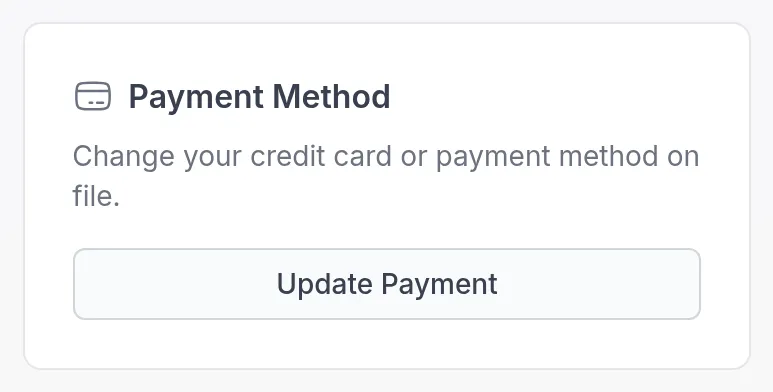
Your next payment is taken from the updated payment method. The Payment Method card appears once you have a subscription.
Your card details are safe
Section titled “Your card details are safe”Payments are processed by our payment provider. Your full card details are stored with the provider, never in your Quenza workspace, and nobody at your practice or at Quenza can see them.
If a payment fails
Section titled “If a payment fails”If a renewal payment doesn’t go through, for example because the card expired, the invoice stays Open or becomes Overdue. Update your payment method as above, then go to Billing → Invoices and click the invoice to pay it. See Invoices and taxes.
While an invoice is unpaid, you can’t upgrade to a higher plan. If you need help, contact our support team.
Was this article helpful?
Thanks for letting us know.
Thank you. We read every answer and use it to improve this article.