
Work with clients
Review completed activities
Open a client's answers to a completed activity, leave feedback in the comments, and see how answers can be changed afterwards.
When a client finishes an activity, you get a notification and can read their answers. Use them to prepare the next session, and reply in the comments so the client knows you have read them.
Read the answers
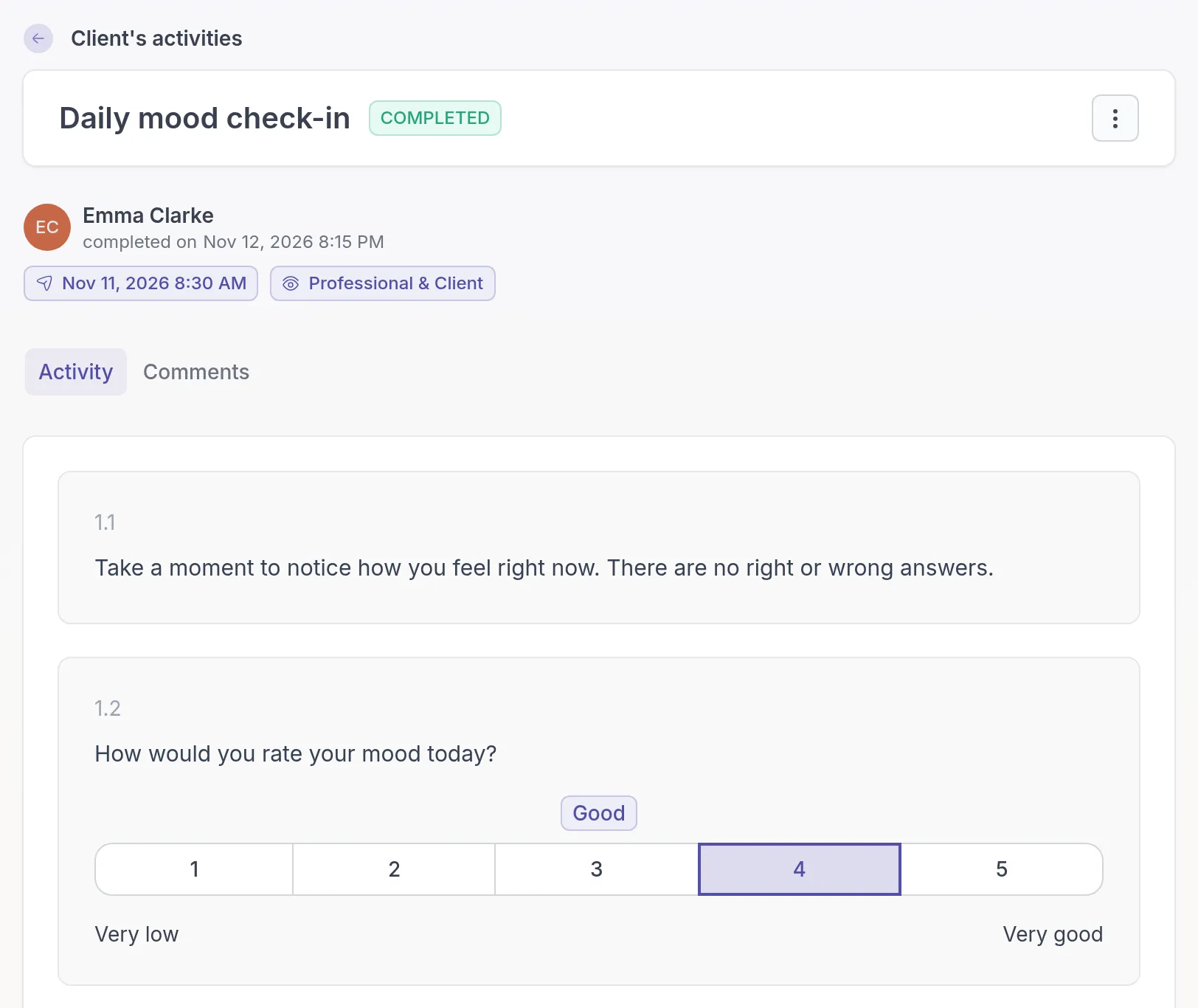
Section titled “Read the answers”For example, Emma Clarke filled in the Daily mood check-in last night. The morning before her session, Sarah Bennett opens it to see how Emma’s week went:
- Go to Clients, open the client and select the Activities tab.
- Click the activity with the status Completed. To find it quickly, choose Completed in the All statuses filter.
The Activity tab shows the client’s answers. Above the tabs you see when the client completed the activity, when it was sent, and who can see the results.
Give feedback in the comments
Section titled “Give feedback in the comments”A short reply shows the client that their homework matters, for example: “Thanks Emma, I can see your energy is better on the days you walk after lunch. Let’s talk about that on Thursday.”
- Select the Comments tab of the completed activity.
- Type your feedback and click Add comment.
The client can always read your comments. Turn on Allow client comments if the client should be able to reply. For replies and threads, see Comments.
To keep a copy of the answers, export the activity as a PDF.
Change answers after completion
Section titled “Change answers after completion”A completed activity can still be changed, by the client or by you. This is useful when the client remembers something later, or when you go through the answers together in a session.
The client makes changes
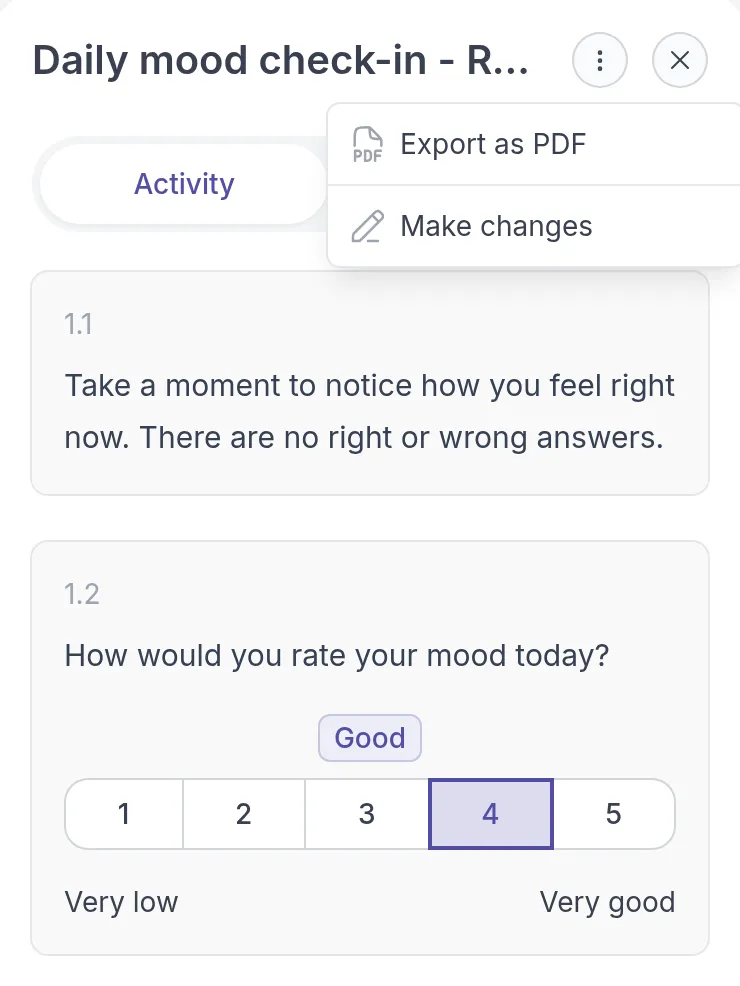
Section titled “The client makes changes”The client opens the completed activity in their app, clicks the ⋮ menu at the top and chooses Make changes. When they finish again, the professional who sent the activity gets a notification, so you can see what changed.
You make changes
Section titled “You make changes”You can change the answers on the client’s behalf, for example after you went through them together during a session:
- Open the completed activity.
- Click the ⋮ menu at the top and choose Make changes.
- Edit the answers, click Next to move through the activity, and click Finish on the last page.
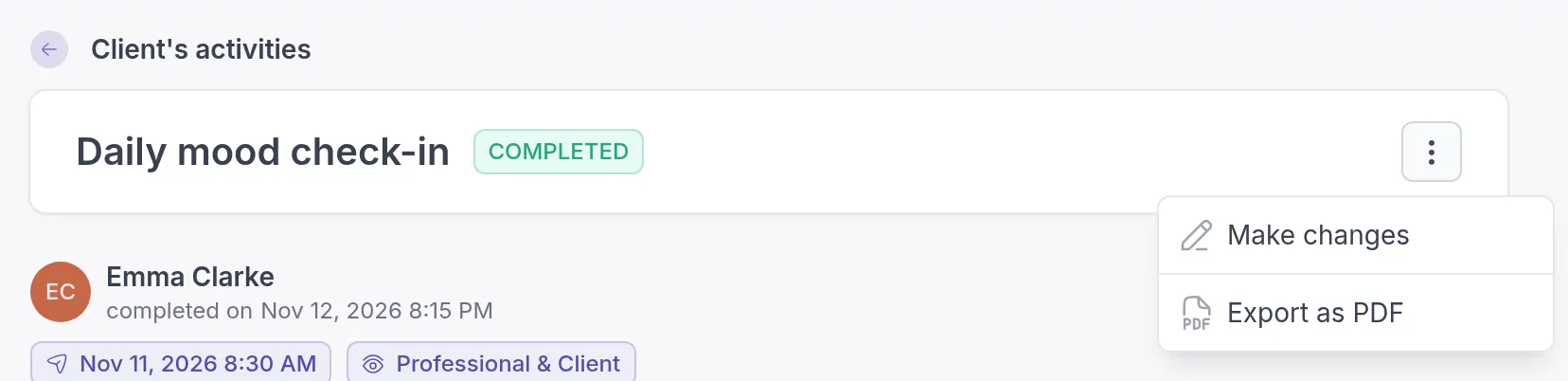
Make changes is also in the ⋯ menu next to the activity in the client’s Activities list. It is only available if you can see the results and your roleRolesWhat each person in your workspace can see and do: Owner, Manager, Member or Billing Manager. allows you to send activities. Your changes are recorded in the client’s timeline.
To fill in an activity with a client from the start, see Fill out now.
Was this article helpful?
Thanks for letting us know.
Thank you. We read every answer and use it to improve this article.