
Get new clients
Automations
Give everyone who signs up through a landing page the same activities, programs, groups and resources, without assigning them by hand.
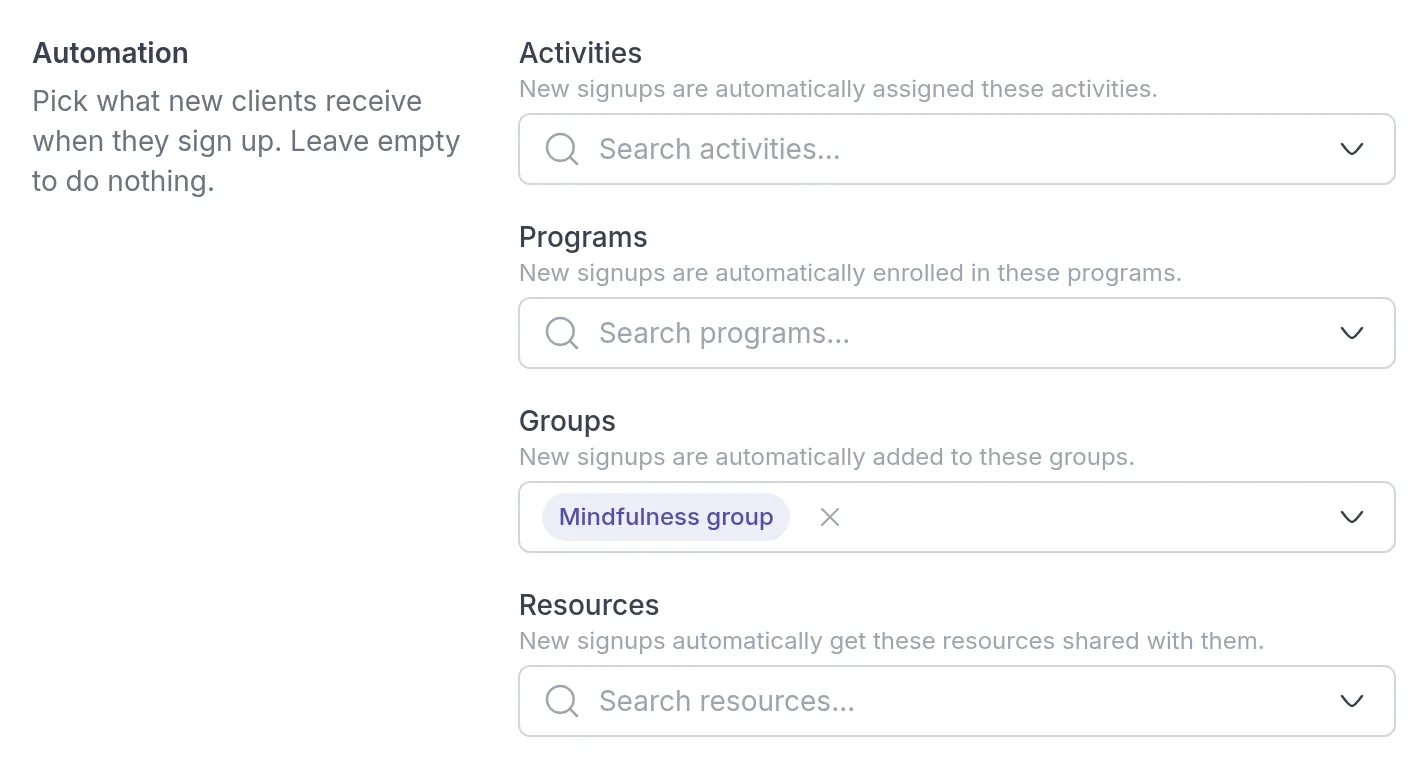
Every signup formSignup formThe form on a landing page that turns a visitor into a client. You choose what it asks and whether people join straight away or wait for your approval. on a landing page has an Automation section. There you choose what new clients receive when they join through that form, so you don’t have to assign anything by hand.
You set automations per signup form, not for the whole workspace. A page for one service can give new clients a different starter program than a page for another service.
For example, everyone Sarah Bennett accepts from her “Mindfulness group: autumn intake” page is added to the Mindfulness group straight away. They see the group’s content and, if group chatGroup chatOne shared conversation for the members of a group and their professionals. You turn it on per group. is on, the group conversation from their first login, and Sarah doesn’t have to add each person by hand.
What you can automate
Section titled “What you can automate”You can combine as many of these as you like on one form:
- Activities: the new client is sent these activities.
- Programs: the new client is enrolled in these programs.
- Groups: the new client is added to these groups.
- Resources: these resourcesResourcesYour workspace's library of files and links, such as worksheets, handouts and audio exercises, which you link to clients and groups. are shared with the new client.
Leave a field empty if you don’t want to deliver anything of that kind. For example, a form can enrol new clients in an onboarding program and add them to a group, and send no activities or resources.
Activities and programs start right away, and the client gets the usual email about them. They are sent on behalf of the form’s assigned professional.
Set up an automation
Section titled “Set up an automation”Open your page under Landing Pages, click the Signup form element on the Content tab and scroll down to Automation. Under Activities, Programs, Groups and Resources, search for and select what new clients should receive. Then save and publish the page: Save and Publish, or Save changes and Publish changes if the page is already published.
Your automation only applies to signups after you publish. Each person gets the content that was set on the form when they signed up, so later changes don’t affect people already on your waiting listWaiting listWhere signups from a landing page wait until you accept them, for example when a group has limited places..
When the automation runs
Section titled “When the automation runs”The automation does not run when someone fills in the form. It runs when the new client is active in your workspace:
- Clients receive the content once they accept their invitation and set up their account.
- Guests receive the content as soon as they are added, because they don’t get an invitation.
With the Waitlist signup mode, or when your plan is full, people first wait on your waiting list. Nothing is delivered until you accept them, and for clients, until they accept their invitation. See Signup form.
The automation never runs for people who don’t confirm their email address, for requests you decline, or for clients who never accept their invitation.
If you delete content used in an automation
Section titled “If you delete content used in an automation”When you delete an activity, program, group or resource that a landing page uses in an automation, Quenza lists the affected landing pages before you confirm. After you delete it, it is removed from those automations.
Related
Section titled “Related”Was this article helpful?
Thanks for letting us know.
Thank you. We read every answer and use it to improve this article.