
Work with clients
Fill out now
Fill out an activity together with a client during a session, without sending an email, and choose who sees the results afterwards.
With Fill out now you open an activity for one client and fill it in yourself, right away. Use it when you work through an activity together, for example during a session or a phone call. You need permission to send activities.
When to use it
Section titled “When to use it”Sending an activity is for work the client does on their own, between sessions. Fill out now is for the moments you do it together:
- In the first session, Sarah Bennett goes through the Intake questionnaire with Noah Jansen and types his answers as they talk.
- During a session, you work through the Values reflection with a client who prefers to talk rather than write.
- A client calls you because they cannot fill in the Sleep diary on their own this week.
The answers are stored with the client, exactly as if the client had filled in the activity. You can review them, comment on them and export them later.
Start an activity with a client
Section titled “Start an activity with a client”-
Go to Activities → Library.
-
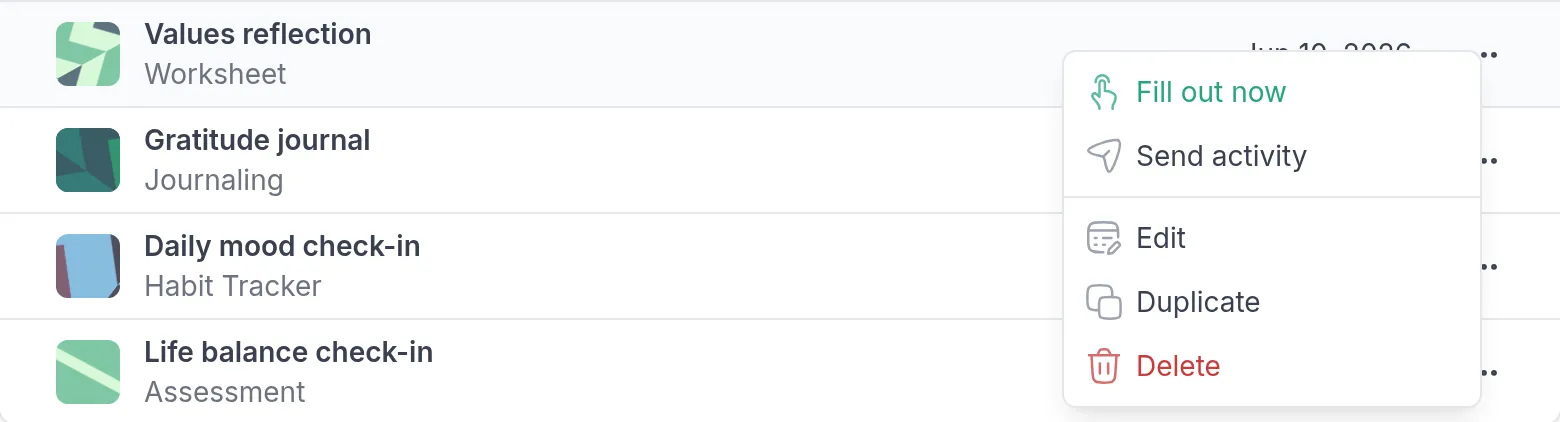
Click the ⋯ menu next to the activity and choose Fill out now.
-
Under Recipient, search for the client and select them.
-
Under Results viewing, choose who can see the answers once the activity is complete.
-
Click Create.
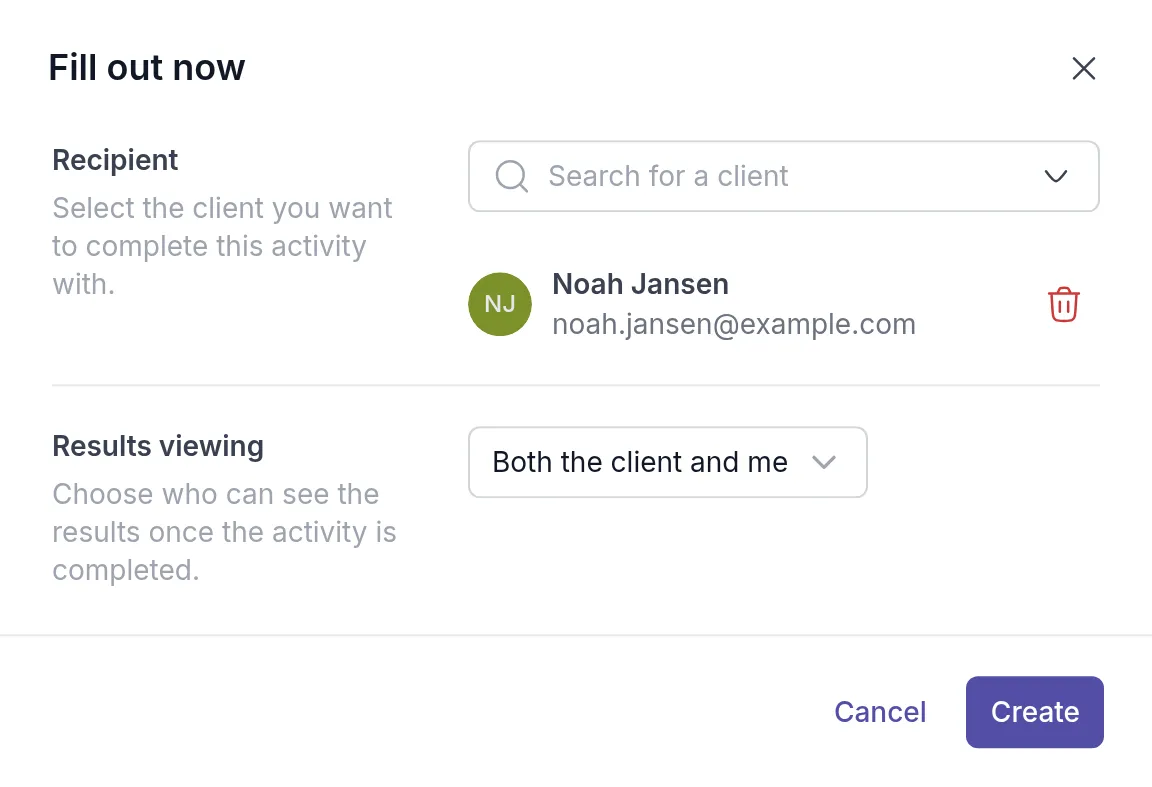
You can also start from an activity you have open in the activity builder: the ⋮ menu at the top has Fill out now too. Quenza saves your changes to the activity first.
Fill in the activity
Section titled “Fill in the activity”The activity opens full screen, the way the client would see it. Fill in the answers together, click Next to go to the next page and Finish on the last page.
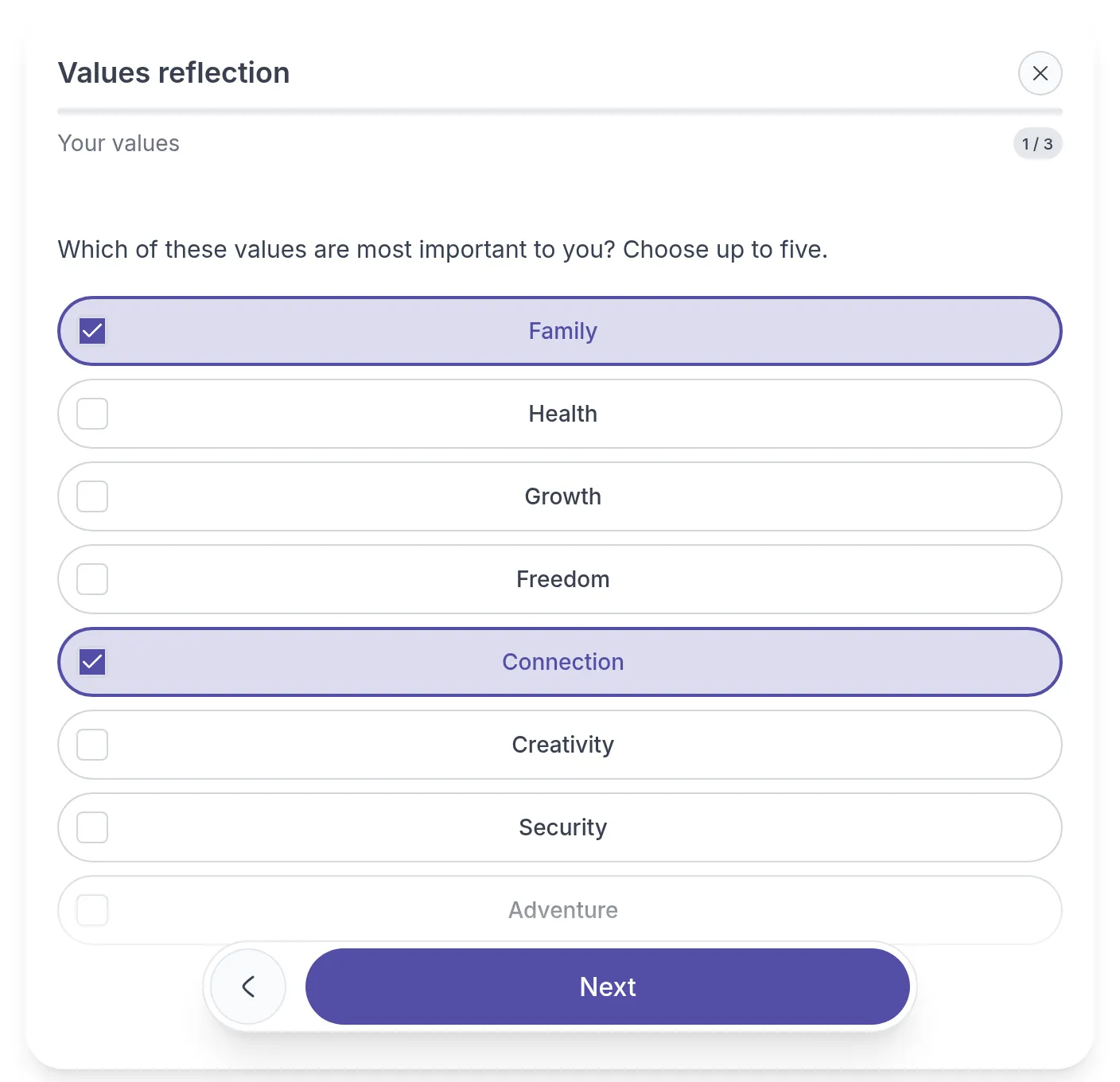
Your answers are saved each time you click Next. If the session ends before you are done, close the activity with the cross at the top right. You can carry on later.
What the client gets
Section titled “What the client gets”- No email. Quenza does not email the client about an activity you fill out now.
- The activity is in the client’s app. It appears in their list of activities like any other activity. The client can open it there, and once it is complete they can read the answers if the results are visible to them.
- Comments are off. To let the client react to the answers, turn on Allow client comments on the activity’s Comments tab. See Comments.
Who sees the results
Section titled “Who sees the results”Results viewing works like the Results setting when you send an activity:
- Both the client and me: you and the client can read the answers. Choose this in most cases.
- Only the client: only the client can read the answers once the activity is complete.
- Only me: you can read the answers, the client cannot.
- The client decides: the client chooses who can see the answers.
Continue later or make changes
Section titled “Continue later or make changes”The activity is listed in the client’s Activities tab. Open the ⋯ menu next to it. The first action depends on the status:
- Fill out now while nobody has started it yet.
- Continue when it is in progress. The activity opens on the page where you stopped.
- Make changes when it is completed. See Review completed activities.
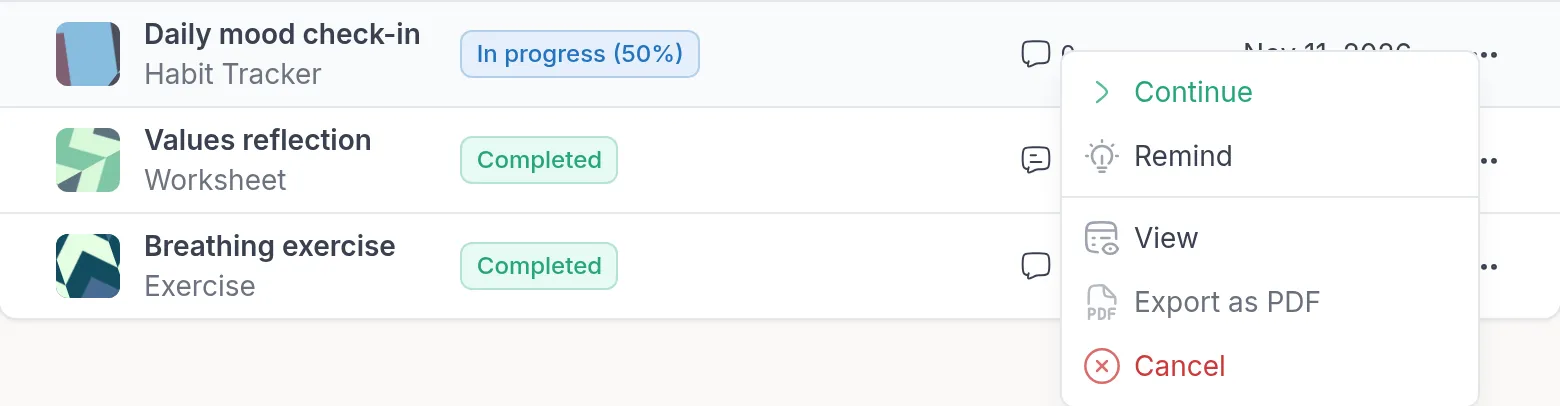
These actions are also there for activities you sent to the client. Use them, for example, when a client got stuck on a worksheet and you finish it together in the next session.
To send an activity for the client to do on their own, see Send an activity.
Was this article helpful?
Thanks for letting us know.
Thank you. We read every answer and use it to improve this article.