
Manage clients
Import clients
Add many clients to Quenza at once by filling in the Excel or CSV template and uploading it on the Bulk import page.
Moving an existing caseload into Quenza? Instead of adding clients one by one, fill in a template and upload it to add them all at once.
For example, Sarah Bennett moves her practice to Quenza. She exports her client list from her old system, copies the names and email addresses into the Quenza template and uploads it. All her clients get an invitation the same day.
Prepare your file
Section titled “Prepare your file”Go to Clients and click Bulk import. Download the template as Excel (.xlsx) or CSV (.csv) and fill in one row per client. First name, last name and email address are required for every client.
Upload and import
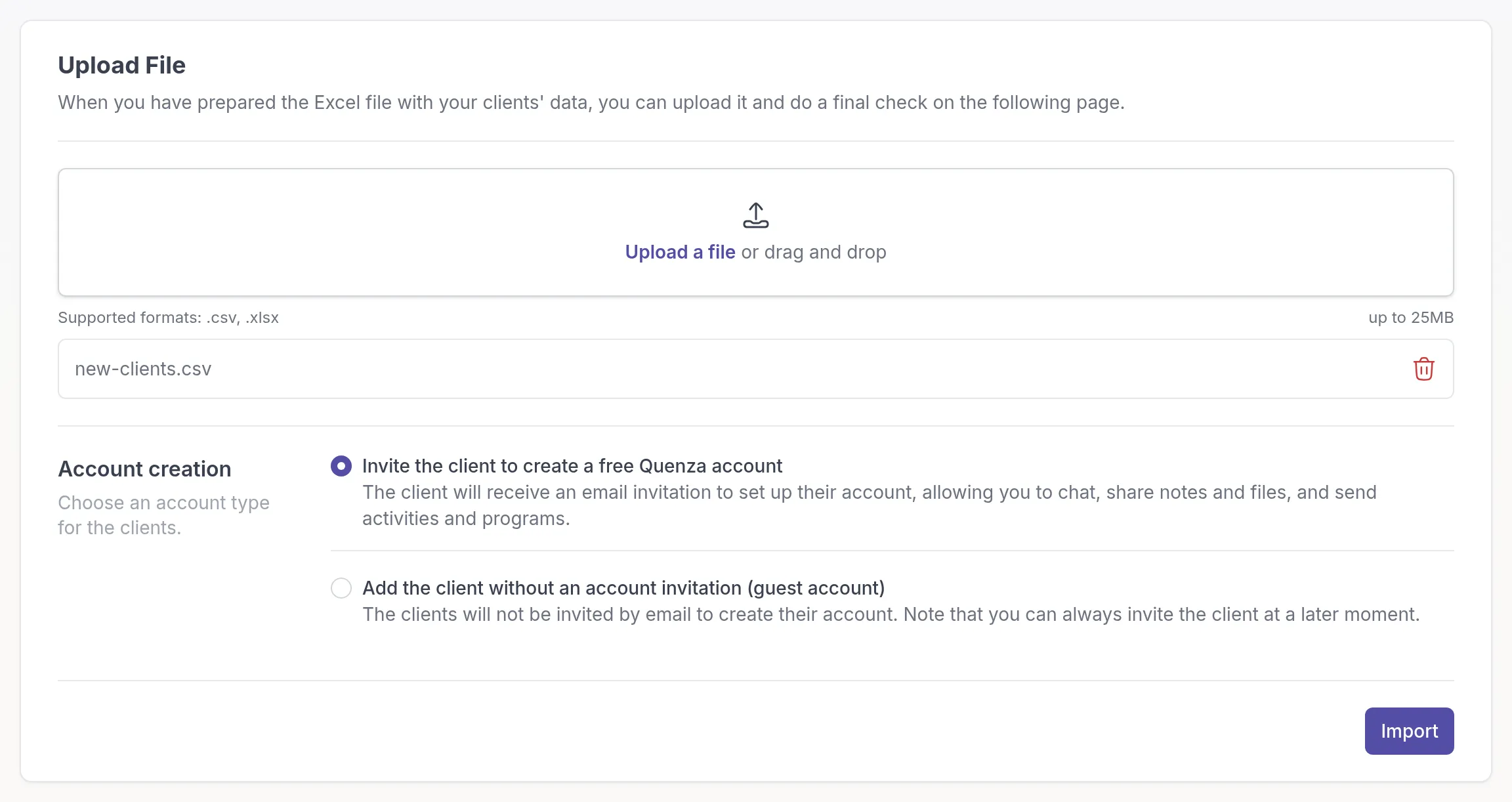
Section titled “Upload and import”Under Upload File, add your filled-in file (.csv or .xlsx). Under Account creation, choose one account type for all clients in the file:
- Invite the client to create a free Quenza account: each client gets an email invitation to set up their account, so you can chat, share notes and files, and send activities and programs.
- Add the client without an account invitation (guest account): clients are added without an invitation and without a login. Quenza still emails them when you send them an activity or share something, with a link that opens it directly. You can invite them later. See Guest clients.
Click Import.
Quenza adds the clients and shows an Import summary with the number of rows in your file, the rows imported and the rows that failed.
If something goes wrong
Section titled “If something goes wrong”- Some rows could not be imported. The Import summary lists the rows that failed. Correct those rows and upload a file with only the corrected rows.
- Your file has more clients than your plan allows. The Import limit reached dialog shows how many clients are in your file and how many slots are available. Click Upgrade Plan to get more, or remove clients from the file or from your workspace and try again. See Client limits.
To add a single client, see Add clients.
Was this article helpful?
Thanks for letting us know.
Thank you. We read every answer and use it to improve this article.