
Work with clients
Comments
Continue the conversation with your client in the comments of a note or completed activity, reply in threads and choose whether clients can comment.
Comments let you and your client keep talking about a note or a completed activity between sessions. Give feedback on homework, answer a question about a session summary, or suggest a small next step. Replies keep each conversation together in a thread, right next to what it is about.
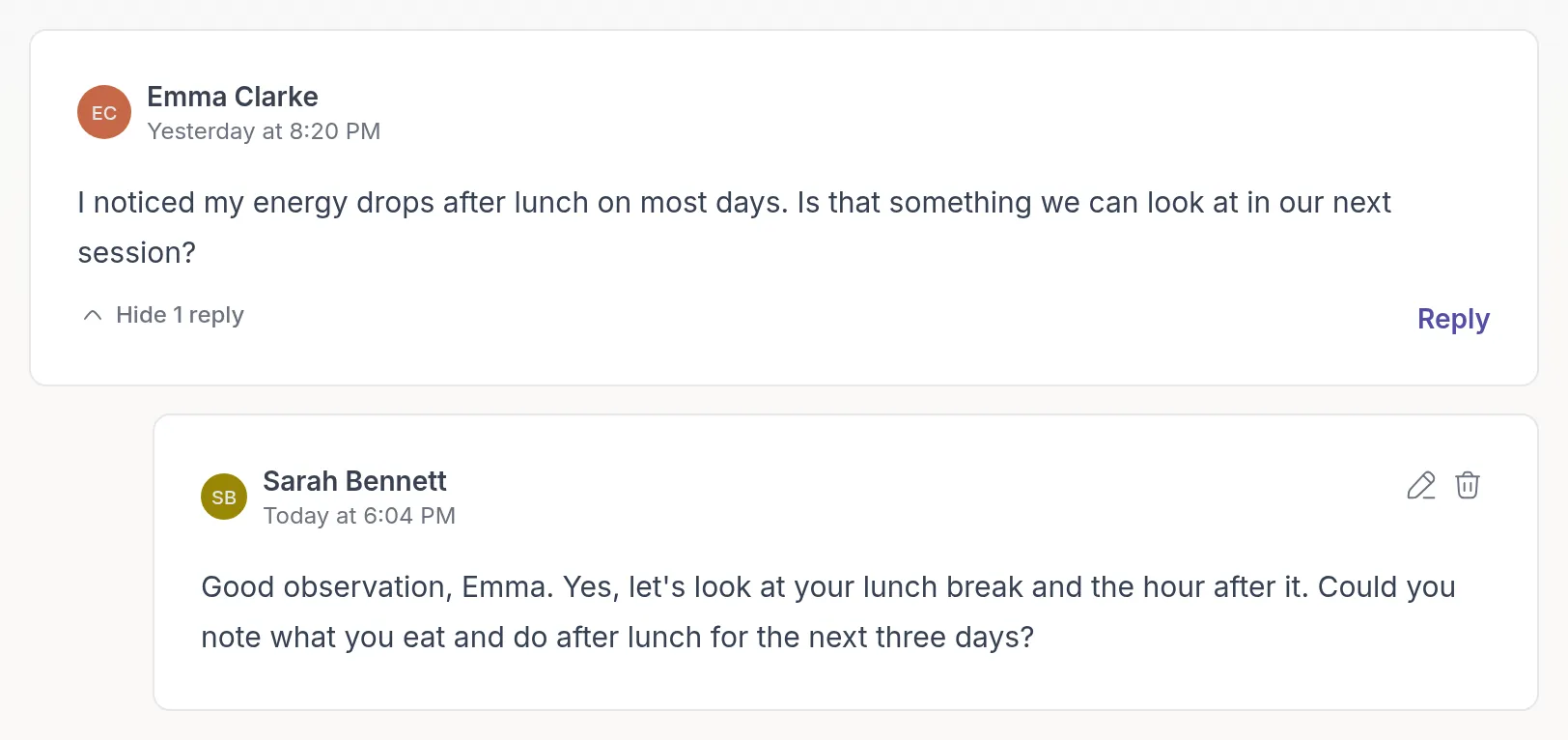
For example, Emma Clarke writes under her Daily mood check-in that her energy drops after lunch. Sarah Bennett replies in the thread and asks her to note what she eats and does after lunch for three days, so they can look at it in the next session.
Who can comment
Section titled “Who can comment”- You and your team can comment on any note in your workspace, shared or not, and on completed activities. Comments on a note that is not shared are a way to coordinate with colleagues.
- Clients can comment on a note only when it is shared with them and Allow client comments is on. On activities, the same switch controls whether the client can comment.
- Clients can always read your comments on notes shared with them and on their activities, even when they cannot reply.
If a note is shared with a group and client comments are allowed, all group members can comment.
When someone adds a comment, the other side gets a notification in the app, and by email if they have email notifications on. Commenting is not possible for archived clientsArchived clientA client you no longer work with, moved out of your active client list. Their history stays, and you can unarchive them at any time. and groups, or for clients who have not accepted their invitation yet.
Allow or stop client comments
Section titled “Allow or stop client comments”Open the note or completed activity, select the Comments tab and turn Allow client comments on or off.
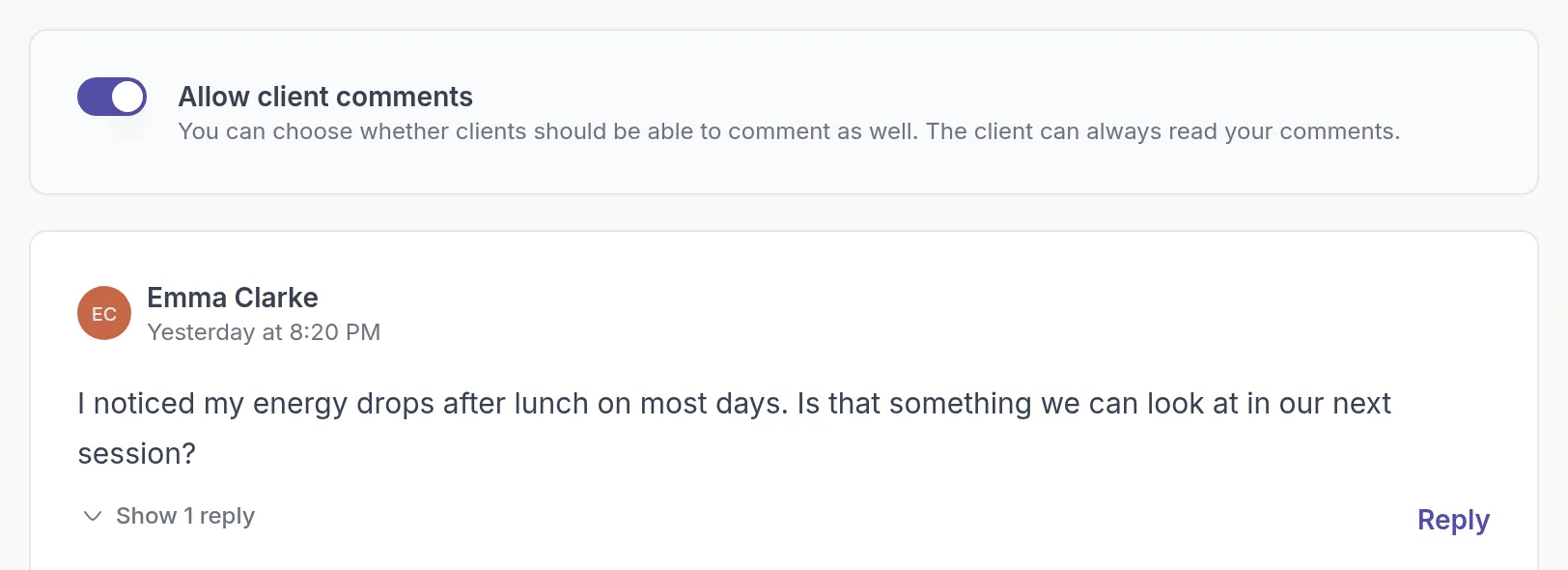
When you send an activity or program, you can already turn this on with Enable client comments.
Add a comment
Section titled “Add a comment”On the Comments tab, type your message in the field below the existing comments and click Add comment.
Reply to a comment
Section titled “Reply to a comment”Click Reply on the comment you want to answer, type your message in Write a reply… and click Reply below the field.
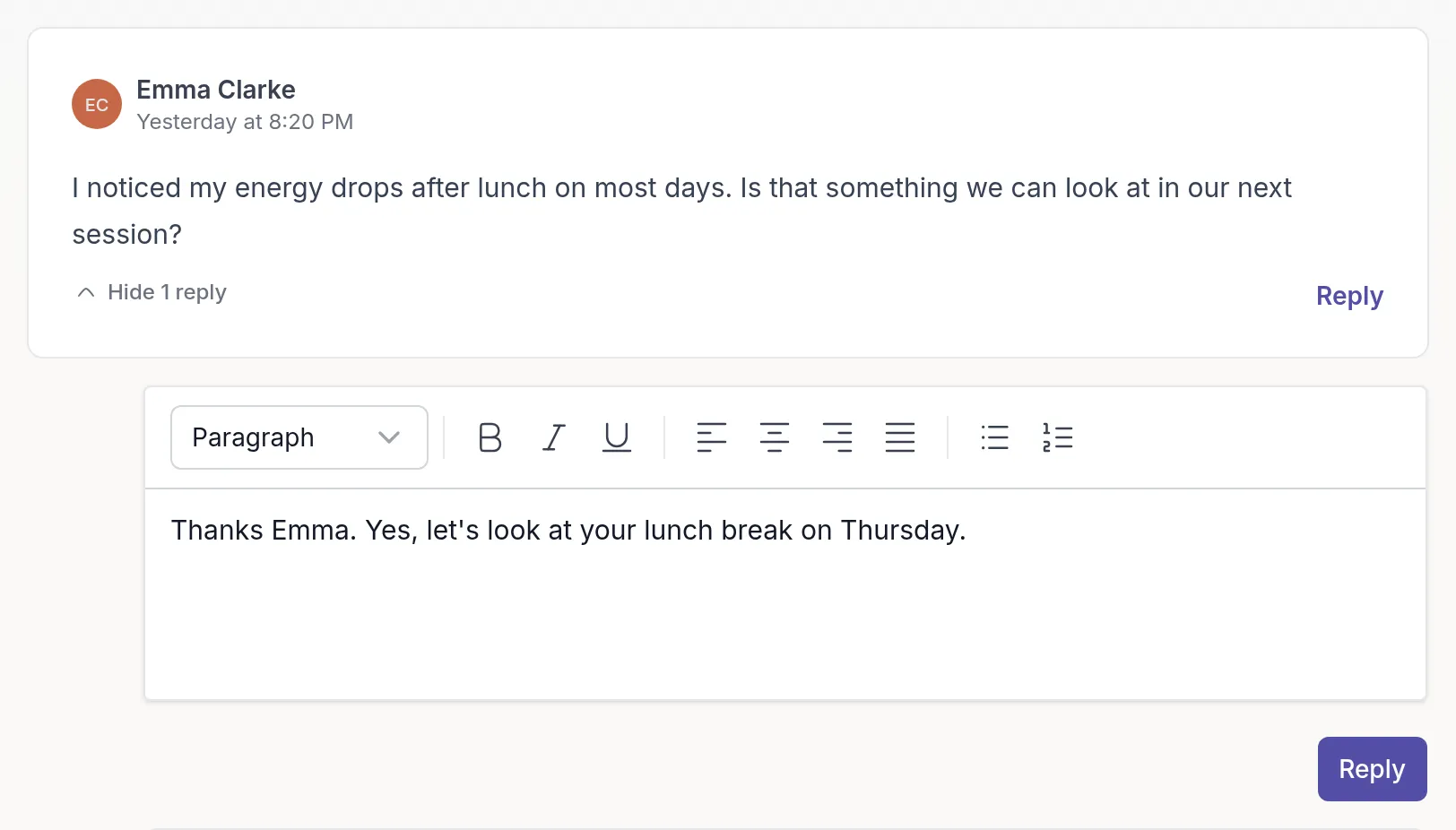
Your reply appears indented below the original comment. To add more to the same conversation, click Reply on the original comment again.
Show or hide replies
Section titled “Show or hide replies”Below a comment with replies, click Show 1 reply or Show 2 replies (the number changes) to open the thread, and Hide 1 reply to collapse it again.
Edit or delete your comment
Section titled “Edit or delete your comment”Use the pencil icon on your own comment to edit it, then click Save. Use the trash icon to delete it. A deleted comment shows “This comment has been deleted” so the thread stays readable.
You can only edit and delete comments you wrote yourself.
Was this article helpful?
Thanks for letting us know.
Thank you. We read every answer and use it to improve this article.