
Team and workspace
Accept an invitation
Join a colleague's Quenza workspace from the invitation email, set your password and answer a few setup questions before you start working.
When a colleague adds you to their workspace, Quenza sends you an invitation email. Accepting it takes a few minutes: you set a password, answer a few setup questions, and the workspace opens. You don’t need a trial or a subscription of your own; the workspace’s plan covers you.
For example, Sarah Bennett invites Priya Shah to Bright Path Coaching as a Member. Priya accepts on Monday morning, and by lunchtime Sarah has assigned her two new clients.
Open the invitation email
Section titled “Open the invitation email”The email has the subject You have been invited to join a workspace and says who invited you and to which workspace. Click Accept Invitation.
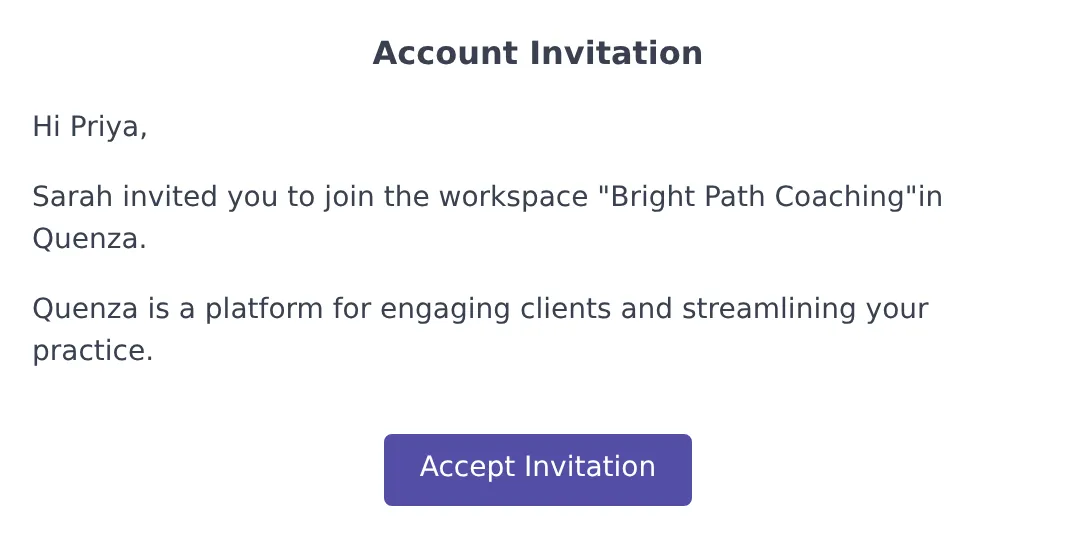
The link works for 30 days. Can’t find the email? Check your spam folder, or ask the person who invited you to send it again. See Resend an invitation. If the link has expired or was already used, Quenza shows The link has expired; ask for a new invitation.
Set your password
Section titled “Set your password”The link opens the Set your password page.
- Enter a password under Password and again under Confirm Password. Use at least 8 characters, with at least one letter and one number.
- Select I agree to the Terms of Service.
- Click Save your password.
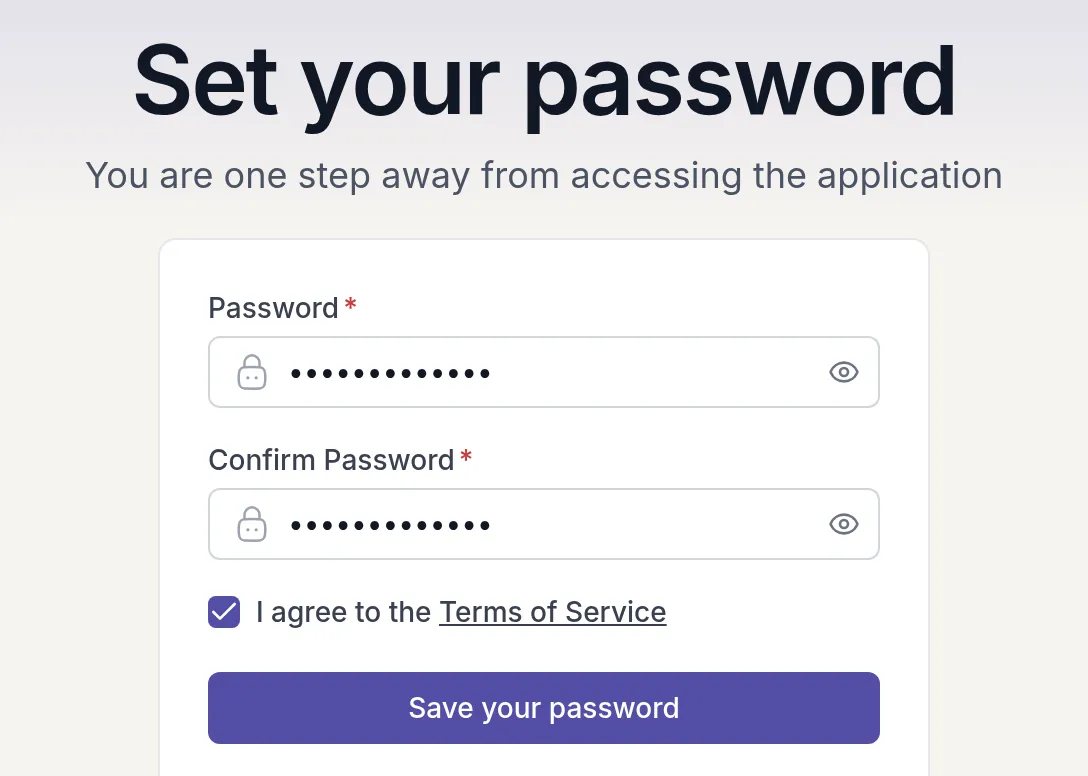
From now on you sign in with your email address and this password, on the web and in the mobile app.
Set up your account
Section titled “Set up your account”Quenza now asks a few short questions under Set up your account. Click Continue after each one.
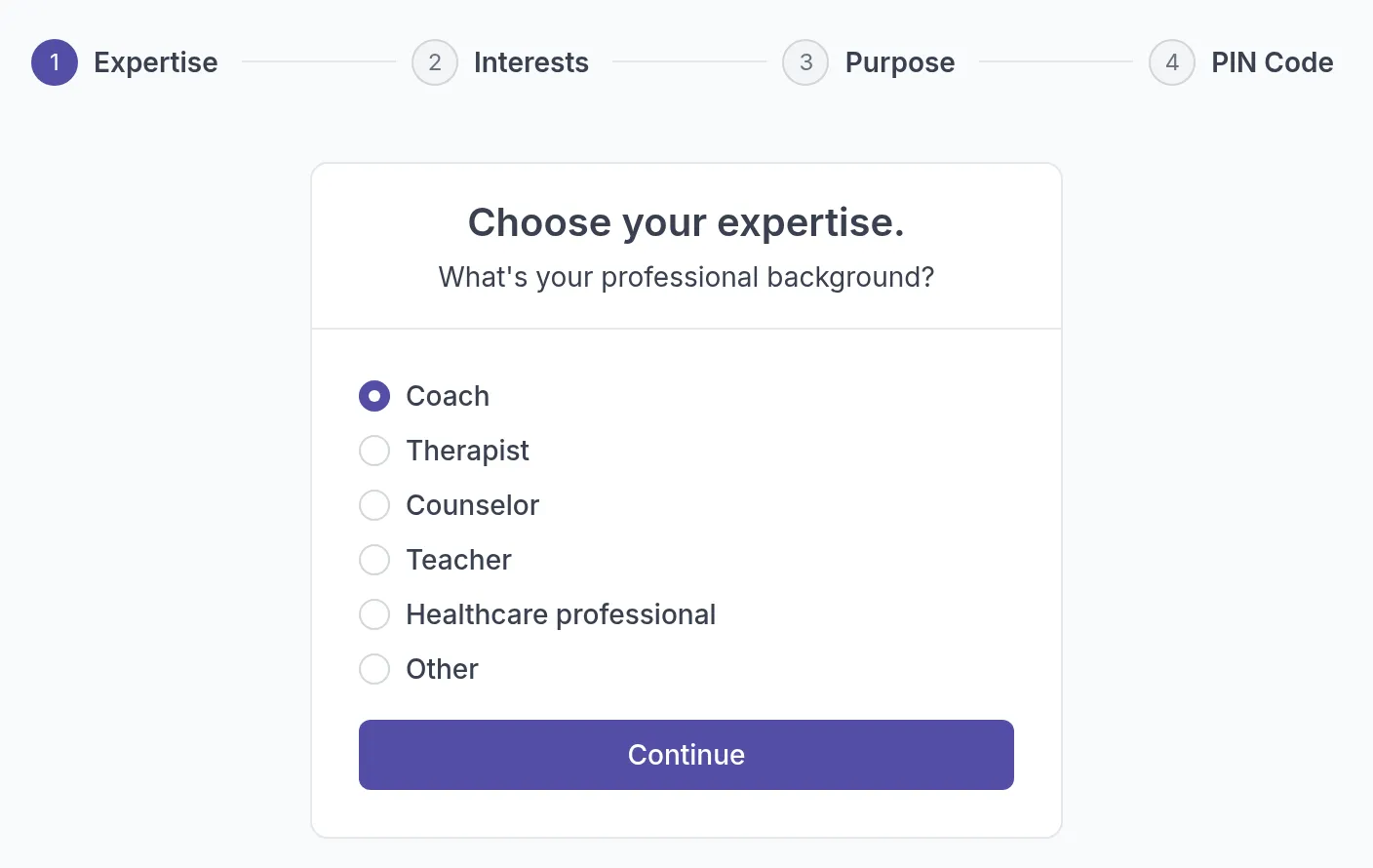
- Expertise: your professional background, such as Coach, Therapist or Counselor.
- Interests: the topics you work on, such as Stress or Mindfulness.
- Purpose: what you want to do with Quenza, such as Send Exercises or Track Client Progress.
- PIN Code: a 4-digit PIN that locks Quenza when you step away. Click Finish, or Skip and finish to do this later. See Set your PIN.
You don’t name the workspace; the person who created it has already done that.
What happens next
Section titled “What happens next”The workspace opens on the Home page. Your status on the team changes from Pending to Active, and the colleague who invited you gets a notification that you accepted.
What you can do depends on the roleRolesWhat each person in your workspace can see and do: Owner, Manager, Member or Billing Manager. you were given. See Roles and permissions. A good first step is to edit your profile, so your clients see your photo and contact details.
Was this article helpful?
Thanks for letting us know.
Thank you. We read every answer and use it to improve this article.