
Integrations and API
API
Create an API token to connect Quenza to your own systems and scripts, and learn how to use, regenerate and protect the token.
The Quenza API lets you read and change your workspace data from your own applications, scripts or internal systems. To use it, you need an API token. This is meant for developers and technically experienced users.
A typical use: a practice sells coaching packages through its own website. When someone buys a package, the website creates the client in Quenza through the API and adds them to the right group, so the coach doesn’t have to type in anyone’s details.
You need to be a workspace Owner or Manager. API access is included in the Collective and Beyond plans. See Plans and pricing.
What you can do with the API
Section titled “What you can do with the API”- Build a custom integration between Quenza and a system your organisation uses.
- Create clients automatically when something happens elsewhere, such as a new contact in your CRM, a form submission or a completed purchase.
- Keep clients, groups and team members in sync: list, create and update clients (and archive or unarchive them), create groups and add members, list tasks, and list, add and update team members.
- Automate workflows by triggering actions in Quenza as part of a larger process.
The API does not cover activities, programs, activity results or chats.
To send data from Quenza to another system when something happens, use webhooks instead.
Create an API token
Section titled “Create an API token”An API token is a unique key that identifies you when you make requests to the API, instead of your email and password. A workspace has one API token.
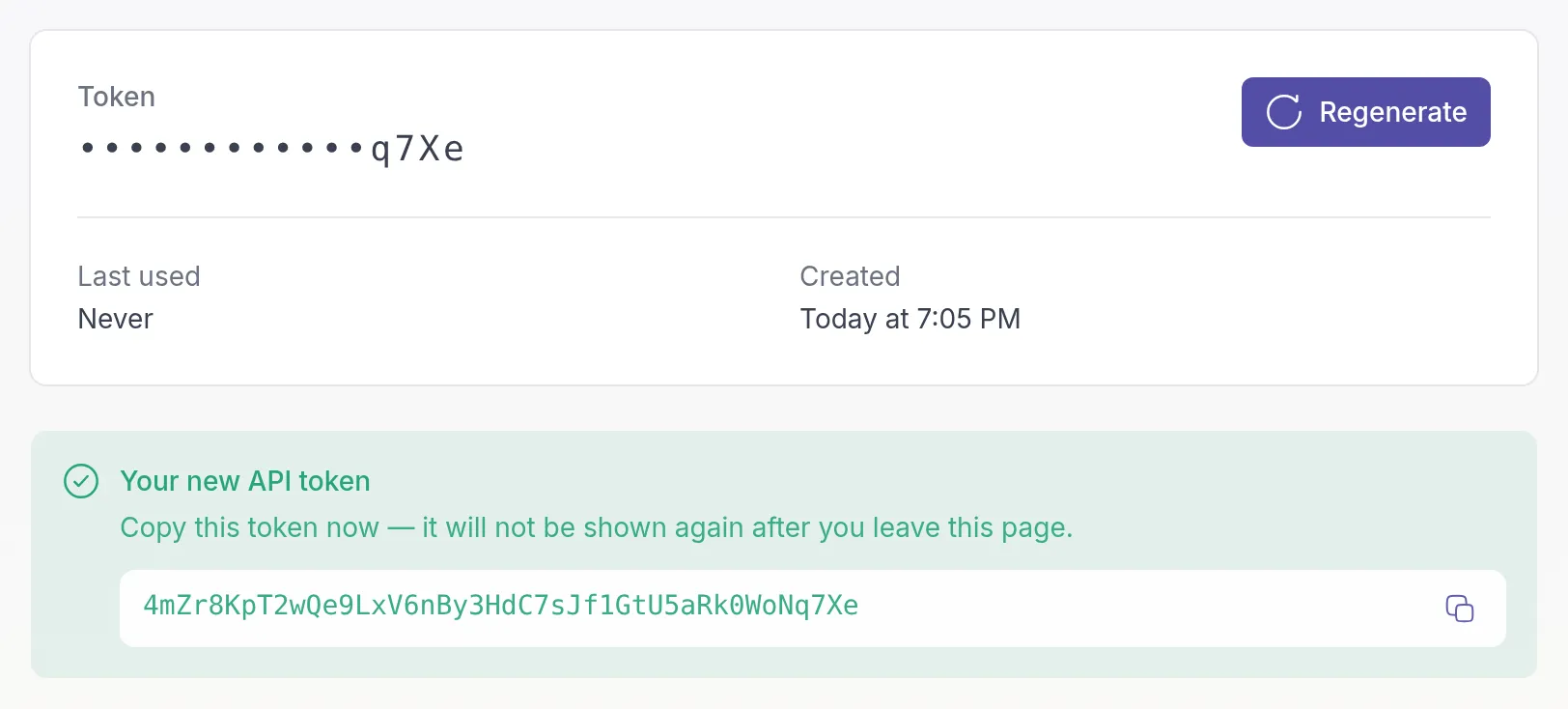
Go to Developer Tools → API Token in the left menu and click Generate. Under Your new API token, click the copy button next to the token and store the token in a safe place, such as a password manager.
Use the token
Section titled “Use the token”The API uses Bearer token authentication. Send your token in the Authorization header of every request:
Authorization: Bearer YOUR_API_TOKENThe API reference describes every endpoint with request examples in curl, JavaScript and Python. Give the link to your developer.
Regenerate your token
Section titled “Regenerate your token”Once you have a token, the API Token page shows its last four characters, when it was created and when it was last used. A token that was never used, or not for months, may belong to an integration you no longer need.
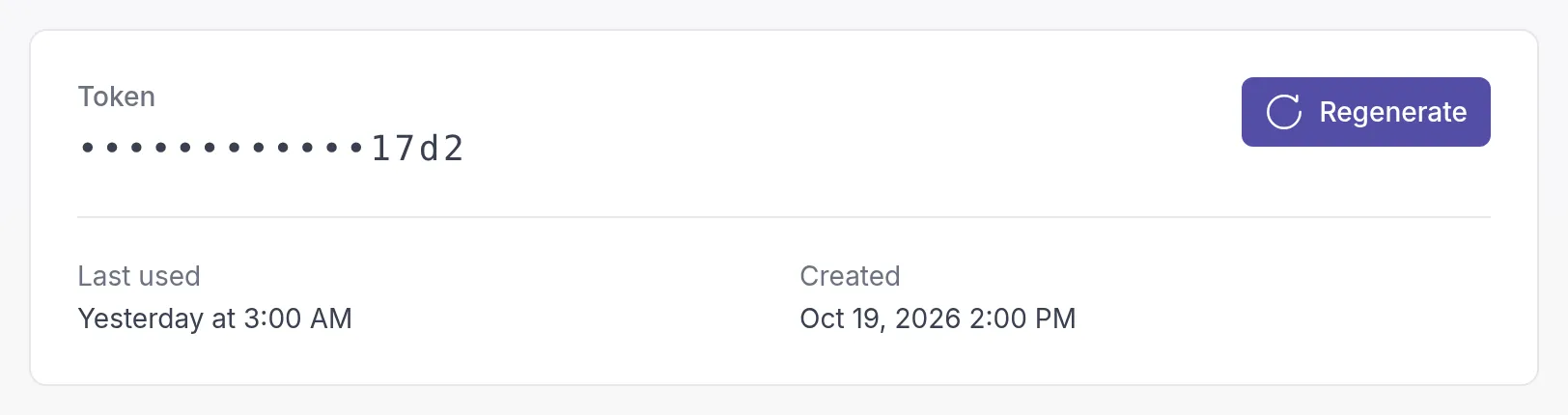
Regenerate the token if it may have been exposed, for example when a developer who had it leaves, or if you lost it. Click Regenerate and confirm with Regenerate API token.
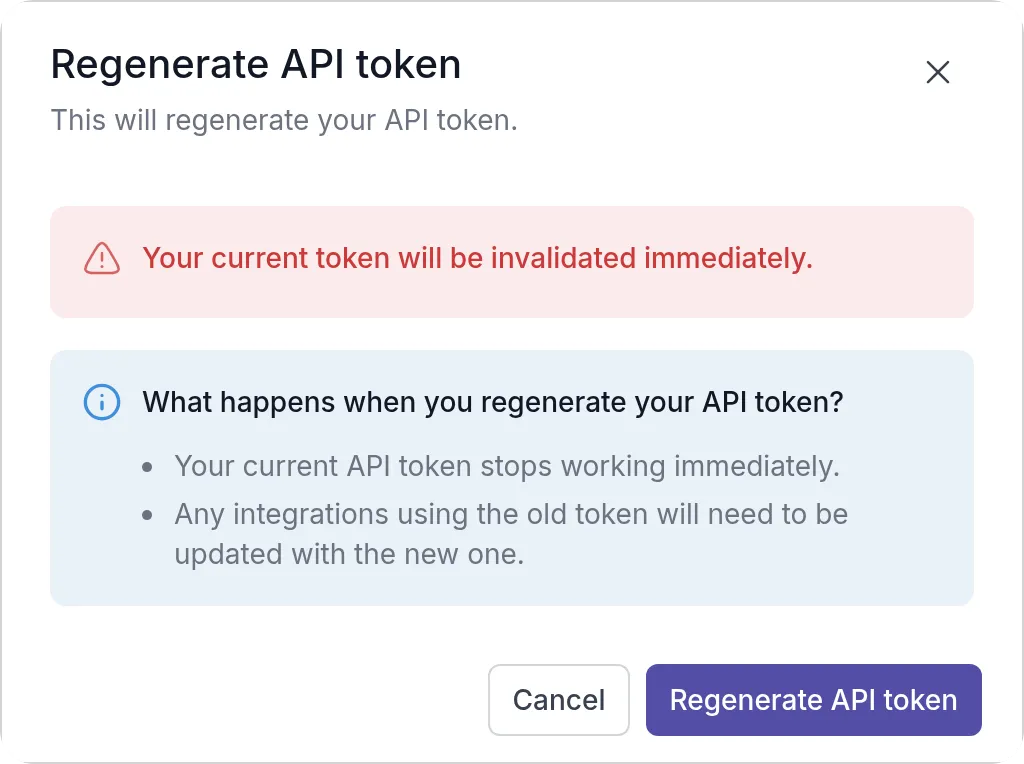
Your old token stops working immediately. Update every integration that used it with the new token.
Keep your token safe
Section titled “Keep your token safe”Your API token gives access to your workspace. Treat it like a password:
- Do not share it with others.
- Do not put it in public code or repositories.
- Regenerate it if you think someone else has seen it.
Do I need a developer?
Section titled “Do I need a developer?”Not always. Working with the API directly needs technical knowledge, but tools like Zapier or Make let you connect Quenza to other systems without writing code. If you are unsure how to start, contact the developer or provider of the system you want to connect, or contact Quenza Support.
Was this article helpful?
Thanks for letting us know.
Thank you. We read every answer and use it to improve this article.