
Get started
Start your free trial
Create your Quenza account, verify your email and set up your workspace for a free 30-day trial.
Sign up for a free 30-day trial to try Quenza with your own clients. You don’t need a credit card. It takes a few minutes: you create your account, confirm your email address, choose a password and answer a few setup questions. Then your own workspace opens, ready to use.
If a colleague has invited you to their workspace, you don’t need a trial. Accept the invitation in the email you received instead. See Accept an invitation.
Create your account
Section titled “Create your account”Go to my.quenza.com/register and enter your First name, Last name and Email address. Select I agree to the Terms of Service; if you’d like tips and product news by email, also select Send me setup tips, product updates, and feature news. Then click Join Quenza.
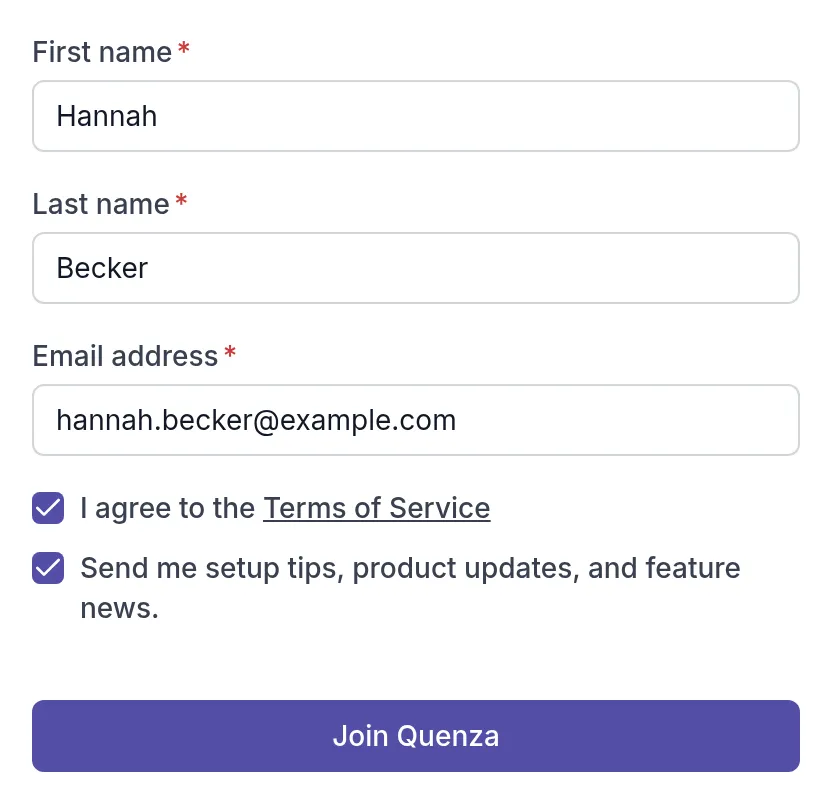
Use the email address you want to sign in with. You can change it later. See Change email or password.
Verify your email address
Section titled “Verify your email address”Quenza now shows Verify Your Email and sends you an email with the title Email verification. Open it and click Verify email.
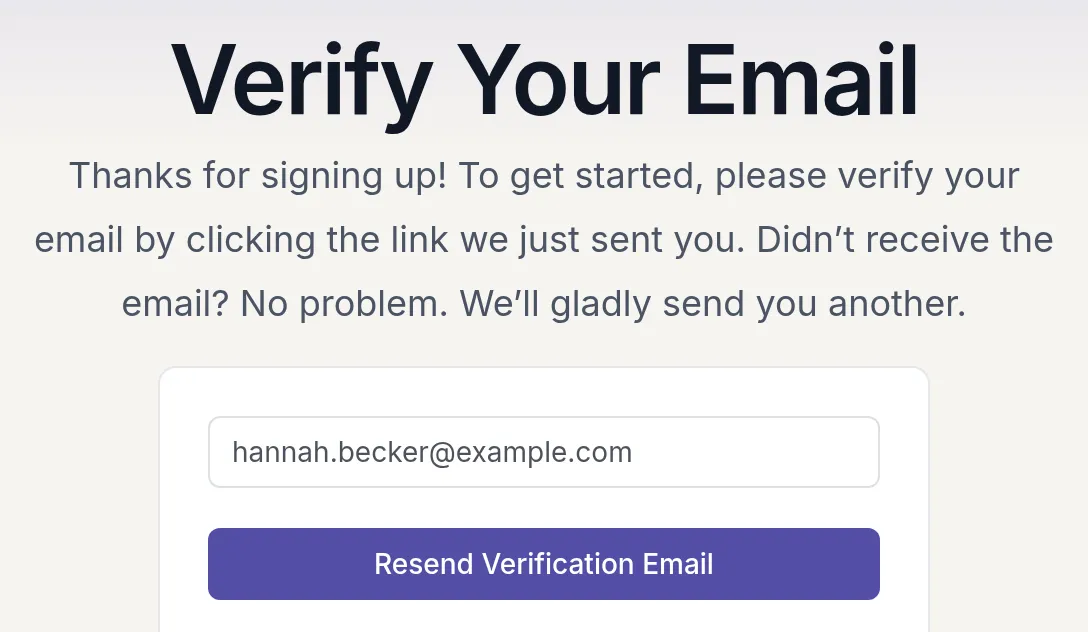
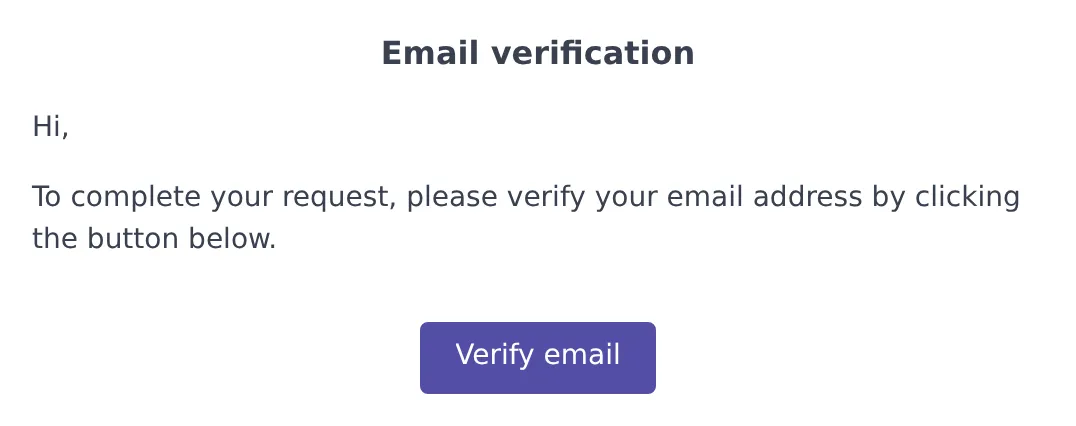
No email after a few minutes? Check your spam folder. If it isn’t there, click Resend Verification Email. Verify within 7 days: accounts that are not verified by then are blocked.
Set your password
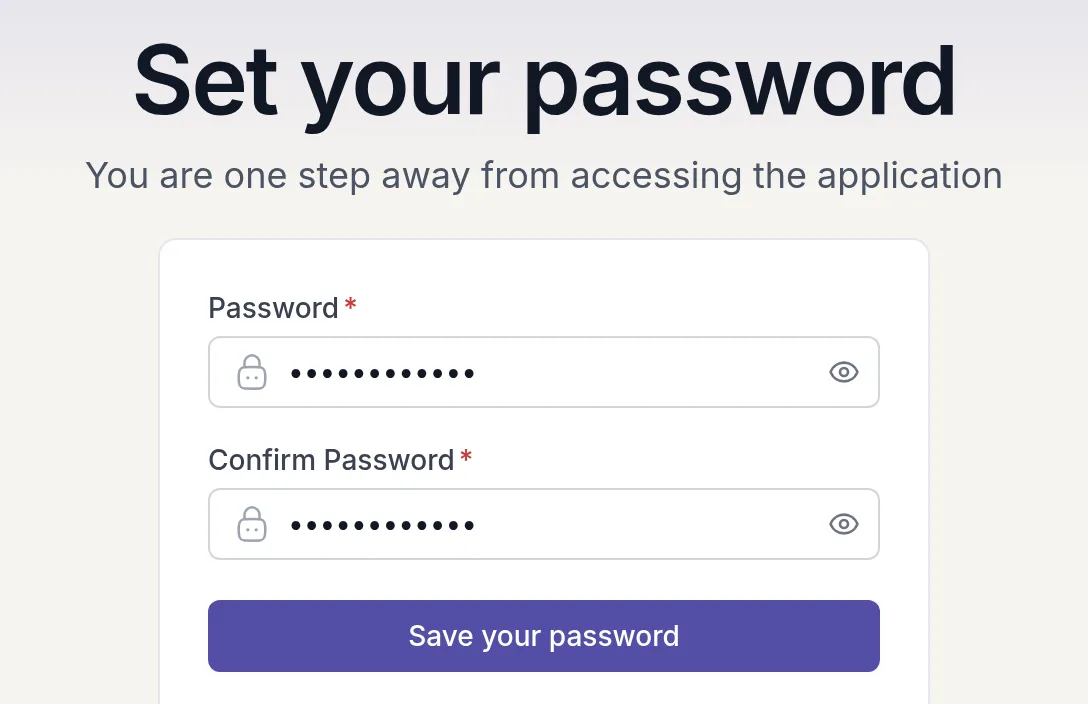
Section titled “Set your password”The link in the email opens Set your password. Enter a password under Password and again under Confirm Password, then click Save your password. Use at least 8 characters, with at least one letter and one number.
Set up your workspace
Section titled “Set up your workspace”Quenza asks a few short questions, one per step. Click Continue after each one.
- Workspace: Quenza suggests “[your first name]’s workspace”. Replace it with the name of your practice, for example “Becker Coaching”, because your clients and colleagues see this name. You can change it later. See Workspace settings.
- Expertise: your professional background, for example Coach, Therapist or Counselor.
- Interests: the topics you work on, such as Stress or Mindfulness.
- Purpose: what you want to do with Quenza, such as Send Exercises or Track Client Progress.
- PIN Code: enter a 4-digit PIN twice and click Finish, or click Skip and finish to do this later. The PIN locks Quenza when you haven’t used it for a while. See Set your PIN.
What happens next
Section titled “What happens next”Your workspace opens on the Home page, and your 30-day trial has started. Your workspace already has a demo clientDemo clientA client in your own name that only you can see. Send it your content to see exactly what your clients will see. in your own name, so you can try activities and tasks before you invite real clients. See View as client.
Good first steps:
- Edit your profile so clients see your photo and details.
- Add your first clients.
- Read How your free trial works to learn what happens when the trial ends and how to choose a plan.
Was this article helpful?
Thanks for letting us know.
Thank you. We read every answer and use it to improve this article.