
Team and workspace
Add team members
Invite a colleague to your Quenza workspace by email, choose their role, and resend the invitation if they can't find it.
Invite colleagues to your workspace so you can work with the same clients, groups and content. You need to be the workspace Owner or a Manager, and your plan needs a free professional seat.
For example, Sarah Bennett takes on a second coach, Priya Shah, for the growing Mindfulness group. She invites Priya as a Member, so Priya can work with clients and content but doesn’t see billing or workspace settings. Once Priya has accepted, Sarah assigns her to the group and to a few clients.
Invite a colleague
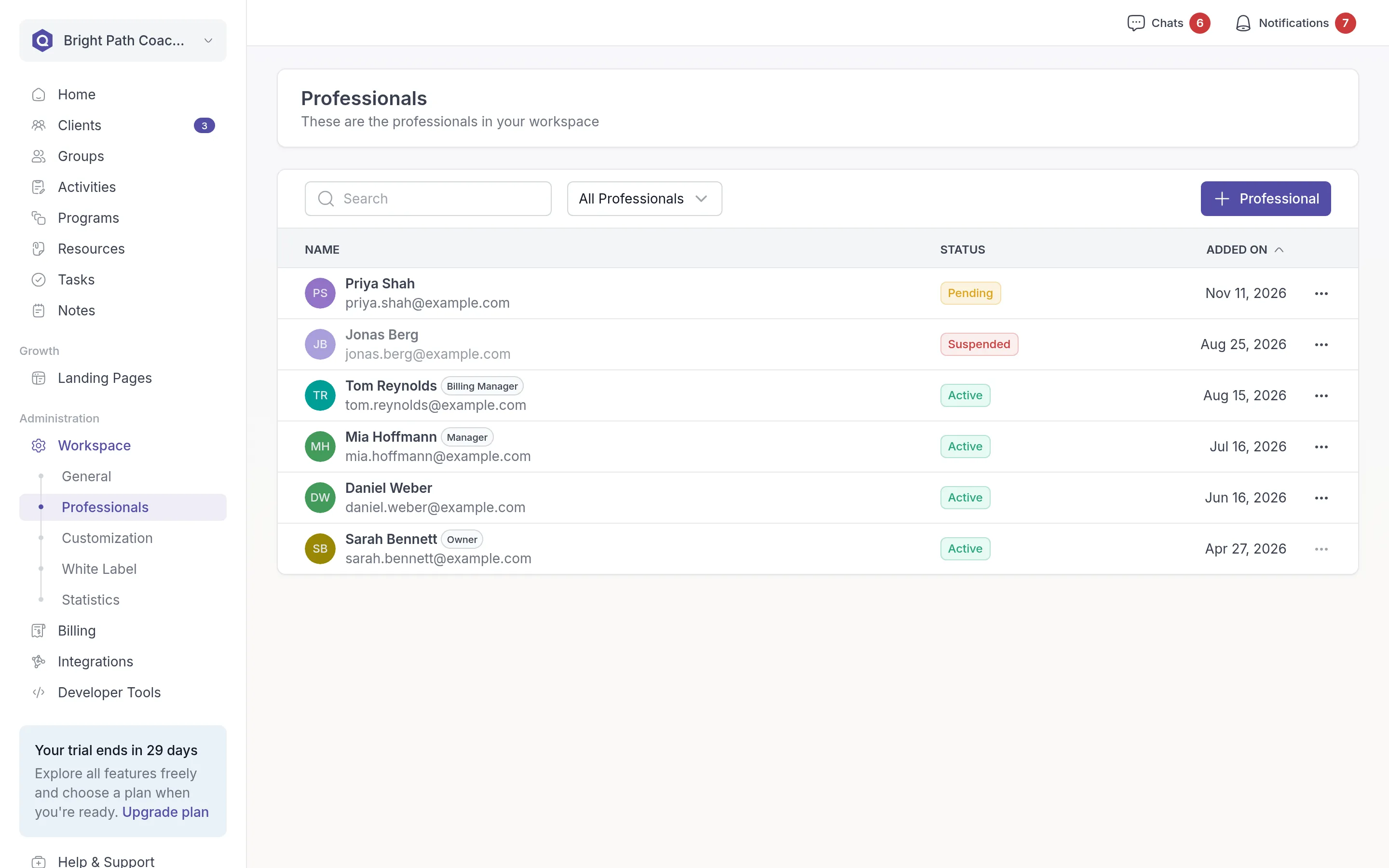
Section titled “Invite a colleague”- In the sidebar under Administration, click Workspace → Professionals.
- Click + Professional.
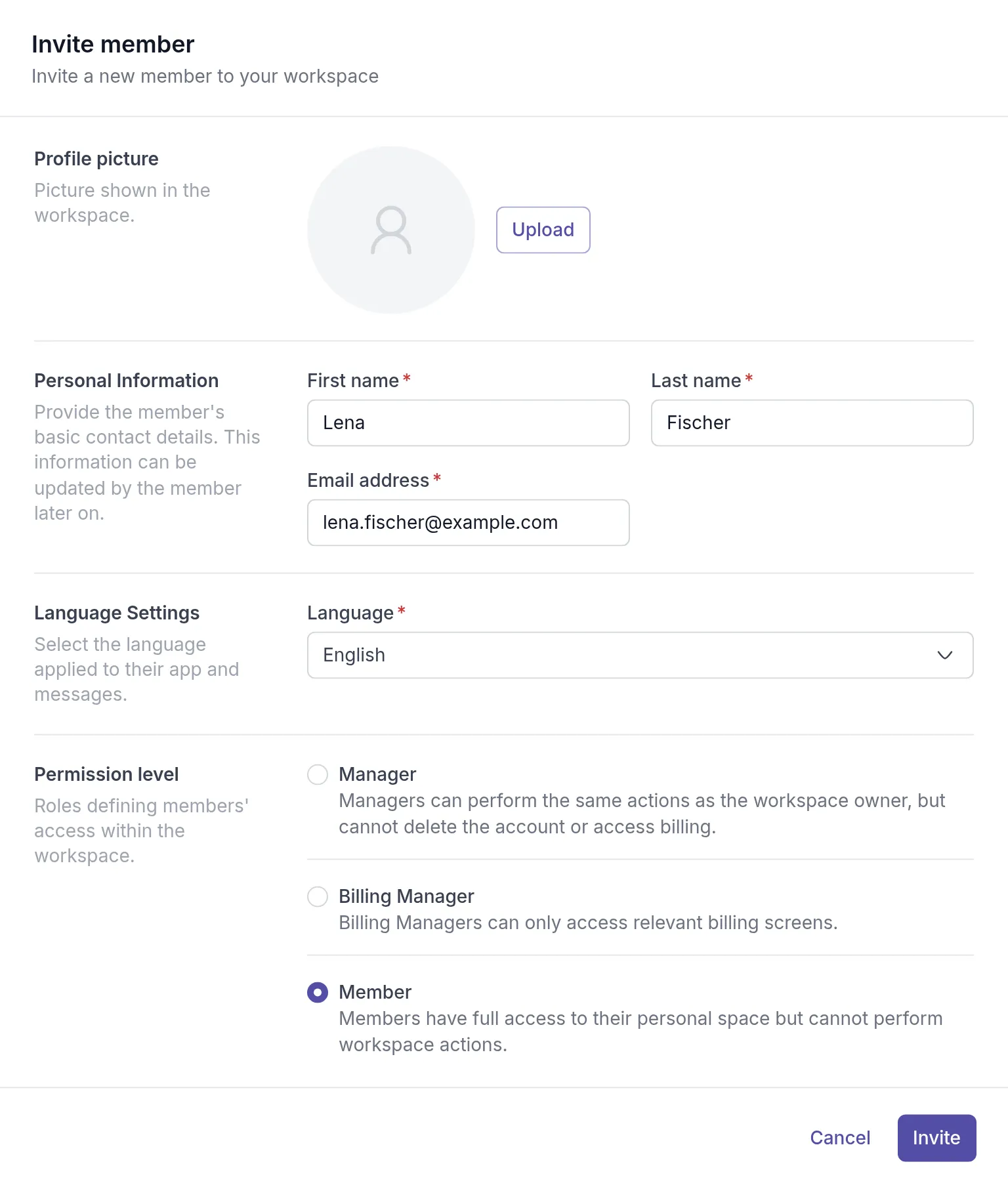
- Enter their First name, Last name and Email address. Optionally, click Upload under Profile picture to add a photo.
- Under Language, choose the language for their app and emails.
- Under Permission level, choose Manager, Billing Manager or Member. See Roles and permissions.
- Click Invite.
What happens next
Section titled “What happens next”Your colleague gets an email with an Accept Invitation button. The link works for 30 days. Until they accept, they are listed with the status Pending. They set a password, answer a few setup questions and the workspace opens. See Accept an invitation.
When they accept, their status changes to Active and the person who invited them gets a notification. From then on you can assign them to clients and groups. See Assign professionals.
If your colleague already has a Quenza account with the same email address, for example for their own practice, the workspace is added to their account and they switch between workspaces from the workspace menu. See Multiple workspaces.
Resend an invitation
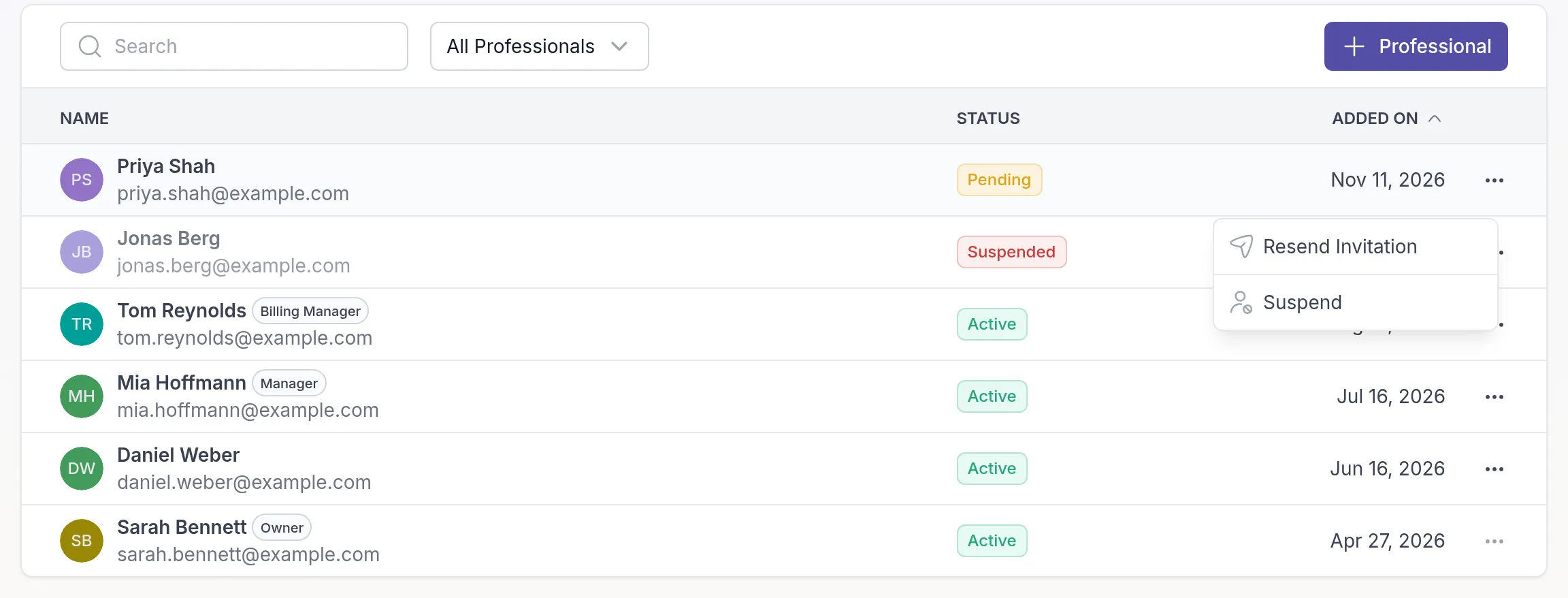
Section titled “Resend an invitation”If your colleague can’t find the invitation email, ask them to check their spam folder first. To send it again, click the ⋯ menu next to the pending team member on Workspace → Professionals, choose Resend Invitation and confirm. The new email contains a new link.
If all your seats are taken
Section titled “If all your seats are taken”When your plan has no free professional seat, Quenza shows Plan Limit Reached instead of the invite form. If you can manage billing, click Upgrade Plan to move to a plan with more seats. You can also free up a seat by suspending a team member.
Pending invitations count toward your seats; Billing Managers don’t. See Professional seats by plan.
Was this article helpful?
Thanks for letting us know.
Thank you. We read every answer and use it to improve this article.