
Manage clients
Archive or delete groups
Archive a group that has finished to keep its history read-only, unarchive it later, or delete a group and its notes and chat for good.
When a group has run its course, archive it to take it out of your active groups while keeping its history. Delete a group only when you do not need any of its records. Owners, Managers and Members can archive, unarchive and delete groups. Groups are part of the Growth, Impact, Collective and Beyond plans and the free trial.
Archive or delete?
Section titled “Archive or delete?”| Archive | Delete | |
|---|---|---|
| The group | Stays, with the status Archived | Is removed for good |
| Members | Stay clients in your workspace | Stay clients in your workspace |
| Planned and running activities and programs sent through the group | Canceled | Canceled |
| Group chat | Read-only | Deleted |
| Notes for the group | Kept | Deleted |
| Resources shared with the group | Kept | No longer shared with the group (the files stay in your resources) |
| Can be undone | Yes, with Unarchive | No |
For example, Sarah Bennett’s Spring wellbeing workshop ended in June. She archives the group: the members keep their completed activities, the chat stays readable, and her notes on the sessions stay available for when she plans the next round.
Archive a group
Section titled “Archive a group”-
Go to Groups.
-
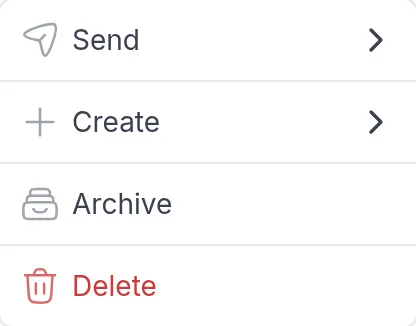
Click ⋯ at the end of the group’s row and choose Archive. You can also use the ⋮ menu at the top right of the group’s page.
-
Type the group’s name to confirm. You can click the name in the dialog to copy it.
-
Click Archive group.
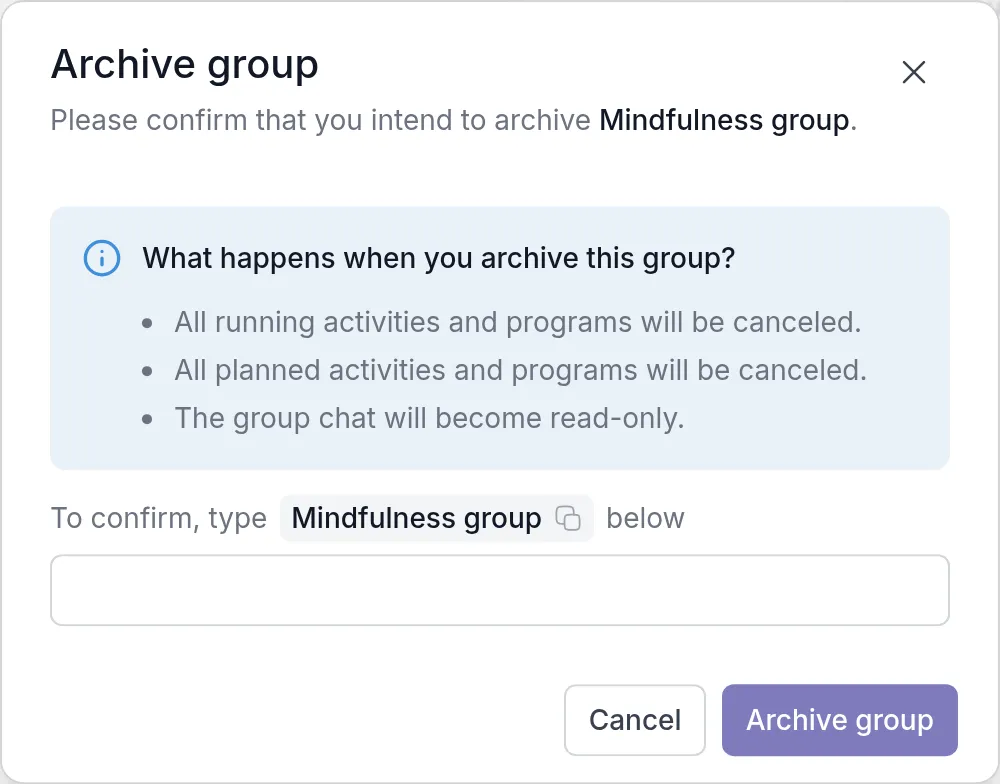
Once a group is archived, you can still open it and read its activities, programs, notes and chat, but you cannot change it: you cannot add members, send content, edit its settings or assign professionals.
Find and unarchive a group
Section titled “Find and unarchive a group”Open the All Groups filter in the group list and choose Archived. Archived groups have the status Archived.
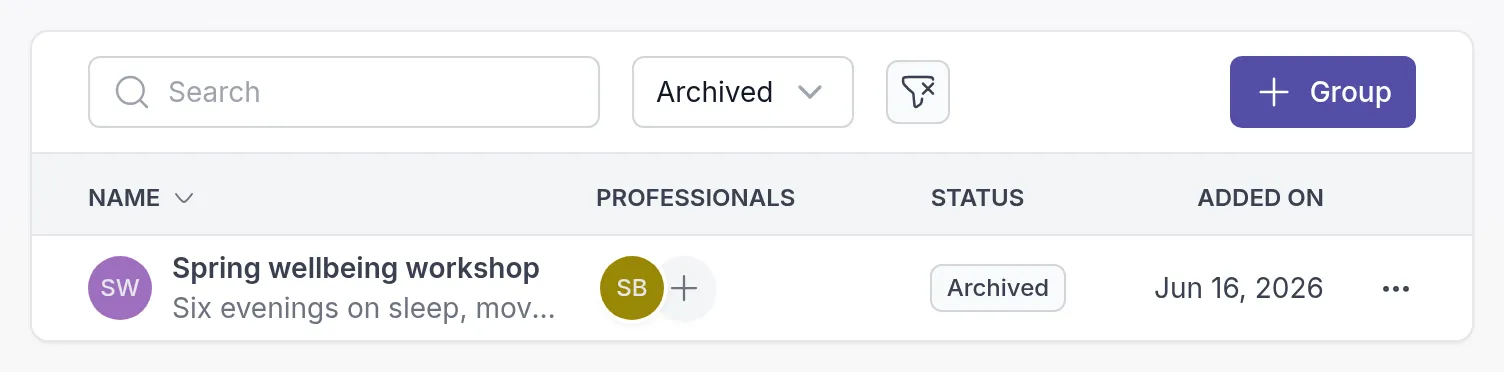
To use the group again, click ⋯ in its row, choose Unarchive and confirm with Unarchive group. The group chatGroup chatOne shared conversation for the members of a group and their professionals. You turn it on per group. opens again for messages.

Activities and programs that were canceled when you archived the group are not restarted. Send them again if the group still needs them.
Delete a group
Section titled “Delete a group”- Go to Groups, or Archived in the All Groups filter.
- Click ⋯ at the end of the group’s row and choose Delete.
- Read what will happen, then type the group’s name to confirm.
- Click Delete group.
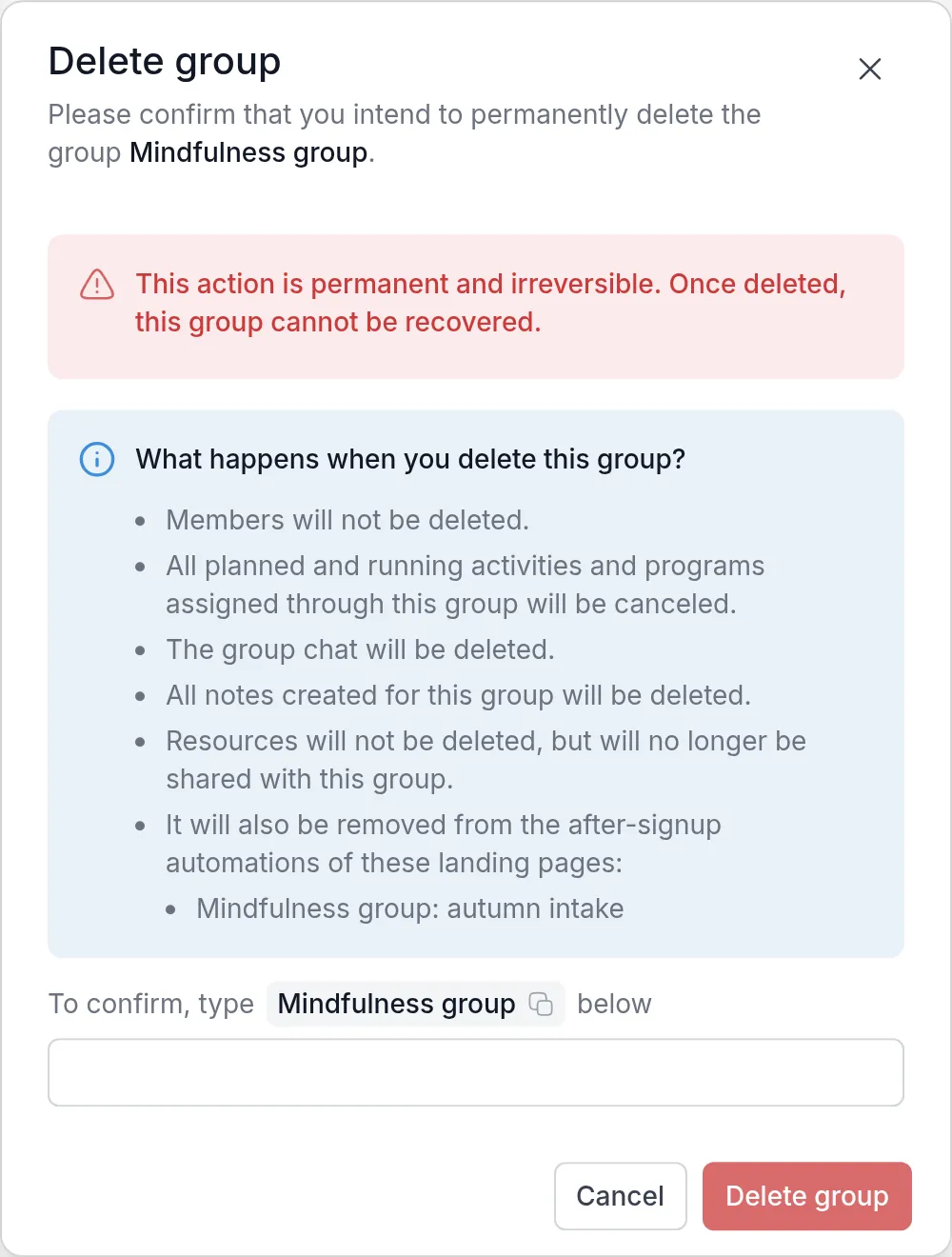
If a landing pageLanding pageA public web page about your practice with a signup form. Visitors who sign up arrive in your workspace as clients. adds new sign-ups to this group, the dialog names that page. Deleting the group removes it from the page’s after-signup automation, so new sign-ups are no longer added to any group. Check the page afterwards; see Landing pages.
To remove a single client from a group instead, open the group’s Members tab, click ⋯ in their row and choose Remove member.
Was this article helpful?
Thanks for letting us know.
Thank you. We read every answer and use it to improve this article.