
Chat and notifications
Notifications
See what happened in your workspace in the Notifications panel, open each update in one click, and mark notifications as read or clear them.
Quenza keeps you up to date inside the app. When a client completes an activity, comments on a note or signs up through your landing pageLanding pageA public web page about your practice with a signup form. Visitors who sign up arrive in your workspace as clients., a notification appears in the Notifications panel at the top of the screen. Every professional has their own notifications.
Most professionals open the panel at the start of the day or between sessions. Say Sarah Bennett has a session with Emma Clarke at 10:00. A quick look at her notifications shows that Emma completed the Daily mood check-in last night and left a comment on the session summary, so Sarah can read both before the session starts.
Open your notifications
Section titled “Open your notifications”Click Notifications at the top of the screen. A red badge shows how many notifications you have not read yet.

The panel lists your notifications, newest first: under Today what happened in the last 24 hours, under Older everything before that. A red dot marks each notification you have not read.
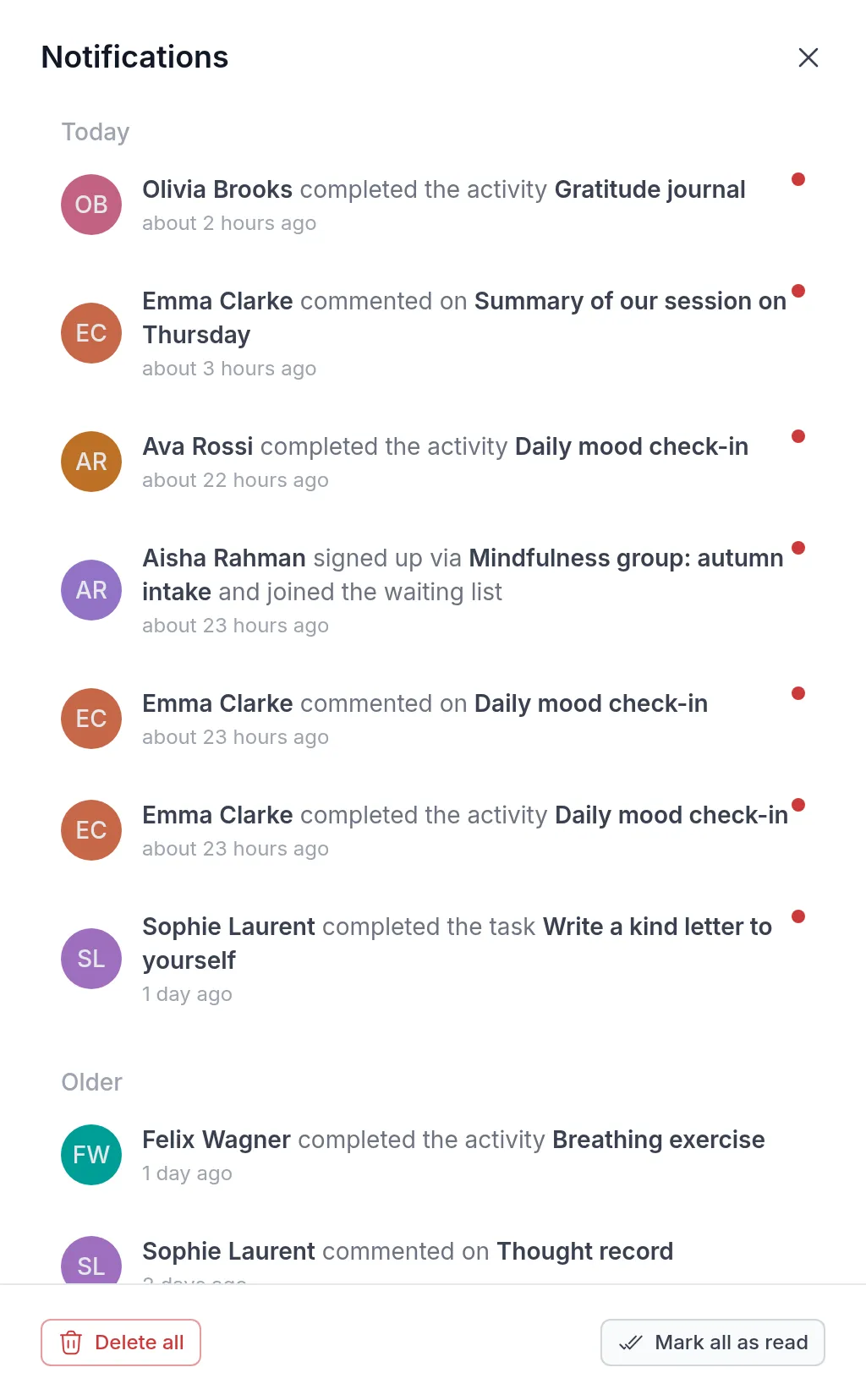
Click a notification to go straight to what it is about, such as the client’s activity results, the note with the new comment, the task or your waiting listWaiting listWhere signups from a landing page wait until you accept them, for example when a group has limited places.. The notification is then marked as read.
When you have read everything, the panel says “You are up to date.”
What you are notified about
Section titled “What you are notified about”You get a notification when:
- Clients complete their work: a client completes an activity, a program activity or a whole program you sent, or changes their answers in an activity they already completed.
- Clients write to you: a client comments on their activity results or a note, replies to a comment, or shares a note or a resource with you.
- Tasks change: a colleague assigns a task to you, or someone completes a task you created.
- New clients arrive: a client accepts your invitation, or someone signs up through a landing page and becomes your client or joins your waiting list. Signups go to the professional the signup formSignup formThe form on a landing page that turns a visitor into a client. You choose what it asks and whether people join straight away or wait for your approval. assigns new clients to.
- A client leaves: a client deletes their account.
- The workspace changes: the Calendly integration is turned on for the workspace.
- Quenza has news: announcements from the Quenza team.
New chat messages are not listed here. They have their own badge on Chats. See Chat.
Mark notifications as read
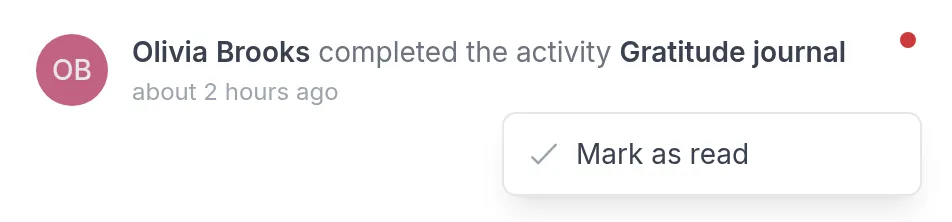
Section titled “Mark notifications as read”To mark one notification as read without opening it, right-click it and choose Mark as read.
To mark everything as read at once, click Mark all as read at the bottom of the panel. The badge on Notifications disappears.
Clear your notifications
Section titled “Clear your notifications”Click Delete all at the bottom of the panel to empty it.
Email and push notifications
Section titled “Email and push notifications”Notifications always appear in the panel. Whether you also get an email about them depends on Enable notifications via Email in your settings. See Notification preferences.
The Quenza mobile app can show the same notifications as push notifications on your phone.
Related
Section titled “Related”Was this article helpful?
Thanks for letting us know.
Thank you. We read every answer and use it to improve this article.