
Chat and notifications
Notification preferences
Choose whether Quenza emails you about activity in your workspace, such as completed activities and comments, and which updates you receive.
Quenza can email you when something happens in your workspace, such as a client completing an activity, so you don’t miss it when you are not logged in. You decide whether you want these emails. Every professional sets their own preferences.
Some professionals like an email for every completed activity, so they can react the same day. Others check the Notifications panel in Quenza once or twice a day and prefer a quiet inbox. Both work: turning emails off doesn’t change what you see in Quenza.
Change your email preferences
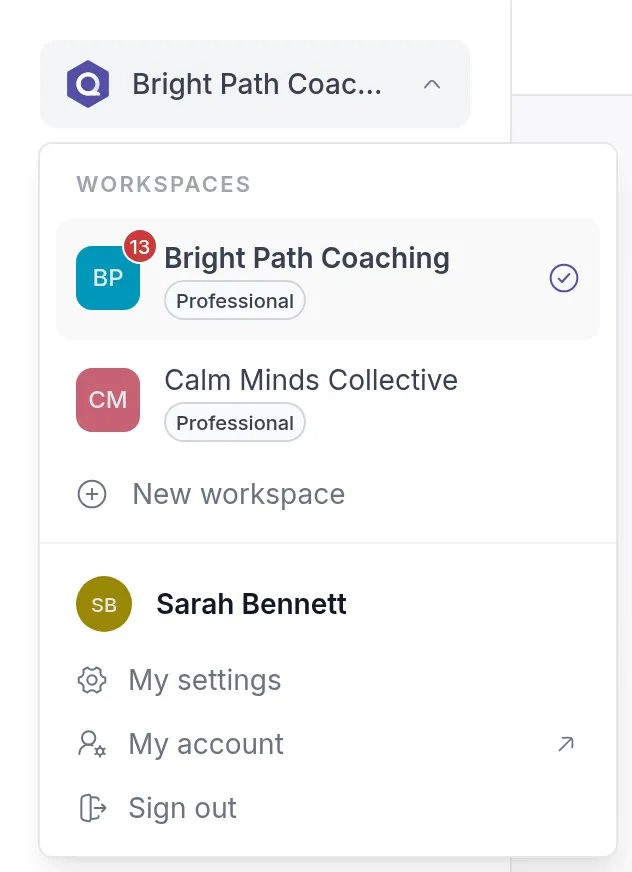
Section titled “Change your email preferences”Your preferences are in My settings: click your workspace name at the top left and choose My settings.
On the Notifications tab, under General Notifications, turn Enable notifications via Email on or off and click Save in that section.
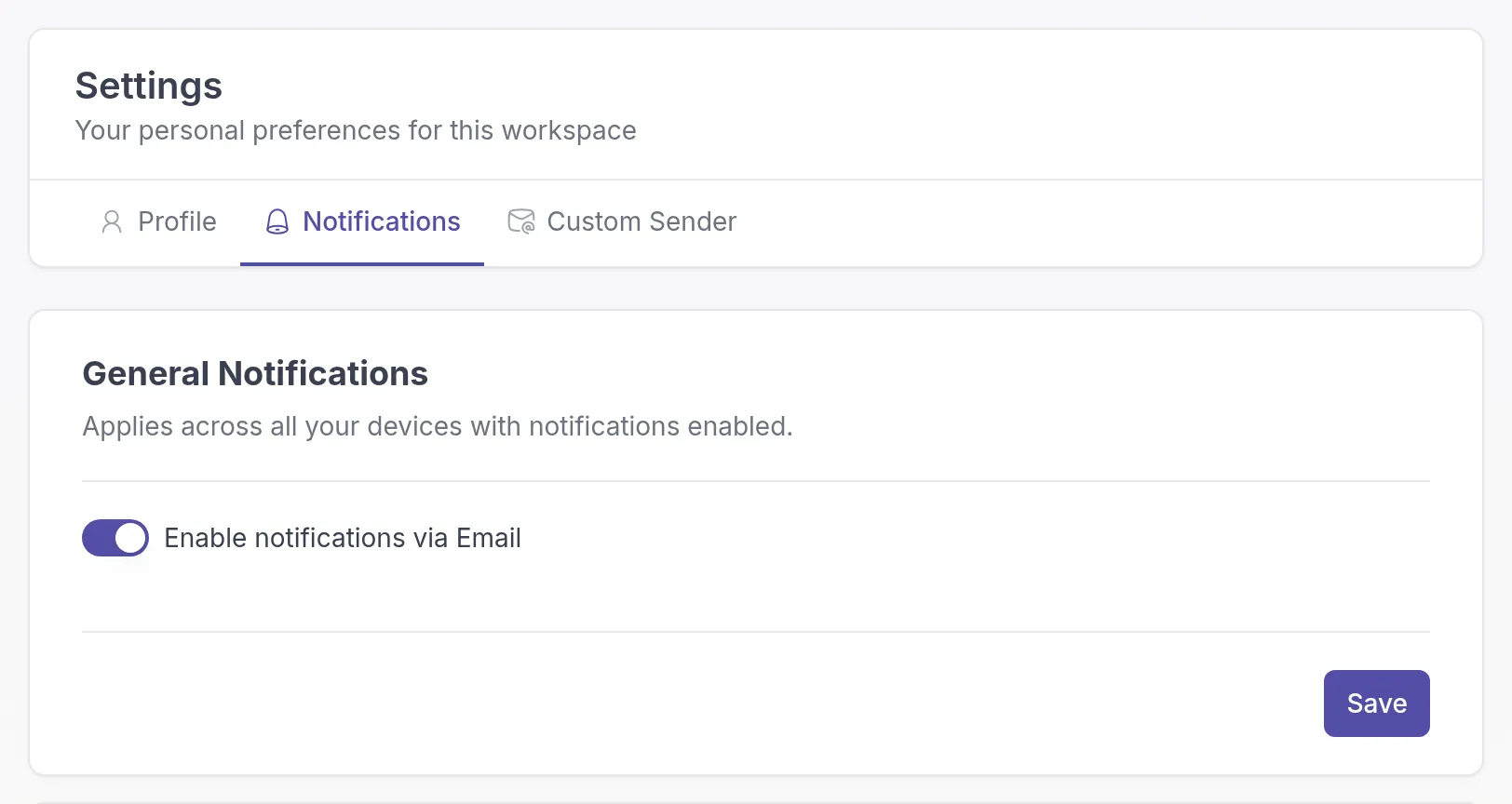
These preferences apply to the workspace you are in. If you work in more than one workspace, set them in each one.
What the email setting covers
Section titled “What the email setting covers”Enable notifications via Email controls the emails about your work in Quenza. For example, when a client completes an activity, finishes a task, comments or shares a file with you, when someone signs up through your landing pageLanding pageA public web page about your practice with a signup form. Visitors who sign up arrive in your workspace as clients., and when you have unread chat messages.
When you turn it off:
- You no longer get these emails.
- You still see everything in the Notifications panel and on the Chats badge.
- The Quenza mobile app still sends you push notifications.
Updates from Quenza
Section titled “Updates from Quenza”Below the email switch, Updates from Quenza is for emails from the Quenza team, such as product announcements. Types of update you can opt out of are listed there with their own switch. Emails about your account, such as sign-in links, password resets and reminders about your free trial, are always sent.
Your clients’ notifications
Section titled “Your clients’ notifications”Your clients choose their own email notifications in the client app. See Check your notifications.
Related
Section titled “Related”Was this article helpful?
Thanks for letting us know.
Thank you. We read every answer and use it to improve this article.