
Team and workspace
Roles and permissions
What the Owner, Manager, Member and Billing Manager roles can do in your workspace, and how to change someone's role.
Every person in your workspace has a role, which controls what they can see and do. You choose a role when you add a team member, and the Owner or a Manager can change it later.
Roles let you share the work without sharing everything. For example, at Bright Path Coaching, Sarah Bennett is the Owner. Mia Hoffmann helps run the practice as a Manager, coaches such as Priya Shah are Members who work with their clients, and the bookkeeper Tom Reynolds is a Billing Manager who only handles invoices.
The four roles
Section titled “The four roles”- Owner: the person who created the workspace. The Owner can do everything, including deleting the workspace. Each workspace has one Owner.
- Manager: can do everything the Owner can, except delete the workspace.
- Member: works with clients and content, but can’t change workspace settings, manage the team or see billing.
- Billing Manager: can only see the billing pages and the workspace statistics. A Billing Manager doesn’t work with clients and doesn’t take up a professional seat.
What each role can do
Section titled “What each role can do”| Owner | Manager | Member | Billing Manager | |
|---|---|---|---|---|
| Work with clients, groups, activities, programs, resources, tasks, notes and landing pages | Yes | Yes | Yes | No |
| Invite, edit, suspend and reactivate professionals | Yes | Yes | No | No |
| Change workspace settings, branding, integrations and developer tools | Yes | Yes | No | No |
| View workspace statistics | Yes | Yes | No | Yes |
| Manage the subscription, payment details and invoices | Yes | Yes | No | Yes |
| Delete the workspace | Yes | No | No | No |
Members can see the other professionals in the workspace, for example to assign them to a client, but they can’t change them.
Which plans include roles
Section titled “Which plans include roles”Choosing roles is part of Roles & Permissions, which is included in the Beyond plan. On other plans, everyone you invite becomes a Manager; the Member and Billing Manager options are locked in the Invite member form. See Compare plans and pricing.
Change someone’s role
Section titled “Change someone’s role”You need to be the Owner or a Manager. In the sidebar under Administration, click Workspace → Professionals, click the person’s name, choose the new role under Permission level and click Save.
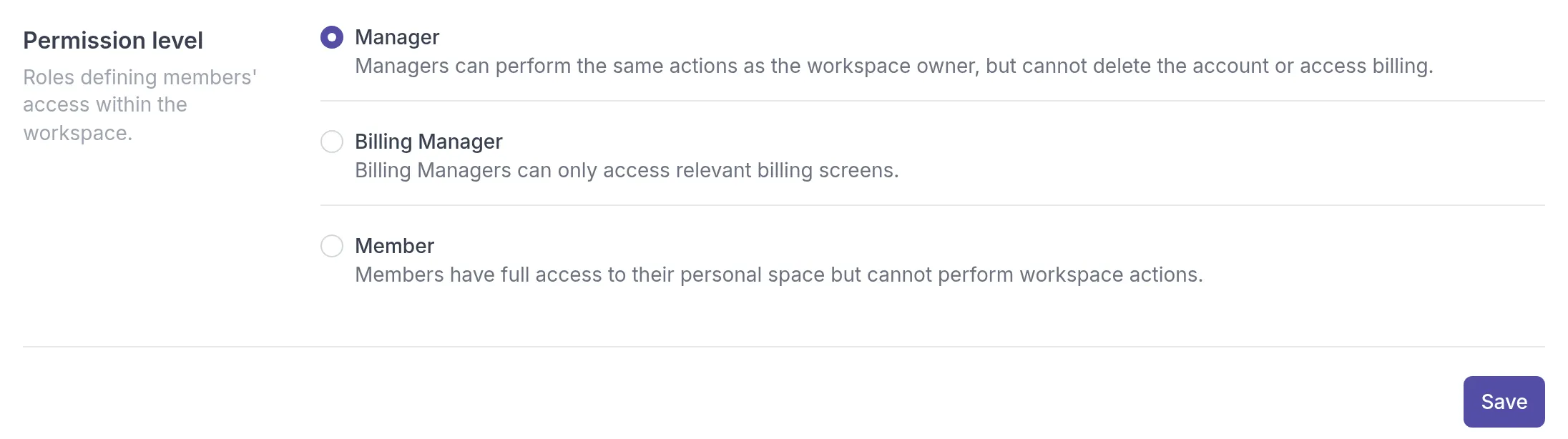
You can’t change the Owner’s role, make someone else the Owner, or change your own role. For those people, Permission level isn’t shown.
Billing Managers don’t count toward the number of professionals your plan includes. See Professional seats by plan.
Was this article helpful?
Thanks for letting us know.
Thank you. We read every answer and use it to improve this article.