
Team and workspace
Suspend and reactivate
Suspend a team member to remove their access to your workspace when they leave or take a break, and reactivate them later.
When a colleague leaves your practice or takes a break, suspend them. They lose access to your workspace, but nothing they worked on is deleted, and you can reactivate them later. You need to be the workspace Owner or a Manager.
There is no option to delete a team member in the app. Suspending is how you remove someone’s access.
For example, Jonas Berg goes on parental leave for four months. Sarah Bennett first assigns his clients to Daniel Weber, so they keep a professional who follows up on their activities. Then she suspends Jonas, which frees his seat for a temporary colleague. When Jonas comes back, she reactivates him and his clients and notes are still there.
Suspend a team member
Section titled “Suspend a team member”- In the sidebar under Administration, click Workspace → Professionals.
- Click the ⋯ menu next to the person and choose Suspend.
- Type the person’s name in the box to confirm, then click Suspend professional.
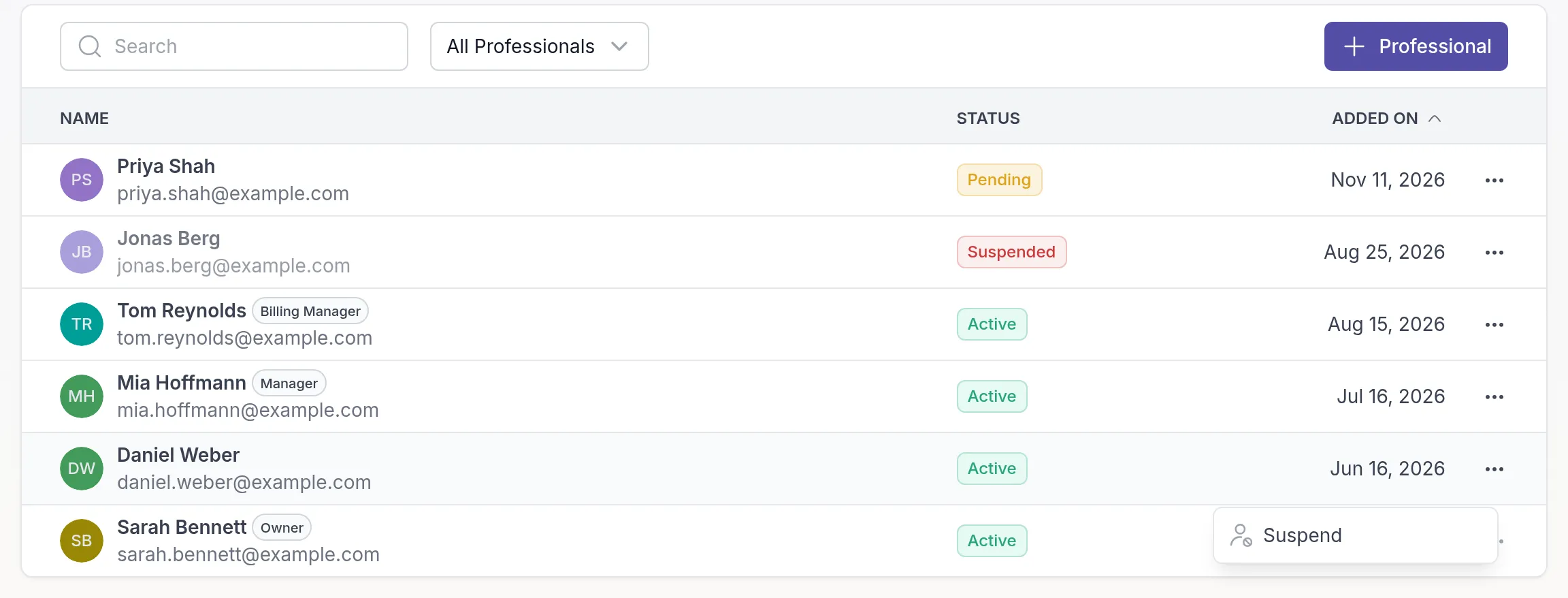
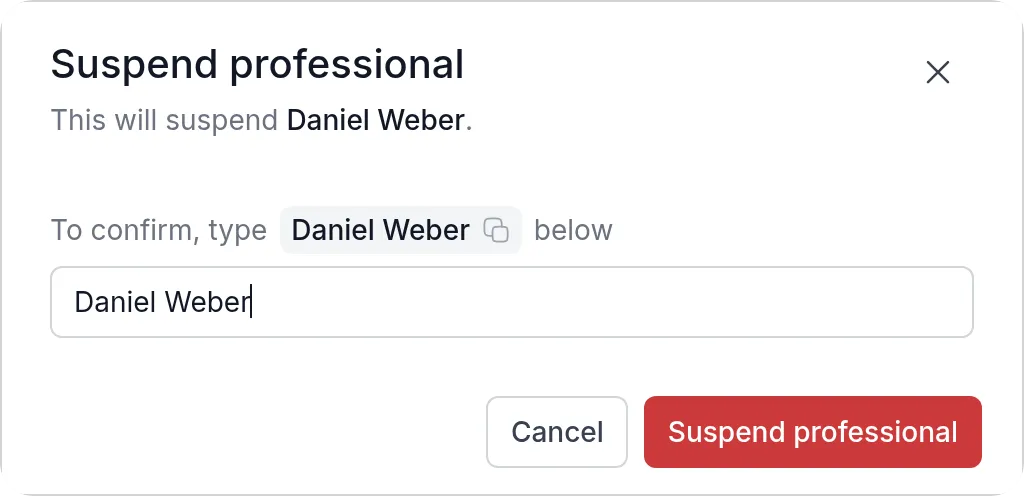
Their status changes to Suspended. What happens next:
- They can no longer open your workspace. Other workspaces they belong to are not affected.
- Your clients, notes, activities and other data stay in the workspace.
- One-to-one chats with them become read-only. Group chatsGroup chatOne shared conversation for the members of a group and their professionals. You turn it on per group. are not affected.
- Their professional seat becomes free, so you can invite someone else. See Professional seats by plan.
Clients stay assigned to a suspended colleague. If those clients still need someone, assign them to another professional first. See Assign professionals.
You can’t suspend yourself.
Reactivate a team member
Section titled “Reactivate a team member”- Go to Workspace → Professionals.
- To find suspended team members quickly, set the filter to Suspended.
- Click the ⋯ menu next to the person and choose Reactivate.
- Click Reactivate professional to confirm.
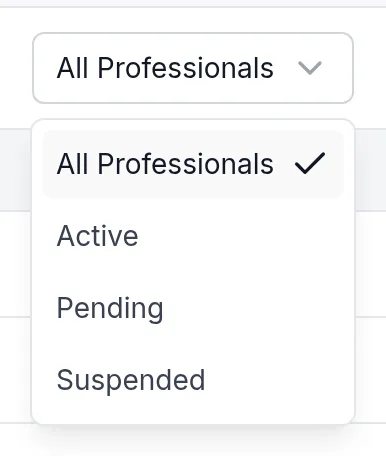

They get access to your workspace again, and their chats can be used again.
Pending invitations
Section titled “Pending invitations”For someone who hasn’t accepted their invitation yet, the ⋯ menu also shows Resend Invitation. See Resend an invitation. Suspending a pending team member frees the seat their invitation takes up.
Was this article helpful?
Thanks for letting us know.
Thank you. We read every answer and use it to improve this article.