
Team and workspace
Multiple workspaces
Switch between the Quenza workspaces you belong to with one login, or create a new workspace for another practice.
Your Quenza login is a personal account that can belong to several workspaces. Each workspace is a separate practice with its own clients, content, team and subscription. You switch between them from the workspace menu, and you can create a new workspace at any time.
For example, Sarah Bennett runs her own practice, Bright Path Coaching, and also works two days a week at Calm Minds Collective, where a colleague invited her. She signs in once and switches between the two. Clients of one workspace never see the other.
Switch to another workspace
Section titled “Switch to another workspace”Click your workspace name at the top left of the sidebar, then click the workspace you want under Workspaces.
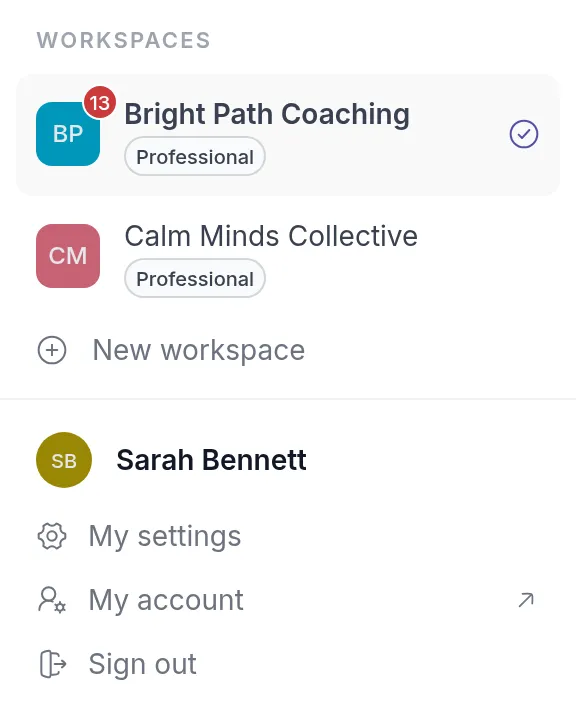
Each workspace has a label. Professional opens the workspace in the practitioner app. Client opens the client portalClient portalThe website where your clients sign in to see their activities, programs, tasks, files and chats. The Quenza app shows the same. of a workspace where you are a client, and Demo client opens the client portal as your demo clientDemo clientA client in your own name that only you can see. Send it your content to see exactly what your clients will see.. See View as client. A checkmark shows the workspace you are in now, and a red number shows unread notifications and chat messages in a workspace, so you see when something needs you elsewhere.
Some things belong to your account and are the same in every workspace: your sign-in email, password, PIN and language. Your profile (name, photo, biography) belongs to each workspace separately. See Edit your profile.
Join another team
Section titled “Join another team”To work in a colleague’s workspace, ask them to invite you with the email address you already use. The workspace is then added to your account. See Accept an invitation.
Create a new workspace
Section titled “Create a new workspace”- Click your workspace name at the top left of the sidebar.
- Click New workspace. Your account page opens in a new tab on My workspaces.
- Click Create new workspace.
- In Create a new workspace, enter the First name and Last name you want clients and colleagues to see.
- Click Create workspace.
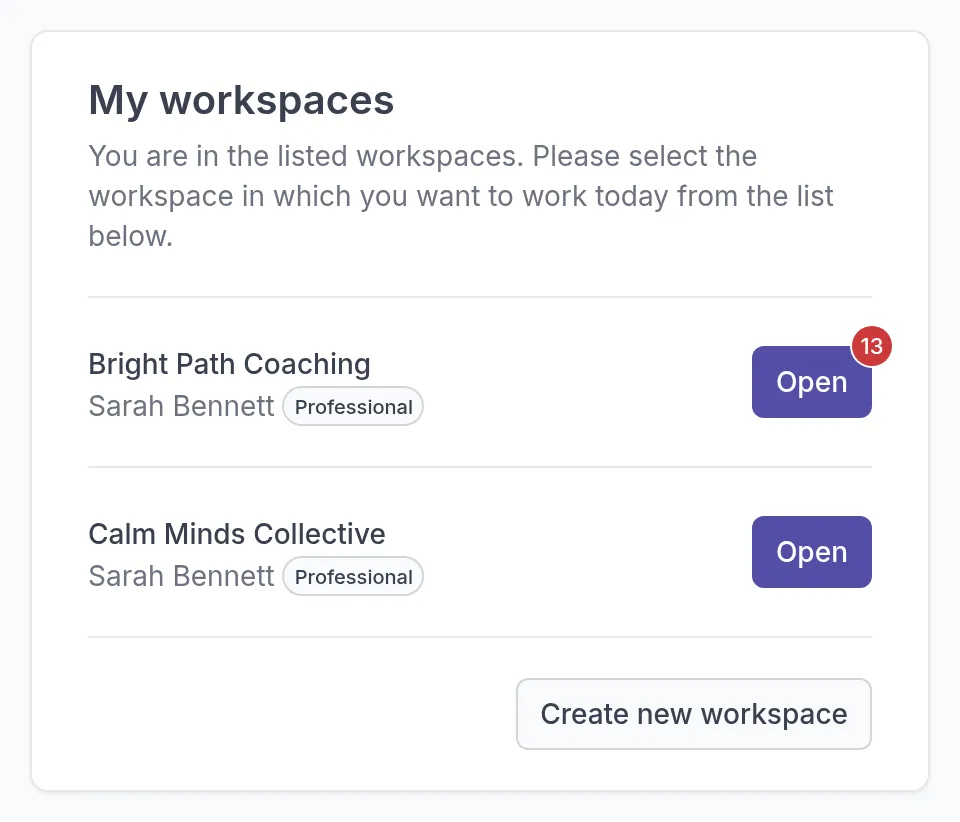
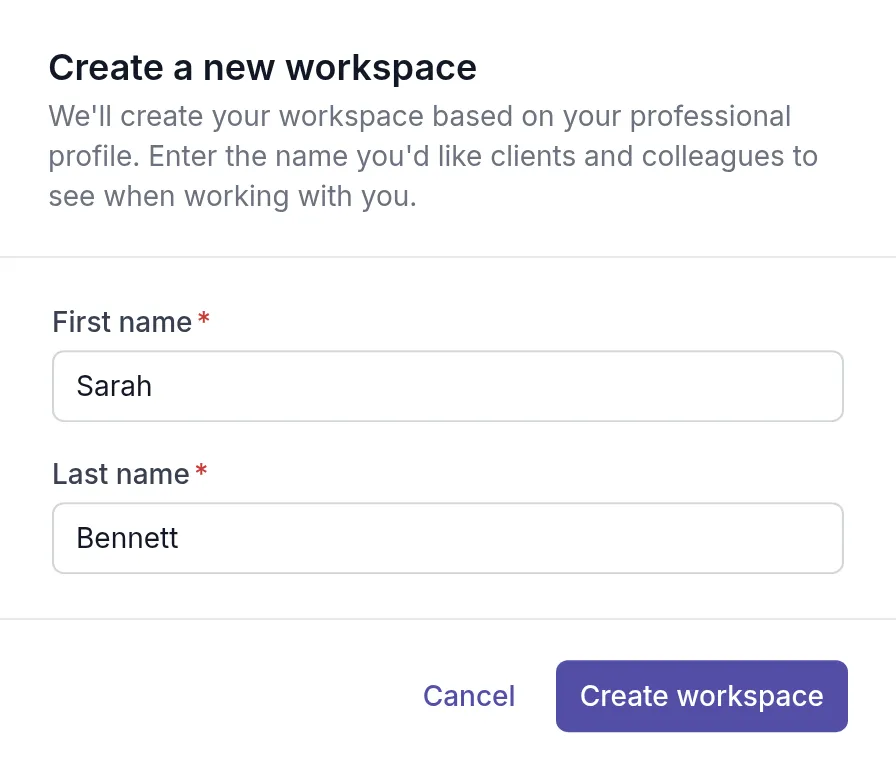
Quenza creates the workspace, makes you its Owner and opens it. The new workspace is named after your first name, for example “Sarah’s workspace”, and Quenza asks a few setup questions, starting with the workspace name. To change the name later, see Rename your workspace.
A new workspace starts with its own free trial and its own subscription, separate from your other workspaces. See How your free trial works.
Was this article helpful?
Thanks for letting us know.
Thank you. We read every answer and use it to improve this article.