
Work with clients
Export as PDF
Download a client's completed activity, with their answers, as a PDF for your records or to share.
Download a completed activity as a PDF, with the activity content and the client’s answers. Use it to keep an offline copy for your records, to print the answers for a session, or to share them with a supervisor or a colleague outside Quenza.
For example, before her supervision meeting, Sarah Bennett exports Emma Clarke’s Daily mood check-in to discuss the pattern in her energy levels.
Export from the activities list
Section titled “Export from the activities list”- Go to Clients, open the client and select the Activities tab.
- Click the ⋯ menu next to the completed activity and choose Export as PDF.

Export from the activity itself
Section titled “Export from the activity itself”If you have the activity open already, click the ⋮ menu at the top right and choose Export as PDF.
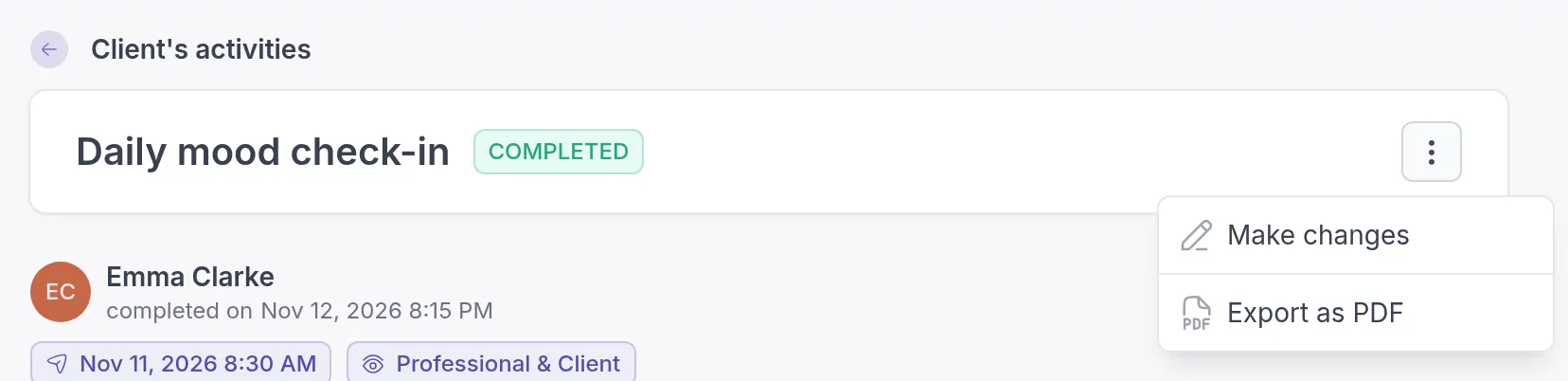
The PDF is created and downloads to your computer. This can take a few seconds. Clients can export their own completed activities the same way in their app.
When Export as PDF is unavailable
Section titled “When Export as PDF is unavailable”Export as PDF is grayed out when:
- The client has not completed the activity yet.
- You cannot see the results, because the activity was sent with Only the client or the client chose to keep the answers to themselves.
To export everything for one client in a single PDF, see Export all client data as PDF.
Was this article helpful?
Thanks for letting us know.
Thank you. We read every answer and use it to improve this article.