
Work with clients
Share files and links
Upload a file or add a link on a client's profile, and choose whether the client can see it.
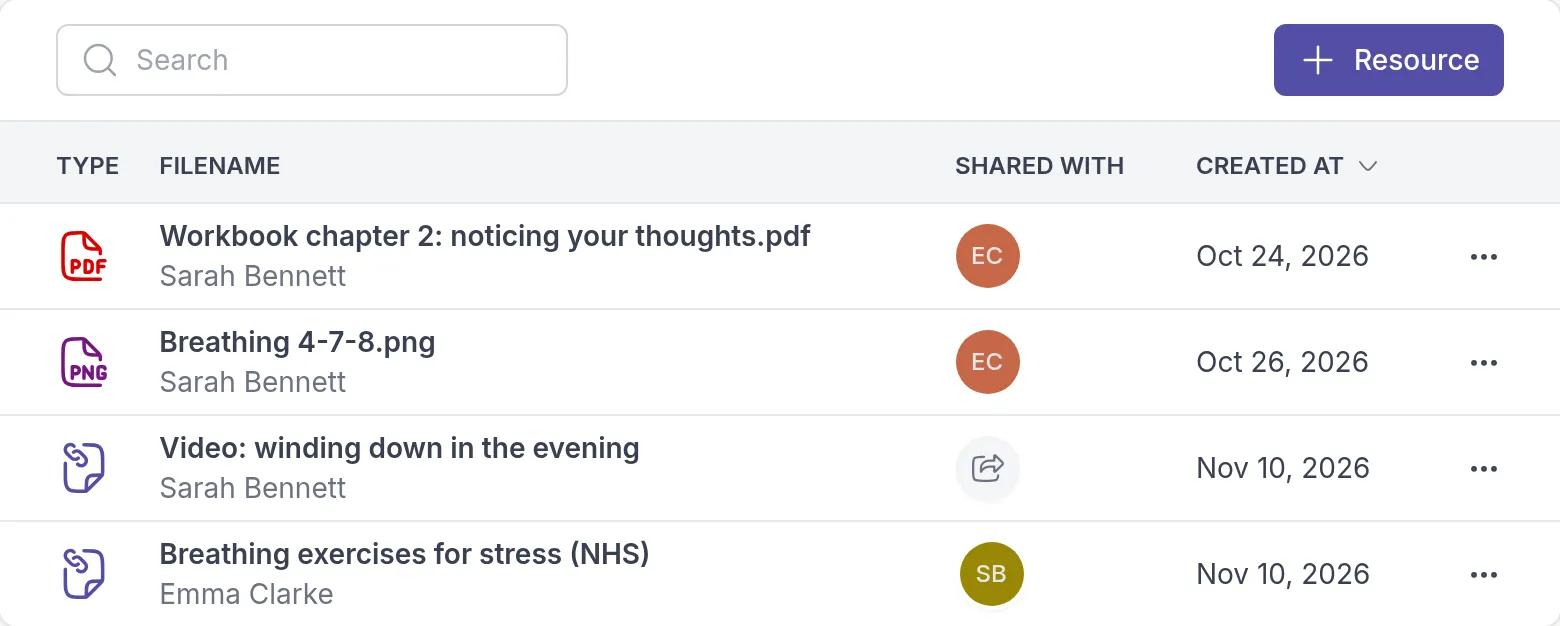
Each client’s profile has a Resources tab for files and links that belong to that client: worksheets, handouts, audio exercises, useful videos. You decide per resource whether the client can open it. What you share appears in the client’s app under Resources.
For example, after a session on unhelpful thoughts, Sarah Bennett adds the PDF “Workbook chapter 2: noticing your thoughts” for Emma Clarke and shares it straight away. She also adds the link “Video: winding down in the evening” for a later session on sleep, but keeps it to herself until they get there.
To manage all resourcesResourcesYour workspace's library of files and links, such as worksheets, handouts and audio exercises, which you link to clients and groups. in your workspace in one place, or share one resource with several clients or groups, see Resources.
Add a file or a link
Section titled “Add a file or a link”Go to Clients, open the client, select the Resources tab and click + Resource. Then choose:
- File: click Upload a file, or drag a file onto the upload area. A file can be up to 25 MB. You can upload documents (PDF, Word, RTF, text), spreadsheets (Excel, CSV), presentations (PowerPoint), images (JPG, PNG, GIF), audio (MP3, WAV, M4A), video (MP4, MOV, MPEG) and archives (ZIP, RAR, 7Z).
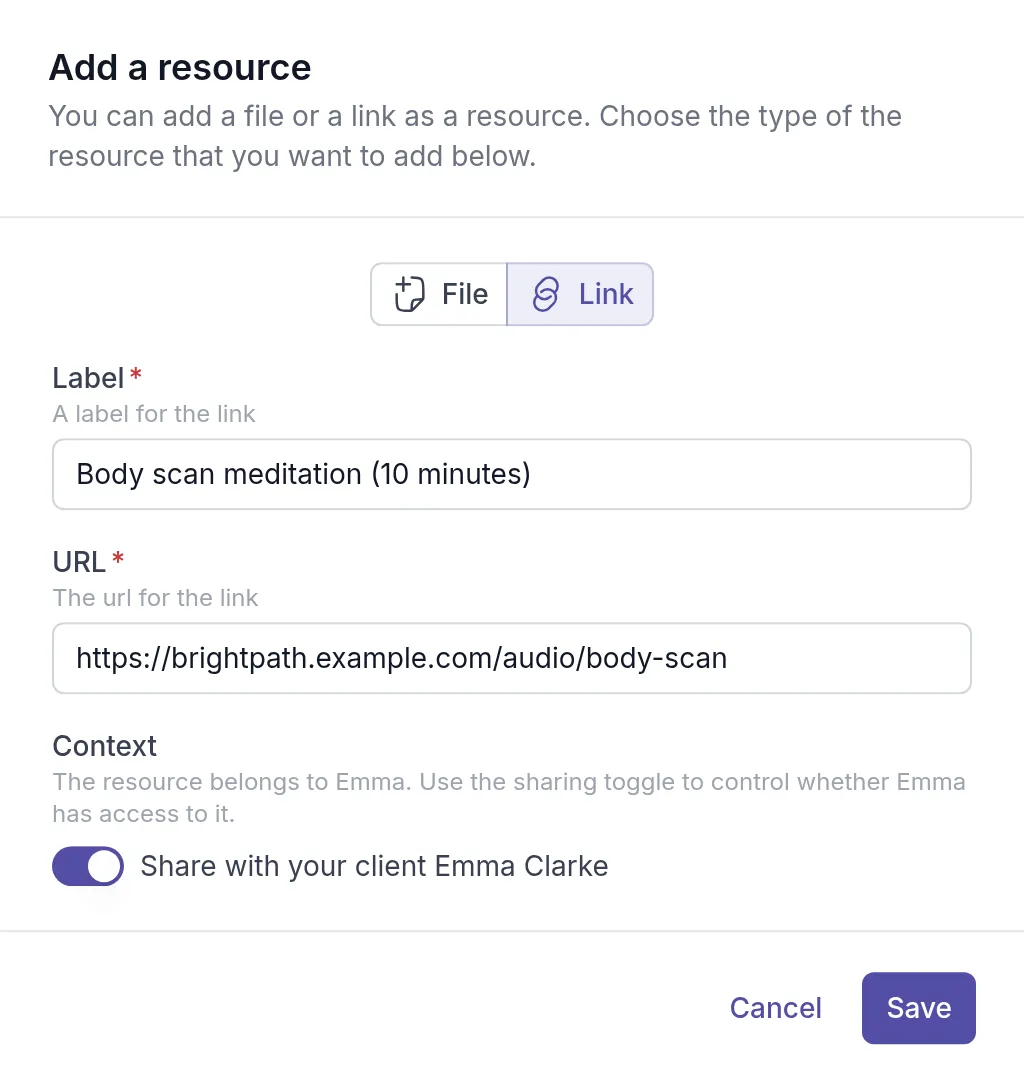
- Link: enter a Label, such as “Body scan meditation (10 minutes)”, and paste the web address into URL. You can link to any web page, such as a YouTube video or a file in Google Drive or Dropbox.
To let the client open it now, turn on Share with your client followed by their name. Leave it off to keep the resource for yourself and the other professionals in your workspace. Click Save.
When you share, the client gets a notification. + Resource is unavailable for archived clientsArchived clientA client you no longer work with, moved out of your active client list. Their history stays, and you can unarchive them at any time. and for clients who have not accepted their invitation yet.
Share or stop sharing
Section titled “Share or stop sharing”A resource that is not shared shows a share icon in the Shared with column. Click it and confirm with Share resource. The client gets a notification, and their picture appears in the column.
To hide a resource from the client again, click their picture in the Shared with column, or click ⋯ and choose Unshare. The resource stays on the client’s profile.
Edit, open or download
Section titled “Edit, open or download”Click ⋯ next to a resource:
- Edit changes a link’s label or URL. Files cannot be edited; upload a new version instead.
- Open opens a link in a new tab. Download downloads a file.
Delete a resource
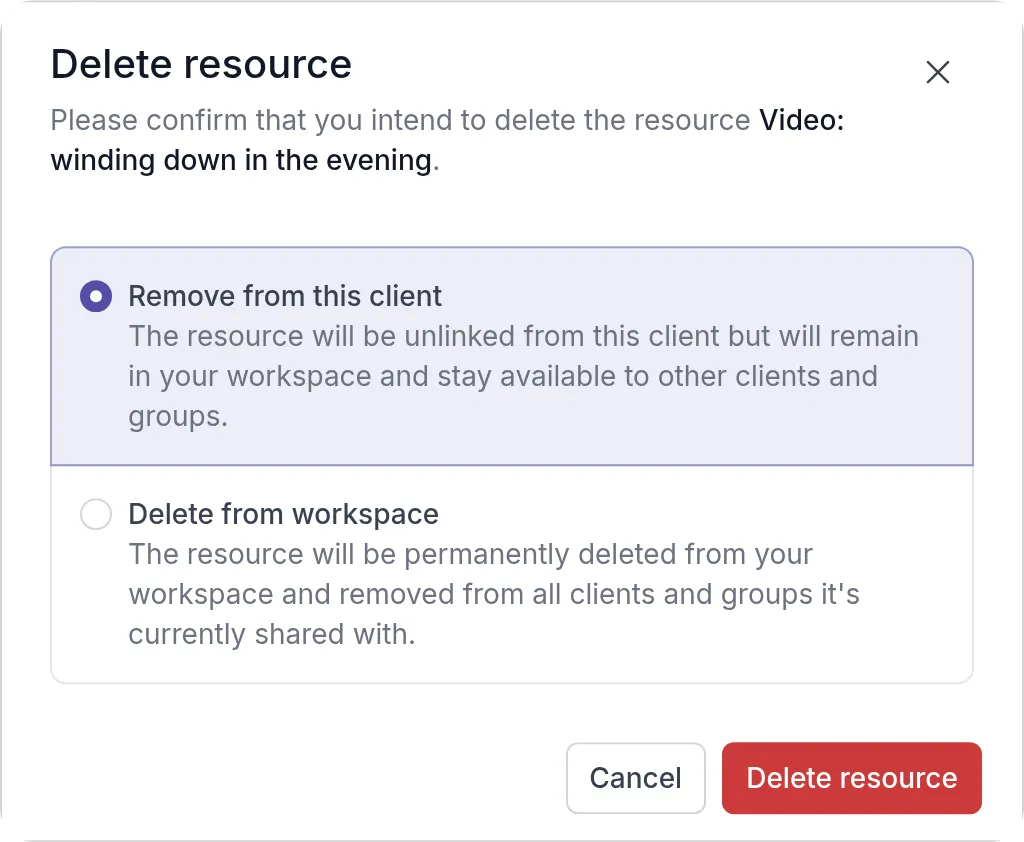
Section titled “Delete a resource”Click ⋯ next to the resource and choose Delete. Then choose what to delete and click Delete resource:
- Remove from this client: the resource disappears from this client’s profile, but stays in your workspace and with other clients and groups.
- Delete from workspace: the resource is deleted everywhere.
Files and links from your client
Section titled “Files and links from your client”Clients can add their own files and links in their app and share them with you, for example a photo of a journal page or an article they found helpful. These also appear on the client’s Resources tab, with the client’s name under the title and the professionals they shared it with in the Shared with column. You can open or download them, but only the client can change or delete them.
Share with a group
Section titled “Share with a group”Groups have a Resources tab too, and it works the same way. When you share a resource there, every member of the group can open it. This suits material for a whole group, such as the body scan audio that Sarah’s Mindfulness group practices with between meetings.
What your client sees
Section titled “What your client sees”Your client finds shared files and links under Resources, on the Shared with you tab. Audio files play right on the page. See Open files and links shared with you.
Was this article helpful?
Thanks for letting us know.
Thank you. We read every answer and use it to improve this article.