
Get started
Change language
Choose the language Quenza uses for you, and set the language of clients and colleagues you invite.
You can use Quenza in English, Spanish, Dutch, German, French, Italian, Portuguese or Finnish. Everyone chooses their own language: you can work in one language while your clients and colleagues use another.
For example, Sarah Bennett works in English, while her client Mila de Vries prefers Dutch. Sarah writes her activities as usual; Mila sees the buttons, menus and Quenza’s emails in Dutch. The content you write yourself, such as an activity’s questions or a chat message, is not translated.
Change your own language
Section titled “Change your own language”Your language belongs to your Quenza account, so it applies in every workspace you use.
- Click your workspace name at the top left and choose My account. Your account opens in a new browser tab.
- Open the Settings tab.
- In the Language section, choose a language from the Language list.
- Click Change language.
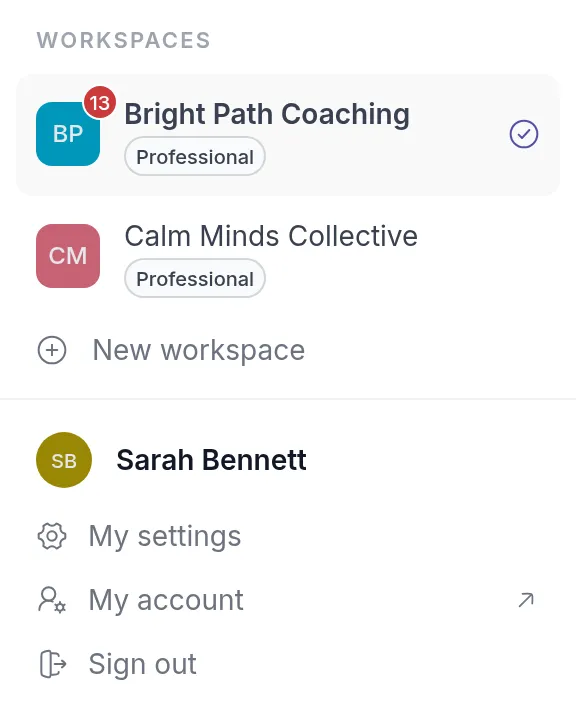
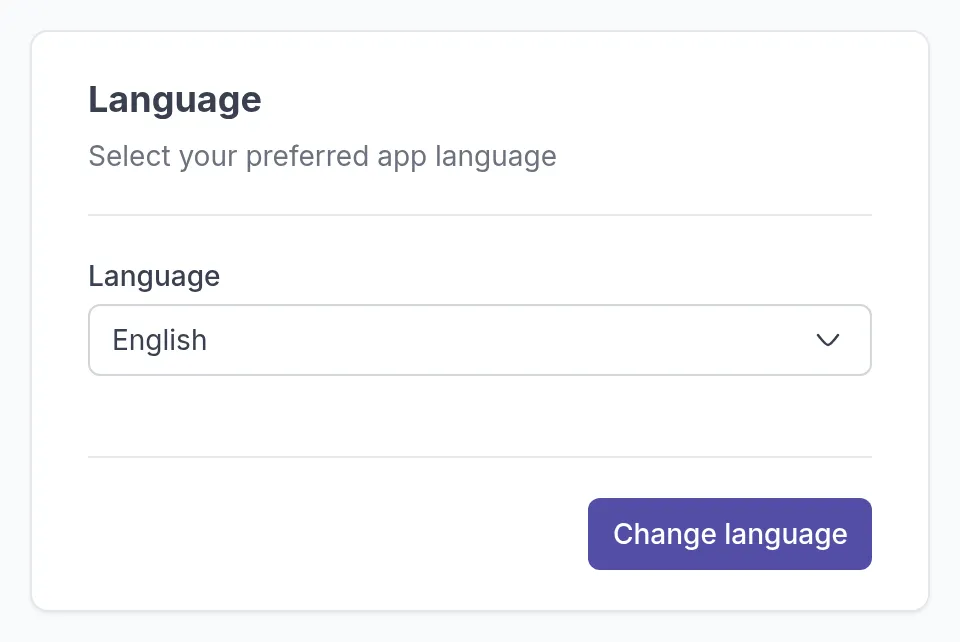
Quenza switches to the new language right away, including menus, buttons and notifications.
Choose the language for a new client or colleague
Section titled “Choose the language for a new client or colleague”When you add a client or invite a colleague, you choose their language under Language Settings. Their invitation email, account setup and app are then in that language from the start.
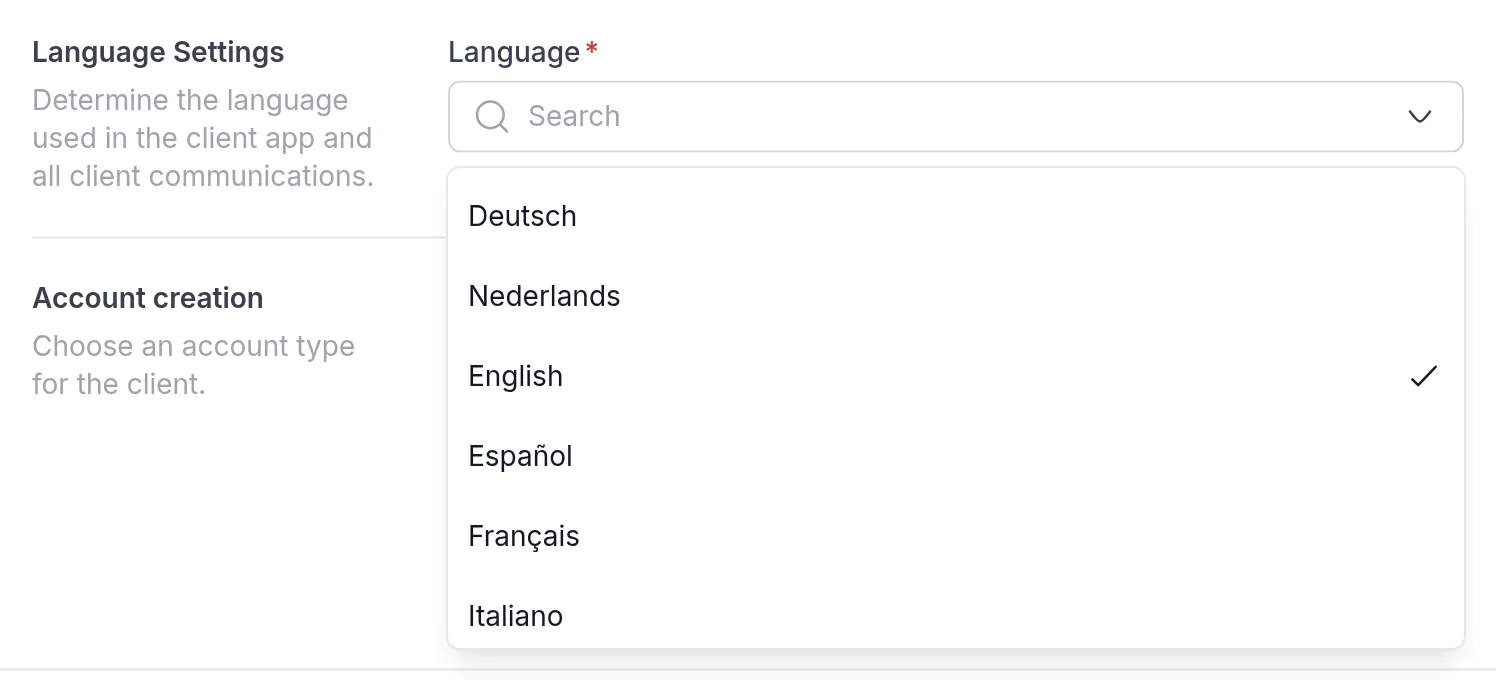
For a client, this language is also used for all emails Quenza sends them. See Add clients and Add team members.
How clients change their language
Section titled “How clients change their language”Clients can change their language themselves in the client app, under My Profile. See Edit your client profile.
Report a translation problem
Section titled “Report a translation problem”If a text in your language is wrong or unclear, contact our support team and tell us where you saw it. Your feedback helps us improve the translations for everyone.
Was this article helpful?
Thanks for letting us know.
Thank you. We read every answer and use it to improve this article.