
Manage clients
Assign professionals
Give colleagues in your workspace access to a client or a group by assigning them, so you can share the work and the records.
When several professionals work with the same client or group, assign them all. Assigned professionals can see and work with that client or group: send activities, read results, write notes and chat.
For example, Emma Clarke works with Sarah Bennett on her goals and sees Daniel Weber for a few sessions on sleep. Sarah assigns Daniel to Emma, so he can send her the sleep diary and read her earlier check-ins before his first session.
Owners, Managers and Members can assign professionals. Billing Managers cannot, because they only have access to billing. See Roles and permissions. To add a colleague to your workspace first, see Add team members.
Assign professionals to a client
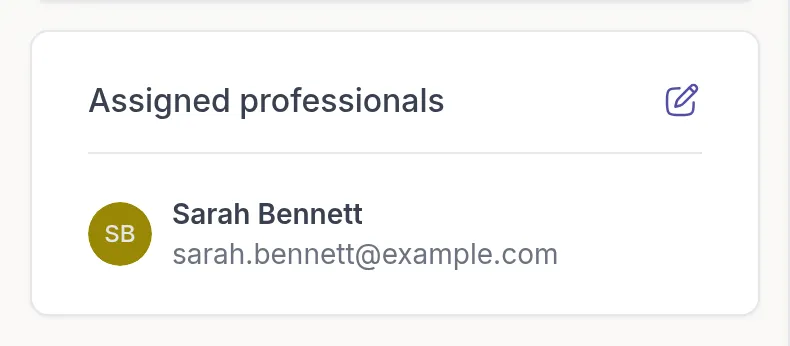
Section titled “Assign professionals to a client”Open the client. On the Details tab, click the edit icon in the Assigned professionals card.
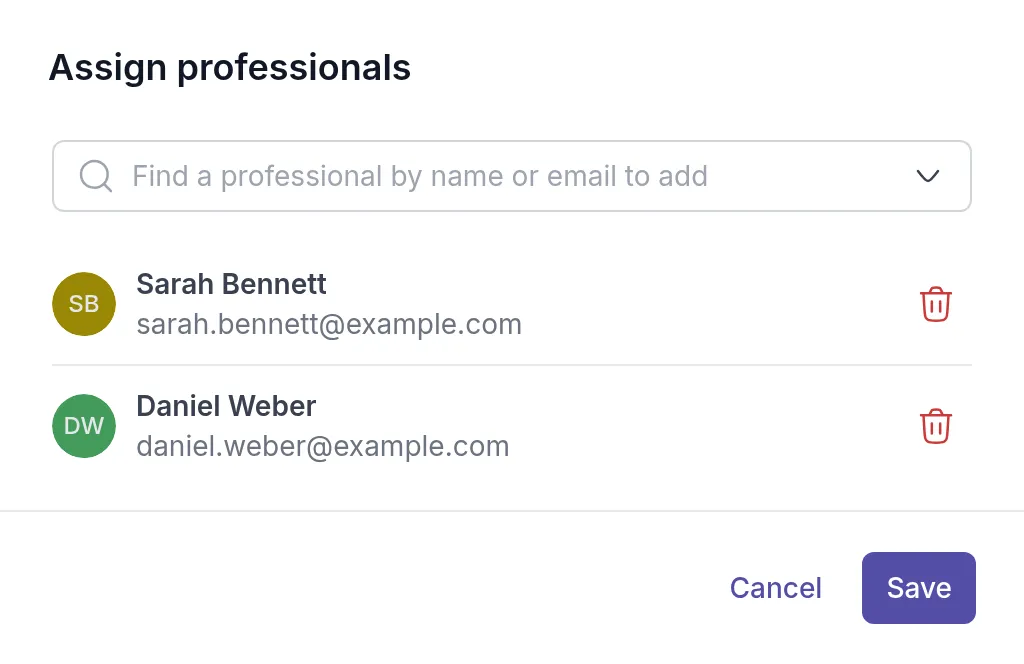
In Find a professional by name or email to add, search for your colleague and select them. To unassign someone, click the trash icon next to their name. Click Save.
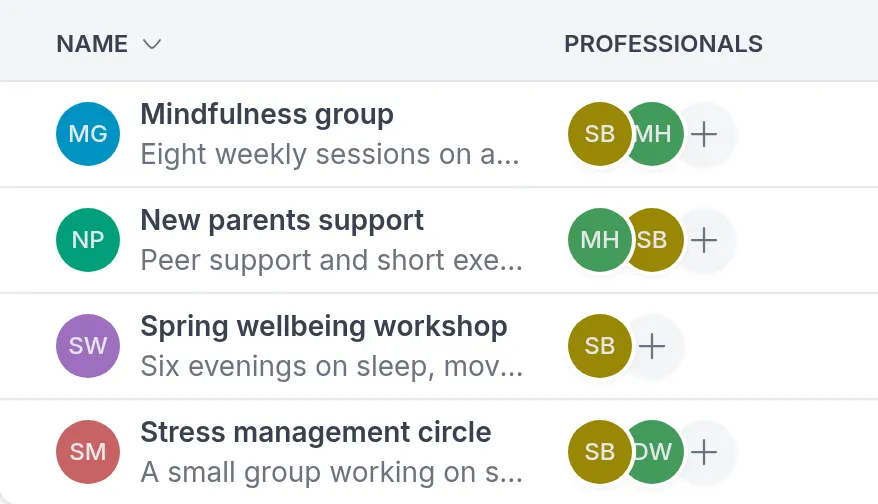
The assigned professionals appear in the Assigned professionals card and in the Professionals column of your client list. You can open the same dialog from the client list: click the + next to the avatars in the Professionals column.
Assign professionals to a group
Section titled “Assign professionals to a group”Groups work the same way. Assign a co-facilitator to a group, and they can send content to the group, follow the members’ progress and join the group chat.
Go to Groups and click the + next to the avatars in the group’s Professionals column. You can also open the group and click the edit icon in the Assigned professionals card on its Details tab.
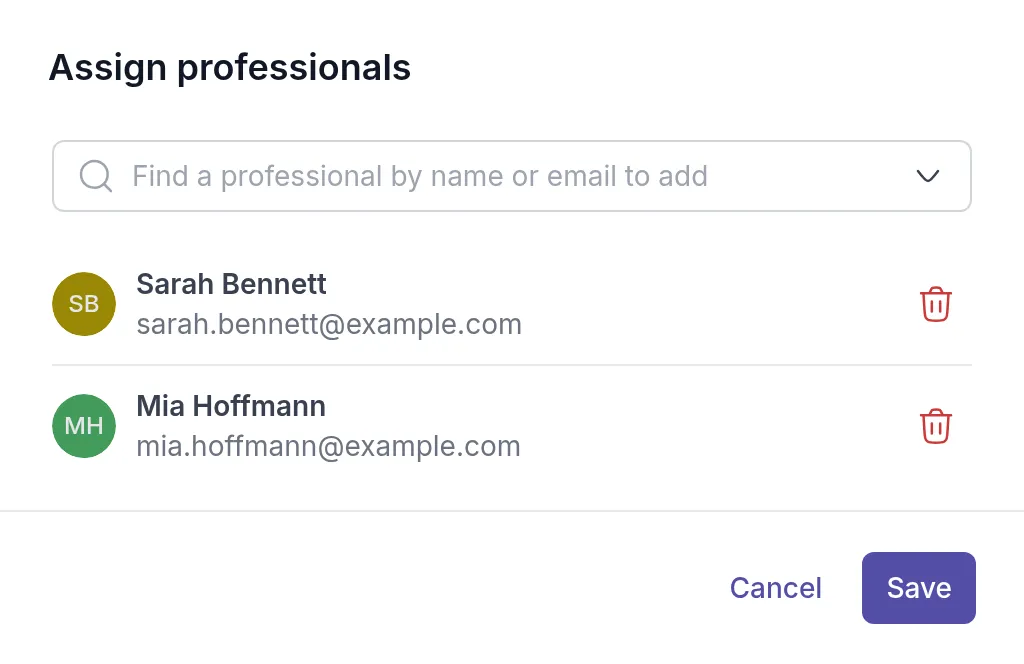
Search for your colleague, select them and click Save.
You cannot change the professionals of an archived group. Unarchive it first.
Was this article helpful?
Thanks for letting us know.
Thank you. We read every answer and use it to improve this article.