
Get started
Home page
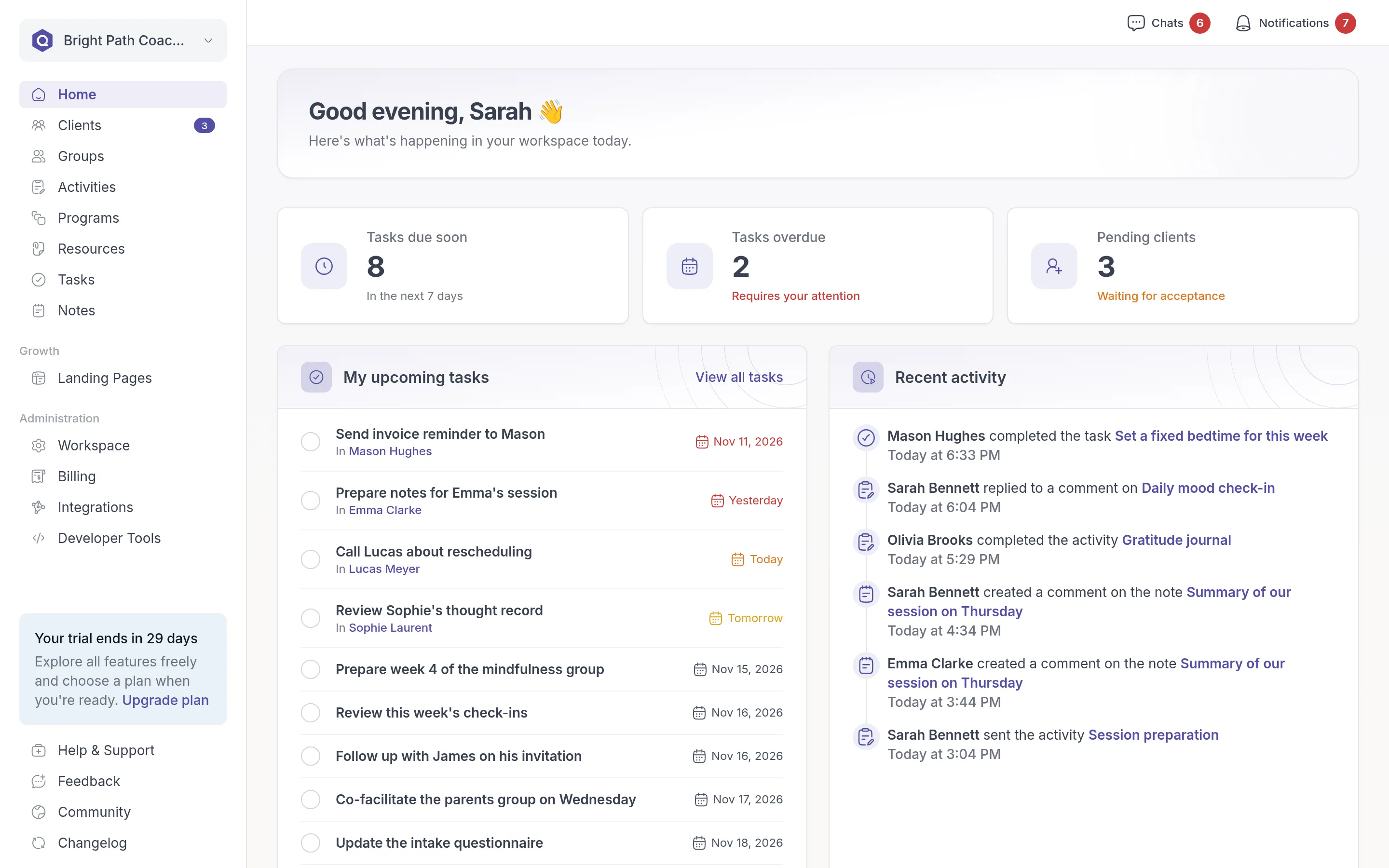
Use the Home page in Quenza to start your day with your tasks, pending clients and the latest activity and program updates from your clients.
The Home page is the first thing you see when you open your workspace. It brings together what needs your attention today: your own tasks, clients who haven’t joined yet, and what your clients have been doing. Every professional sees it, with their own tasks.
To open it at any time, click Home at the top of the sidebar.
Start your day
Section titled “Start your day”A quick round on the Home page takes a minute. For example, before her first session on Monday, Sarah Bennett looks at the counters, sees two overdue tasks and ticks off the one she already did. In Recent activity she sees that Olivia Brooks completed her Gratitude journal, so she opens it and reads the answers before their session. Then she checks Pending clients: James Walker still hasn’t accepted his invitation, so she resends it.
The three counters
Section titled “The three counters”
- Tasks due soon: your open tasks that are due in the next 7 days.
- Tasks overdue: your open tasks whose due date has passed. When there are any, the counter says Requires your attention; otherwise You’re all caught up.
- Pending clients: clients who have been invited but haven’t accepted their invitation yet. When there are any, the counter says Waiting for acceptance.
The task counters only count tasks assigned to you. Click a task counter to open Tasks, or Pending clients to see the client list filtered on pending clients, where you can resend an invitation. See Tasks and Add clients.
My upcoming tasks
Section titled “My upcoming tasks”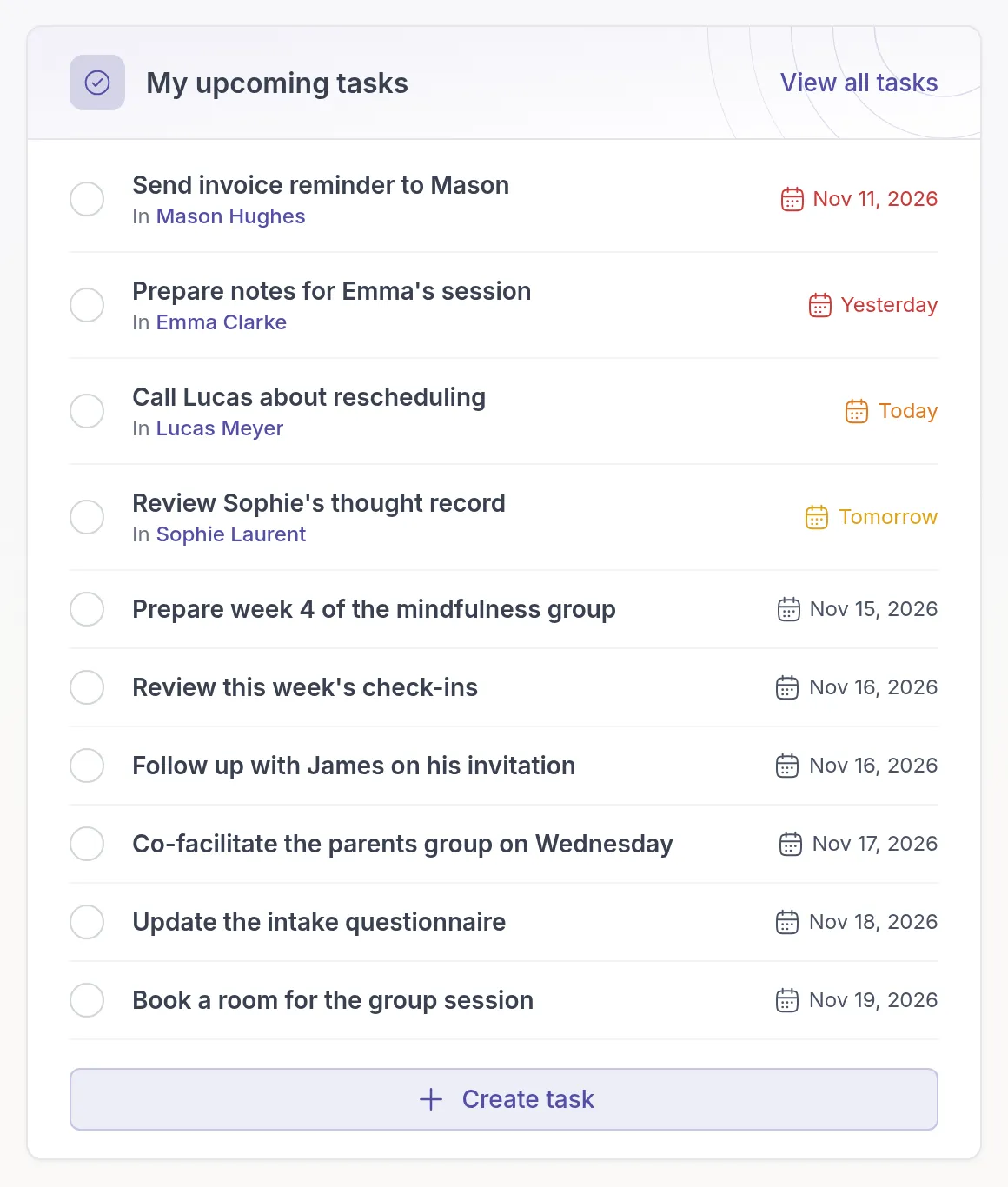
This block lists up to ten open tasks assigned to you, with the earliest due date first. Overdue dates are red. A task about a client shows the client’s name below it; click the name to open the client.
- Click the circle in front of a task to mark it as done.
- Click a task to open and edit it.
- Click Create task to add a task, for example a reminder to call a client back.
- Click View all tasks to open the full Tasks page.
Recent activity
Section titled “Recent activity”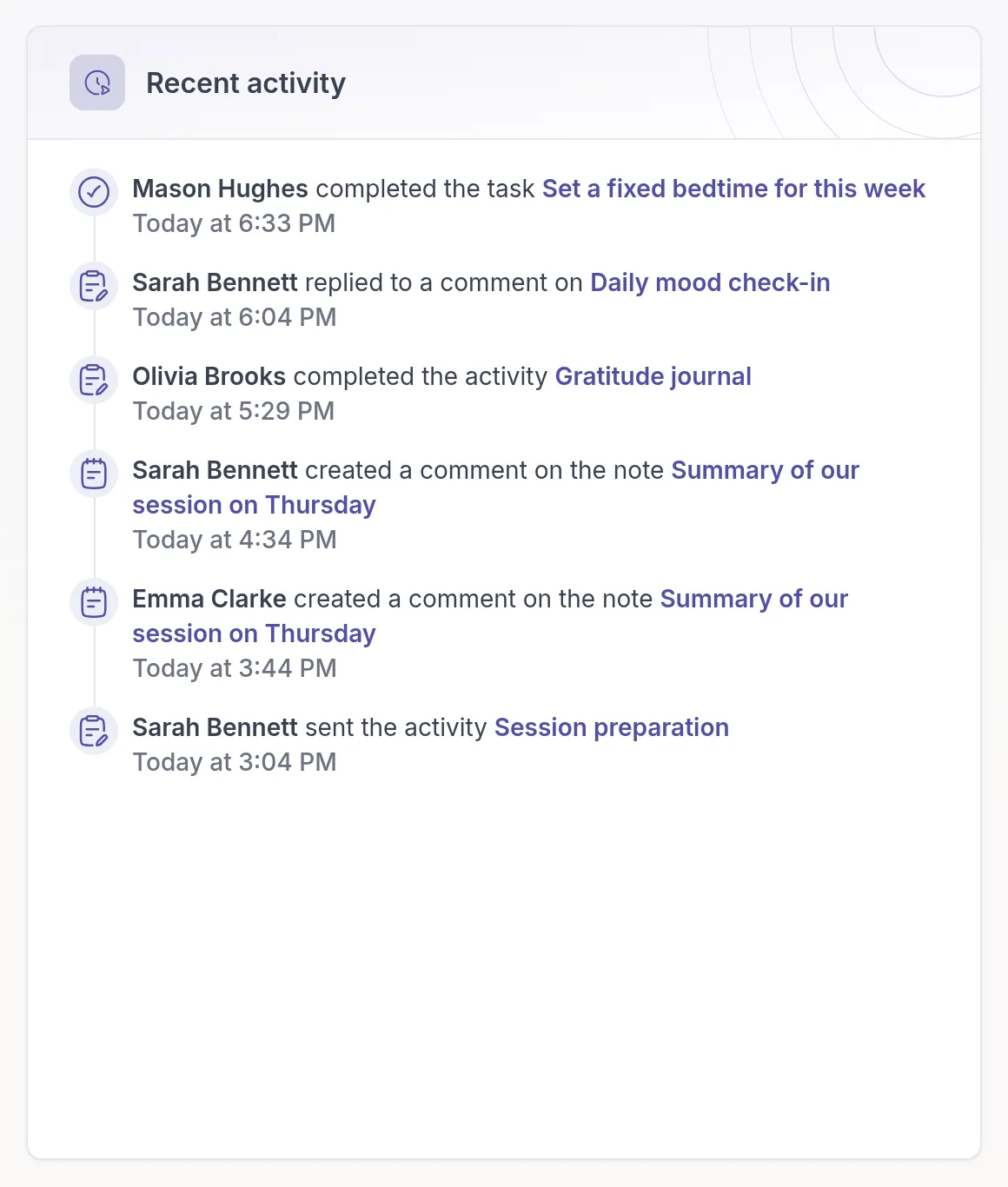
Recent activity shows the six latest things that happened in your workspace: a client completed an activity or a task, someone commented on a note, a colleague sent an activity. Click a linked name, such as an activity or a note, to open it.
Activity updates and Program updates
Section titled “Activity updates and Program updates”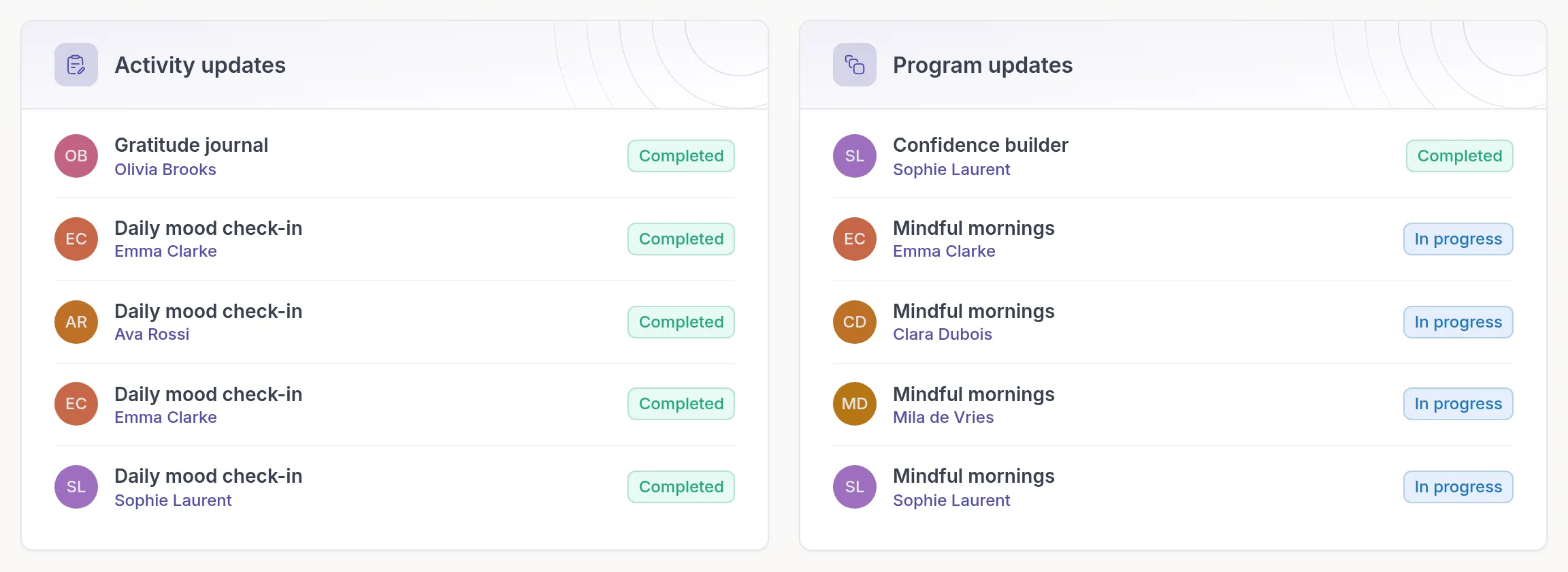
These two blocks show five activities and five programs that your clients are working on. Completed ones come first, then those in progress, then those not started yet, with the most recently changed first. The badge shows the status.
Click an activity or program to see the client’s answers and progress, or click the client’s name to open the client. See Review completed activities.
Was this article helpful?
Thanks for letting us know.
Thank you. We read every answer and use it to improve this article.