
Chat and notifications
Attachments
Attach documents, images, audio and video to a chat message, or record a voice message, and see which file types and sizes you can send.
You can send files in any chat, such as a worksheet, a PDF or a photo, and record short voice messages. Your clients can send files to you the same way.
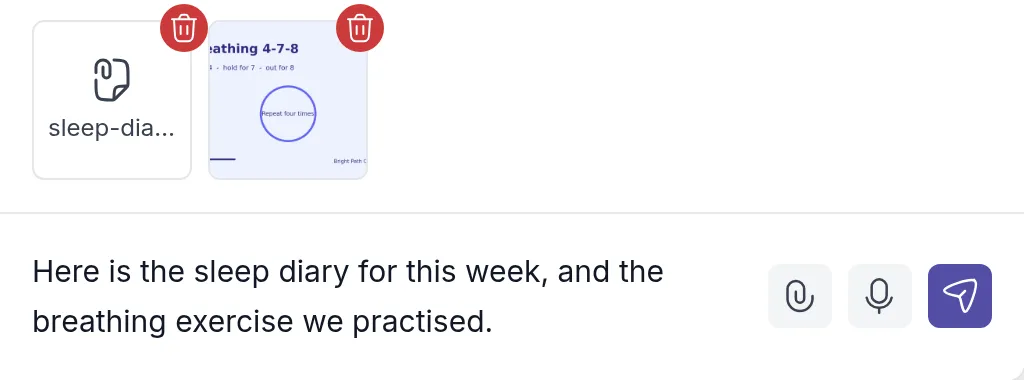
Attachments keep the conversation and the material together. After a session about sleep, Sarah Bennett sends Sophie Laurent the sleep diary for the week and the breathing exercise they practised, with one line of text. Sophie can open both from the chat on her phone that evening. A client can just as easily send you a photo of a filled-in worksheet or a voice message about how their week went.
Attach files to a message
Section titled “Attach files to a message”In an open chat, click the paperclip icon next to the message field and select one or more files on your computer or phone. On a computer, you can also drag files from your desktop or a folder into the chat window.
The files appear as small previews above the message field. To remove one before you send, click the red trash icon on its preview. Add a message if you like, then click the send button.
Files you send in chat stay in the conversation. To give a client a file they can find again later in their resourcesResourcesYour workspace's library of files and links, such as worksheets, handouts and audio exercises, which you link to clients and groups., share it as a resource instead. See Share files and links.
Supported files
Section titled “Supported files”Each file can be up to 25 MB. You can attach these file types:
- Documents: PDF, Word (.doc and .docx), Excel (.xlsx), PowerPoint (.pptx), RTF and plain text (.txt)
- Images: JPG and PNG
- Audio: MP3 and M4A
- Video: MP4 and MKV
- Other: ZIP and RAR archives, and calendar files (.ics)
If a file is too large or of another type, Quenza shows a message and does not add it. Older Excel (.xls) and PowerPoint (.ppt) files, GIF and HEIC images, and MOV videos can’t be sent in chat. Save them in a supported format first, or add them as a resource.
Record a voice message
Section titled “Record a voice message”A voice message is a quick way to answer a question or send a short encouragement when typing would take longer.
- Click the microphone icon next to the message field. If your browser or phone asks for access to your microphone, allow it.
- Speak your message. A timer shows how long you have been recording.
- Click the check mark to finish, or the trash icon to throw the recording away.
- Click the send button.
A recording can be up to 5 minutes long. It stops by itself when it reaches 5 minutes.
Open files you receive
Section titled “Open files you receive”- Images sent together appear as one gallery in the chat. Click an image to see it larger.
- Audio and video play right in the chat.
- Other files show their name and size. Click the file name to download it.
Related
Section titled “Related”Was this article helpful?
Thanks for letting us know.
Thank you. We read every answer and use it to improve this article.