
Get started
Change email or password
Change the email address you sign in with, or choose a new password, in your Quenza account while you are signed in.
Your sign-in email address and password belong to your Quenza account, not to a workspace. Change them in your account while you are signed in, and the change applies to every workspace you use, in the browser and in the app.
To make sure nobody else changes them on an unattended computer, Quenza asks for your current password first.
Change your sign-in email address
Section titled “Change your sign-in email address”For example, Sarah Bennett moves from her personal address to an address of her practice. From then on she signs in with the new address, and emails about her account go there.
- Click your workspace name at the top left and choose My account. Your account opens in a new browser tab.
- Open the Settings tab.
- Under Communication, enter the new address under Email address.
- Click Change email.
- In the Confirm it’s you window, enter your Current Password and click Submit.
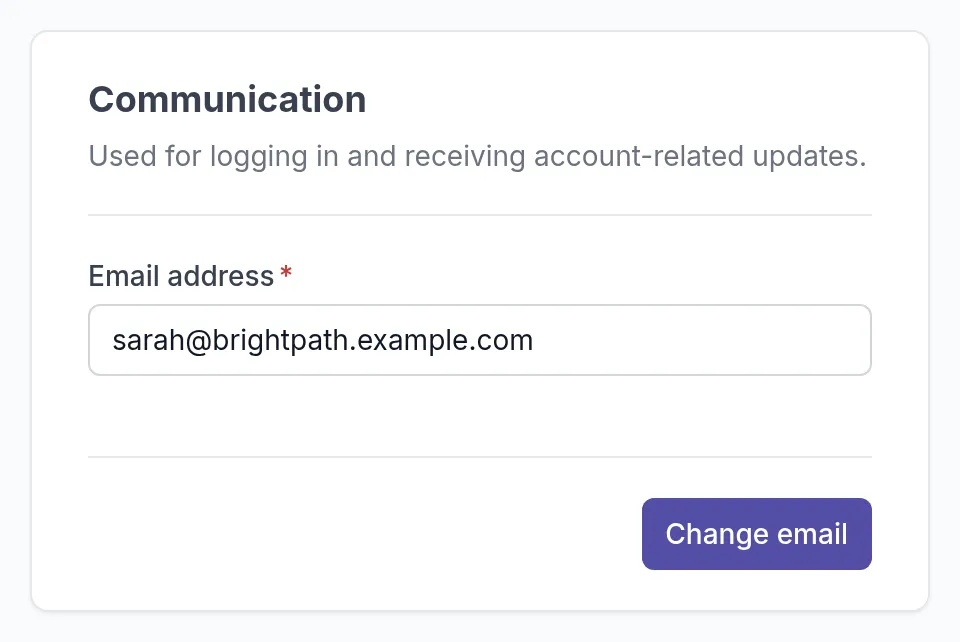
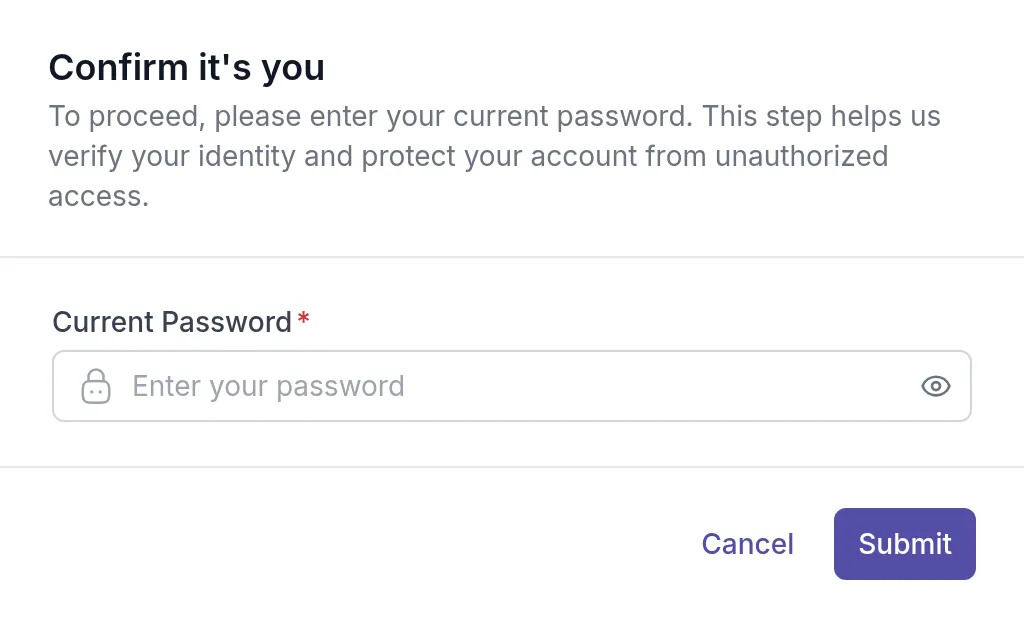
The new address works straight away; Quenza does not send a confirmation email to it first. Check the spelling before you click Submit. An address that another Quenza account already uses can’t be chosen.
Choose a new password
Section titled “Choose a new password”- Click your workspace name at the top left and choose My account.
- Open the Security tab.
- Under Password, enter your new password under New Password and again under Password Confirmation.
- Click Update password.
- In the Confirm it’s you window, enter your Current Password and click Submit.
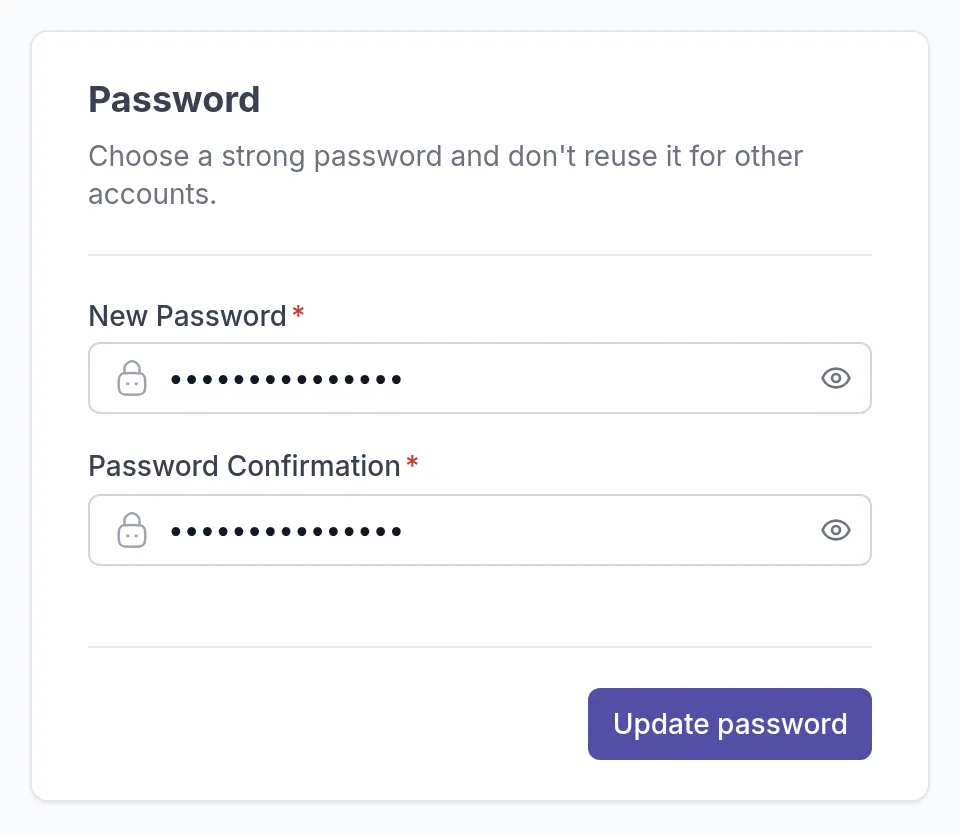
A password needs at least 8 characters, with at least one letter and one number. Choose one you don’t use anywhere else. Quenza shows The password has been changed successfully, and you use the new password the next time you sign in, also in the app.
The Security tab is also where you turn your PIN on or off. See Set your PIN.
Was this article helpful?
Thanks for letting us know.
Thank you. We read every answer and use it to improve this article.