
Get started
Mobile app
Install the Quenza app for iOS or Android, sign in with your Quenza account and get push notifications for chats and client updates on your phone.
With the Quenza app you can run your practice from your phone: reply to a client’s message between sessions, check who completed an activity, or send a task on the way to work. There is one app for professionals and clients, for iPhone, iPad and Android. Every plan includes it.
Install the app
Section titled “Install the app”- iPhone and iPad: Quenza on the App Store
- Android: Quenza on Google Play
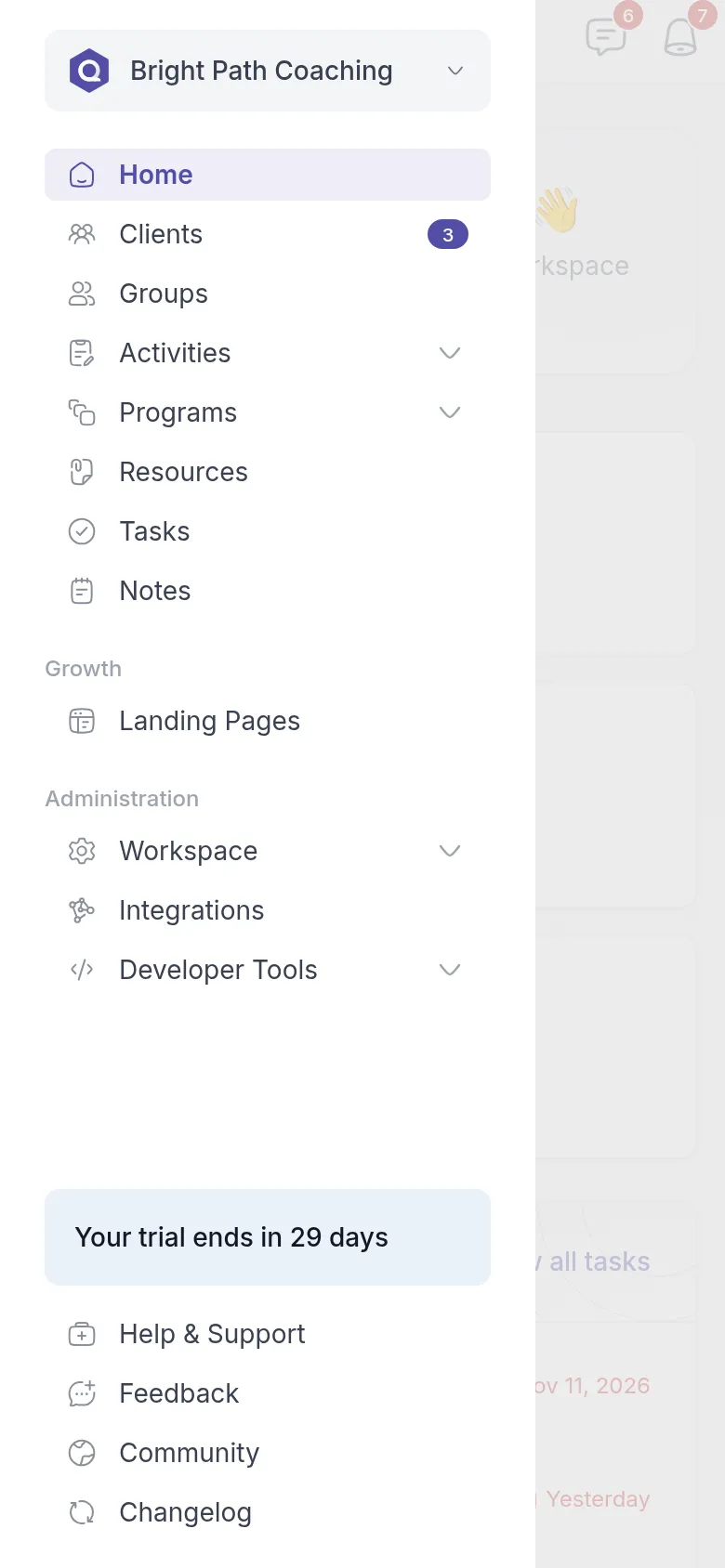
Open the app and sign in with the same email address and password you use on the web. If you belong to more than one workspace, you switch between them from the workspace menu, just as on the web. See Multiple workspaces.
The same Quenza, made for a small screen
Section titled “The same Quenza, made for a small screen”The app shows the same pages as Quenza in your browser, laid out for a phone. Your clients, activities, programs, chats and notes are the same everywhere, so you can start something on your computer and finish it on your phone.
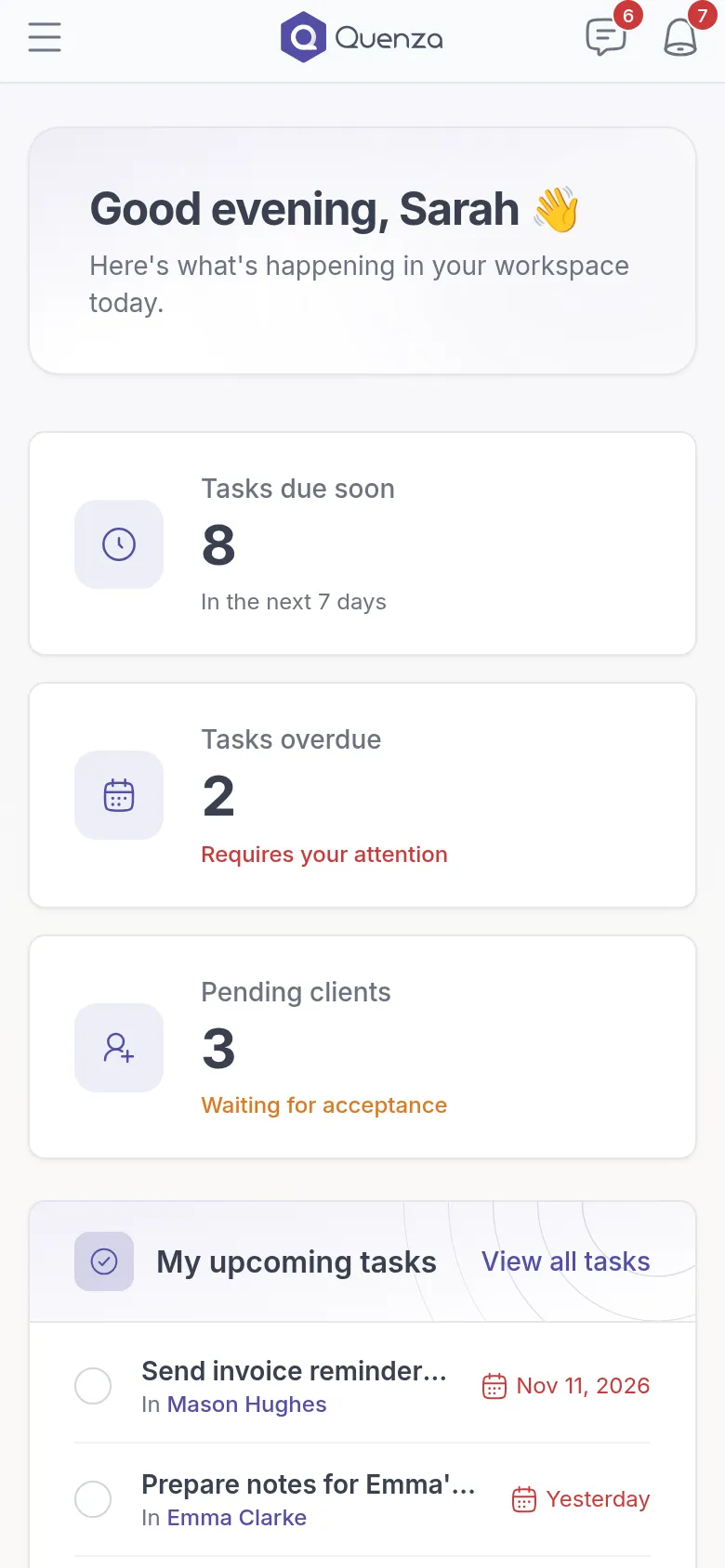
The menu sits behind the button at the top left. The chat and notification buttons are at the top right, each with the number of unread items.
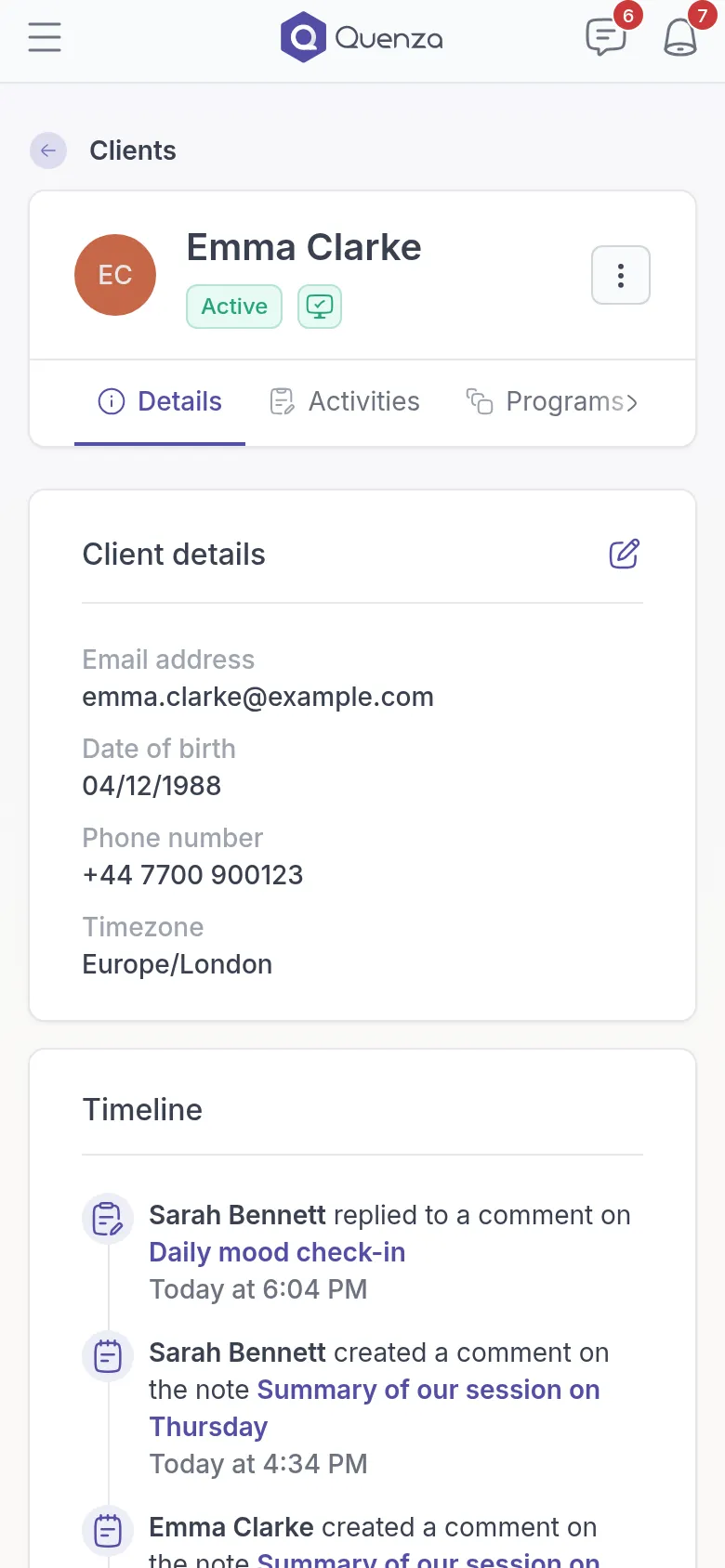
For example, Sarah Bennett gets a push notification on Tuesday evening that Emma Clarke has completed her Daily mood check-in. She opens it from the notification, reads Emma’s answers and replies with a short comment, so Emma knows her check-in was seen.
Push notifications and the app badge
Section titled “Push notifications and the app badge”The first time you open the app, your phone asks whether Quenza may send notifications. Allow it to get a push notification when, for example:
- a client or colleague sends you a chat message,
- a client completes an activity, a program or a task,
- someone comments, shares a note or a file with you, or assigns you a task.
Tap a notification to open the item it is about. The app icon shows how many unread chats and notifications you have: a number on iPhone and iPad, a dot on most Android phones.
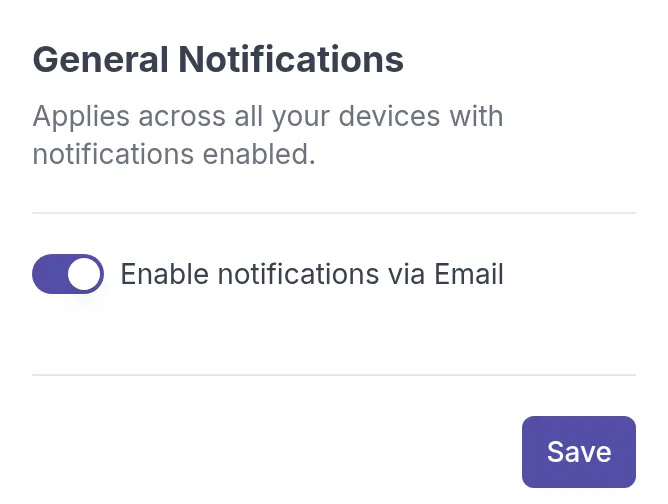
To stop push notifications, turn them off for Quenza in your phone’s settings. The switch Enable notifications via Email under Settings → Notifications in Quenza only controls emails; push notifications keep coming when you turn it off. See Notification preferences.
What you do on the web
Section titled “What you do on the web”Your subscription is managed only in the browser. In the app, Billing is not in the menu, and the subscription page shows Manage your subscription on the web. To choose a plan, upgrade, change your payment details or download invoices, sign in at my.quenza.com on a computer or in your phone’s browser. See Plans and pricing.
If you use a PIN, the app locks when you leave it and asks for your PIN when you come back. See Set your PIN.
Your clients use the same app
Section titled “Your clients use the same app”Your clients install the same Quenza app and sign in with their own account. They then see the client app, with My Day, their activities, tasks and chats. The invitation email you send them has links to both app stores. See Get started as a client.
Was this article helpful?
Thanks for letting us know.
Thank you. We read every answer and use it to improve this article.