
Chat and notifications
Chat
Message your clients and the other professionals in your workspace, see when clients have read your messages, and delete messages you sent.
Chat lets you message your clients and the other professionals in your workspace without leaving Quenza. It opens in a window on top of the page you are on, so you can keep working while you write.
Chat is useful for the small things between sessions: a reminder that Monday’s session is online, a quick check-in after a hard week, or a question from a client about an exercise. For example, after a session Sarah Bennett sends Sophie Laurent a short note: “I left a comment on your thought record. See you on Monday.” Sophie reads it in the client app or gets an email if she doesn’t.
1:1 chat with clients is included in every plan. Chat with other professionals (team chat) is available from the Collective plan. See Plans and pricing.
Open your chats
Section titled “Open your chats”Click Chats at the top of the screen. The red badge on Chats shows how many unread messages you have.
The chat window lists all your conversations. Click a name to open a conversation, or use Search to find one. You can switch between conversations without closing the window. To close it, click the X or click outside the window. Your conversations are kept.
To start a conversation with someone new, click New Chat and choose a person under Clients or, with team chat, under Professionals. Type your message and press Enter or click the send button.
Chat from a client’s page
Section titled “Chat from a client’s page”When you are looking at a client’s work, you can open the chat with them from their page: open the client under Clients, go to the Chat tab and click Open chat.
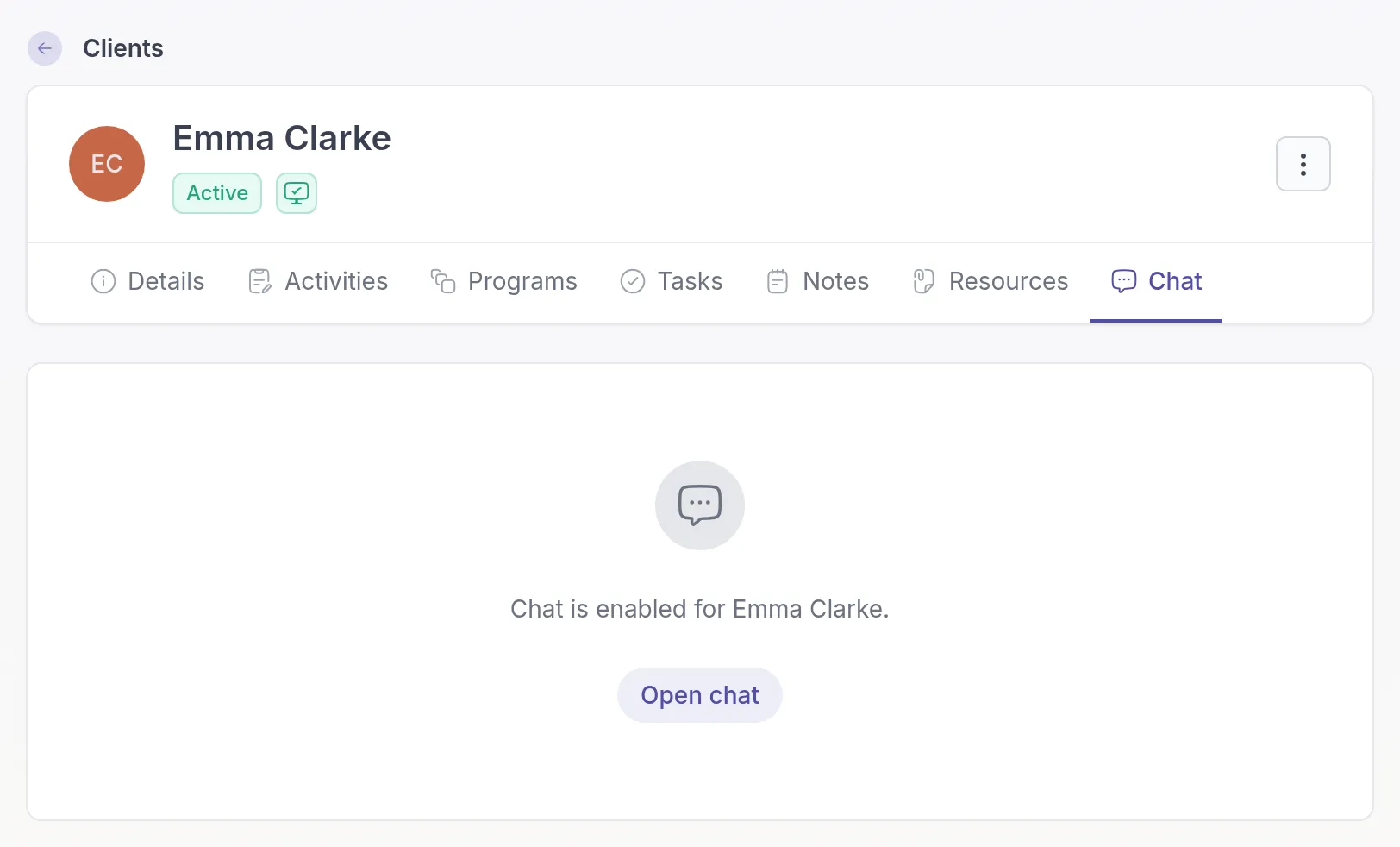
The Chat tab is not available for guestGuestA client without a login. Guests get no invitation and cannot use the client portal or app, but Quenza emails them a direct link when you send an activity or share a note; you can convert them to an account later. clients or for clients who have not accepted their invitation yet.
See whether a client has read your message
Section titled “See whether a client has read your message”In a 1:1 chat with a client, a small circle with a check mark next to the time of your message shows its status:
- Outlined circle (Sent): your message has been sent. This doesn’t confirm that it has reached your client’s device.
- Filled circle (Seen): your message has appeared in your client’s open chat window.
Hover over the icon for a reminder of what the two states mean.


Your client can also see when you have seen their messages. Read receipts are only shown in 1:1 chats between a professional and a client, not in group chatsGroup chatOne shared conversation for the members of a group and their professionals. You turn it on per group. or chats between professionals. Seen doesn’t confirm that an attachment has been opened.
Delete a message
Section titled “Delete a message”You can delete messages you sent yourself, for example when you sent a message to the wrong client or with a mistake in it. You can’t delete other people’s messages.
On a computer, hover over your message, click the ⋯ button on it and choose Delete. On a phone, swipe the message to the left and tap the trash button. Quenza asks you to confirm; click Delete message.
The message is removed for everyone. Everyone in the chat, you included, sees “This message was deleted” in its place. Its text and any files attached to it are no longer shown.
You can’t delete messages in a chat that is read-only, such as the chat of an archived group, or in a chat that is turned off. Your clients can delete their own messages in the same way.
Get notified about new messages
Section titled “Get notified about new messages”- In the app: the badge on Chats shows your unread messages. Chat messages are not listed in the Notifications panel.
- By email: if a message stays unread for a while, Quenza sends you an email, as long as Enable notifications via Email is on. See Notification preferences.
- On your phone: the Quenza mobile app can send you push notifications for new messages.
Try chat as your client
Section titled “Try chat as your client”To see chat the way your clients do, chat with your demo clientDemo clientA client in your own name that only you can see. Send it your content to see exactly what your clients will see. and open the client app as them. See See Quenza as your clients do.
Related
Section titled “Related”- Group chat
- Attachments
- Message your professional in chat (for clients)
Was this article helpful?
Thanks for letting us know.
Thank you. We read every answer and use it to improve this article.