
Integrations and API
Google Calendar
Connect a Google Calendar appointment schedule so clients can book sessions with you from the Quenza client app.
Connect a Google Calendar appointment schedule to Quenza, and your clients can see your availability and book appointments without leaving the client app.
If you already plan your sessions in Google Calendar, this is the simplest way to let clients book. Sarah Bennett, for example, offers 50-minute sessions on weekday mornings in an appointment schedule. Her clients open Appointments in the client app, pick a free slot, and the session appears in her Google Calendar.
Setting this up takes two steps: a workspace Owner or Manager turns on the integration for the workspace, and then each professional connects their own appointment schedule. The Google Calendar integration is not included in the Spark plan. See Plans and pricing.
Turn on Google Calendar for your workspace
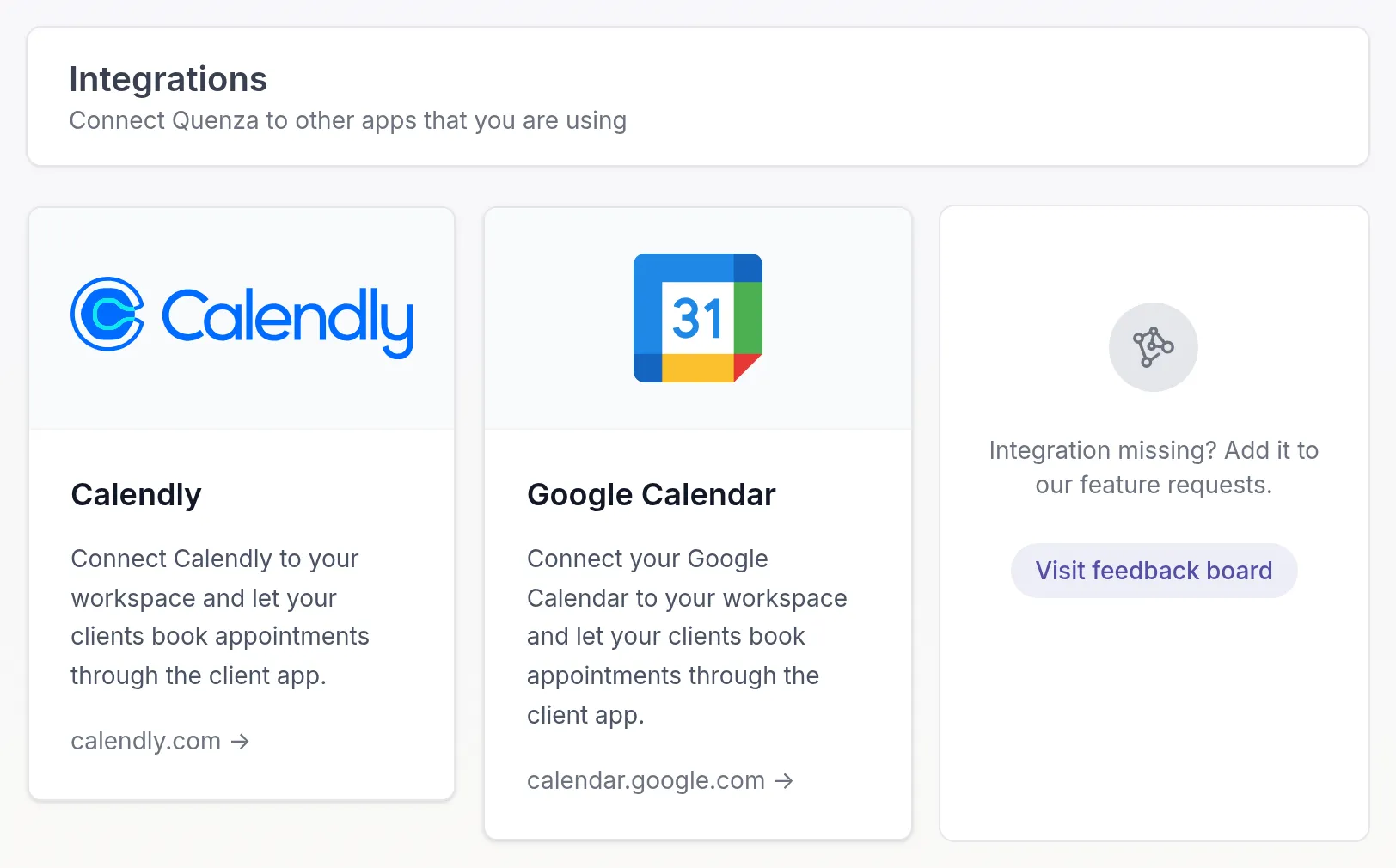
Section titled “Turn on Google Calendar for your workspace”Owners and Managers can do this. Click Integrations in the left menu and click the Google Calendar card.
Turn on Activate Google Calendar integration and click Save.
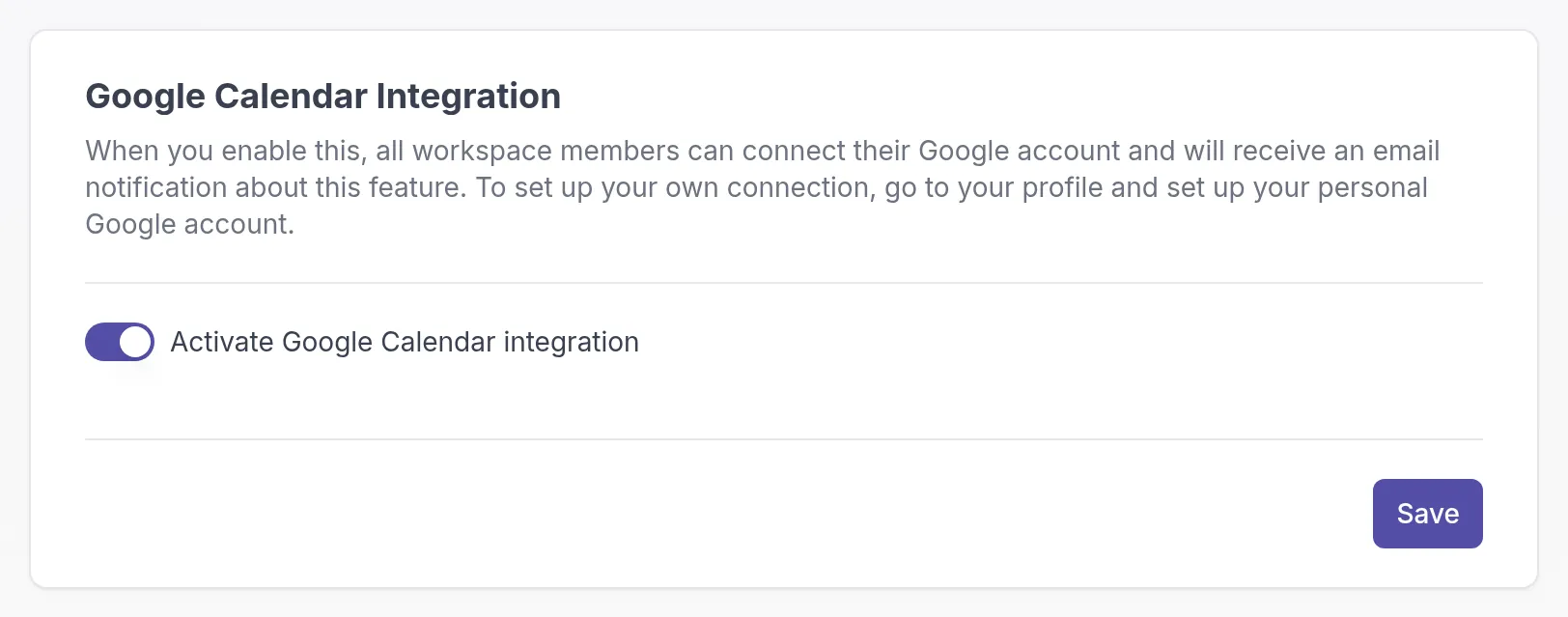
All professionals in your workspace get an email that the Google Calendar integration is available.
Create an appointment schedule in Google Calendar
Section titled “Create an appointment schedule in Google Calendar”Each professional needs their own appointment schedule in Google Calendar.
-
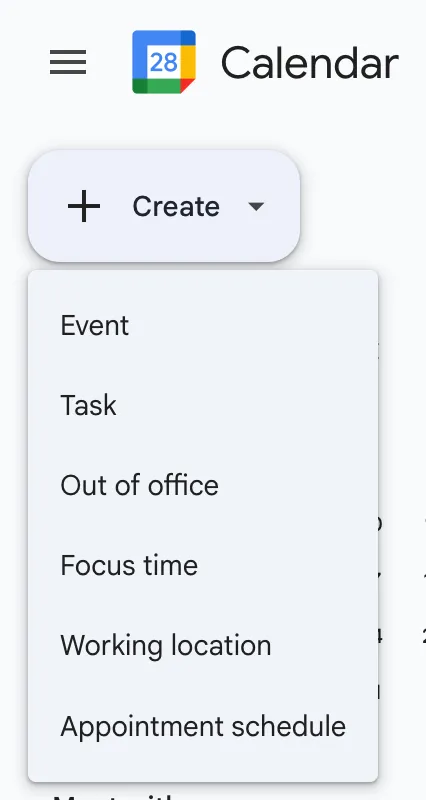
In Google Calendar, click Create and choose Appointment schedule.
-
Set up the schedule in Google: which slots clients can book and any other booking settings. Google also lets you connect Stripe to take payments for bookings.
-
Save the schedule.
Copy the embed code
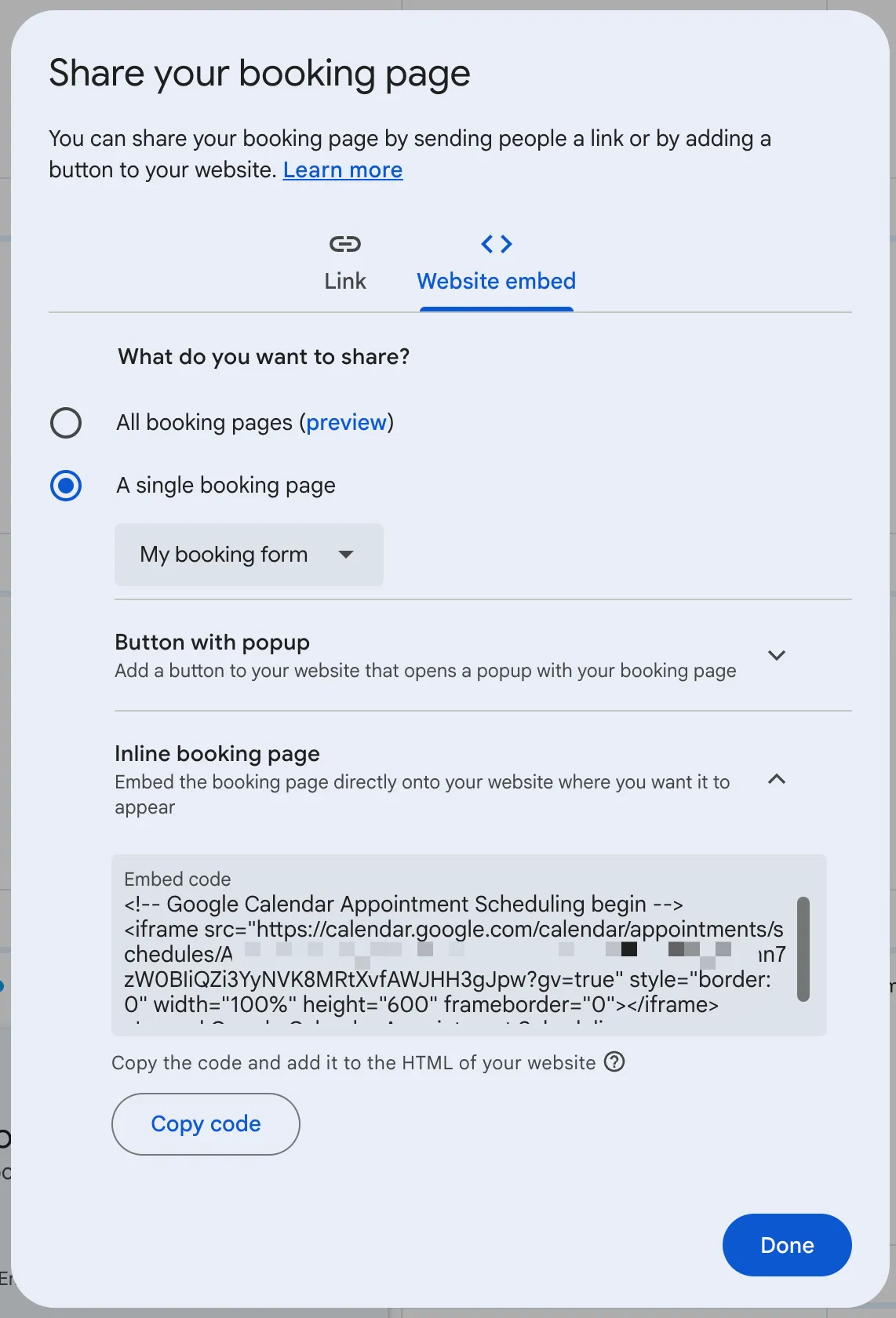
Section titled “Copy the embed code”- Open your appointment schedule in Google Calendar, click the three-dot menu at the top and choose More sharing options.
- Select Website embed, then Inline booking page.
- Click Copy code.
Connect your appointment schedule in Quenza
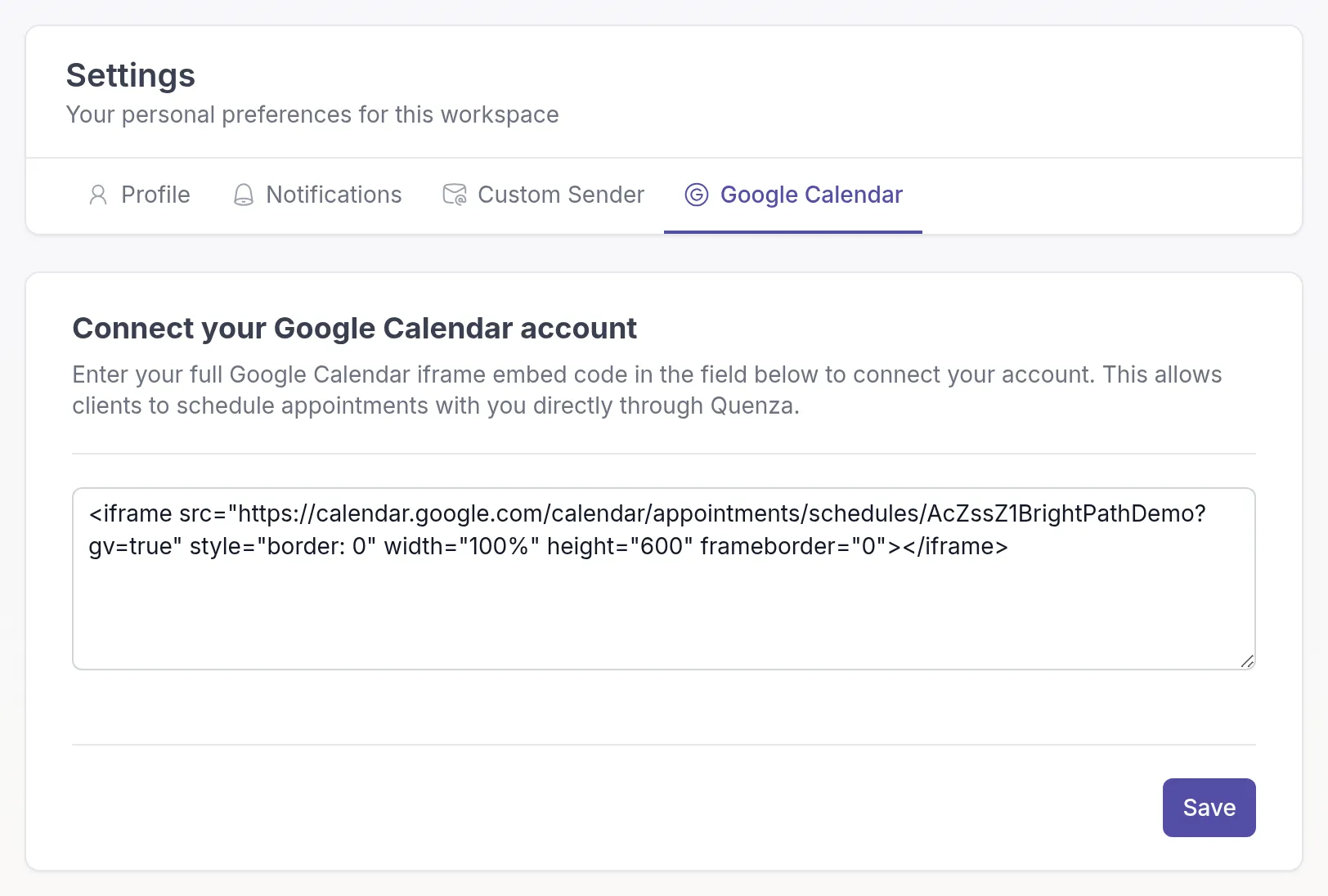
Section titled “Connect your appointment schedule in Quenza”- Click your workspace name at the top of the left menu and choose My settings.
- Go to the Google Calendar tab.
- Paste the full embed code you copied from Google.
- Click Save.
What your clients see
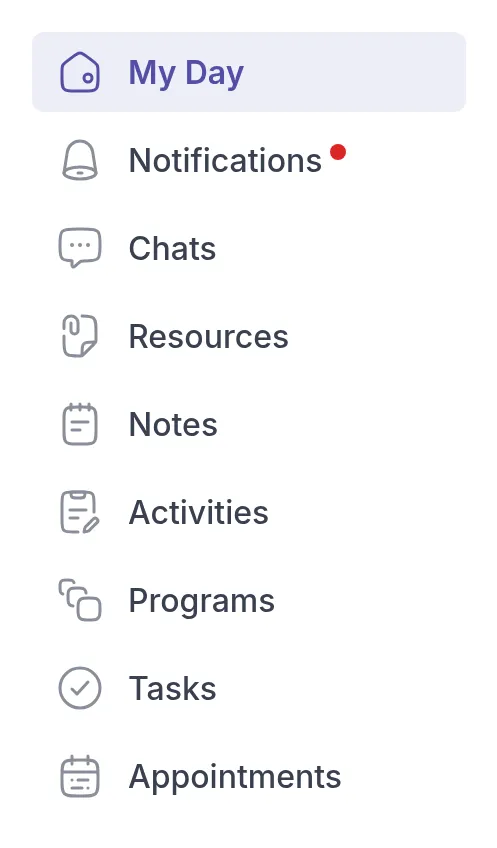
Section titled “What your clients see”Once you have connected your appointment schedule, your clients see Appointments in the client app menu. There they can pick one of your free slots and book it directly. If several of their professionals offer online scheduling, the client first chooses who to book with.
Bookings, cancellations and reminders are handled by Google Calendar, with the settings of your appointment schedule. Quenza doesn’t store the appointments.
Related
Section titled “Related”Was this article helpful?
Thanks for letting us know.
Thank you. We read every answer and use it to improve this article.