
Activities and programs
Program delivery
Set the delivery option for each activity in a program, trigger activities manually, and decide whether clients see upcoming steps.
Each activity in a program has its own delivery setting. It decides when the client receives that activity: together with the previous one, after the client completes the previous one, on a fixed schedule, or only when you send it yourself. Combining them lets one program run as a self-paced course, a step-by-step journey or a timed series.
For example, in Better sleep in 4 weeks, Sarah Bennett sets each week’s first activity to Fixed interval of 1 week. Emma Clarke gets the breathing exercise exactly a week after the sleep diary, whether or not she finished the diary, so the program keeps pace with their weekly sessions.
The delivery options
Section titled “The delivery options”- No delay: the activity arrives together with the previous one. Activities set to No delay at the start of a program all arrive when you send the program. Use it for a self-paced course, where clients choose their own order.
- After completing previous step: the activity arrives as soon as the client completes the previous one. Turn on Delay to wait a while first, for example 1 day so the client can let the last exercise sink in. Use it for a journey where each step builds on the one before.
- Fixed interval: the activity arrives a set time after the previous one was sent, whether or not the client completed it. Use it when timing matters more than completion, such as a weekly check-in or experience sampling in research.
- Manual trigger: the activity waits until you send it from the client’s profile. Use it when you want to choose the moment, for example after you have discussed the previous step in a session.
Delays and intervals take a number and a unit: Minutes, Hours, Days, Working Days, Weeks or Months.
Change an activity’s delivery
Section titled “Change an activity’s delivery”Open the program from Programs → Library. On the Content tab, click the clock icon on the activity, or click ⋮ on the activity and choose Delivery settings. Pick an option under Delivery, set the delay or interval, click Save in the dialog, and then save the program.
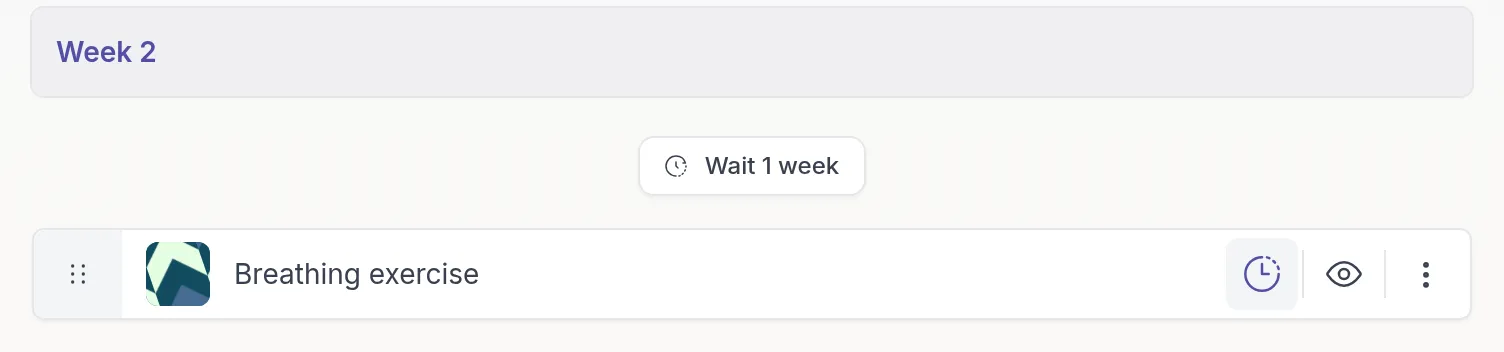
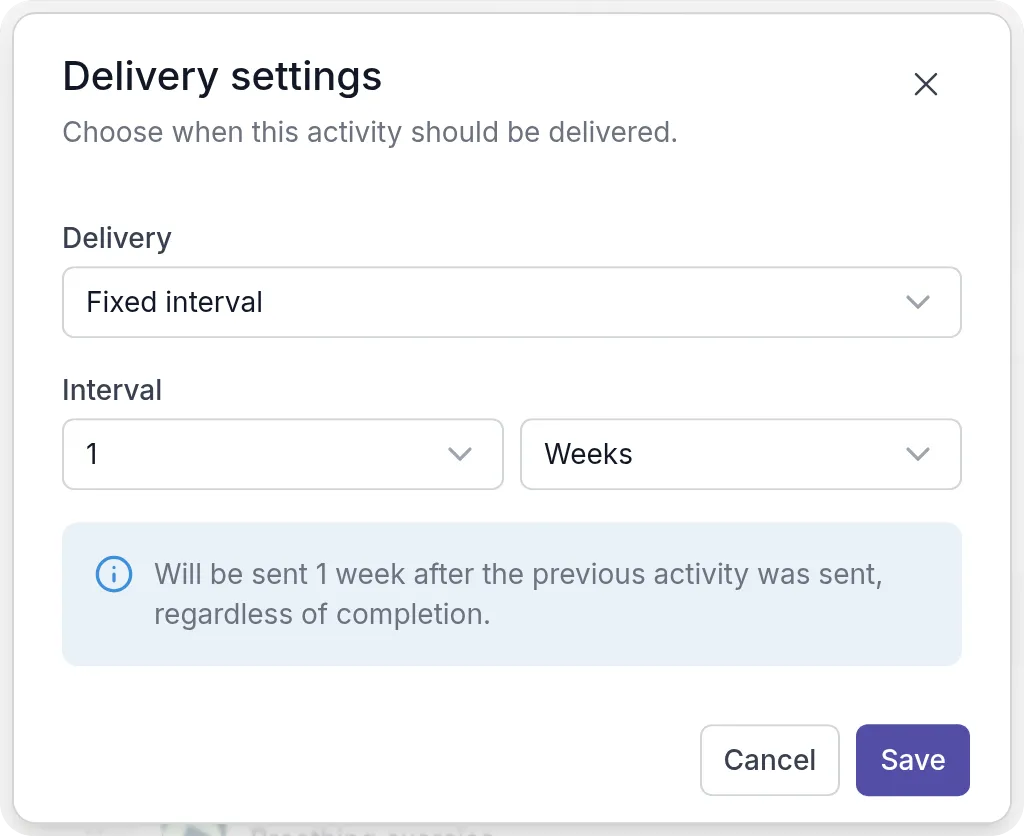
The dialog explains in one sentence what your choice means, so you can check it before you save. New activities start with No delay. The first activity of a program has no clock icon, because it arrives when you send the program.
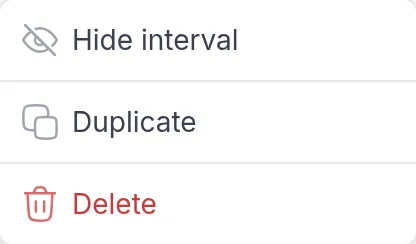
To see the delays between the activities in the builder, as in the picture above, open the menu (⋮) at the top right of the builder and choose Show interval. Hide interval gives a more compact list. This only changes your view, not the delivery.
Send a manually triggered activity
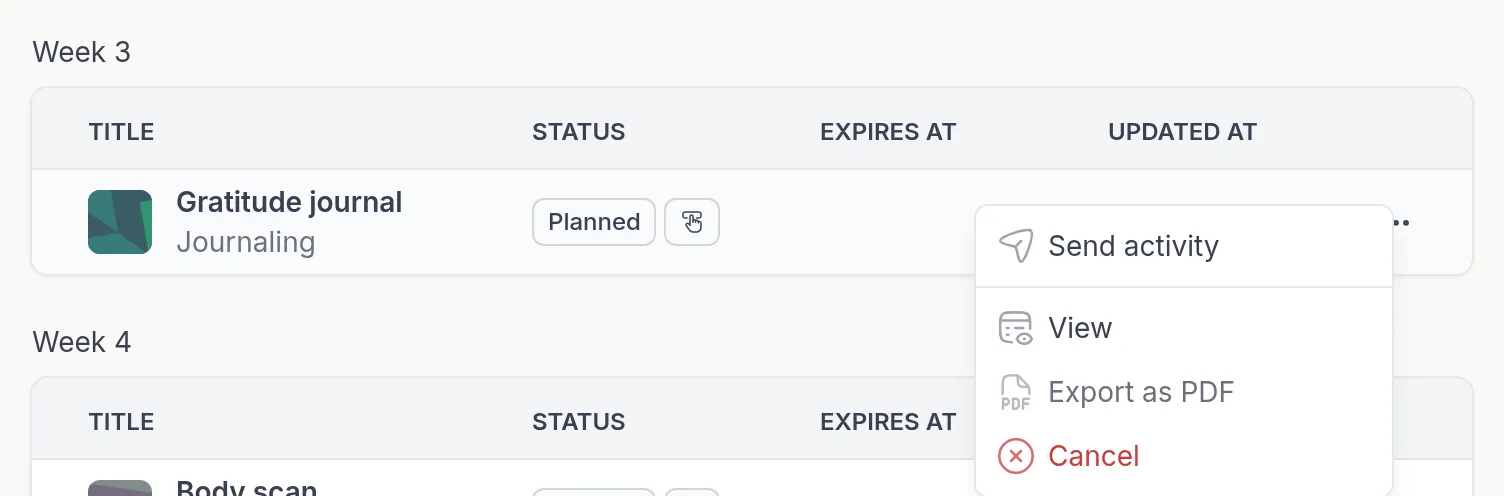
Section titled “Send a manually triggered activity”Go to Clients, open the client, open the Programs tab and click the program. An activity that waits for you has the status Planned with a hand icon. Click ⋯ next to it and choose Send activity. The client receives the activity right away.
Let clients see what is coming
Section titled “Let clients see what is coming”When you send a program, the Settings step has a Client Activity View setting:
- Show all upcoming activities on: the client sees the whole program. Activities that are not delivered yet are greyed out until they become available. Useful when clients like to know what is ahead, as in a course.
- Show all upcoming activities off: the client only sees activities once they arrive. Useful when you want the client to focus on the current step, or reveal the program bit by bit.
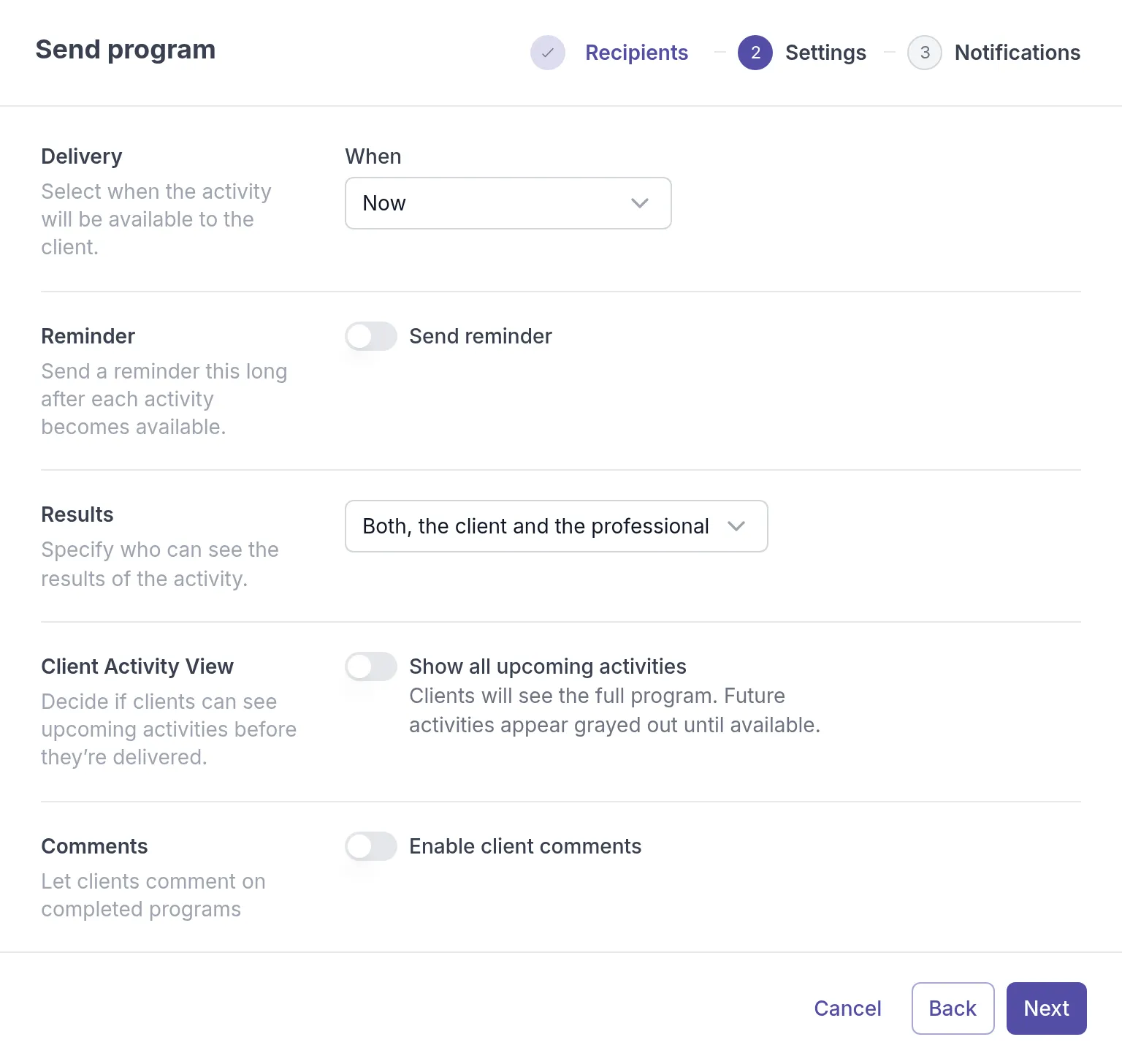
See Send a program for the other settings in this dialog.
Was this article helpful?
Thanks for letting us know.
Thank you. We read every answer and use it to improve this article.