
Activities and programs
Activity layout
Use manual page breaks and section pages to decide what your client sees on each page of an activity.
By default, your client sees one element per page: one question, one piece of text, then Next. That keeps longer activities calm and focused. Sometimes you want something else, such as a short explanation and its question on the same page, or a clear start for each part of a longer worksheet. Two layout settings handle that, and you can use them separately or together.
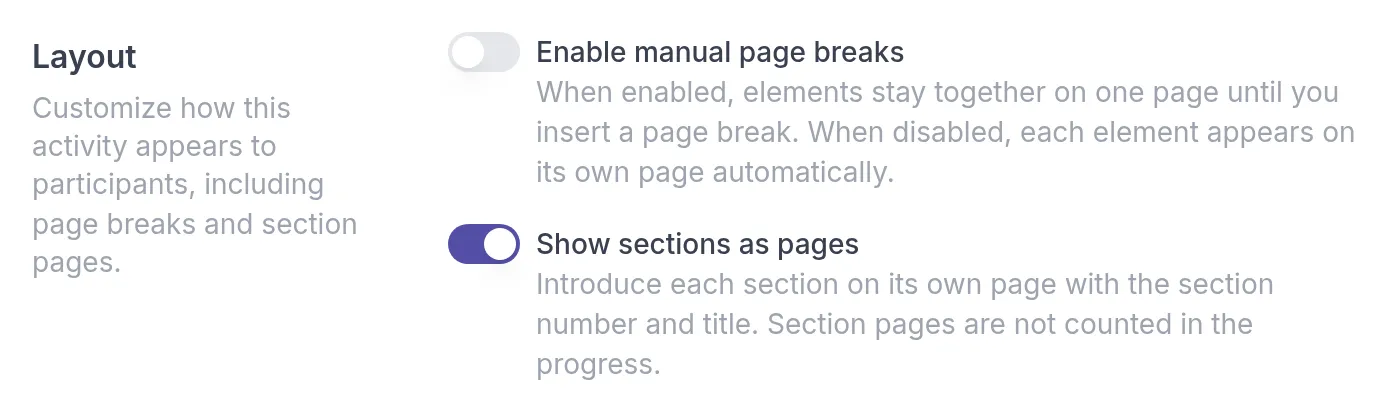
Both are on the activity’s Settings tab, under Layout. Changes apply once you click Save.
Put several elements on one page
Section titled “Put several elements on one page”Turn on Enable manual page breaks when elements belong together. For example, in a thought record Sarah Bennett puts the short explanation of thinking traps on the same page as the question “Which thinking trap do you recognise?”. The client can read and answer without paging back and forth.
With the setting on, elements stay together on one page until the next page break. On the Content tab, add a Page break element where a new page should start. A new section always starts a new page as well.
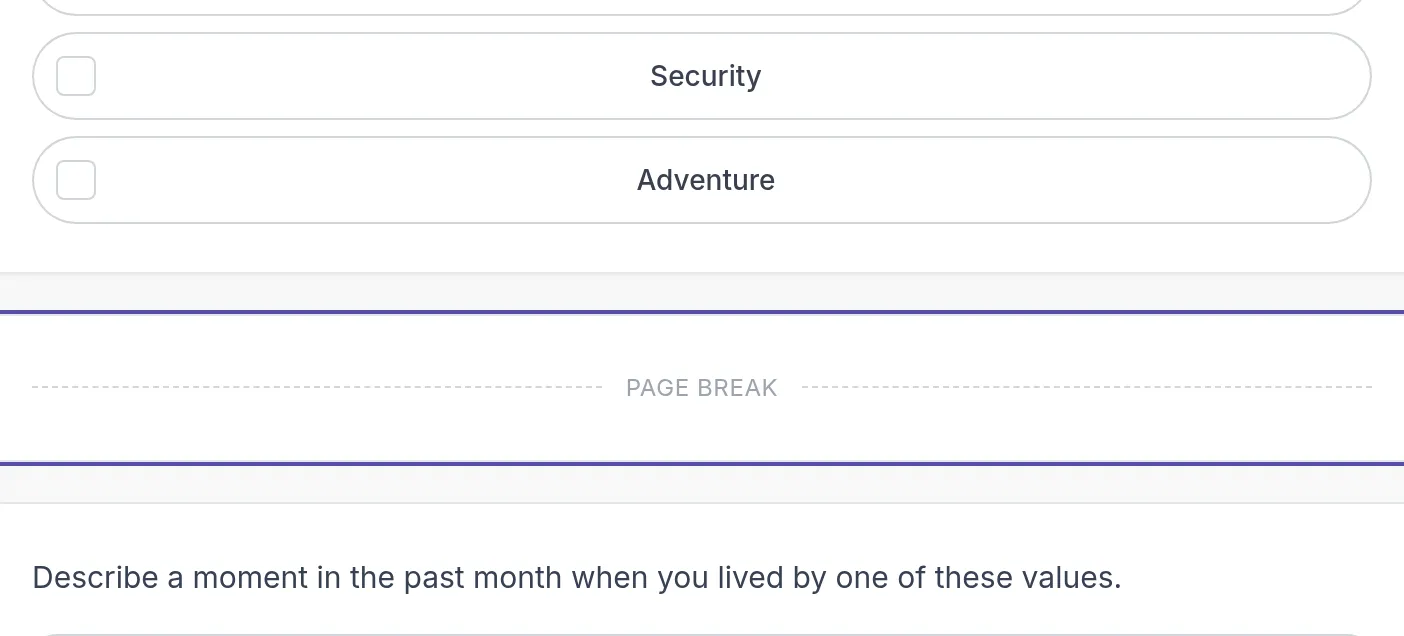
The Page break and Divider elements can only be added while manual page breaks are on. A divider draws a line between elements on the same page. If you turn the setting off again, every element goes back to its own page, and page breaks and dividers are ignored.
How progress is counted
Section titled “How progress is counted”Progress is based on elements, not pages. Say an activity has 5 elements on 3 pages: 3 on the first page and 1 on each of the others. When the client finishes the first page, the progress bar shows 60 percent.
Open each section with its own page
Section titled “Open each section with its own page”Turn on Show sections as pages to give each section an intro page with its number and title, such as “Section 1” and “Your values”. Numbered circles at the top show which sections are done and which comes next. This helps clients find their way through a longer activity, such as an intake with several parts.
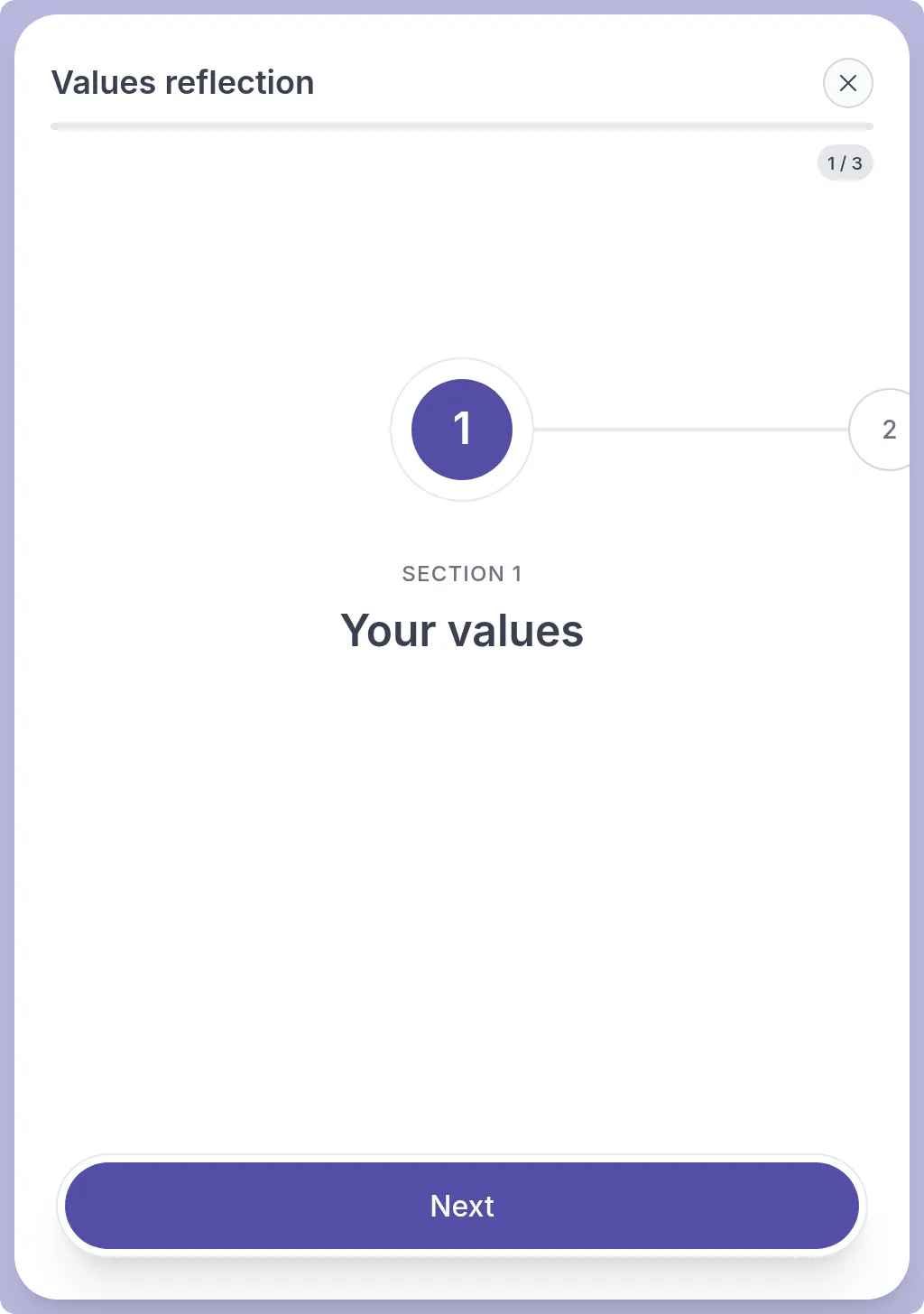
Section pages are only shown for sections that have a title. They do not count towards the progress, so adding them does not change the client’s completion percentage.
To add sections to an activity, see Build an activity.
Was this article helpful?
Thanks for letting us know.
Thank you. We read every answer and use it to improve this article.