
Team and workspace
Workspace settings
Find the Administration pages where you rename your workspace, manage your team, billing and integrations, and see your workspace statistics.
A workspace is your practice in Quenza: your clients, content, team and settings, with one subscription. The Administration section of the sidebar is where you run it: its name, your team, billing, branding and connections to other tools.
The workspace Owner and Managers see all of it. A Billing Manager only sees Statistics and Billing. Members don’t see the Administration pages; they work with clients and content. See Roles and permissions.
Your own preferences, such as your profile and notifications, are not here but under My settings in the workspace menu. See Edit your profile.
Rename your workspace
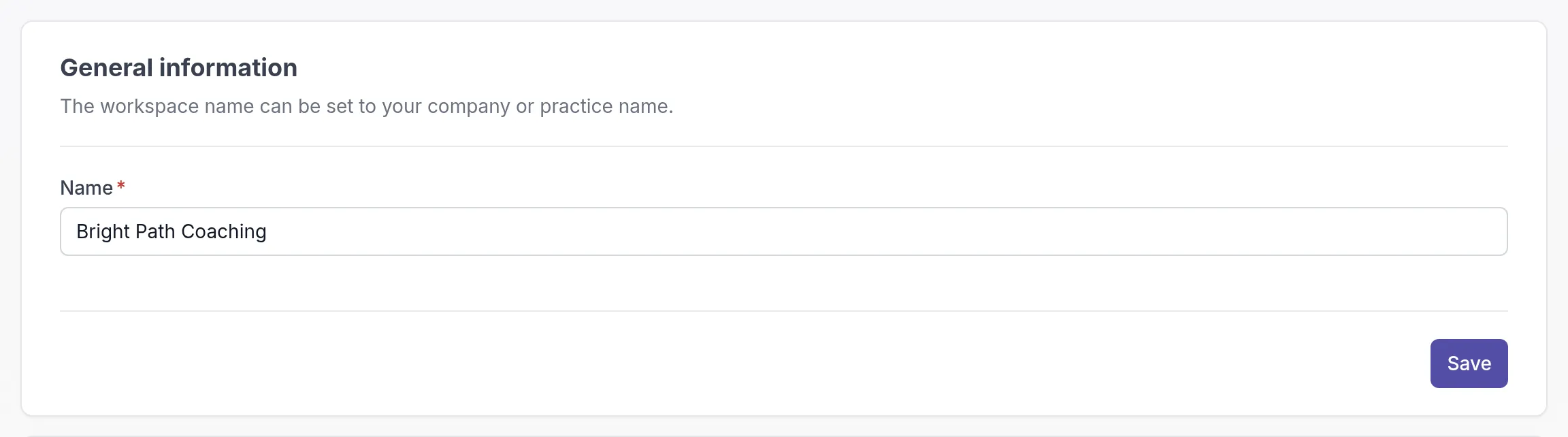
Section titled “Rename your workspace”Your workspace name is shown at the top left of the sidebar, and your clients and colleagues see it too. Use your company or practice name, for example “Bright Path Coaching” rather than “Sarah’s workspace”.
- In the sidebar under Administration, click Workspace → General.
- Under General information, change the Name.
- Click Save.
What you find under Administration
Section titled “What you find under Administration”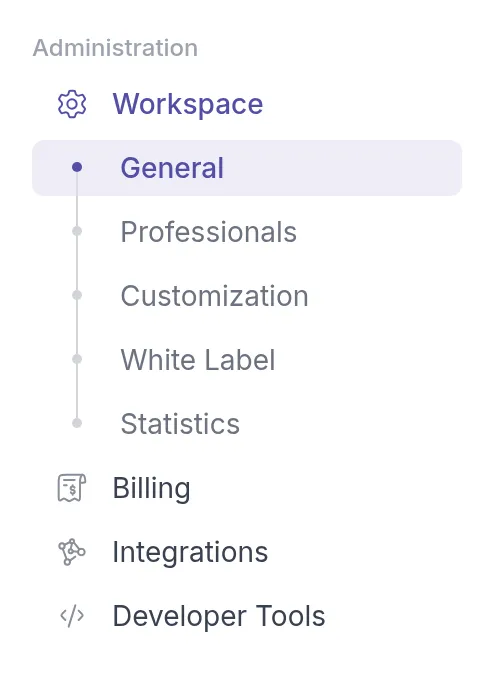
- Workspace → General: the workspace name, and the option to delete the workspace.
- Workspace → Professionals: everyone in your team, with their status and the date they were added. See Add team members and Suspend and reactivate.
- Workspace → Customization: your own wording in the client app and your email templates. See Rename “My professional” in the client app and Create and use email templates.
- Workspace → White Label: your logo, sender address and domain. See Add your logo, Send emails from your own address and Use your own domain for the client portal.
- Workspace → Statistics: totals for your clients and activities. See Workspace statistics.
- Billing → Subscription and Billing → Invoices: your plan, payment details and invoices. See Compare plans and pricing and View invoices and understand taxes. Billing is only available in the browser, not in the mobile app. See Mobile app.
- Integrations: connect Calendly or Google Calendar. See Let clients book appointments with Calendly.
- Developer Tools: webhooksWebhookA message Quenza sends to another app as soon as something happens, such as a new client, so that app can act on it. and API tokens. See Get started with the Quenza API.
Delete your workspace
Section titled “Delete your workspace”Only the workspace Owner can delete a workspace. Deleting it permanently removes all its data, including professionals, clients, activities and programs. See Delete your workspace or account.
Was this article helpful?
Thanks for letting us know.
Thank you. We read every answer and use it to improve this article.