
Work with clients
Resources
Keep all files and links in your workspace in one list, link them to clients and groups, and choose who can open them.
The Resources page is your workspace’s library of files and links: every worksheet, handout, audio exercise and link that you and your colleagues have added. Use it when one resource is meant for several people, for example a sleep hygiene handout you give to every client who struggles with sleep, or the schedule of a group.
To add a file or link for one client from their profile, see Share files and links.
Context and sharing
Section titled “Context and sharing”Each resource can belong to clients and groups. This is its Context. A resource that belongs to a client also shows on that client’s Resources tab, so it is part of their records.
Belonging to a client does not mean the client can open it. That is Sharing, and you decide it per client or group. This way you can keep a resource with a client’s records and share it later, when it fits the sessions. Sharing with a group gives every member of the group access.
The Resources page
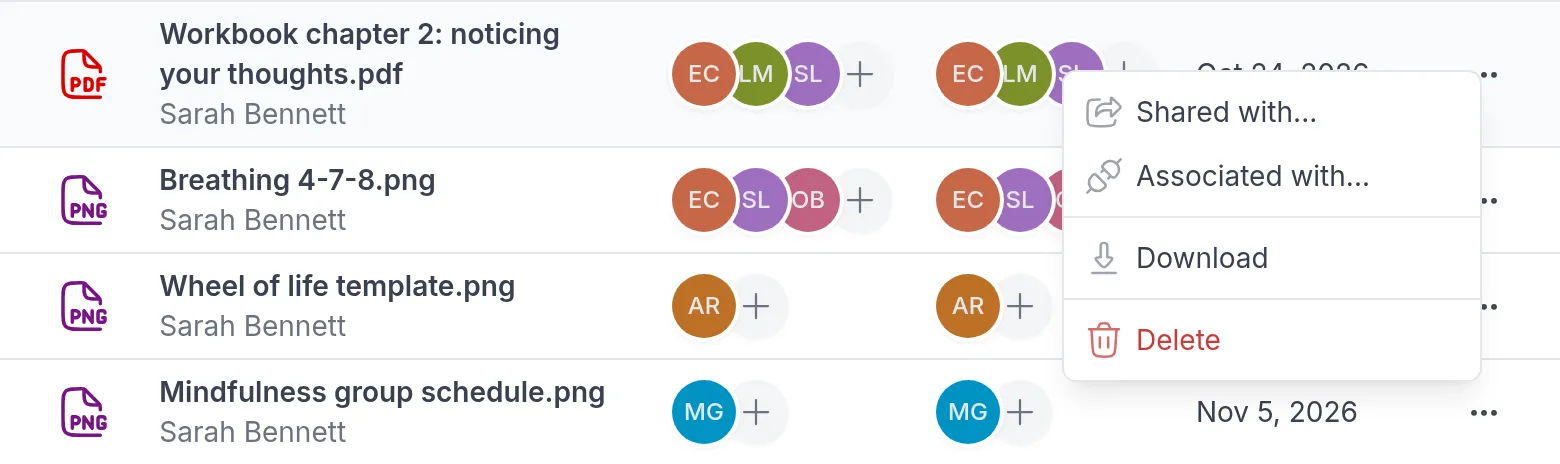
Section titled “The Resources page”Click Resources in the left menu. For each resource the list shows its Type (an icon such as PDF, MP3 or a link), the Filename with the professional who added it, who it is Shared with, its Context, and when it was created. Use Search to find a resource by name.
Add a resource
Section titled “Add a resource”Click + Resource and choose File or Link:
- For a file, click Upload a file or drag a file onto the upload area. A file can be up to 25 MB.
- For a link, enter a Label, such as “Video: introduction to mindfulness”, and paste the web address into URL.
Under Context, search for the clients and groups the resource belongs to; you can select several. Turn on Shared for each one who should be able to open it, and click Save.
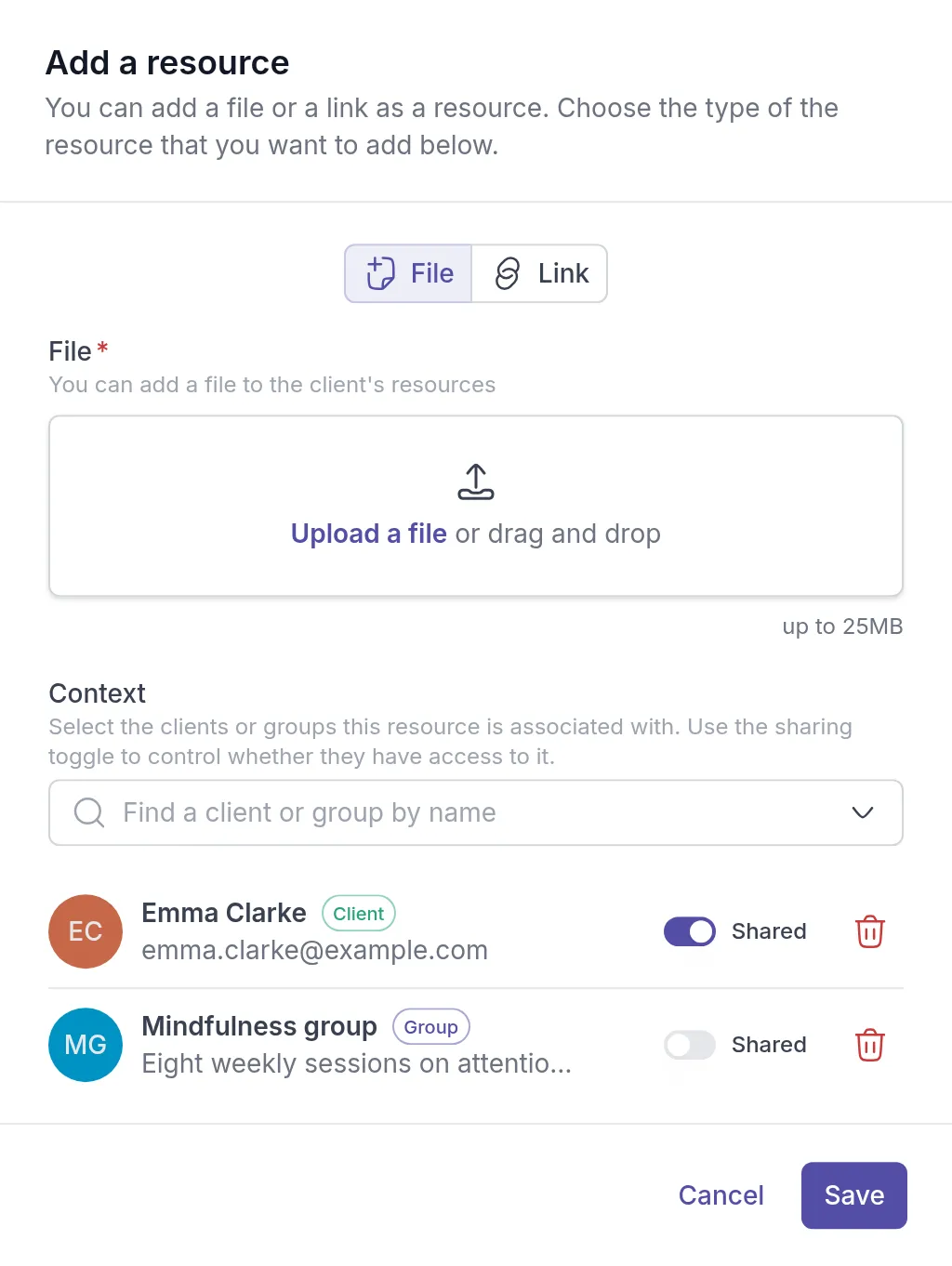
You can upload documents, spreadsheets, presentations, images, audio, video and archives. Links can point to any web page, such as a YouTube video or a file in Google Drive or Dropbox.
Change who can open a resource
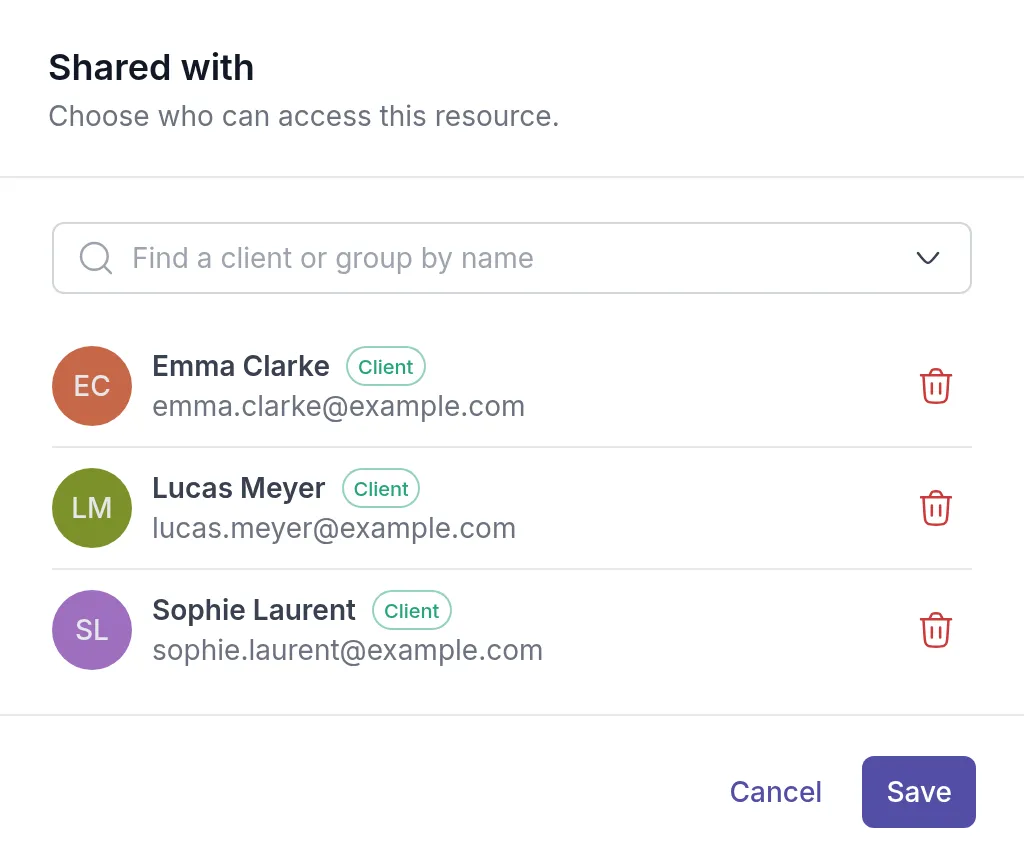
Section titled “Change who can open a resource”Click the avatars or the + in the Shared with column, or click ⋯ and choose Shared with…. Add or remove clients and groups and click Save.
Clients you share a resource with get a notification. Anyone you add here is also added to the context. If you remove someone, they can no longer open the resource, but it stays in their context.
Change the context
Section titled “Change the context”Click the avatars or the + in the Context column, or click ⋯ and choose Associated with…. Add or remove clients and groups and click Save. Clients and groups you remove here also lose access to the resource.
Edit, download or delete a resource
Section titled “Edit, download or delete a resource”Click ⋯ next to a resource:
- Edit changes a link’s label or URL. This is only available for links; you can also click the link in the list.
- Open opens a link. Download downloads a file.
- Delete deletes the resource. Confirm with Delete resource.
Files and links from your clients
Section titled “Files and links from your clients”Clients can add their own files and links in their app, under Resources, and choose whether to keep each one to themselves or share it with their professionals. When a client shares something, all professionals assigned to them can open it and get a notification.
These resources appear on that client’s Resources tab, not on the Resources page. You can open or download them, but only the client can edit, share or delete them. Resources a client keeps to themselves are not visible to you.
For what clients see and do, see Open files and links shared with you.
Was this article helpful?
Thanks for letting us know.
Thank you. We read every answer and use it to improve this article.