
Get started
Quenza Classic
Learn how Quenza Classic and the new Quenza differ, and how to ask our team to move your account and content to the new Quenza.
If you have used Quenza for a while, you may be on Quenza Classic, the original version of Quenza. The new Quenza is a separate product, built from scratch. This page explains how the two relate and how to move across when you are ready.
Two separate products
Section titled “Two separate products”Quenza Classic and the new Quenza are not two versions of the same app. They run side by side:
- Separate apps. The new Quenza runs at my.quenza.com and has its own mobile app, called Quenza, for you and your clients. The app called Quenza Classic is for the old platform. See Mobile app.
- Separate logins. You sign in to each one separately. An account on one does not give you an account on the other.
- Separate subscriptions. A Quenza Classic subscription does not cover the new Quenza, and the other way around.
You can use both at the same time. Most people close their Classic account once they have moved across and settled in, so they don’t pay for two subscriptions.
Why there is a new Quenza
Section titled “Why there is a new Quenza”Quenza Classic was built to do one thing well: deliver exercises and programs to clients. Practitioners asked for much more, such as chat, groups, teams, branding and integrations, and the original platform was not designed for that. So we built the new Quenza on a completely new foundation. It is faster, and new features are added to the new Quenza first. See What’s new in Quenza.
Quenza Classic is still supported. There is no deadline to move: you move when you are ready.
Move to the new Quenza
Section titled “Move to the new Quenza”You don’t move anything yourself. You tell us you are ready, and our team moves your account across for you.
- Start a free trial of the new Quenza, if you don’t have an account there yet.
- In Quenza Classic, go to Settings and open Migration in the submenu.
- Fill out the form and submit it.
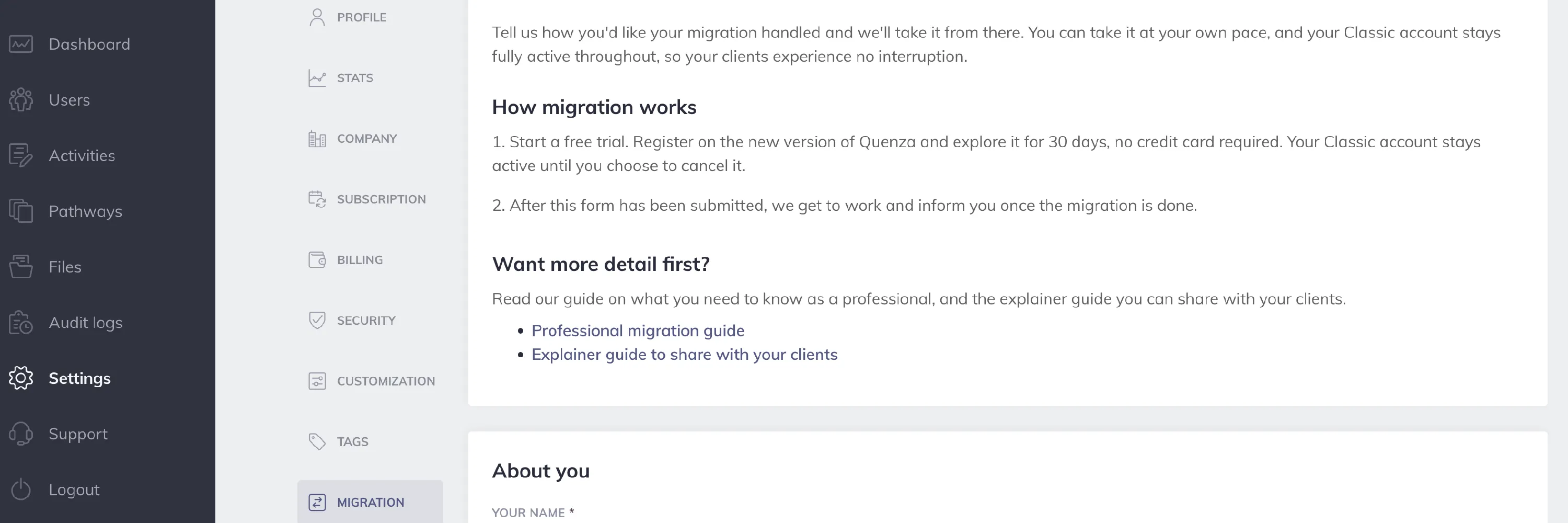
We let you know when the migration is done. You can keep using Quenza Classic the whole time.
What to expect
Section titled “What to expect”- Your content comes across. Your clients, activities, programs and other account content move to the new Quenza. You don’t rebuild anything.
- No downtime. You and your clients can carry on as normal while the migration runs.
- You choose your plan. After migrating, you choose one of the current plans. You are not tied to your Classic plan. See Compare plans and pricing.
- Your Classic account is yours to keep or close. Leave it active, or close it once you are settled in.
- Your clients take a few small steps. They download the new app or sign in at my.quenza.com. You can share the client migration guide with them.
- Something looks wrong? Contact our support team. Your Classic data is not deleted straight away, so we can make adjustments.
For all details, read the Quenza Classic migration guide.
Was this article helpful?
Thanks for letting us know.
Thank you. We read every answer and use it to improve this article.