
Manage clients
Portal access
Pause a client's access to the client portal, permanently or until a set date, without archiving them or losing any of their data.
Turn off a client’s access to the client portalClient portalThe website where your clients sign in to see their activities, programs, tasks, files and chats. The Quenza app shows the same. for a while, without archiving them. The client stays in your active client list with all of their data, and you keep working with their notes and records. Owners, Managers and Members can do this; see Roles and permissions.
When to pause access
Section titled “When to pause access”Pausing access is for a break in the work, not for the end of it:
- A client takes a planned break, for example over the summer, and you want the portal to stay quiet until you start again.
- You agreed to work only in sessions for a few weeks and do not want new activities or messages in between.
- Payment is overdue and you want to hold access until it is settled.
For example, Amara Nwosu goes on parental leave until the end of the month. Sarah Bennett sets her access to Disabled until a date and picks the date she returns. Amara’s access comes back on that day by itself.
When your work with a client has ended, archive them instead.
Change a client’s portal access
Section titled “Change a client’s portal access”-
Go to Clients.
-
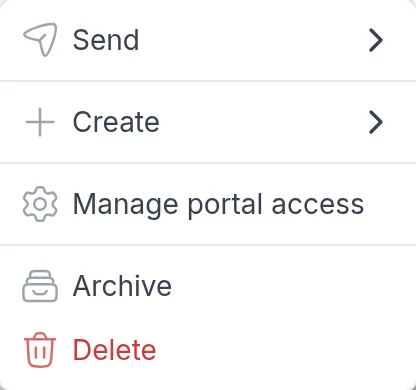
Click ⋯ at the end of the client’s row and choose Manage portal access. The same option is in the ⋯ menu at the top right of the client’s page.
-
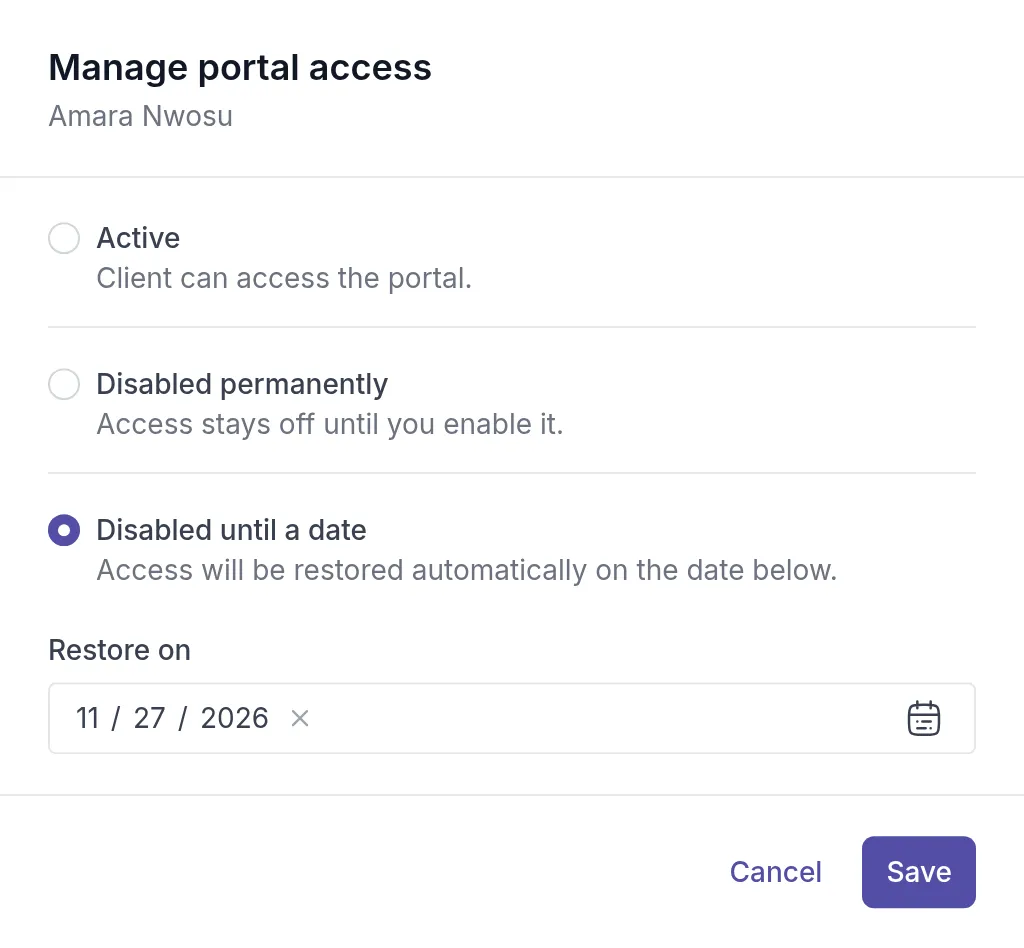
Choose one of the options:
- Active: the client can use the portal.
- Disabled permanently: access stays off until you set it back to Active.
- Disabled until a date: pick the day under Restore on. Access comes back automatically on that day. The earliest date you can pick is tomorrow.
-
Click Save.
You cannot pause access for your demo clientDemo clientA client in your own name that only you can see. Send it your content to see exactly what your clients will see. or for an archived client.
See who has access
Section titled “See who has access”The Portal column of your client list shows each client’s access at a glance: a green screen icon when access is active, a red icon when it is off, and a red clock when it is off until a date. Hover over the icon to see the date. In the grid view, each card shows Portal access with Enabled or Disabled.

What the client sees
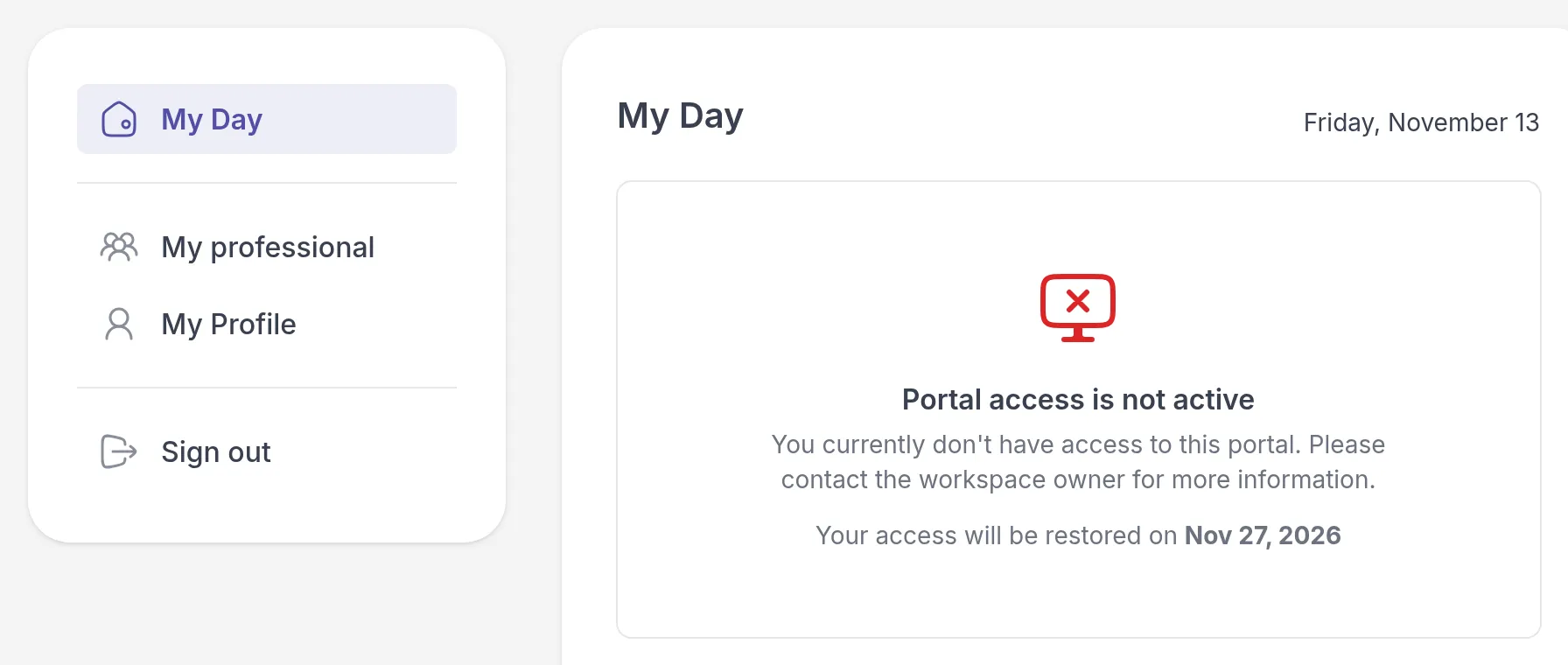
Section titled “What the client sees”When the client signs in, they only see My Day, My professional and My Profile. My Day shows Portal access is not active and asks them to contact the workspace owner. If you chose a date, it also tells them when their access will be restored.
While access is off:
- The client cannot open their activities, programs, tasks, notes, resourcesResourcesYour workspace's library of files and links, such as worksheets, handouts and audio exercises, which you link to clients and groups. or chat.
- Quenza sends the client no notifications, so they do not get emails about new content.
- Nothing is deleted or canceled. When access returns, everything is there again.
Turn access back on
Section titled “Turn access back on”Open Manage portal access again, choose Active and click Save. The client can sign in and use the portal straight away.
Was this article helpful?
Thanks for letting us know.
Thank you. We read every answer and use it to improve this article.